The Panel Wizard Instead of a Raw INI File
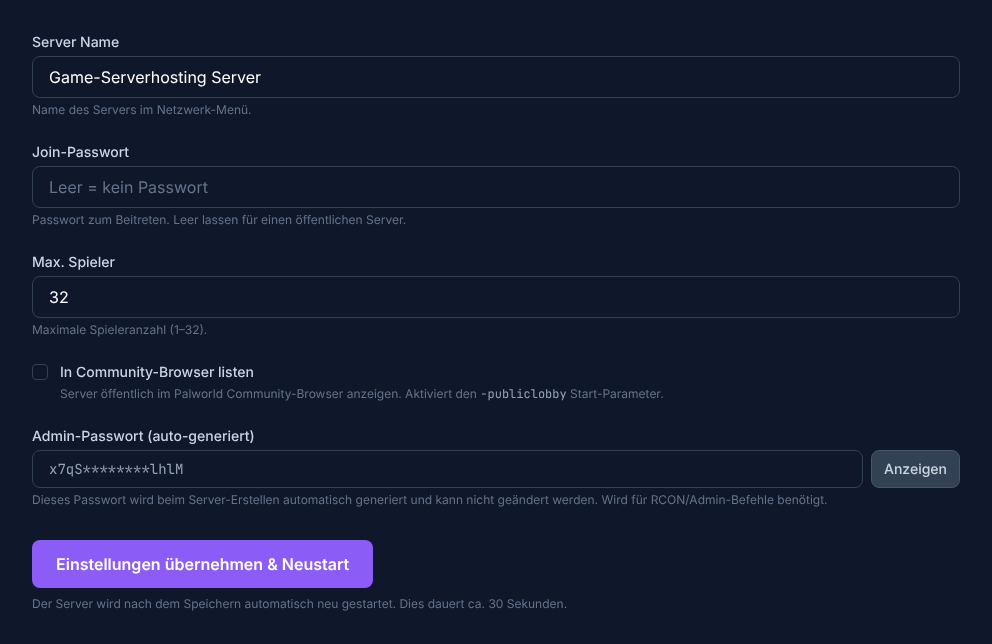
Palworld servers can be configured through a raw PalWorldSettings.ini file, but with game-serverhosting you never have to touch that file. Instead, the PalworldSettingsWizard is available directly in the panel: a clear form with the most important fields.
The 5 Configurable Fields
The wizard provides exactly these five fields:
| Field | Meaning | Editable? |
|---|---|---|
| ServerName | Name of your server (appears in the community browser) | Yes |
| ServerPassword | Empty = public joining; set = password required | Yes |
| ServerPlayerMaxNum | Max. simultaneous players (1–32) | Yes |
| COMMUNITY_SERVER | Toggle: list server in the public Palworld browser | Yes |
| AdminPassword | For admin commands in-game; generated automatically | Read-only |
Setting ServerName
The server name appears in the community browser and in your friends' server list. Choose a unique, easy-to-read name.
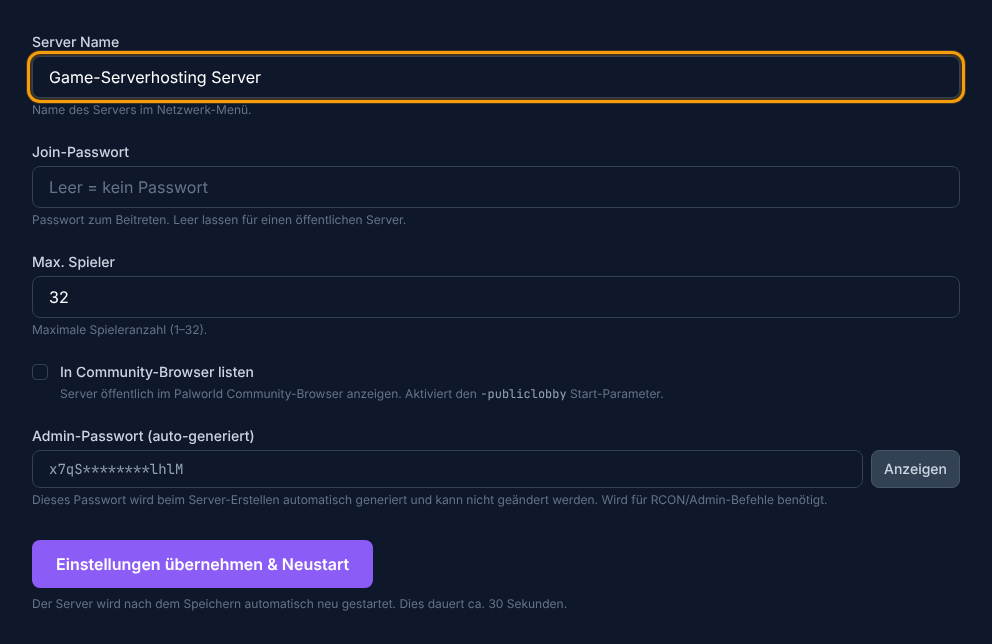
Change the name, click Save – the server will then restart automatically (~30 seconds). During the restart, it will be briefly unavailable.
Setting the Max. Player Count
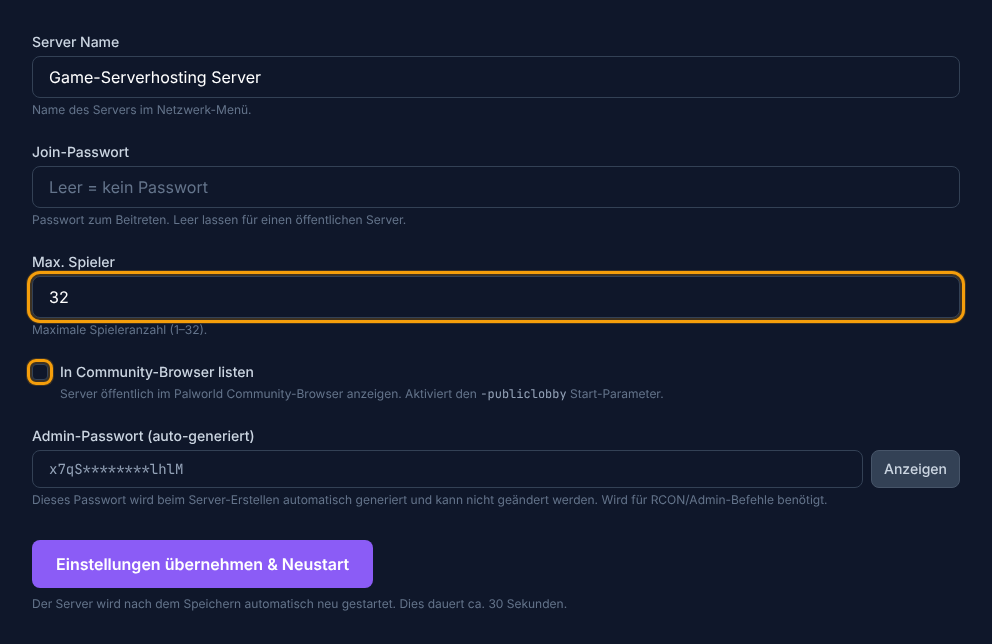
The ServerPlayerMaxNum field limits the number of simultaneously active players on your server. The maximum allowed value in the panel is 32. For small groups (2–8 players), 8–12 GB RAM is already enough.
COMMUNITY_SERVER Toggle
If you enable this toggle, your server will be listed in the public Palworld community browser. Anyone can find and join it there (as long as no password is set). Without the toggle, the server is only reachable via direct IP+port.
What the Panel Does NOT Configure
The PalWorldSettings.ini contains many other fields such as ExpRate, PalCaptureRate, Difficulty, or DayTimeSpeedRate. These are not accessible through the panel wizard – they can only be changed by directly editing the INI file through the file manager. For getting started, the wizard covers all essential settings.
Summary
With the PalworldSettingsWizard in the panel, you configure the five central fields of your server – without INI files or FTP. Change ServerName, password, and max. players, save, and wait for the restart. Next, it's worth taking a look at the multiplayer guide: how do your friends join, and what does the community toggle mean in detail?