A Palworld backup protects your world, player progress, and Pal data before updates, configuration changes, or experiments can go wrong. At game-serverhosting, you create the backup directly in the panel, download it as an archive, and restore it through the restore function when needed. The key is knowing beforehand where Palworld saves data and how to check the result.
Where Palworld Stores the World
Your Palworld server stores save data under the path /Pal/Saved/SaveGames/. This area contains the world files, player inventories, and Pal data. When you create a full server backup, this folder must be included. Otherwise, you may back up configuration or server files, but not reliably protect the actual progress.
The official Palworld documentation describes running a dedicated server through the PalServer folder and starting it with PalServer.exe or PalServer.sh: official Palworld dedicated server documentation. For everyday hosting backups, the main takeaway is this: Do not treat server files and SaveGames as interchangeable areas. Your world is not stored in a single setting, but in multiple files and subfolders.
Backups are especially useful before Palworld updates, major changes to server settings, mod tests, world migrations, or file manager edits. If you also adjust server values, the guide on optimizing Palworld server settings helps you prepare those changes in a controlled way.
Requirements Before the Backup
Make sure you have access to your game-serverhosting dashboard and select the correct Palworld server. If you run multiple instances, check the server name, slot configuration, and latest activity so you do not accidentally back up the wrong server.
Do not plan backups only once something is already broken. A backup made right before risky changes is usually more valuable than an old backup that merely exists. If you adjust ServerName, password, or player values in the panel wizard, back up the world first and then use the guide configuring Palworld server settings if needed.
Step 1: Open the Server Dashboard
Open the dashboard and click your Palworld server. In ready status, you will find the management options for files, backups, and start or stop actions.
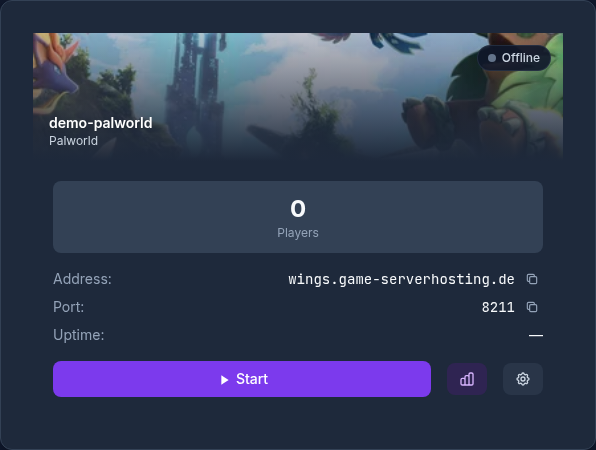
Briefly check whether players are currently online. A panel backup can technically be created while the server is running, but a quiet moment is cleaner: It reduces the risk of an inconsistent state being created during an important action. For especially important worlds, it is best to announce the backup to players beforehand.
Step 2: Create a Backup
On the server detail page, switch to the Backups area. Click Create backup. The panel archives the entire server instance, including all files under /Pal/Saved/SaveGames/.
The process takes anywhere from a few seconds to a few minutes depending on the world size. During this time, you should not make any parallel risky changes, so do not upload mods, replace SaveGames, or overwrite configurations. Wait until the panel shows the backup as completed.
Step 3: Download the Backup and Store It Externally
After creation, the backup appears in the list with date and time. Click Download to save the archive locally. Keep it somewhere independent of the game server, for example on your computer, an external drive, or separate cloud storage.
Naming helps later: When storing the file, ideally add the server name, date, and reason, such as palworld-backup-before-update-2026-07-22.zip. Do not invent version information; only note what you know for sure. If you run multiple Palworld servers, this prevents mix-ups during restore.
Step 4: Restore the World
If you want to restore a world from a backup, select the matching backup entry and use the Restore function. If the archive is no longer in the panel, upload it first if your panel offers that option.
During restore, the server is stopped, the saved files are replaced, and the server is then restarted. Plan a maintenance window for this, because players should not continue playing during the process. Also make sure you select the correct backup: A restore overwrites the current state of the world with the state from the archive.
Check the Result
After the restart, connect to the server and check the world itself first: spawn point, buildings, storage, base positions, and visible Pals should match the expected state. Then check at least one player’s progress if possible. If inventory, level, or guild status do not match, stop making further changes and verify that you restored the correct backup.
If you also notice performance problems after the restore, the backup is not automatically the cause. World size, player count, and server settings can also play a role. For context, use the separate guide on Palworld server performance and RAM.
Troubleshooting
The Backup Does Not Appear in the List
First wait until the process in the panel is complete, then reload the view. If no entry still appears, do not attempt a restore on suspicion. Check whether you are on the correct server, and only repeat the backup once it is clear that no backup job is still running.
The World Is Not the Expected One After Restore
Usually, the wrong backup point was selected or an archive from another server was used. Compare the date, time, and reason for the backup. If you have several backups, do not randomly restore different archives one after another. Decide based on the known times of changes instead.
Player Progress Is Missing or Looks Outdated
Palworld stores world and player data in the SaveGames area. If only part of the files was replaced, an inconsistent state can occur. For normal restores, use the full panel restore function instead of manually replacing individual files.
Settings Behave Differently Than Expected After Restore
A restore resets files to the state of the backup. If you changed settings after the backup, those changes may have disappeared again. Document important adjustments separately so you can apply them again in a controlled way after a restore.
Verification, Limits, and a Safe Rollback Path
The guide “Back Up a Palworld World – Create, Download & Restore a Backup” applies to the server type described in the article and the version state visible at the time of verification. Menu names, available versions, mod or plugin compatibility, and required resources may differ after updates. Therefore, do not apply values to another game, loader, or server version without checking them first.
Before changing the world, save data, configuration, or extensions, create a backup of the affected files. Then change only one related step at a time and test it with the same client and server version you intend to play with later.
| Checkpoint | Expected Result | Abort and Rollback Path |
|---|---|---|
| Server start | The server reaches the ready state without new error messages. | If startup errors occur, revert the change and restore the latest backup. |
| Connection test | A test account can connect through the address shown in the panel. | If version or connection errors occur, compare version, port, and firewall rules again. |
| Function test | The specific changed function works without damaging existing world or game data. | If side effects occur, stop the server and restore the backed-up files. |
A successful individual test is not a performance or availability guarantee. World size, mods, plugins, player count, network route, and simultaneous load can change the result. Document the version, change, and test result so you can understand later deviations.
FAQ
How Often Should I Back Up My Palworld World?
Back up at least before updates, mod tests, major configuration changes, and planned migrations. For active servers with daily progress, more frequent backups are useful, but the exact frequency depends on your risk tolerance and activity.
Can I Create a Backup While the Server Is Running?
The panel can create a backup while the server is running. For especially important backups, a quiet moment is still better because there is less write activity on the world during that time.
Is It Enough to Copy Only the /Pal/Saved/SaveGames/ Folder?
This folder is central for the actual world progress. In hosting operation, however, a full panel backup is usually cleaner because it backs up the server instance as a whole and creates fewer manual errors during restore.
Does a Restore Overwrite My Current World?
Yes. During restore, the current state is replaced by the state from the selected backup. Before risky restore tests, download an additional current backup if you want to keep the present state.
Should I Keep Backups Only in the Panel?
No. An additionally downloaded archive is useful because it remains available independently of the server. Store important backups externally and name them clearly by server, date, and reason.
Summary
Palworld worlds are stored under /Pal/Saved/SaveGames/. With the in-panel backup function from game-serverhosting, you create a full archive with one click, download it, and can restore it in an emergency. Back up especially before updates, mods, and configuration changes. After every restore, check in-game whether the world, player progress, and Pals match the expected state.