Last checked: September 25, 2026 with Palworld v1.0.5 and the Pocketpair server documentation as of v1.0.4.
You optimize Palworld server settings most reliably by creating a backup first, then editing only the active PalWorldSettings.ini and testing changes step by step. Clear goals make sense: faster leveling, less grind, more stable bases, controlled PvP or lower server load. Every change should be checked in the game and in the logs after the restart.
Current Status: Palworld 1.0
On July 10, 2026, Pocketpair released version 1.0 — Palworld is now officially out of Early Access. The full release brings, among other things, the floating island region Sunreach, the World Tree as an endgame area, a total of 287 Pals, a level cap of 80 and the new empowerment systems Mutation and Awakening. Important for server communities: dedicated servers support up to 32 players, guilds receive member ranks with base permissions tied to them, and an optional in-game voice chat is built in. The procedures in this guide apply unchanged to 1.0 as well — you can find details about the release and the update path for existing servers in our news post Palworld 1.0 Is Here.
Requirements
You need access to the server files, a planned maintenance window and ideally a copy of the current configuration. At game-serverhosting, you manage your Palworld server as paid multi-game hosting with technical control, support and transparent operating procedures. If you would rather set the server name, password or player count through a guided dialog, the internal guide Configure Palworld Server Settings in the Panel Wizard fits.
The official Palworld documentation names the active configuration file depending on the environment, including Pal/Saved/Config/LinuxServer/PalWorldSettings.ini or Pal/Saved/Config/WindowsServer/PalWorldSettings.ini, and points out that changes to DefaultPalWorldSettings.ini do not take effect directly: official Palworld Server Guide configuration parameters. So use the default file as a template, but edit the active file.
Handling the File and Format Correctly
Edit the active file under [/Script/Pal.PalGameWorldSettings] and keep the single OptionSettings=(...) line. The following blocks show individual keys for explanation; they are not a fully copyable INI. Add values comma-separated to your existing line, without deleting the explanatory comments or other settings.
Before every change, you should duplicate the file, for example as PalWorldSettings.ini.bak-2026-07-22. Then change only a few values at a time. That way you can later tell which setting caused a problem.
The Most Important Settings
XP and Leveling
ExpRate controls how quickly players gain experience. Higher values shorten progression, but can also devalue content faster. PalEggDefaultHatchingTime specifies in hours how long a Huge Egg incubates; since 1.0 the default is 1.0 (in Early Access it was 72). Smaller values hatch faster, while 2.0 would double the wait time. The following block takes the existing example values and works as a deliberately accelerated yet still easy-to-follow starting configuration:
ExpRate=2.0
PalEggDefaultHatchingTime=0.5
If your group wants to play Palworld long term, use XP values cautiously. For events or short server runs, higher rates often make more sense than for a permanent world.
Combat Balance
The damage values govern how hard players and Pals hit or how much they take. Small changes have a noticeable effect in everyday play, because fights, boss encounters and base defense depend on them.
PalDamageRateAttack=1.0
PalDamageRateDefense=1.0
PlayerDamageRateAttack=1.0
PlayerDamageRateDefense=1.0
PlayerStomachDecreaceRate=0.5
PlayerStomachDecreaceRate=0.5 halves hunger consumption compared to the default value. Watch out for the official typo in the key name: if you write "Decrease", the server silently ignores the value, provided your server version interprets this value accordingly. After the restart, check in the game whether the desired effect actually shows.
Base and Crafting
Base limits are not just a matter of convenience. Many bases, many workers and many active production processes can increase the server load. For base values such as BaseCampMaxNumInGuild and BaseCampWorkerMaxNum, the official documentation points to additional load at higher values. You should therefore raise such settings moderately first and then observe.
BaseCampMaxNumInGuild=4
BaseCampWorkerMaxNum=20
MaxBuildingLimitNum=0
BaseCampMaxNum limits the bases of the entire server; BaseCampMaxNumInGuild limits them per guild and BaseCampWorkerMaxNum the workers per base. Pocketpair notes additional load for higher guild/worker limits. MaxBuildingLimitNum=0 removes the building limit and can allow unintended growth in large communities. Test a higher limit first with the existing world state.
PvP Settings
PvP should never be enabled casually on a community server. Clarify beforehand whether bases should remain protected, which penalties apply on death and whether friendly fire is desired. The following existing values are kept as an example; check them against your specific Palworld version and the template of your installation, because parameter names can differ between versions or setups.
bIsPvP=True
DeathPenalty=ItemAndEquipment
DeathPenalty knows None, Item, ItemAndEquipment and All (including Pals). bEnablePlayerToPlayerDamage and bActiveUNKO appear in the file, but have never been described by Pocketpair; do not rely on them. After enabling, check guild damage with two players from the same guild.
Important: enable PvP outside peak playing hours first and test with two players. That way you can see whether damage, death and item loss work the way you want to announce.
Performance Optimizations
- PalSpawnNumRate: Do not raise significantly without testing; many additional Pals can noticeably increase the load.
- ServerPlayerMaxNum: 32 is the technical upper limit (launch parameter
-players=32), but the sensible limit depends on world state, CPU limit, and play style. - Regular restarts: Schedule restarts in quiet time windows if your logs or experience show that the server becomes less stable over long uptimes.
- Backups: Always create a backup before changing settings.
Avoid exact performance promises such as "lag-free" or "optimal for every server". Palworld performance depends heavily on how many players are online at the same time, how many bases are actively working and which game version is running. If you want to know what happens technically after an order, the internal overview Server Provisioning Explained helps.
Checking the Result
Restart the server after saving. Then open the logs and look for hints of loaded configuration values or parse errors. Next, connect with a test character and check exactly the areas you changed: experience points, hunger, crafting time, base limit, worker limit and PvP behavior.
Don't test everything at once. If you change XP, damage and base limits in one step, the cause is hard to find when problems occur. A short test plan is better: first start and login, then an XP test, then crafting, then base management, then PvP.
Troubleshooting
Server Not Found
First check whether the server has fully started and whether the UDP game port actually assigned in the panel is reachable. 8211 is only the default port; for your instance, the displayed assignment applies. Also check the complete address and any password that may be set.
Lag with Many Bases
Reduce BaseCampMaxNum or BaseCampWorkerMaxNum and observe whether the situation improves. High base and worker limits can increase the load, especially when many players are online at the same time.
Crash After a Change
Check the settings syntax: commas, brackets, quotation marks and True/False values. Restore your backup as a test. If the server starts with it, the error is very likely in the last change.
Changes Are Not Applied
Edit the active PalWorldSettings.ini, not just DefaultPalWorldSettings.ini. Also check whether your panel automatically overwrites certain values at startup. In that case, you must set these values in the panel.
FAQ
Which Palworld Server Setting Should I Change First?
For less grind, check the documented ExpRate and hatching time values. For lower load, observe active bases, workers and spawn count. Do not use undocumented keys such as WorkSpeedRate as a guaranteed optimization.
Do I Have to Restart the Server After Every Change?
For configuration values in PalWorldSettings.ini, you should assume a restart is needed. Therefore plan changes in maintenance windows and announce them to your community beforehand.
Is ServerPlayerMaxNum=32 Always the Best Setting?
No. 32 is a common reference value, but not automatically ideal. What matters are the CPU limit, world size, active bases, game version, and simultaneous player activity.
Why Should I Make a Backup Before Changing Settings?
A backup saves time if the file no longer loads correctly due to a syntax error or a change has unwanted consequences. That way you can quickly return to the working state.
Can I Simply Enable PvP?
Technically yes, but organizationally you should announce and test it beforehand. Check damage, friendly fire and death penalty with at least two players before you enable PvP permanently for everyone.
Palworld: view an example
Our own captures from a demonstration environment. The version and setup shown may differ from your server.
- Open the Palworld server from the dashboard.
- Section Game → Palworld settings.
- Server name and join password: Xbox, PS5 and Game Pass players look up exactly this name in the community list.
- Pick the player count for your group.
- Enable the community server — required for Xbox, PS5 and Game Pass (sets -publiclobby).
- Save: the server applies the values on restart.
- Gameplay: every game value with search and presets.
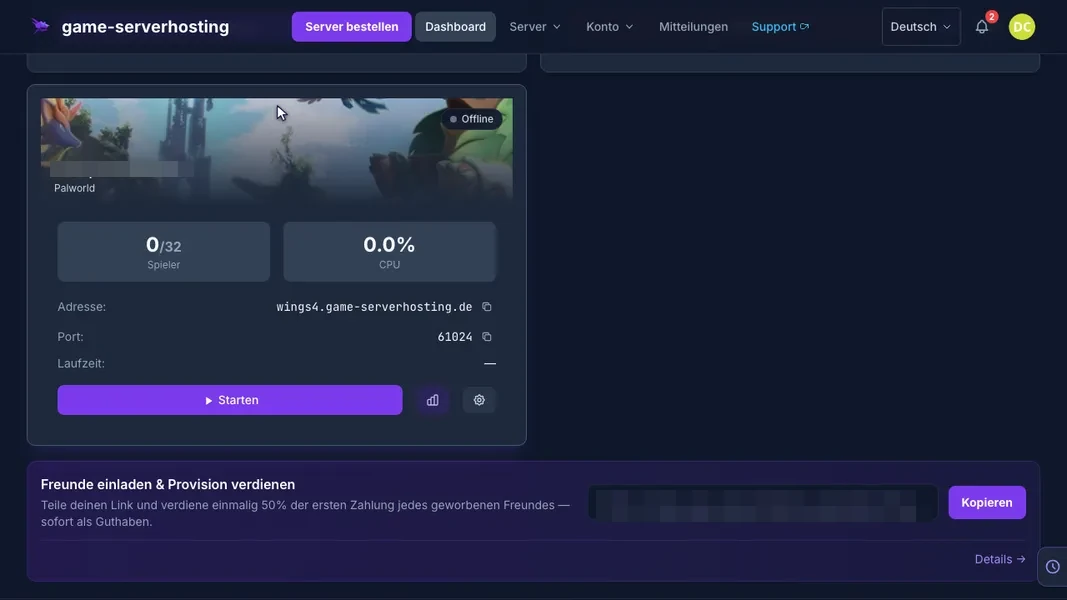
Palworld v1.0.5 · Kundenpanel dev · 2026-09-25
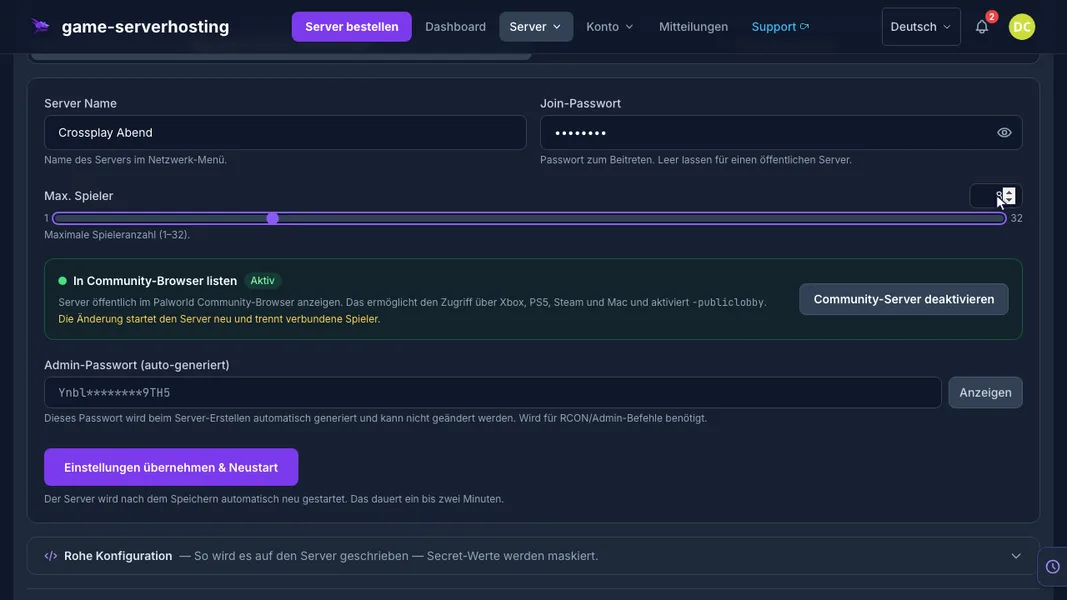
Palworld v1.0.5 · Kundenpanel dev · 2026-09-25
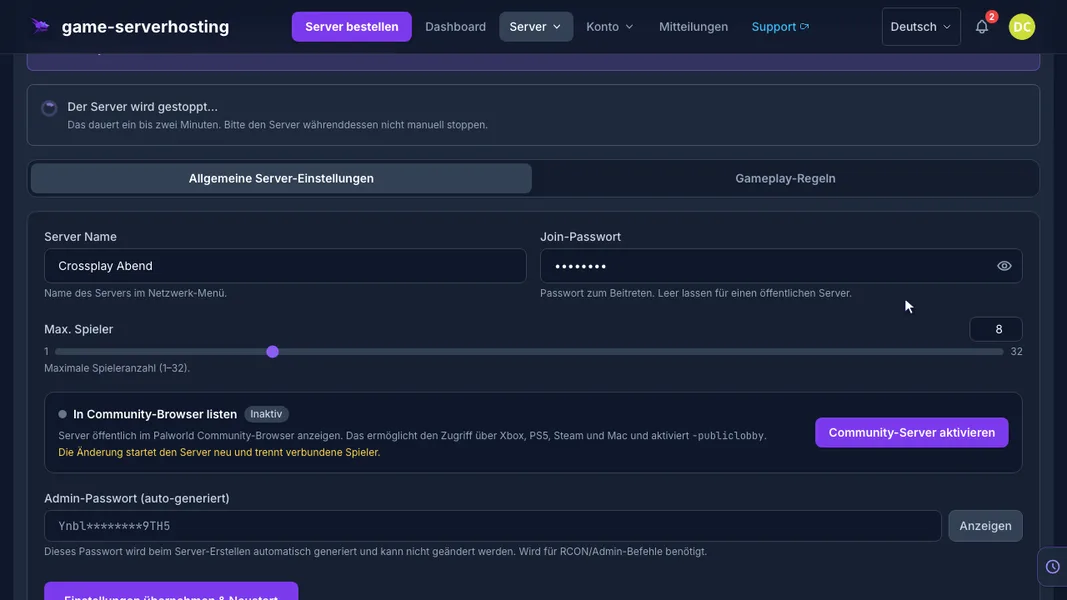
Palworld v1.0.5 · Kundenpanel dev · 2026-09-25
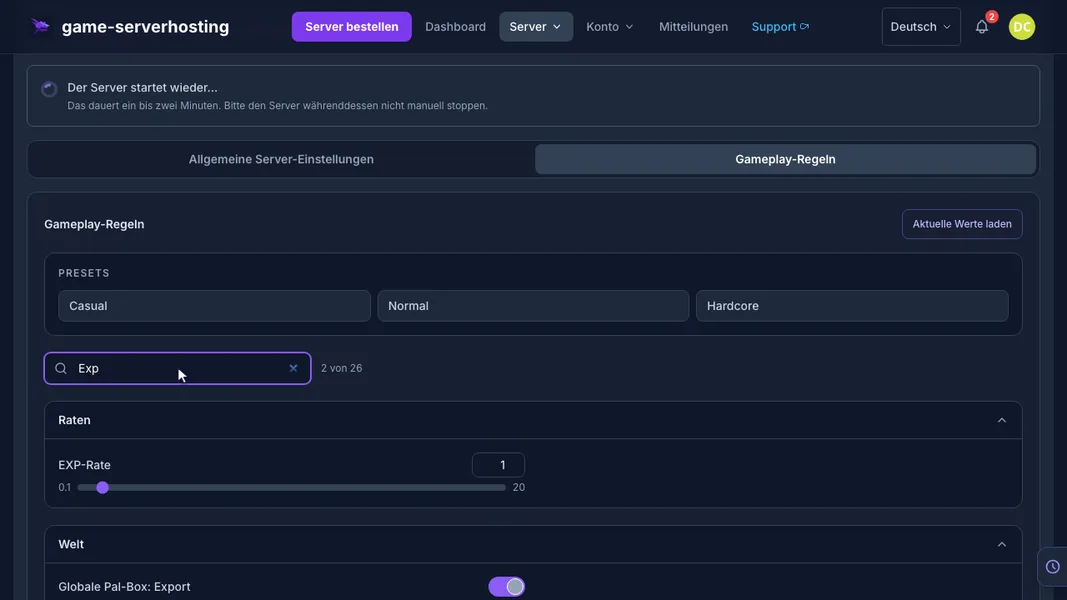
Palworld v1.0.5 · Kundenpanel dev · 2026-09-25