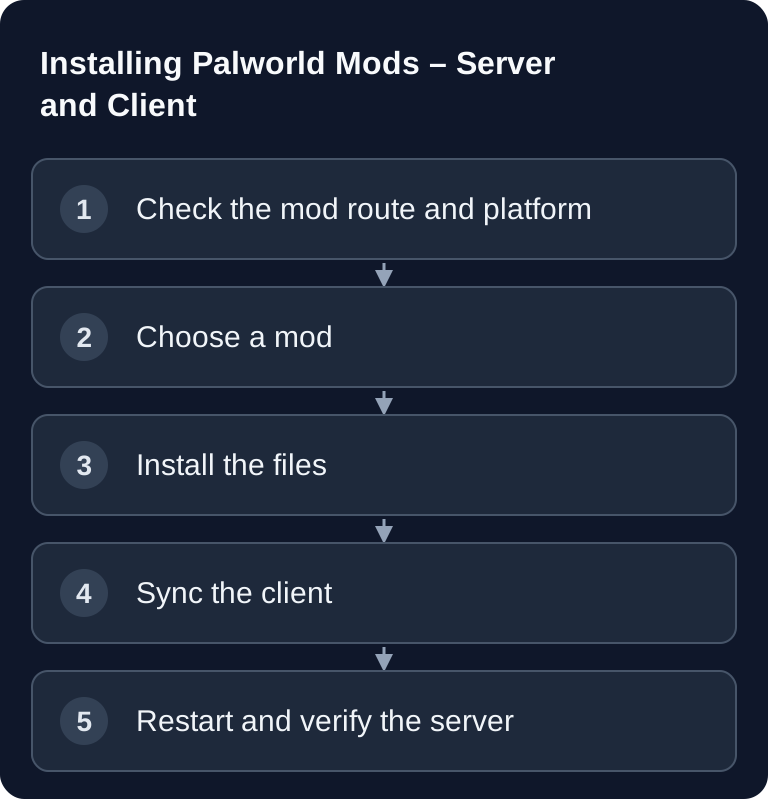
The documented official route for Palworld server mods is currently supported on the Windows edition of the Dedicated Server. Place suitable Workshop packages in the designated directory and enable their PackageName in Mods/PalModSettings.ini. Check the operating system and mod compatibility before uploading; a Windows UE4SS DLL is not a general Linux installation.
Important since Palworld 1.0: Delete Old Mods
With the 1.0 release on July 10, 2026, Pocketpair fundamentally reworked the game systems and explicitly warned against keeping old mod remnants in the game folder: they can cause crashes, corrupted saves and blocked quests. The key point: Disabling is not enough. Mod files and mod loaders that remain in the directory can still be loaded at startup, even if a mod manager lists them as "disabled". Delete old mods and UE4SS remnants completely before updating to 1.0, and only reinstall them once their developers have officially updated them for 1.0 (see the official mod guideline). Create a backup beforehand: saves that depend on mod content such as additional items or Pals may no longer work after removal.
Requirements
Before you set up mods on a Palworld server, you should clarify which Palworld version is running on the server and client, and whether the desired mod supports exactly that version. Mods often intervene directly in game or engine functions. Even a small game update can therefore be enough to stop a mod from loading or cause unexpected behavior.
You need access to the Palworld server directory, the ability to restart the server and a way to upload or replace files cleanly. With paid multi-game hosting such as game-serverhosting, what matters most is that you can make changes in a controlled way, use backups and roll back traceably if problems occur.
The primary source for the mod framework is the official UE4SS repository: Documentation at github.com. Read the notes there on the right version and installation before you replace files on the server.
Official Workshop Route for Windows Servers
The Pocketpair server documentation describes the following route:
- Stop the server and back up the save as well as the existing mod configuration.
- Place Workshop packages under
Mods/Workshop/<folder>/next toPalServer.exe;Info.jsonmust be located directly in the respective package folder. - Use the
PackageNamefromInfo.json, not the folder name. - Enable it in
Mods/PalModSettings.ini:
[PalModSettings]
bGlobalEnableMod=true
ActiveModList=PackageNameFromInfoJson
Replace the example name with the real package ID; multiple mods each get their own ActiveModList line. Restart and check the deployment files as well as joining. UE4SS is only installed if the desired mod requires it; do not mix manual and Workshop loaders without checking.
Finding Mods
Popular sources:
Only download mods from sources where the description, version, modification date and installation notes are traceable. Pay particular attention to whether the mod is suitable for dedicated servers or only modifies the local client. Also read the comments or changelogs if many users report errors after a Palworld update.
If you also run other games with mods, comparable workflows can help you put things in context: the guide Installing Factorio Mods on the Server shows the focus on version parity and mod sync, while Installing 7 Days to Die Mods explains typical differences between server and client files.
Installation on Server and Client
The basic installation remains simple, but you should carry it out in a controlled way:
- Download the mod
- Use the target folder documented for the mod and the installation route
- Restart the server; only install and update client files if the mod requires it
Do not blindly extract the file into just any folder. Many mods come with a fixed folder structure. For example, if the download contains its own mod folder, it usually has to be copied completely into the Mods folder. If the description also mentions files for Content, Paks or another subdirectory, follow the mod instructions and document which files you changed.
Then install the same mod version on the client, if the mod requires it. This applies to many mods that change the display, controls, items, Pals or gameplay logic. If only the server is modified but the client expects unmodified data, connection problems, missing features or crashes can occur.
Popular Mods
| Mod | Description |
|---|---|
| Simple Spawner | Spawn Pals at a desired position |
| Increased Stack Size | Larger item stacks |
| Flying Mount Anywhere | Fly anywhere |
| Better Stats | Improved stats display |
| Auto Breeding | Automatic breeding |
This table is a guide, not a blanket recommendation. Check each mod individually for how up to date it is, its dependencies and server compatibility. Mods that change spawns, stack sizes or breeding in particular can significantly affect the feel and balance of a shared world. Agree on such changes with your group before you enable them on a production server.
Server-Side Mods
Whether a mod works purely server-side is determined by its installation instructions and Info.json. New Pal definitions are not a blanket example of operation without matching client files.
Server-side mods are practical if you want to control rules centrally. Even so, "server-side" does not automatically mean that clients are never affected. As soon as new data, changed displays or local files are required, fellow players also need matching installations. The mod description is the authoritative source here.
Verifying the Result
Restart the server after installation and first connect with a single test client. Check whether the server starts up completely, whether the world loads and whether the mod function is actually available in the game. Also check the server logs for loading errors, missing dependencies or hints of incompatible files.
With multiple mods, enable one related group after another and check the log as well as their actual function each time. UE4SS only belongs to a route that requires this loader; do not enable it on suspicion in addition to the official Workshop deployment. Record the mod name, version, PackageName, source and installation date so that you can roll an update back to the backed-up previous state.
Troubleshooting
If the server does not start, test on a copy of the save. With the official Workshop route, first check the PackageName, the enabled list and whether the installation rules mark the mod as server-compatible. Do not remove content mods from your only production save and then keep saving blindly. If the error persists, restore the backup from before the UE4SS installation and start with a fresh installation.
If players cannot connect, compare the Palworld version, UE4SS version and mod version between server and client. Problems often arise because a client uses an older or newer mod file. If only individual players are affected, the cause is usually in the local client setup.
If a mod is not visible in the game, check the folder structure. A common mistake is a doubly nested folder, for example Mods/ModName/ModName/.... Also check whether the mod needs additional configuration files or is only loaded after a full restart.
Important
- Compatibility: Mods must match the current Palworld version
- Updates: After Palworld updates, check whether mods still work
- Client sync: Check for each mod whether matching client files are required
FAQ
Do I need UE4SS for all Palworld mods?
No, not necessarily. Many Palworld mods use UE4SS, but the specific requirement is stated in the description of the respective mod. Do not install a framework on suspicion if the mod specifies a different method.
Do all players have to install the same mods?
For many mods, yes, especially if client files, displays, items or gameplay functions are changed. Pure server adjustments may work without a client mod, but you have to check this for each mod.
What do I do after a Palworld update?
Do not continue right away with the old mod set. First check whether UE4SS and the installed mods match the new Palworld version. If unclear, test on a copy or wait for updated mod versions.
Can I install several mods at the same time?
Yes, but install them step by step. After each mod, you should test server startup, connection and basic function. This way you find conflicts faster and do not have to search through your entire setup when errors occur.
Which internal guides help with other mod servers?
For similar workflows, the guides on V Rising Mods with BepInEx and Satisfactory Client Mods with SMM are helpful, because they also cover dependencies, client files and version parity.