A reliable Palworld backup contains the matching world and player data as well as the configuration. Save the world, stop the server in a controlled way and download the finished panel archive externally. An existing backup entry alone does not confirm a successful restore.
Last checked: September 27, 2026.
Where Palworld Stores the World
Your Palworld server stores save data under the path /Pal/Saved/SaveGames/. This area contains the world files, player inventories and Pal data. When you create a full server backup, this folder must be included; otherwise you back up the configuration or server files but not reliably the actual progress.
The official Palworld documentation describes running a dedicated server via the PalServer folder and starting it with PalServer.exe or PalServer.sh: official Palworld dedicated server documentation. For backups in everyday hosting, the key takeaway is: don't treat the server files and the SaveGames as interchangeable areas. Your world doesn't live in a single setting but in several files and subfolders.
Backups are especially useful before Palworld updates, larger changes to the server settings, mod tests, world migrations or interventions via the file manager. If you also adjust server values, the guide on Optimizing Palworld Server Settings helps you prepare the changes in a controlled way.
Requirements Before the Backup
Make sure you have access to your game-serverhosting dashboard and select the right Palworld server. If you have several instances, check the server name, slot configuration and last activity so you don't accidentally back up the wrong server.
Don't plan backups only once something is already broken. A backup made right before risky changes is usually more valuable than an old one that merely exists on paper. If you adjust ServerName, password or player values in the panel wizard, back up the world beforehand and, if needed, use the guide Configuring Palworld Server Settings afterwards.
Step 1: Open the Server Dashboard
Open the dashboard and click on your Palworld server. In the ready status, you will find the management options for files, backups and start or stop actions.
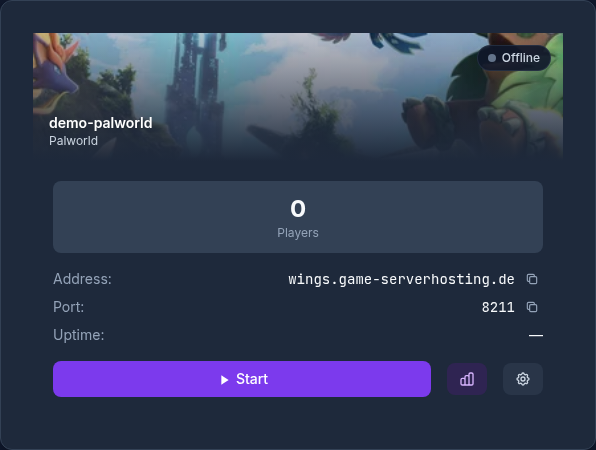
Quickly check whether any players are online. A backup during live operation can capture a world in the middle of a write operation. For important backups, announce a pause, save the world with the official Palworld command /Save and stop the server in a controlled way before the panel backup.
Panel Backup and Palworld's Internal Backup
The panel backup is an archive of the server files and can be downloaded externally. Palworld also has the parameter bIsUseBackupSaveData: when it is enabled, the game creates its own time-limited snapshots in the save data directory. These in-game snapshots do not replace an external panel backup; check both routes separately.
Step 2: Create a Backup
On the server detail page, switch to the Backups section. Click Create Backup. The panel backs up the server files including the saves under /Pal/Saved/SaveGames/. Existing backup archives are excluded from the backup itself. After it finishes, check the status of the new backup.
The process takes a few seconds to a few minutes depending on the world size. During that time, you shouldn't run any parallel risky changes, meaning no uploading mods, no replacing SaveGames and no overwriting configurations. Wait until the panel shows the backup as completed.
Step 3: Download the Backup and Store It Externally
After it is created, the backup appears in the list with date and time. Click Download to save the archive locally. Keep it in a place that is independent of the game server, for example on your computer, an external hard drive or in a separate cloud storage.
Naming helps later: when saving, ideally add the server name, date and reason, for example palworld-backup-before-update-2026-09-27.zip. Don't invent any version information; only note what you know for certain. If you run several Palworld servers, this prevents mix-ups during the restore.
Step 4: Restore the World
If you want to restore a world from a backup, select the right backup entry and use the Restore function. If the archive is no longer in the panel, upload it first, provided your panel offers this option.
Plan a maintenance window for the restore and stop the server before files are replaced. Wait for the restore status to complete and then start the server via the panel. Players shouldn't keep playing in the meantime. Also make sure you select the right backup: a restore overwrites the current state of the world with the state from the archive.
Check the Result
After the restart, connect to the server and first check the world itself: spawn point, buildings, storage, base positions and visible Pals should match the expected state. Then check at least one player's progress, if possible. If inventory, level or guild status don't match, stop making further changes and check whether you restored the correct backup.
If you also notice performance problems after the restore, that isn't automatically due to the backup. World size, player count and server settings can also play a role. For context, the separate guide on Palworld Server Performance and RAM helps.
Troubleshooting
The backup does not appear in the list
First wait until the process in the panel has finished, and reload the view. If there is still no entry, don't attempt a restore on suspicion. Check whether you are on the right server, and only repeat the backup once it is clear that no backup job is still running.
The world is not the expected one after the restore
Usually the wrong backup time was chosen or an archive from another server was used. Compare the date, time and reason of the backup. If you have several backups, don't restore different archives one after another at random; decide based on the known change times.
Player progress is missing or seems outdated
Palworld stores world and player data in the SaveGames area. If only some of the files were replaced, an inconsistent state can result. For normal restores, therefore use the full panel restore function instead of swapping individual files manually.
Settings behave differently than expected after the restore
A restore resets files to the state of the backup. If you changed settings after the backup, those changes may have disappeared. Document important adjustments separately so you can reapply them in a controlled way after a restore.
Moving a Save from Your PC
If you've been hosting a co-op world in the Steam version of Palworld on Windows, you can transfer it to your server. To do this, copy the world folder from your PC into the server's save folder and set the world in the server configuration.
Finding the World Folder on Your PC
Close Palworld on your PC. The save is located at %LOCALAPPDATA%\Pal\Saved\SaveGames\<Steam-ID>\<Welt-ID>. Each world has its own folder there with a 32-character name, which is the world ID. Pack the entire folder of the world you want to move into a .zip archive.
Uploading the World to the Server
- Create a backup of your server in the panel so you can go back to your previous world.
- In the panel's file manager, open the folder
/Pal/Saved/SaveGames/0/, upload the archive there and extract it. The file manager accepts files up to 64 MB. Transfer larger files via SFTP; you'll find the login details in your server's overview in the panel. SFTP only works while the server is running. - Check that the world folder is now located directly under
/Pal/Saved/SaveGames/0/<Welt-ID>/and not inside an additional subfolder. - Stop the server.
- Open
/Pal/Saved/Config/LinuxServer/GameUserSettings.ini, enter the world ID, meaning the 32-character folder name, forDedicatedServerName, and save the file. Only edit it while the server is stopped. - Start the server. It will now load the transferred world.
If the world folder contains a WorldOption.sav file, its world settings take precedence over the settings in the panel. Delete it before starting the server if you want the panel settings to apply.
What Happens to the Characters
Whoever hosted the co-op session will usually get a new character on a dedicated server. The world, bases and the other players' characters are preserved. The host's character can only be transferred with a community tool; we don't provide a specific tool and don't recommend one either.
Consoles and the Xbox App on PC
Saves from PS5 or Xbox consoles can't be exported and therefore can't be moved.
The Xbox app or Game Pass version on PC doesn't store one folder per world, but containers. They are located under %LOCALAPPDATA%\Packages\PocketpairInc.Palworld_…\SystemAppData\wgs; the folder name starts with PocketpairInc.Palworld_. These saves have to be converted to the server's format before moving them. We take care of that:
- Close Palworld and the Xbox app completely so that nothing is syncing.
- Pack the
wgsfolder as a.ziparchive. - Upload the archive in the panel's file manager. You transfer files larger than 64 MB via SFTP while the server is running. Then open a support ticket. We convert the save and set up the world on your server.
- The Xbox app has no field for an IP address. In the panel under Game Settings, click “Enable Community Server”. You'll then find the server in the game's list of community servers under its name.
- Your Xbox account gets a new player ID on the server. After the move, join once and quickly create a character. We then transfer your previous character to this account.
Verifying an Archive Before an Emergency
First open the downloaded archive locally and check whether the SaveGames area and the active configuration are included. Note the server ID, backup time and game version next to the file. Perform a restore test on a copy if you have a separate test environment. Check the base, containers, Pals and at least one known player state. An archive with the correct name but without player data is not a complete way back. Before a production restore, also keep the current state so you can switch back if the wrong point in time was chosen.
FAQ
How often should I back up my Palworld world?
Back up at least before updates, mod tests, larger configuration changes and planned migrations. On active servers with daily progress, more frequent backups make sense, but the exact frequency depends on your risk tolerance and activity.
Can I create a backup while the server is running?
Technically yes. For a reliable restore point, save the world with /Save and stop the server after announcing it to players before the backup. This reduces the risk of an intermediate state.
Is it enough to copy only the /Pal/Saved/SaveGames/ folder?
For the actual world progress, this folder is central. In hosting operation, however, a full panel backup is usually cleaner because it backs up the server instance as a whole and fewer manual errors occur during the restore.
Does a restore overwrite my current world?
Yes. When restoring, the current state is replaced by the state from the selected backup. Therefore, before risky restore tests, download an additional current backup if you want to keep the present state.
Should I keep backups only in the panel?
No. An additionally downloaded archive makes sense because it stays available independently of the server. Keep important backups externally and name them clearly by server, date and reason.
Summary
Palworld worlds are stored under /Pal/Saved/SaveGames/. With the in-panel backup function from game-serverhosting, you create a complete archive with a click, download it and can restore it in an emergency. Back up especially before updates, mods and configuration changes. After every restore, check in the game whether the world, player progress and Pals match the expected state.