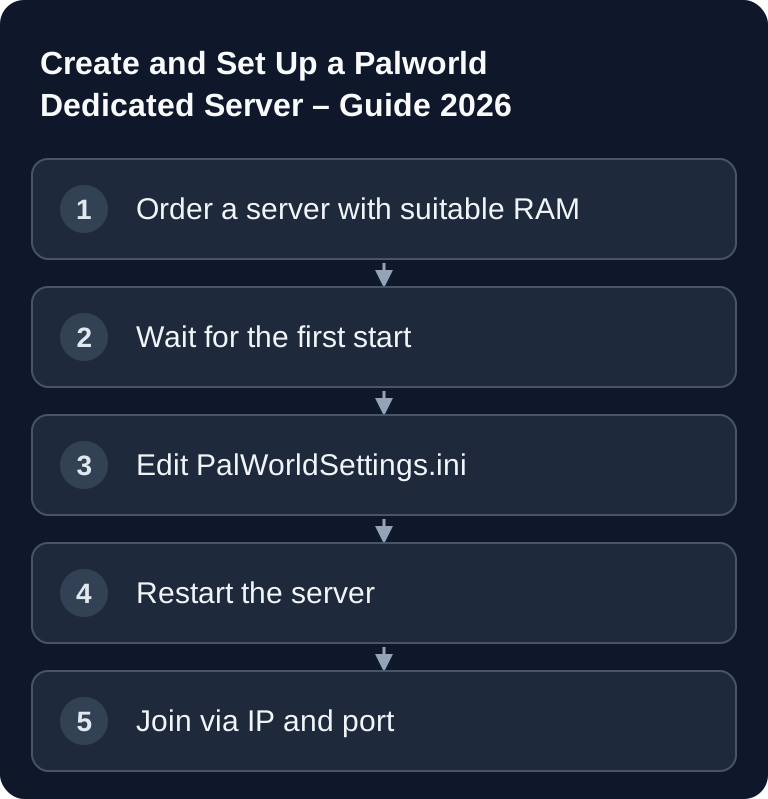
This guide walks you through the initial setup of your own Palworld dedicated server: choosing hosting, waiting for the first start, preparing PalWorldSettings.ini and testing the join. You can start a managed server via Rent a Palworld Server. For capture rate, PvP/PvE and ongoing operation, continue with Configure a Palworld Server.
Requirements for Your Palworld Server
Pocketpair lists 16 GB of RAM and four CPU cores as the operating requirement for a dedicated server. On our running customer servers with up to 4 simultaneously active players, RAM usage stayed below 6 GB with a daily restart, without any out-of-memory crashes (14-day measurement, October 2026). We have no measurements of our own for larger groups. There is no fixed RAM allocation based on player count; bases, worker Pals, buildings, spawn rate, and active world areas also affect the load.
You also need:
- a booked Palworld server at game-serverhosting
- access to the server management or the configuration files
- the server IP and the port in use
- your own server password if the world should not be publicly accessible
- a separate admin password for administration commands
If you are comparing other survival servers, the Rent and Set Up a Valheim Server – Co-op Guide 2026 and the Rent and Set Up an ARK Server – Beginner Guide 2026 will also help, since both cover similar questions about slots, world persistence and server management.
Ordering and Preparing the Server
1. Choose a Server
Decide on platforms, desired player limit, world upload and resource requirements. Only then choose the Palworld configuration; a large slot count is no substitute for memory headroom.
2. Wait for the First Start
Palworld only creates certain configuration files after the first server start. The official Palworld documentation points out that the configuration directories are only created after the server has been started once. The source also describes that you should edit the copied active configuration file, not DefaultPalWorldSettings.ini: Configuration parameters | Palworld Server Guide.
3. Open the Configuration
The central file is called PalWorldSettings.ini. Depending on the environment, it is located in a WindowsServer or LinuxServer configuration directory. With rented hosting, you usually edit it via the file manager, configuration editor or support panel.
Important Settings in PalWorldSettings.ini
You will find the settings in PalWorldSettings.ini:
[/Script/Pal.PalGameWorldSettings]
OptionSettings=(ServerName="My Palworld Server",ServerPassword="YOUR_OWN_GAME_PASSWORD",AdminPassword="A_DIFFERENT_ADMIN_PASSWORD",ServerPlayerMaxNum=32,ExpRate=1.5,PalCaptureRate=1.5,PalSpawnNumRate=1.0,bIsPvP=False,DeathPenalty=Item)
This is an excerpt with documented keys. Add the values to the existing complete OptionSettings=(...) line and keep the remaining settings. Do not copy a multi-line bracket list; MaxPlayers is not the documented key for the player limit.
Pay particular attention to ServerName, ServerPassword and AdminPassword. The server password protects the join. The admin password authorizes administration commands and should not be identical to the regular server password. Do not use example values such as geheim or admin123 in production.
Recommended Adjustments for PvE
| Setting | Default | Recommended (PvE) | Description |
|---|---|---|---|
| ExpRate | 1.0 | 1.5-2.0 | XP multiplier |
| PalCaptureRate | 1.0 | 1.5 | Increase capture rate |
| PalSpawnNumRate | 1.0 | 1.0-1.5 | Spawn more Pals |
| DeathPenalty | All | Item | Lose items only |
These values are not a universally best configuration, but a moderate PvE starting point. If players get through content too quickly, lower ExpRate. If the world feels too crowded or the server load rises, reduce PalSpawnNumRate. For public servers, you should deliberately define PvP damage, password protection and admin access.
Restart the Server and Check the Result
Save the file and restart the Palworld server. Then check three things:
- The server runs in the panel without a restart loop.
- The server name appears as configured.
- Joining via IP and port works.
If you changed game rates, don't just test them in the menu but in practice in the game: gather experience, attempt a capture and check whether death and item loss match the desired rule set.
Joining
- Launch the Palworld client that matches the server version.
- Use the connection method of your platform: direct address if offered, otherwise the listed community server.
- For crossplay, compare the allowed platforms in
CrossplayPlatformsand the stated game port. A direct-join menu is not available on every platform.
The documented Palworld default port is 8211; the panel assignment may differ. If you change the port in the configuration or in the hosting panel, you must use the new port when joining. Note down IP and port for your fellow players in a clear format, for example SERVER-IP:8211.
Admin Commands
/AdminPassword <password>    # Log in as admin
/Shutdown <seconds>          # Shut down the server
/Save                        # Save the world
/KickPlayer <steamid>        # Kick a player
/BanPlayer <steamid>         # Ban a player
First log in with /AdminPassword <password>. Use /Save before you carry out planned maintenance or configuration changes. For a controlled stop, /Shutdown <seconds> is better than an abrupt shutdown, because players can still react and you initiate the process deliberately.
Troubleshooting
Server Does Not Appear or Joining Fails
First check the complete IP address and the game port actually assigned in the panel. 8211 is only the documented default; the hosting assignment may differ even without a port change of your own. Also check whether the server is actually running and whether the last configuration change was applied with a restart.
Changes in PalWorldSettings.ini Don't Take Effect
Edit the active PalWorldSettings.ini, not just a default file. According to the official Palworld documentation, changes to the default file do not automatically affect the running configuration. Also check the structure: the header [/Script/Pal.PalGameWorldSettings] and the OptionSettings line must be preserved.
Players Can Join, but Admin Commands Don't Work
Then usually the wrong password was used or /AdminPassword <password> has not yet been executed in chat. Set a distinct admin password, restart the server after the change and log in again.
The Server Feels Unstable or Sluggish
First reduce strongly increased values such as PalSpawnNumRate, check the active player count and watch whether large bases or many simultaneously active Pals increase the load. Raise values step by step instead of changing several parameters strongly at once.
FAQ
How Much RAM Should I Plan for a Palworld Server?
Pocketpair lists 16 GB of RAM and four CPU cores as the operating requirement for a dedicated server. On our running customer servers with up to 4 simultaneously active players, RAM usage stayed below 6 GB with a daily restart, without any out-of-memory crashes (14-day measurement, October 2026). We have no measurements of our own for larger groups. There is no fixed RAM allocation based on player count; bases, worker Pals, buildings, spawn rate, and active world areas also affect the load.
Where Do I Change XP, Capture Rate and Pal Spawns?
You change these values in PalWorldSettings.ini, including via ExpRate, PalCaptureRate and PalSpawnNumRate. After saving, you must restart the server.
Which Port Does Palworld Use by Default?
The documented Palworld default port is 8211. When joining, use the server IP and the game port actually assigned in the panel; a differing hosting assignment does not require a port change of your own.
Should I Separate ServerPassword and AdminPassword?
Yes. The server password controls access to the world, while the admin password allows administration commands. Both passwords should be different and not easy to guess.
Can I Use the Example Configuration As Is?
Keep the complete configuration of your installation and change the listed keys within its single OptionSettings line. Replace both example passwords with different values of your own and test after a full restart.