Last checked: September 25, 2026 with Palworld v1.0.5 and the Pocketpair server documentation as of v1.0.4.
You change Palworld rules in the active PalWorldSettings.ini: stop the server, back up the existing OptionSettings=(...) line, adjust individual values and check them in-game after the restart. This guide covers capture rate, death penalty, PvP and access for an existing world. For the first server start, use the setup guide.
Requirements for a Stable Start
For Palworld, you first need a clear idea of how many players should be active at the same time and how heavily the world will be used. Many bases, many Pals, large building projects, and constantly explored areas increase the load. How many players can play smoothly depends mainly on the plan's CPU limit. For more players, choose a plan with a higher CPU limit or book an extra core (+1 vCPU).
Pocketpair lists 16 GB of RAM and four CPU cores as the operating requirement for a dedicated server. On our running customer servers with up to 4 simultaneously active players, RAM usage stayed below 6 GB with a daily restart, without any out-of-memory crashes (14-day measurement, October 2026). We have no measurements of our own for larger groups. There is no fixed RAM allocation based on player count; bases, worker Pals, buildings, spawn rate, and active world areas also affect the load.
At game-serverhosting, a Palworld server is especially a good fit if you want not just to start an instance, but also technical control, support and transparent operating procedures. Before setup, note down the IP, port, admin password, desired player limit and whether the world should be more PvE, PvP or a private co-op server.
Understanding PalWorldSettings.ini
The most important file is PalWorldSettings.ini. The official Palworld server documentation describes that you should not permanently edit the DefaultPalWorldSettings.ini, but instead copy the configuration into the correct server file and change it there: Documentation at docs.palworldgame.com. In addition, the configuration folders are only created after the server has been started once.
For Linux with SteamCMD, the official documentation gives this target path:
steamapps/common/PalServer/Pal/Saved/Config/LinuxServer/PalWorldSettings.ini
For Windows servers, the file is located correspondingly at:
steamapps\common\PalServer\Pal\Saved\Config\WindowsServer\PalWorldSettings.ini
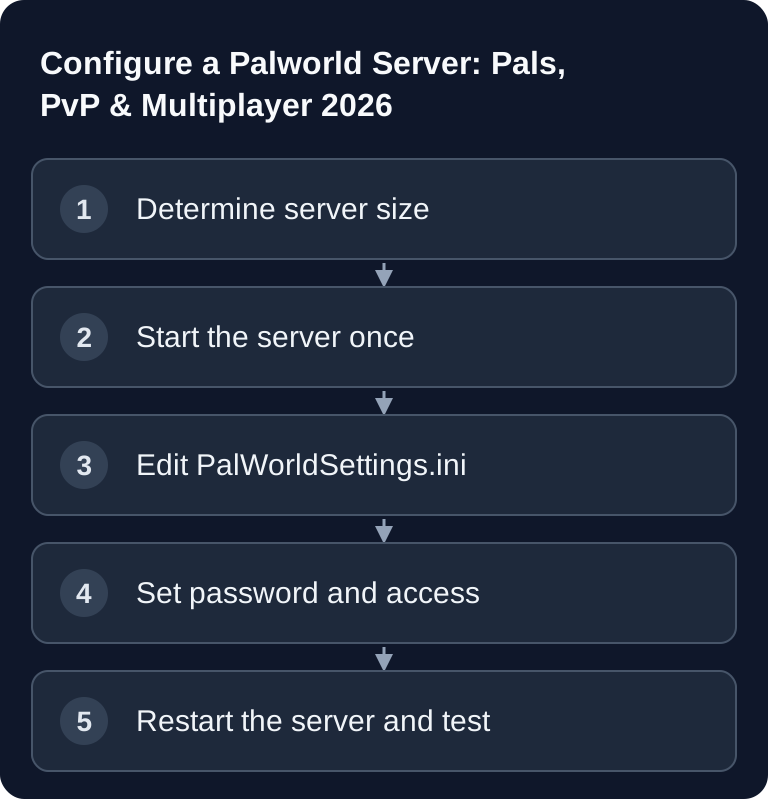
If you are working with a managed host, you usually open the same file via the file manager, SFTP or a configuration panel. The workflow is what matters: stop the server, edit the file, save, restart the server, test the result.
Basic Configuration for Player Count, Pals and PvP
The following five values are an excerpt, not a complete PalWorldSettings.ini. Change these keys inside the existing, comma-separated OptionSettings=(...) line under [/Script/Pal.PalGameWorldSettings]; leave the other values intact. Admin rights require a separate AdminPassword and logging in with /AdminPassword <password> in-game.
ServerPlayerMaxNum=32
PalCaptureRate=1.0
bIsPvP=False
DeathPenalty=None
NightTimeSpeedRate=3.0
ServerPlayerMaxNum sets the player limit. A value of 32 only makes sense if RAM, CPU headroom and world activity match it. PalCaptureRate changes the capture rate and thus directly affects the game feel. bIsPvP=False is the calmer start for most private groups, because progress, bases and resources stay less conflict-prone. DeathPenalty=None disables item loss on death and reduces frustration; the levels Item, ItemAndEquipment and All make players drop items, equipment, or additionally their team Pals, and raise the survival challenge. NightTimeSpeedRate=3.0 speeds up the night considerably; this is practical, but changes balance and atmosphere.
Don't change such values indiscriminately in big batches. A short change note is better: date, value before, value after, reason. That way you can find out more quickly later which setting caused a problem.
Securing the Server and Inviting Friends
For private worlds, you should set a server password:
ServerPassword=YourPassword
Don't use a password that you also use for accounts or payment services. Share the IP, port and password only through a trustworthy channel. Steam and Mac players enter the IP and port in the multiplayer menu below the server list; Xbox, PS5 and Game Pass PC players can only find the server via the community server list, provided it is listed there and CrossplayPlatforms=(Steam,Xbox,PS5,Mac) includes their platform (the key replaces the old AllowConnectPlatform). If the server is not immediately visible, first test the direct connection via IP and then check the firewall, port, server status and typos.
If you are still comparing other survival servers, the guide to renting a Valheim server with mods and configuration and the guide to renting and setting up a Satisfactory dedicated server are good internal additions. Both topics help you gauge how much server load and configuration discipline vary from game to game.
Admin Commands in Operation
Admin commands are used for moderation and maintenance. Log in beforehand with /AdminPassword <password>. For kick commands, use the identifier shown by /ShowPlayers; do not use a guessed account ID.
/ShowPlayers
/KickPlayer {SteamID}
/Save
/Shutdown 60 Restart in 60 seconds
With /ShowPlayers you check who is connected. /KickPlayer {SteamID} removes a specific player. /Save makes sense before maintenance or configuration work so that the current world state is written. /Shutdown 60 Restart in 60 seconds gives players a brief warning instead of ending the server abruptly.
Checking the Result
After every change, you should not just check whether the process is running. Connect yourself, check that you can join the world, test the password, check the displayed player count and verify a changed rule in-game. For PvP/PvE rules, a short test with a second player or a test account is enough. For capture or time rates, you need a concrete in-game situation so that you confirm not just the file contents, but the effect.
A short restart test is also worthwhile: stop the server, start it, reconnect. If the values have been reset afterwards, you probably edited the wrong file, the syntax is invalid, or a panel is overwriting manual changes.
Troubleshooting
The server does not start after a change
First check the most recently edited line. Common causes are missing commas in the complete OptionSettings format, wrong quotation marks, or values that don't match the expected type. As a test, revert the last change and start again.
Changes don't take effect
Don't edit the DefaultPalWorldSettings.ini as your permanent configuration. According to the official documentation, changes take effect in the active PalWorldSettings.ini in the Saved/Config directory. Restart the server after saving.
Players can't connect
Check the IP, port, password and server status. If only individual players are affected, check for typos and the client version. If nobody can connect, check the firewall, port forwarding and whether the server has fully started up.
The server seems unstable
Check RAM and CPU usage in the panel. If the CPU is constantly at its limit while RAM is free, a higher CPU limit helps more than additional RAM. As a test, reduce the player limit or particularly load-intensive values, and check the logs around the crashes.
FAQ
How much RAM does a Palworld server need?
Pocketpair lists 16 GB of RAM as the operating requirement. On our customer servers with up to 4 simultaneously active players, RAM usage stayed below 6 GB with a daily restart. For more players, the CPU limit is what matters most.
Where do I change the Palworld server settings?
The central file is PalWorldSettings.ini in the server's Saved/Config directory. Start the server once so the folders are created, edit the active file and then restart.
Should I enable PvP right away?
For private groups, PvE is usually the better start. Only enable PvP once all players accept the consequences for combat, bases and progress, and you have a backup or a clear recovery plan beforehand.
How do I invite friends to the server?
Give them the server IP, port and, if set, the ServerPassword. They then connect in Palworld via the multiplayer area using the server IP.
What do I do before a planned restart?
Inform active players, run /Save and then use, for example, /Shutdown 60 Restart in 60 seconds. This reduces the risk of lost progress and surprise disconnections.