In the game-serverhosting panel, the Palworld server wizard manages name, access and player limit; the gameplay editor edits 26 values of the active PalWorldSettings.ini. Before making a change, back up the configuration and save game, check the preview and restart in a controlled way. Panel sections and presets are provider defaults and must match the running Palworld version.
You can find the right plan and the process before the first configuration at Rent a Palworld Server. Afterwards, before larger changes, create a Palworld backup.
Basic Data in the Server Wizard
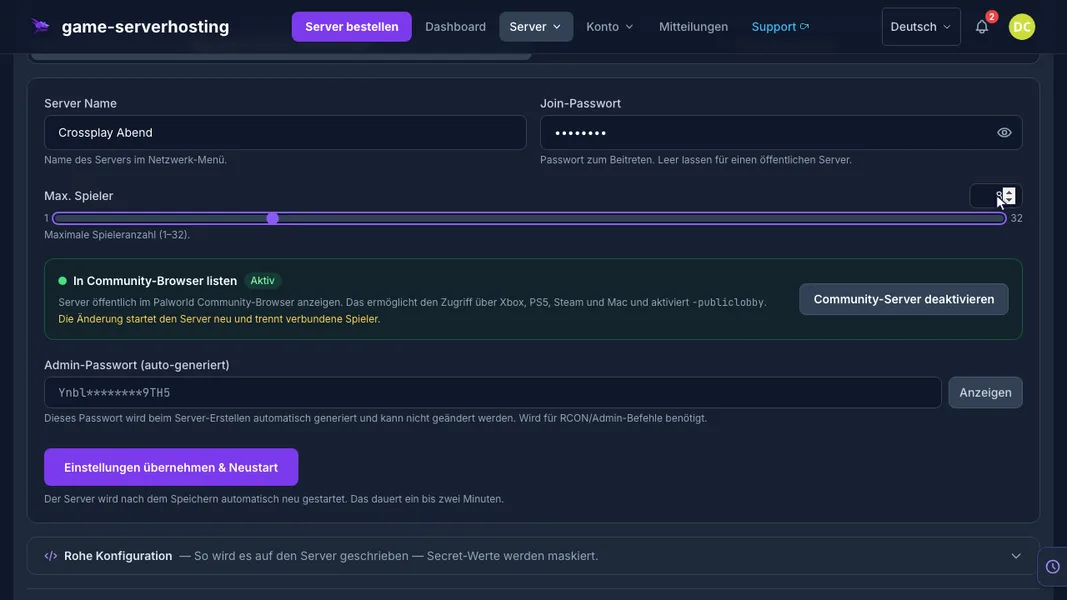
The wizard shows five basic values:
| Field | Effect | Editing |
|---|---|---|
ServerName |
Visible name of the server | freely selectable |
ServerPassword |
Password for joining; empty means no password | freely selectable, treat as confidential |
ServerPlayerMaxNum |
Simultaneous players, 1 to 32 in the panel | freely selectable |
COMMUNITY_SERVER |
Listing in the community browser | on/off |
AdminPassword |
Password for admin commands | automatically generated, read-only |
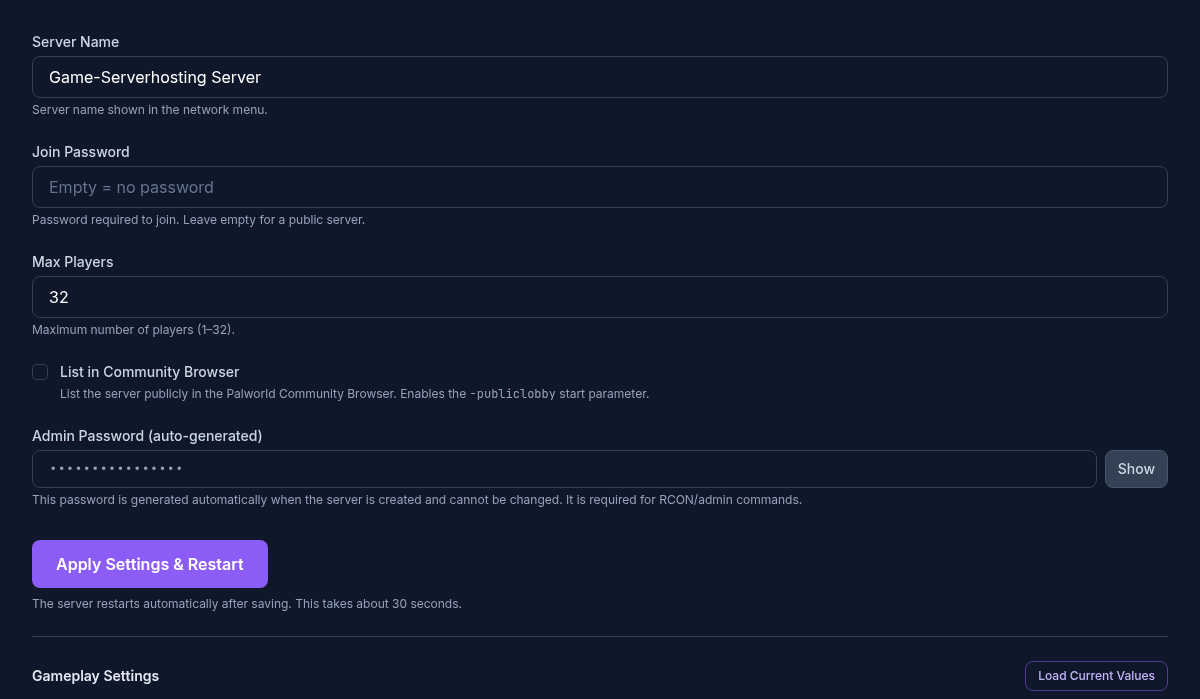
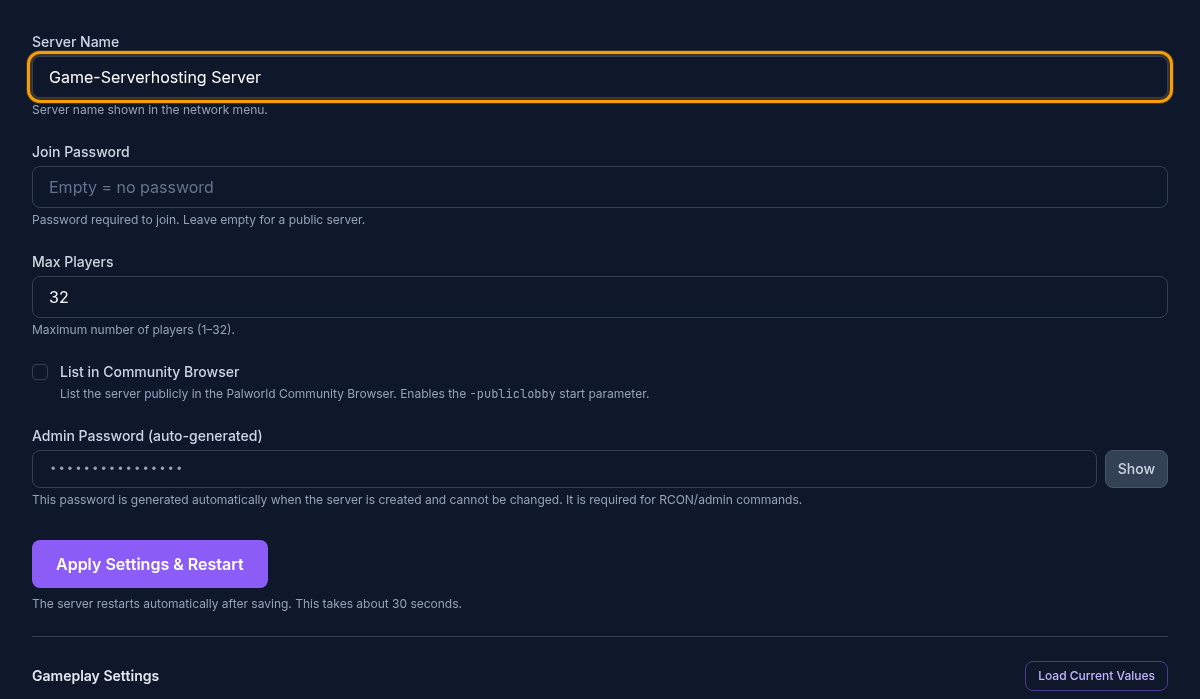
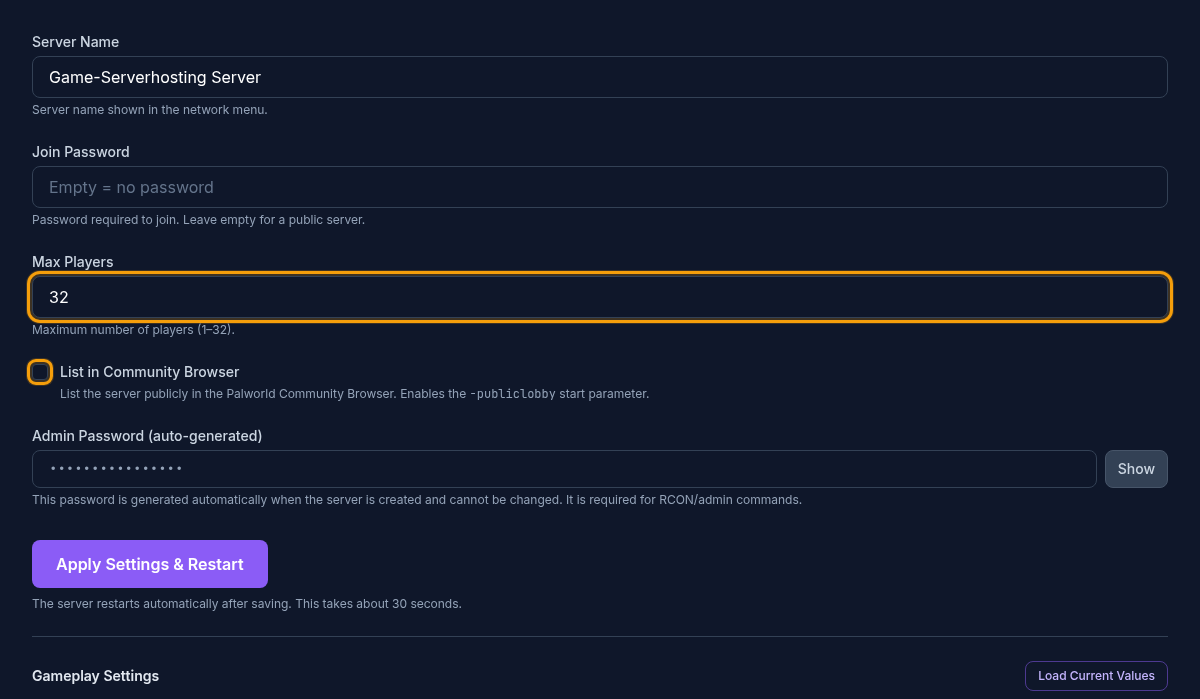
Choose a unique server name and set a join password for private sessions. The community listing affects discoverability, but does not replace access protection. Share the admin password only with people who are really allowed to manage the server.
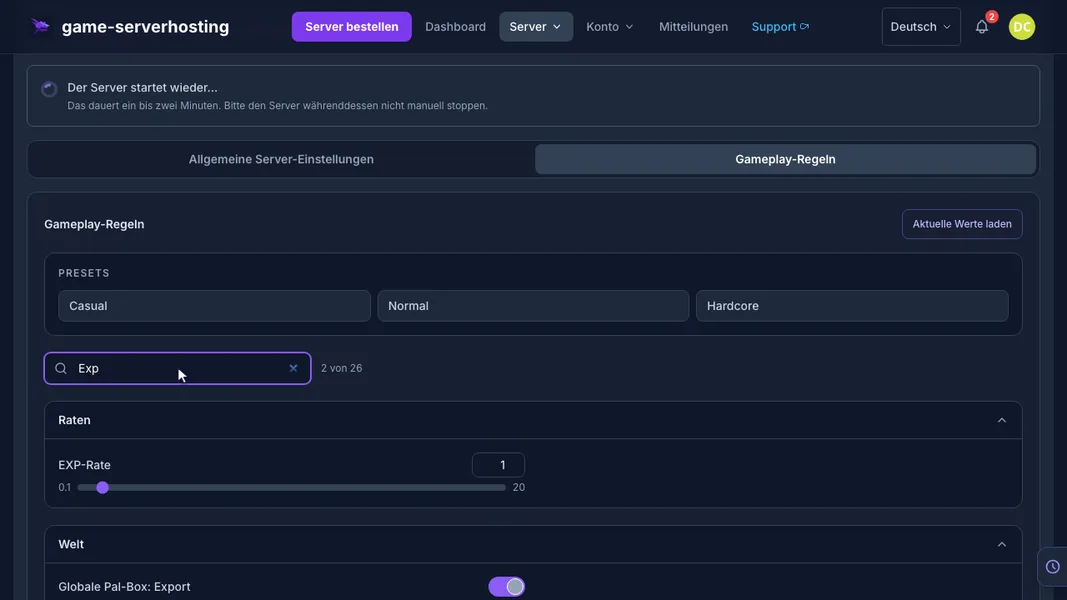
Gameplay Editor and Presets
The gameplay editor works with the active file Pal/Saved/Config/LinuxServer/PalWorldSettings.ini. All 26 fields require a restart. The three presets set a coordinated starting state:
- Casual: faster experience, capture rate and drops, short hatching time, no death penalty.
- Normal: regular rates and normal difficulty.
- Hardcore: hard difficulty and higher Pal spawn rate; you decide on additional hardcore switches separately and deliberately.
A preset is a template. Check the preview and then adjust only the rules that suit your group.
Values with a Big Impact
ExpRate, PalCaptureRate and CollectionDropRate change game progression. PalSpawnNumRate can additionally increase server load, because more Pals are processed at the same time. Therefore, feel your way forward in small steps.
BaseCampWorkerMaxNum and BaseCampMaxNumInGuild affect the scale of active bases. In line with the official server documentation, the panel limits camps per guild to 10. Higher worker and camp counts can create more computing load when several bases are active at the same time.
If you increase spawn or base values, monitor utilization using the tips from Palworld Performance and RAM.
The panel lists the PvP switch under bEnablePlayerToPlayerDamage. The current Pocketpair configuration reference, on the other hand, describes the PvP mode with bIsPvP and points out reserved or deprecated parameters. Therefore, do not derive a complete PvP guarantee from the panel switch: after the restart, check the actual damage with two test characters, and check friendly fire and death penalty separately. When experimenting, do not add several conflicting PvP keys without checking.
All Values of the Current Panel
The full table stays closed at first for a calm reading flow. For each key, it shows the data type, the permitted range, the panel default and the effect.
All 26 Gameplay Values and Three Presets
- File:
Pal/Saved/Config/LinuxServer/PalWorldSettings.ini
| Key | Display in the panel | Type and permitted values | Default | Effect / note | UI restart status |
|---|---|---|---|---|---|
Difficulty |
Difficulty | Selection · None, Casual, Normal, Hard | Normal |
Selects the basic difficulty profile; individual rates and rules remain separately configurable. | Restart required |
DeathPenalty |
Death penalty | Selection · None, Item, ItemAndEquipment, All | All |
Determines whether players lose nothing, items, equipment or everything on death. | Restart required |
ExpRate |
EXP rate | Number · 0.1 to 20 | 1 |
Multiplier for experience gained; higher values speed up level progression. | Restart required |
PalCaptureRate |
Pal capture rate | Number · 0.1 to 20 | 1 |
Multiplier for the capture probability of Pals; higher values make captures easier. | Restart required |
PalSpawnNumRate |
Pal spawn rate | Number · 0.1 to 20 | 1 |
Multiplier for simultaneously spawning Pals; high values can significantly increase server load. | Restart required |
CollectionDropRate |
Gathering drop rate | Number · 0.1 to 20 | 1 |
Multiplier for the amount of gathered resources and drops. | Restart required |
DayTimeSpeedRate |
Daytime speed | Number · 0.1 to 20 | 1 |
Speed factor for the day; higher values make the daytime phase pass faster. | Restart required |
NightTimeSpeedRate |
Nighttime speed | Number · 0.1 to 20 | 1 |
Speed factor for the night; higher values make the night pass faster. | Restart required |
bEnablePlayerToPlayerDamage |
Player-versus-player damage | Switch (true/false) | true |
Panel PvP switch; check the effect with the running version. Pocketpair documents the current mode as bIsPvP. |
Restart required |
bEnableFriendlyFire |
Friendly fire | Switch (true/false) | false |
Allows damage within allied groups when enabled. | Restart required |
bEnableInvaderEnemy |
Raid events | Switch (true/false) | true |
Enables hostile raid events on bases. | Restart required |
bShowPlayerList |
Player list in the pause menu | Switch (true/false) | true |
Shows the online player list in the pause menu. | Restart required |
PalEggDefaultHatchingTime |
Pal egg hatching time | Number · 0 to 720 · step 1 | 72 |
Base duration for incubating large eggs in hours; 0 makes eggs hatch instantly. | Restart required |
GuildPlayerMaxNum |
Max. players per guild | Integer · 1 to 100 | 20 |
Limits the number of players who can belong to the same guild. | Restart required |
PlayerDamageRateAttack |
Player attack damage | Number · 0.1 to 5 | 1 |
Multiplier for the attack damage dealt by players. | Restart required |
PlayerStomachDecreaceRate |
Hunger rate (players) | Number · 0.1 to 5 | 1 |
Multiplier for the hunger consumption of players; higher values drain the hunger bar faster. | Restart required |
bHardcore |
Hardcore mode | Switch (true/false) | false |
Enables hardcore without revival after death; test on a copy before enabling. | Restart required |
bPalLost |
Lose Pals on death | Switch (true/false) | false |
Enables permanent loss of Pals on death; not merely a drop of inventory items. | Restart required |
RandomizerType |
Pal randomizer | Selection · None, Region, All | None |
Selects whether Pal species are distributed normally, randomly within regions or randomly worldwide. | Restart required |
RandomizerSeed |
Randomizer seed | Text · max. 32 characters | empty |
Reproducible seed for the random Pal distribution; the same rules and seed produce the same assignment. | Restart required |
bIsRandomizerPalLevelRandom |
Random Pal levels | Switch (true/false) | false |
Additionally randomizes the levels of the Pals distributed by the randomizer. | Restart required |
BaseCampWorkerMaxNum |
Max. worker Pals in camp | Integer · 1 to 50 | 15 |
Limits the number of simultaneously assigned worker Pals per camp. | Restart required |
BaseCampMaxNumInGuild |
Max. camps per guild | Integer · 1 to 10 | 4 |
Limits the number of camps a guild may build. | Restart required |
BuildObjectDeteriorationDamageRate |
Building deterioration rate | Number · 0 to 10 | 1 |
Multiplier for building deterioration; 0 disables time-based deterioration. | Restart required |
bAllowGlobalPalboxExport |
Global Pal Box: export | Switch (true/false) | true |
Allows exporting Pals via the global Pal Box. | Restart required |
bAllowGlobalPalboxImport |
Global Pal Box: import | Switch (true/false) | false |
Allows importing Pals via the global Pal Box. | Restart required |
Presets
| Preset | Purpose | Values set |
|---|---|---|
Casual (casual) |
Starting values with PvP disabled; the PvP selection is added separately. | Difficulty = Casual; DeathPenalty = None; ExpRate = 2; PalCaptureRate = 2; PalSpawnNumRate = 1; CollectionDropRate = 2; DayTimeSpeedRate = 1; NightTimeSpeedRate = 1; bEnableFriendlyFire = false; bEnableInvaderEnemy = true; PalEggDefaultHatchingTime = 1; GuildPlayerMaxNum = 20; bEnablePlayerToPlayerDamage = false; bShowPlayerList = true |
Normal (normal) |
Starting values with PvP disabled; the PvP selection is added separately. | Difficulty = Normal; DeathPenalty = All; ExpRate = 1; PalCaptureRate = 1; PalSpawnNumRate = 1; CollectionDropRate = 1; DayTimeSpeedRate = 1; NightTimeSpeedRate = 1; bEnableFriendlyFire = false; bEnableInvaderEnemy = true; PalEggDefaultHatchingTime = 72; GuildPlayerMaxNum = 20; bEnablePlayerToPlayerDamage = false; bShowPlayerList = true |
Hardcore (hardcore) |
Starting values with PvP disabled; the PvP selection is added separately. | Difficulty = Hard; DeathPenalty = All; ExpRate = 1; PalCaptureRate = 1; PalSpawnNumRate = 1.5; CollectionDropRate = 1; DayTimeSpeedRate = 1; NightTimeSpeedRate = 1; bEnableFriendlyFire = false; bEnableInvaderEnemy = true; PalEggDefaultHatchingTime = 72; GuildPlayerMaxNum = 20; bEnablePlayerToPlayerDamage = false; bShowPlayerList = true |
Apply and Test Safely
First create a backup of the configuration and save game, and announce the restart. Note the previous values. Change one area, save, and check the server start in the log as well as the saved configuration. For ExpRate, compare the same XP action before and after the change; a single capture attempt, on the other hand, does not prove a capture rate multiplier. Test time rates over a comparable day-night cycle and camp limits in the camp management. Test hardcore and permanent Pal loss only on an expendable copy.
If the server does not start after a change, roll back the most recently changed values or restore the saved configuration. Do not edit the wizard and the same INI file via the file manager in parallel.
FAQ
Where do I change the server name and password?
These basic data are in the server wizard. Gameplay rates and world rules are in the separate gameplay editor.
Which preset should I use first?
For an unchanged play experience, choose Normal. Casual reduces grind. Hardcore is only suitable if your group accepts the stricter rules and the way back via backups.
How many camps per guild are possible?
The current panel range is 1 to 10, with a default of 4. This matches the official Palworld server documentation in version 1.0.4.
Why do changes only take effect after a restart?
Palworld loads these values from PalWorldSettings.ini at server start. The panel therefore marks all 26 gameplay fields as requiring a restart.
Sources and Verification Status
Verification status: 07.10.2026. Table values and presets were reconciled with the panel schema. The ranges are panel limits and the defaults are panel defaults, not a manufacturer default for every field. File path, camp limits, hardcore and the current official parameters were compared with the Palworld server documentation 1.0.4:
Palworld: view an example
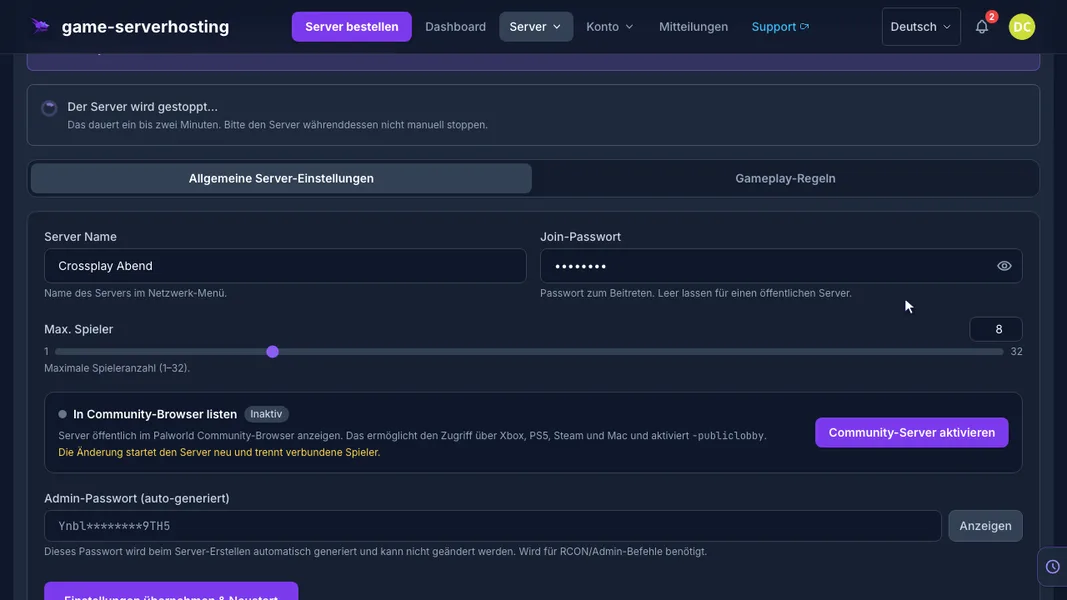
Our own captures from a demonstration environment. The version and setup shown may differ from your server.
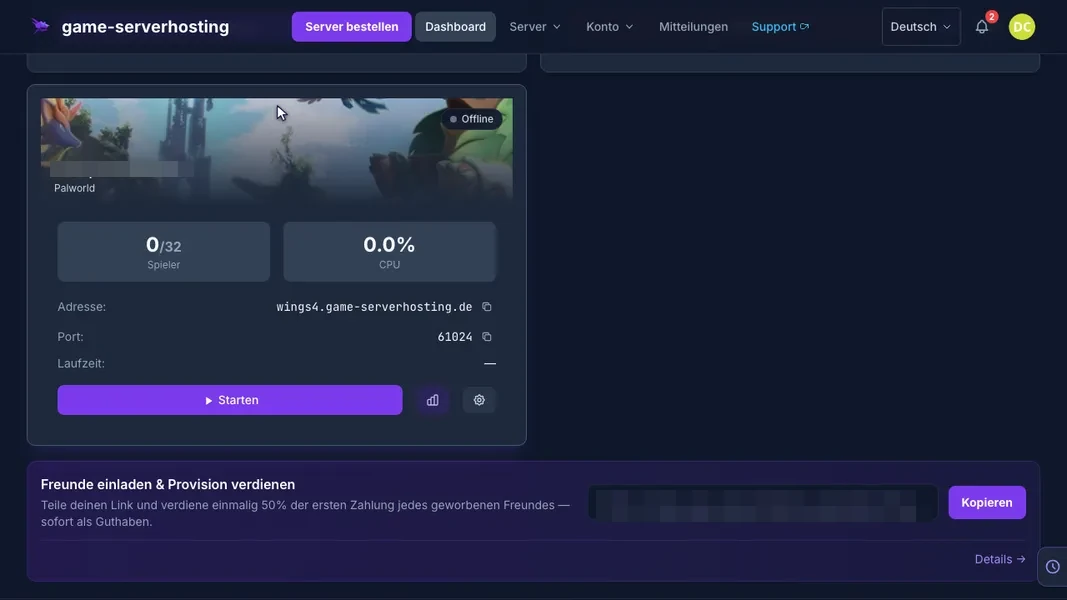
- Open the Palworld server from the dashboard.
- Section Game → Palworld settings.
- Server name and join password: Xbox, PS5 and Game Pass players look up exactly this name in the community list.
- Pick the player count for your group.
- Enable the community server — required for Xbox, PS5 and Game Pass (sets -publiclobby).
- Save: the server applies the values on restart.
- Gameplay: every game value with search and presets.
Palworld v1.0.5 · Kundenpanel dev · 2026-09-25
Palworld v1.0.5 · Kundenpanel dev · 2026-09-25
Palworld v1.0.5 · Kundenpanel dev · 2026-09-25
Palworld v1.0.5 · Kundenpanel dev · 2026-09-25