Documentation checked: 07.10.2026; Pocketpair server reference 1.0.4. Check the game version that is actually running in the panel before all players update.
Palworld multiplayer on a dedicated server works without an invite link, but the way to join differs by platform. For a dedicated server, Pocketpair specifies an IP address and port. Xbox and PS5 players as well as the Microsoft Store/Game Pass version for PC need a server provided as a community server and join via the community server list. In the game-serverhosting panel, COMMUNITY_SERVER enables the -publiclobby startup parameter for this.
Requirements
You need a started Palworld server, access to the game-serverhosting dashboard and at least one player account for each join method you need. Ready confirms that provisioning is complete; also check that the game process is running and that the log reports no startup error. Compare the client and server versions that are actually installed before you distribute connection details.
Pocketpair describes the supported platforms and the different join methods in the server type overview: Xbox and PS5 require a community server. The community server guide specifies -publiclobby for this. In the current configuration parameters, CrossplayPlatforms is set to (Steam,Xbox,PS5,Mac) by default; AllowConnectPlatform is no longer available.
If you haven't booked or prepared a server yet, you'll find the basic setup in the guide Rent and Set Up a Palworld Server. For a broader configuration overview, Renting a Palworld Server: Configuration, Pals & Multiplayer is also helpful.
Step 1: Find the Server Address and Port
Once your server shows ready, you can see the connection details in the server tile of your dashboard.
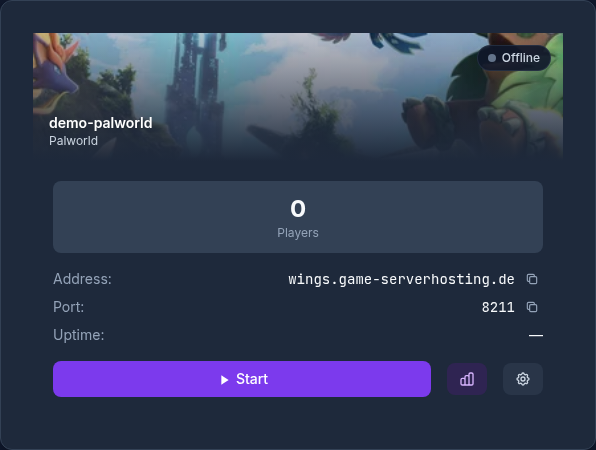
Note down:
- IP address or subdomain, if you have configured one
- Game port;
8211(UDP) is the documented default. Use the actual assignment from your panel. For community joins, the queries provided by the setup must also be reachable; do not derive a blanket second port forward or panel display from a default port.
Share the IP address or subdomain and port only with players who use the dedicated server direct-connection method. Xbox and PS5 players as well as Microsoft Store/Game Pass PC players instead search for the server name in the community server list; also give them the server password you have set.
Step 2: Set the Maximum Number of Players
In the PalworldSettingsWizard, set ServerPlayerMaxNum to the number you want. Initially plan for 1 to 32 players; the sustainable number depends on the world, version and resources. Don't choose a value larger than necessary: a small private co-op server doesn't need to be open for 32 slots if only four people are playing.
Pocketpair lists 16 GB of RAM and four CPU cores as the operating requirement for a dedicated server. On our running customer servers with up to 4 simultaneously active players, RAM usage stayed below 6 GB with a daily restart, without any out-of-memory crashes (14-day measurement, October 2026). We have no measurements of our own for larger groups. There is no fixed RAM allocation based on player count; bases, worker Pals, buildings, spawn rate, and active world areas also affect the load.
Save after making the change. After a restart, wait for the game process to be fully started and check the startup log for errors before you test joining. The ready provisioning status alone does not confirm a running game process. Only share the final details with your friends after the successful test.
Step 3: Optionally Set a Password
You have two sensible options:
- No password: Leave
ServerPasswordempty. Players can then join without a password via the method intended for their platform. - Set a password: Enter the password you want in ServerPassword. It applies to both direct connections and joins via the community server list.
A password is especially useful if you share the address in several groups or make the server visible in the community browser. Use a dedicated server password and not the same password as for your panel, your Steam account or other services. After a password change, players must use the new password the next time they join.
Step 4: Enable the Community Browser or Stay Private
Always enable COMMUNITY_SERVER when Xbox, PS5 or Microsoft Store/Game Pass PC players should join. In the game-serverhosting panel, the switch sets -publiclobby and publishes the server in the community server list. It is also required if the server should be publicly discoverable regardless of platform.
Only disable community visibility if no Xbox, PS5 or Microsoft Store/Game Pass PC players are taking part and you deliberately want to run the server exclusively via direct connection. In that case, share the address and port selectively and set a password if needed.
Step 5: Join as a Player and Check the Result
Start Palworld and choose the appropriate method depending on the configuration:
- Via Join by IP with IP or subdomain and port on Steam and Mac; the Microsoft Store and Game Pass version for PC has no IP field and, like the consoles, uses the community list
- Via Multiplayer and Community Server on Xbox and PS5; COMMUNITY_SERVER must be enabled for this
Use the method intended for your platform. For a direct connection, you enter the IP and port, for example 203.0.113.10:8211. On Xbox, PS5 and Microsoft Store/Game Pass PC, you search for the server name in the community server list. If a password is set, the prompt must appear with both methods.
Then check three things: First, whether several players can connect at the same time. Second, whether the password is really required. Third, whether the server is visible in the browser if you have enabled COMMUNITY_SERVER. This short check saves you troubleshooting later, when the group already wants to play.
Troubleshooting
Direct Connection Fails
First check whether provisioning is complete, the game process is actually running and the startup log reports no startup errors. Ready alone does not confirm a running game process. Then check the IP or subdomain, the port and the spelling. Common mistakes are a missing port, a trailing space at the end of the address or an old port after a change.
Server Does Not Appear in the Community Browser
Check whether COMMUNITY_SERVER is enabled, -publiclobby is set and the server was restarted after saving. Also check for a unique ServerName and the CrossplayPlatforms allowed for your group; the outdated key AllowConnectPlatform doesn't help here. The list may update with a delay. Xbox, PS5 and Microsoft Store/Game Pass PC have no direct IP fallback route for this server type; only test a direct connection with a suitable client. If only one platform fails to join, save its error message and version number for diagnosis.
Password Is Not Accepted
First check the spelling, including upper and lower case and accidental spaces. If you correct the password in the wizard, save and wait for the restart to finish. Note the previous values before changing access settings; if a new connection error occurs, revert these settings and test again. A password change does not require a world reset.
Not All Players Can Get onto the Server
Compare the current player count with ServerPlayerMaxNum. If the value is too low, increase it in the wizard and save the change. If the server lags afterwards with more players, check the CPU usage: How many players can play smoothly depends mainly on the plan's CPU limit.
FAQ
Isn't Co-op via Invite Code Enough?
For a session with up to four players, a co-op world hosted in the game with an invite code can be enough. The host must stay online. Crossplay alone is not a reason for a dedicated server: the official server documentation 0.5.0 already confirmed co-op crossplay. A dedicated server makes sense if the world should be available independently of the host or should accommodate more than four players.
Is There Voice Chat on the Server?
The current Pocketpair configuration reference lists bEnableVoiceChat for the integrated voice chat. Only enable the value if the running server version supports it, and after the restart check microphone permissions and the selected audio input on the clients used. A blanket platform exception cannot be derived from this reference.
Is There an Invite Link in Palworld for Dedicated Servers?
No. There is no invite link for a dedicated server. Clients with a direct connection use the address and port; Xbox, PS5 and Microsoft Store/Game Pass PC players need a community server and join via the community server list.
Which Port Should I Send to My Friends?
8211 is the documented Palworld default port; the panel assignment is what counts. What matters is the port that your dashboard shows for your specific server. Always share the combination of address and port.
Do I Have to Set a Password?
No. Without a password, players can connect via the join method supported for them. For private groups, a dedicated server password still makes sense, especially for a server published in the community list.
Can a Password-Protected Server Appear in the Community Browser?
Yes. You can make the server visible in the community browser and still set ServerPassword. Players can then find it publicly but have to enter the password when joining.
What Should I Always Test After a Change?
Test at least one direct connection with a suitable client as well as a join via the community server list if Xbox, PS5 or Microsoft Store/Game Pass PC are used. Also check the password prompt. After changes, wait for the game process to be fully started and a successfully checked startup log; ready only confirms provisioning.
Palworld: view an example
Our own captures from a demonstration environment. The version and setup shown may differ from your server.
- Open the Palworld server from the dashboard.
- Section Game → Palworld settings.
- Server name and join password: Xbox, PS5 and Game Pass players look up exactly this name in the community list.
- Pick the player count for your group.
- Enable the community server — required for Xbox, PS5 and Game Pass (sets -publiclobby).
- Save: the server applies the values on restart.
- Gameplay: every game value with search and presets.
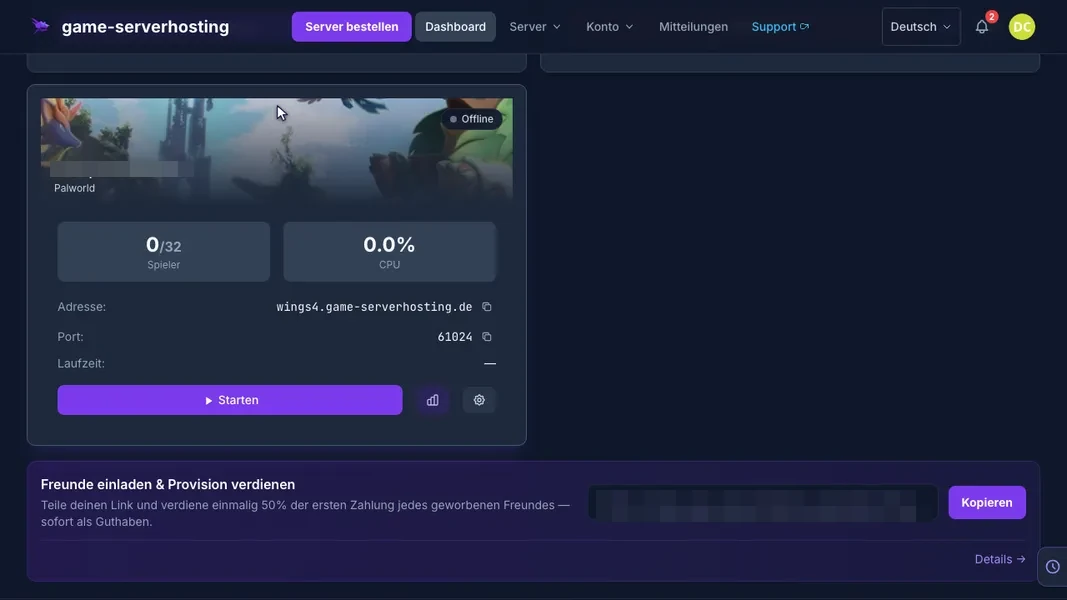
Palworld v1.0.5 · Kundenpanel dev · 2026-09-25
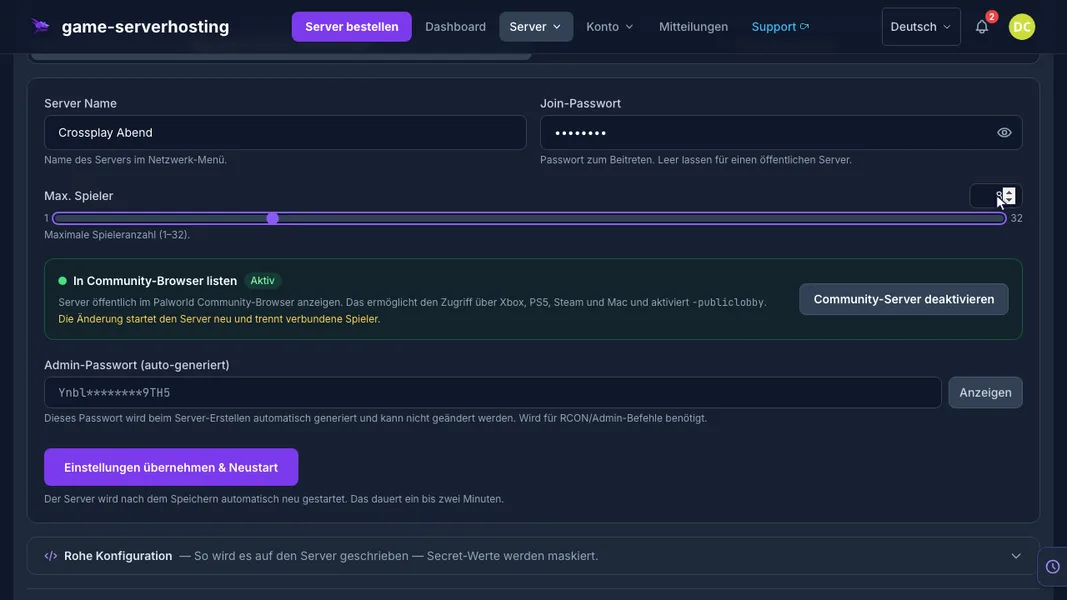
Palworld v1.0.5 · Kundenpanel dev · 2026-09-25
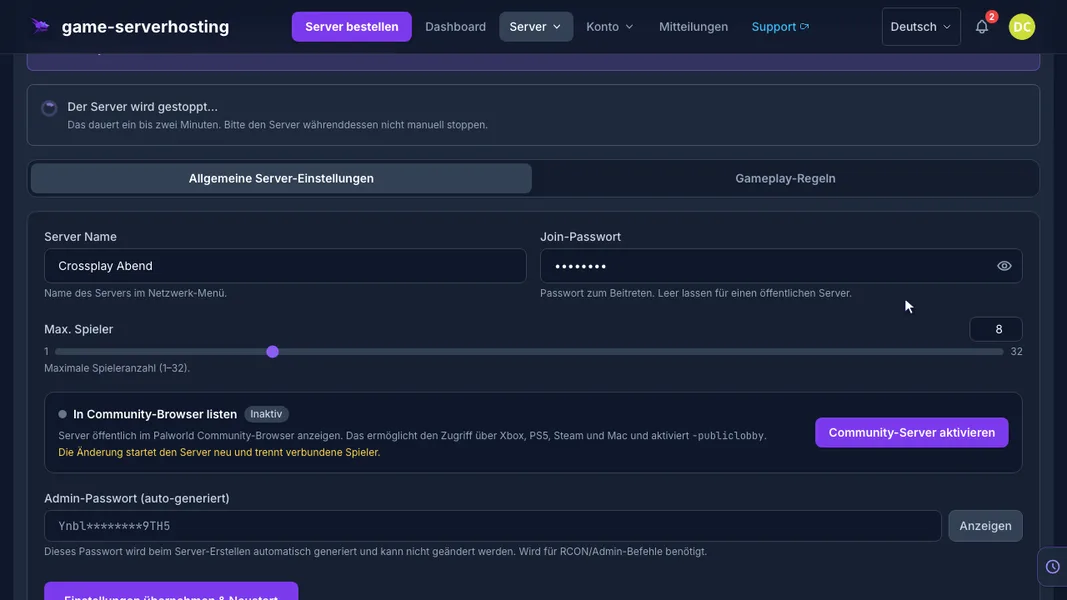
Palworld v1.0.5 · Kundenpanel dev · 2026-09-25
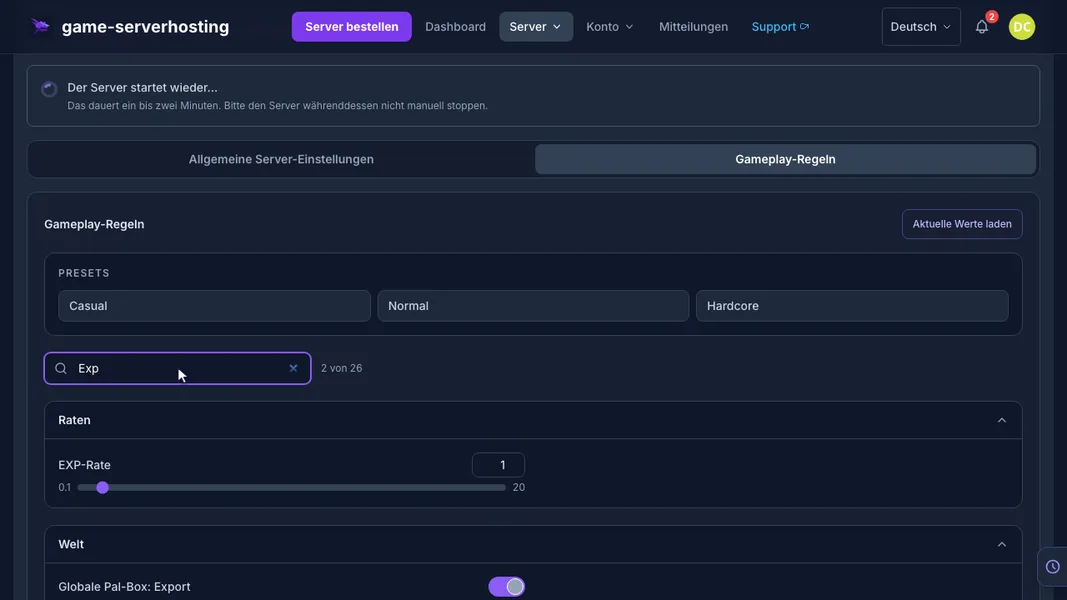
Palworld v1.0.5 · Kundenpanel dev · 2026-09-25