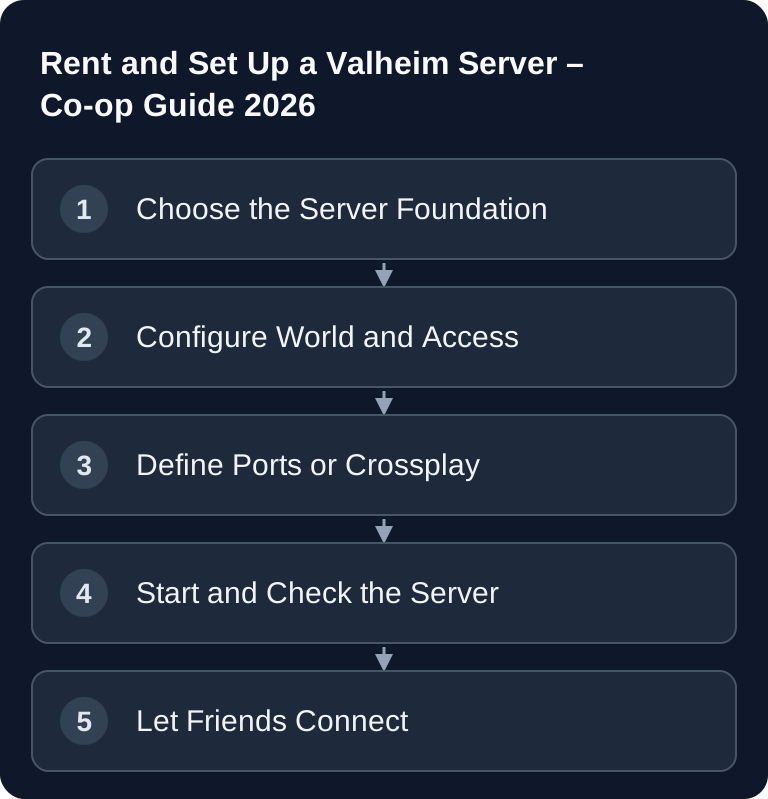
Your own Valheim server is worth it if your world should be reachable independently of a single host. You rent a dedicated server for this, define the world, password, ports and optionally crossplay, and then check whether joining works via the server list, IP or join code.
Valheim 1.0
Valheim 1.0 has been released. For an existing world, the basic server steps remain valid, but before the update you should back up the associated world files and test joining with current clients. Crossplay between PC and consoles requires the crossplay backend of the dedicated server; the join code and a test with the platforms actually used are essential.
Valheim 1.0 is here: Deep North, worlds and server update · Valheim 1.0: Safely checking the server update, old world and mods
Requirements
For Valheim you need a purchased copy of the game, access to the server management, and the details for IP, port and password. For small co-op groups, a server with at least 4 GB RAM is a sensible starting point; larger bases, many explored areas and several active players increase the resource requirements.
Valheim supports dedicated servers for persistent worlds. The official Valheim documentation describes the dedicated server as a way to provide a world in which friends can play at any time: Documentation at valheim.com. There, Iron Gate also lists the relevant launch parameters, including -name, -world, -password, -port, -public and -crossplay.
If you are comparing other survival setups, the Rent and Set Up an ARK Server – Beginner's Guide 2026 and the Rent and Set Up an Enshrouded Server – Co-op Guide will also help. Both cover similar questions about access, world management and stable co-op operation.
Ordering the Server and Defining the Basics
Open the Valheim server page at /en/valheim-server-hosting, choose a suitable configuration and order the server. After setup, you should note down at least the following details: server IP, game port, admin or panel access, launch parameters, world name and password.
Use a unique password. The official dedicated server guide points out that the password, server name and world name should not be identical. That is not just clean operation, but also prevents easily avoidable startup problems.
Important Launch Parameters
The key settings are set via the launch line. The existing example block remains a good foundation for this:
-name "My Valheim Server"
-world "MyWorld"
-password "secret"
-port 2456
-public 1
-name is the visible server name. -world determines which world file is loaded or created. -password protects access. -port 2456 sets the base port. -public 1 makes the server publicly visible; with -public 0 it stays out of the public list and is only reachable directly.
Take care not to keep changing the world name and server name. A changed world name can cause Valheim to create a new world even though the old world file still exists.
Ports, Steam Backend and Crossplay
With the classic Steam backend, the Valheim ports must be reachable from the internet. According to the official Valheim documentation, the server uses the port range 2456-2457 by default. If you host it yourself, this concerns your router and firewall; with rented hosting, this networking work is normally part of the server platform or is handled in the panel.
If you enable crossplay, the server runs via the crossplay backend. For this, you add the launch parameter:
-crossplay
Crossplay is relevant if players on different platforms should be able to join. Valheim's official crossplay FAQ also explains the join code approach for cross-platform connections: Documentation at valheim.com. Important: crossplay changes how players find and connect to the server. After enabling it, don't just check the classic server list, but also the join code or the crossplay connection.
Joining the Server
Via Steam
Open Steam, go to View and then Servers. Under Favorites you can add a server. Enter the server IP and port. Depending on the display, the query port may be relevant; if the direct entry doesn't work, additionally test the connection from within the game.
In the Game
Start Valheim, choose your character and open the join area. Find the server via the community server list or use direct entry of IP and port. Then enter the server password. With crossplay, use the join code, provided your panel or the server console displays it.
Verifying the Result
After starting, the server should run without repeated restarts, load the configured world and accept connections. First check the server logs for error messages about the password, world name, port or missing files. Then test joining with a regular player account.
A sensible check consists of four points: the server appears or is directly reachable, the password prompt works, the correct world is loaded and a second player can join. If you use mods, world modifiers or crossplay, test these points again after every change.
Operation and Performance
Valheim worlds grow over time. Many large bases, masses of dropped items and heavily built-up areas can strain the simulation. This is not a specific hosting promise, but a practical trait of survival worlds with many persisted objects.
Keep the world tidy, remove unneeded drops and schedule regular restarts outside your main play time. Backups are especially important before you replace world files, install larger updates or change mods. If your hosting panel offers automatic backups, enable them deliberately and occasionally check that restore points actually exist.
For players who are looking for more PvP or sandbox experiences, the Rent and Set Up a Rust Server – The Complete Guide is also relevant. For creative and modding communities, the Rent and Set Up a Minecraft Server – Complete Guide 2026 offers additional guidance.
Troubleshooting
Server doesn't appear in the list
Wait a few minutes after starting and check -public 1. With the Steam backend, the ports must be reachable. With crossplay, you should also test the join code, because the classic list is not always the fastest way to check.
Connection via IP fails
Check the backend and the target address separately. The Steam backend uses the chosen UDP port and port+1; crossplay uses PlayFab and allows a join code, server list or public IP with port. A local or loopback IP is not supported by the crossplay backend. For comparison, use the same client and the port actually assigned.
Password is not accepted
Set a new password and avoid it matching the server name or world name. Then restart the server cleanly and check whether the launch parameter was actually applied.
Wrong or empty world is loaded
Stop the server and compare -world with the associated .db and .fwl files in the save folder actually in use. If -savedir is set, that path applies. Back up both files before changing names; a name without existing files can create a new world.
FAQ
How many players fit on a Valheim server?
Valheim is designed for small co-op groups; planning for up to 10 players is common. However, world size, building activity, mods and concurrent players are decisive. So choose resources based on real usage, not just the maximum number.
Do I need port forwarding with rented hosting?
Normally, with a rented game server you don't need to set up router port forwarding on your home network. The server ports in the panel, the provider's firewall rules and the correct details when joining remain relevant, though.
Should I enable crossplay?
Enable crossplay if players should join from different platforms or if you deliberately want to use the join code route. If everyone plays via Steam and your setup runs stably, the Steam backend is also a clear option.
What happens if I change the world name?
Valheim loads the world specified in the -world parameter. If this name doesn't match the existing world file, a new world may be created. Back up the old world before changing names or save paths.
How do I know whether the server is running properly?
The server should start without an error loop, load the desired world, be reachable via the chosen connection method and accept the password. A real join test with a second player is more meaningful than just a green status indicator.