Your own Rust server is worth it if you want to control rules, wipe cycles, map parameters, admin rights and plugins yourself. At game-serverhosting, you rent paid multi-game hosting with a panel, file management, live console and support, instead of running Rust only locally or on the side on a private computer.
Requirements and Planning
Rust is significantly more demanding than many co-op games, because world size, player count, entities, monuments, bases, plugins and wipe interval all interact. So first plan what kind of server you want to run: a small circle of friends, a moderated community server, a PvE project, a near-vanilla round or a modified server with convenience features.
Facepunch lists 12 GB of free RAM for a Rust dedicated server; large maps and plugins may need more. Plan based on your game concept and observe the actual usage of a grown world. The overview below is not a guaranteed player-to-RAM mapping.
| Configuration | Resource check |
|---|---|
| Small vanilla map | 12 GB free RAM as the documented starting point |
| Larger map or many buildings/entities | Plan a reserve based on the measured world load |
| uMod/Oxide with several plugins | Check plugin load and Rust/Oxide compatibility separately |
If you are looking for more of a co-op survival project with less PvP pressure, other games may also fit. For similar group planning, see the Valheim Server Co-op Guide 2026 and the Enshrouded Server Co-op Guide.
Ordering the Server and Setting the Basic Options
- Open the Rust server selection.
- Compare the available configuration with Facepunch's RAM starting point and your map/plugin planning.
- After provisioning, check the complete first start and a client join.
After provisioning, you first set the basic values. These decide how your server appears in the list, how large the world becomes and how often the server saves automatically.
server.hostname "My Rust Server"
server.description "Community Server – no Pay2Win"
server.maxplayers 100
server.worldsize 3500
server.seed 12345
server.saveinterval 300
server.hostname and server.description should clearly say what players can expect: language, play style, wipe days, solo/duo/trio rules or PvE/PvP focus. server.maxplayers in the example describes the Rust syntax. At GSH, the start sets the limit from the booked slots; a CFG entry or console command does not replace a plan change. Maintain the offered values such as name, description, world size and seed in the panel and check them after a restart. server.worldsize and server.seed determine the world; do not change these values lightly on a running server if your community expects a stable wipe.
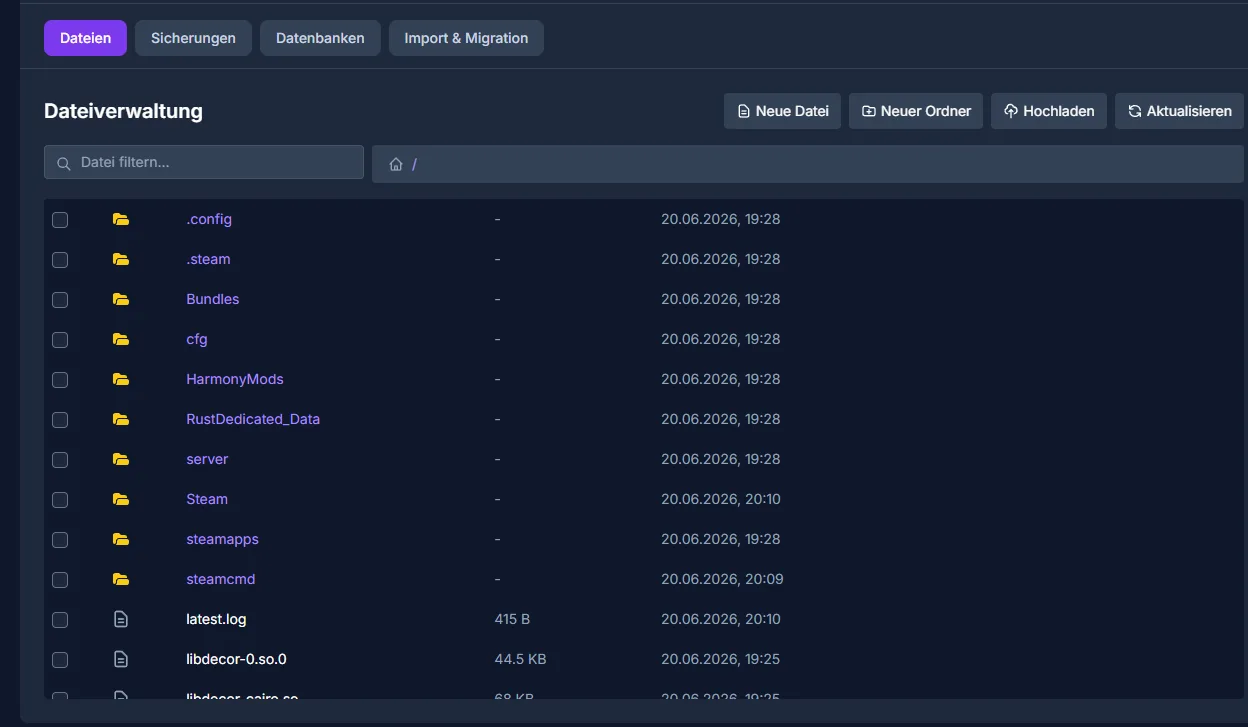
You edit all server files – cfg, oxide, world saves and more – directly in the panel via the integrated file management. No SFTP client needed.
As the official primary source for dedicated server basics, Facepunch points to the Rust server documentation at Documentation at wiki.facepunch.com. Always use such official information as a reference when you compare launch parameters, server files or console commands against later Rust versions.
Admin Rights and Console
For administration you need the SteamID64 of the respective person. Enter owners and moderators via the live console and then save the configuration.
ownerid <steamid64> "Name"    # Add owner
moderatorid <steamid64>       # Add moderator
server.writecfg               # Save config
server.save                   # Save world
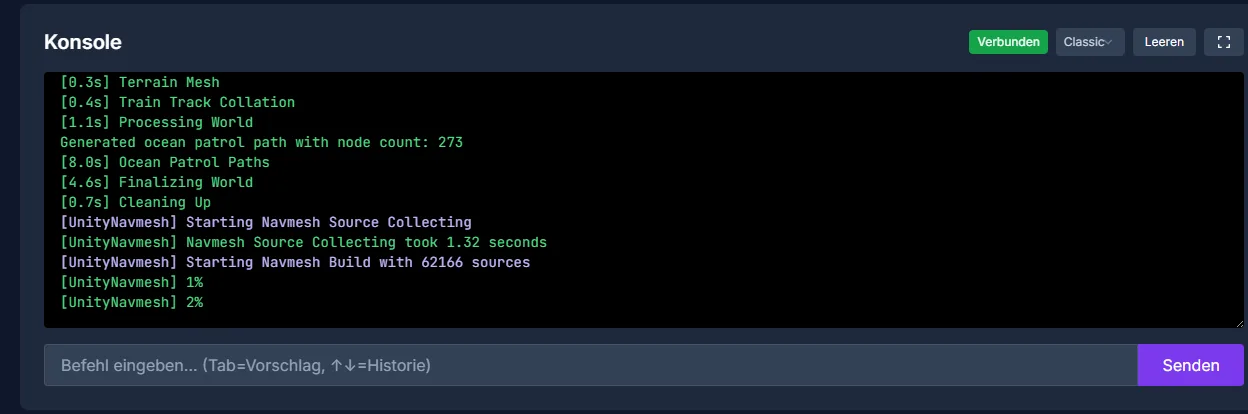
You enter commands directly in the live console in the panel – it also shows world generation on first start and all server logs in real time.
Reconnect after ownerid or moderatorid; Facepunch documents this reconnect so the auth level takes effect. Check the full SteamID64 in the console and test a harmless admin action. The permission change is saved automatically today; a missing server.writecfg is therefore not a suitable blanket explanation.
Installing uMod/Oxide and Plugins
uMod/Oxide is the widespread foundation for Rust plugins. Only install it once the vanilla configuration starts cleanly. That way you can later better tell whether a problem comes from Rust itself, the server configuration or a plugin.
- In the dashboard, activate Mods → uMod/Oxide
- The server is updated automatically
- Upload plugins to the
/oxide/pluginsfolder - Restart the server
The available plugin selection covers typical community features:
- GatherManager – adjust gather rates
- NTeleportation – teleport system
- Clans – clan system
- BetterChat – chat formatting
- ServerRewards – reward system
Do not install everything at once. Upload one plugin, restart the server, check console and function, then move on to the next. Especially on heavily modified servers, this approach saves you a lot of troubleshooting. Also document plugin versions, configuration changes and dependencies so you can react faster after a Rust update.
Performance, Wipes and Operation
The most important performance levers are no secret, but they have to be applied consistently:
- Map size: Smaller = better. 3500 is a good starting point for many community setups
- Entity cleanup: Use plugins like
Rust Entity Cleanupif your rules allow it - Decay: Accelerated decay can reduce base spam
- FPS.limit: Set to 60 to limit CPU load
What matters is putting this in the right context: these points do not replace a suitable server size and are no guarantee of particular FPS, tick rates or player counts. But they help you steer the load in a traceable way. Watch the logs and the saving behavior especially after events, raid nights and shortly before the wipe.
Plan wipes transparently. Rust communities expect clear dates for map wipes and, if used, blueprint wipes. Write the rules in the server description, on Discord or on your website, and do not change them spontaneously once players have built up progress.
If you are comparing multi-game hosting or want to start more projects later, the Complete Minecraft Server Guide 2026 and the Palworld Server Guide 2026 are also useful, because they cover similar decisions on RAM, configuration and community operation.
Verifying the Result
After setup, you should not only look at whether the server is online. Check specifically:
- The server appears with the right name and description.
- Connecting with the Rust client works.
- Map size and seed match your plan.
- Admin rights take effect after
owneridormoderatorid. server.saveruns without visible errors in the console.- uMod/Oxide loads without error messages.
- Every plugin fulfills its function in the game.
Only when these points are fine should you advertise the server publicly or invite players.
Troubleshooting
Server Does Not Start
First check the live console. Common causes are faulty launch parameters, broken plugin files or incomplete updates. Disable the most recently added plugins as a test and restart.
Admin Rights Do Not Work
Check the full SteamID64 and whether the command was run in the server console rather than SteamCMD. Then disconnect from the game and join again. Check the auth level in the server log before you trigger further permissions or restarts.
Plugins Do Not Load
Check whether uMod/Oxide is active and whether the plugin files are really in the /oxide/plugins folder. Then read the console output: syntax errors, missing dependencies or outdated plugins usually become visible there.
The Server Feels Sluggish
Check entity count, plugin errors, memory usage and tick/CPU load while the problem occurs. Disable the most recently added plugins first in a backed-up test configuration. Do not change the seed or world size as a spontaneous performance attempt: that can generate a different world on the next start. Map changes belong in an announced wipe.
FAQ
How much RAM does a Rust server need?
Facepunch lists 12 GB of free RAM. Larger maps, grown saves and plugins may need an additional reserve; the number is not a promise for a fixed player count.
Should I run Rust vanilla or with uMod/Oxide?
Vanilla is easier to maintain and closer to the base game. uMod/Oxide is worth it if you specifically need community features like clans, teleport, chat customizations or changed gather rates.
What map size makes sense to start with?
For many groups, server.worldsize 3500 is a usable starting point. Smaller maps are easier to run and encourage encounters, while larger maps need more resources and suit active communities better.
Do I have to restart after every change?
Not every console change needs a restart, but many file, plugin and mod changes are only loaded cleanly after a restart. Save beforehand with server.save and check the logs afterwards.
What matters for the wipe cycle?
Set map wipes and possible blueprint wipes early and communicate them clearly. Players plan their progress around them; spontaneous changes damage trust and make community building harder.