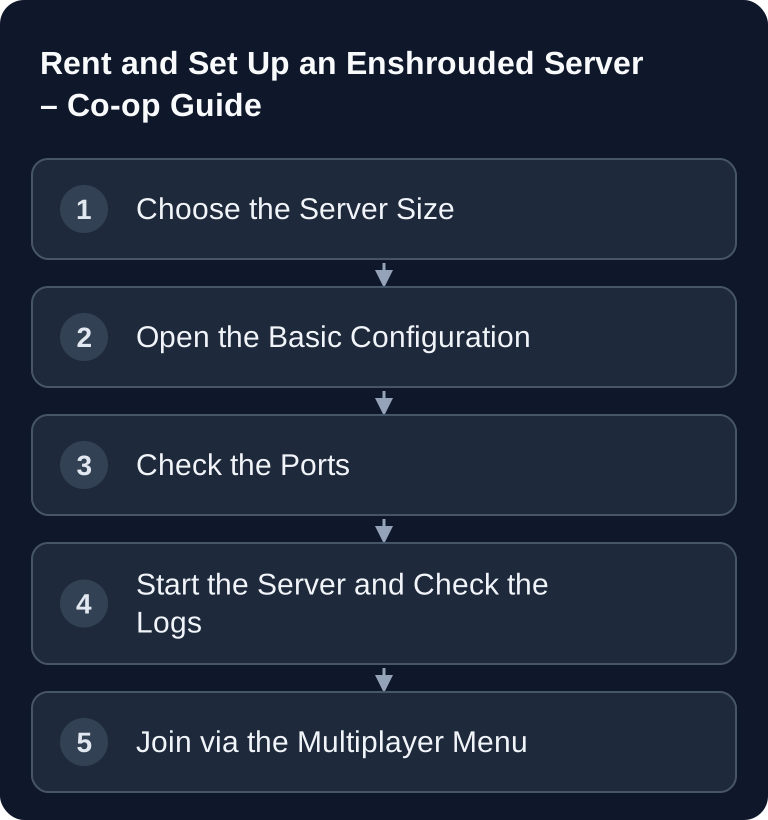
For your own Enshrouded server, you rent a dedicated instance, adjust the enshrouded_server.json, and then check ports, password, slots and logs. Realistic resources, regular backups and a controlled restart after configuration changes are important, so your co-op world stays reachable and your progress isn't put at unnecessary risk.
Rent an Enshrouded Server
Order a Server
- Open the Enshrouded server selection.
- Plan RAM above the documented idle usage, plus a reserve for active players.
- Wait for the installation to finish and check the first start in the console.
The 4 GB plan mentioned earlier in this guide is already below the official FAQ snapshot of roughly 4.4 GB for the idle server process. Therefore, don't use it as a reliable minimum size. Compare the actual package limit with your world and player load; the official FAQ also mentions additional requirements for active players.
If you deliberately choose paid multi-game hosting, the advantage isn't magic but control: you get a manageable server environment, clear operating procedures, access to configuration, restarts, backups and support, without having to run a router, firewall and 24/7 operation at home yourself. For other survival setups, you'll find similar basics in the Valheim Co-op Guide 2026 and the V Rising Server Guide.
Requirements
You need an active Enshrouded installation, the server IP or server address, the server password, and access to the configuration files in the hosting dashboard or via the file manager. Stop the server before making changes and back up the configuration. With GSH, the start sets the name, access variable, slotCount and queryPort from the managed settings; your own changes to these JSON values may be overwritten. Use the offered panel fields, or contact support if a required value isn't available. Note down the old configuration beforehand or create a backup so you can quickly recover from a typo.
Server Configuration
Server Configuration (enshrouded_server.json)
{
  "name": "My Enshrouded Server",
  "saveDirectory": "./savegame",
  "logDirectory": "./logs",
  "ip": "0.0.0.0",
  "queryPort": 15637,
  "slotCount": 8
}
This is an excerpt of the basic values. Keep your existing userGroups, chat and gameplay settings instead of overwriting the complete file with this. 15637 is the documented default; with hosting, the assigned configuration is what counts.
The enshrouded_server.json file controls the server name, save and log paths, bind address and slots. In current versions, access and permissions are managed via userGroups: the group password used determines the permissions when joining. According to the developer, the former top-level password entry is only evaluated for migrating old configurations. Edit the appropriate group and don't share an admin password as a general player password. The official roles reference describes migration and permissions.
The current dedicated server configuration documents queryPort with a default of 15637 and slotCount from 1 to 16. The old additional gamePort line doesn't belong in this current template. Match the port, package assignment and join details; don't open additional management ports on a hunch.
Setting Slots and Player Count Sensibly
Start with at most 8 players as a cautious planning figure and only increase after a load test. Current official server documentation may list a higher configurable slot count depending on the version; therefore, always check the documentation for the server version you use before making changes in production. For stable co-op sessions, the highest possible number isn't automatically the best choice. The instance configuration actually offered must match CPU, RAM and world size. With GSH, slotCount is applied at startup and isn't an independently changeable JSON limit. If you experience stutters, long save times or connection drops, test with fewer simultaneously active players and check the load.
Joining
- Start Enshrouded
- "Multiplayer" → "Find Server" or "Direct Connect"
- Enter IP and port
- Enter the password
If the server doesn't appear in the list right away, use the direct connection first. Make sure to use the correct port and not to copy any spaces into the IP, hostname or password. After a restart, it may take a moment until the server is fully loaded and found by clients.
Performance Tips
- Player limit: The official configuration documents
slotCountfrom 1 to 16; this is not a capacity promise for every package. - Load test: Check grown bases and shared exploration with your usual group.
- Restarts: Schedule them based on observed needs and outside of active play time.
You should treat the statement about player count as the configuration state of the existing guide and check it against the official documentation when versions change. SSD hosting mainly helps with loading, saving and update processes, but doesn't replace sufficient CPU and RAM reserves. Daily automatic restarts, for example at 5 a.m., make sense if your group normally isn't playing at that time. Before a scheduled restart, the world should be saved cleanly.
World Management
- The
saveDirectoryactually set determines the world folder. - Check available backups and how to restore them before a reset.
- Stop the server and keep a separate copy before creating a new world state.
Treat the savegame folder as the most important operational file of your world. Create a backup before updates, major configuration changes and world resets. For a world reset, you don't delete the entire server installation indiscriminately, but specifically the savegame folder or the affected world state, and then restart. If you're comparing several survival servers, the Palworld Server Guide 2026 is also helpful, since it covers similar topics such as persistent worlds, resource planning and operation.
Verify the Result
After setup, the server should start, write logs to the logs folder, be reachable in the server list or via direct connection, and accept the password you set. Also check whether a new save is created in the savegame folder or an existing save is loaded correctly. Ask a second player for a connection test if the server is intended for a fixed group.
Troubleshooting
Server Doesn't Appear in the List
Wait a moment after the restart and then test the direct connection. Check queryPort, server name and logs. If you changed the port, the change must match in the hosting setup and in the server configuration.
Password Is Rejected
Check the password of the intended group under userGroups, including upper/lower case and accidental spaces. Don't edit only the old top-level password value. Save while the server is stopped, restart in a controlled way, and test with a normal player account whether access and permissions match.
Server Stutters or Responds Sluggishly
First test with fewer simultaneously active players, check RAM usage, and restart the server outside of peak play time after making a backup. A direct slotCount change isn't retained independently of the managed start values with GSH. Large bases, many simultaneous players and long-running sessions can increase the load.
Progress Is Missing After a Restart
Check whether the correct saveDirectory path is set and whether the server was shut down cleanly before the restart. If needed, restore a dashboard backup instead of making further changes to the current savegame.
FAQ
How much RAM do I need for an Enshrouded server?
The older FAQ describes roughly 4.4 GB at idle for the server process alone. Therefore, plan for more than this value plus an additional reserve for players and world; check the actual current load instead of adopting the previous 4 GB minimum.
Which ports does the Enshrouded server use?
The current developer template lists queryPort with a default of 15637. With hosting, use the actual assignment and matching join details. Don't adopt the old gamePort line unchecked into a current configuration.
Where are the savegames located?
In the example, they are in the ./savegame folder. You control exactly this path via saveDirectory in the enshrouded_server.json.
Do I have to restart after every change?
Yes, for configuration changes you should restart the server cleanly. Only then can you reliably check whether the name, password, ports or slots were applied.
Can I reset the world?
Yes. First create a backup, then delete the savegame folder or the desired world state and restart the server. The server will then generate a new world.