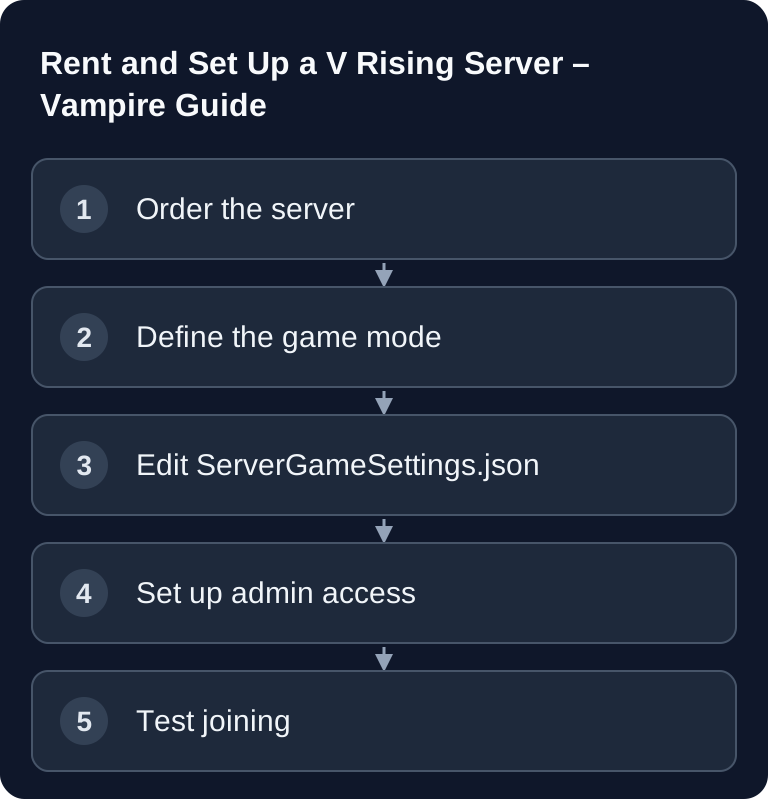
A V Rising server is worth it if your group wants to run a permanently available world with controlled PvE or PvP rules. What matters is not having as many options as possible, but clean baseline values: game mode, castle limits, siege times, admin access, backups and a verifiable join after every change.
Requirements
For your V Rising server, you need the SteamID64 of the admins, access to the server files or hosting panel and a decision for PvE, PvP or Full Loot. Choose the package based on your current world state, player load and mods. The previous blanket figure of 4 GB is not a minimum requirement backed by the Stunlock guide linked here; check memory usage and headroom after the first start.
Stunlock Studios documents ServerHostSettings.json for hostname, ports, password and slots, and ServerGameSettings.json for game rules. In the official repository, choose the guide for your version and platform; the old 0.6.x path describes a legacy state. Use local overrides in the persistentDataPath that is actually set, so that updates to the default files don't replace your adjustments.
If you already run other survival servers, the decisions are similar but not identical. For a co-op focus, you'll find comparable planning logic in the Rent and Set Up a Valheim Server – Co-op Guide 2026. For more conflict-oriented server rules, the Rent and Set Up a Rust Server – The Complete Guide is a helpful comparison.
Rent a V Rising Server
Order the Server
- Open the V Rising server selection.
- Compare the offered resources with your world, player load and mods.
- Wait for provisioning to finish and check the complete startup in the log.
After provisioning, you should start the server once and stop it again. This usually ensures that default files, save games and panel functions are fully initialized. If possible, don't change JSON files while the server is running, because running processes may rewrite configurations when stopping.
Choose a Game Mode
| Mode | Description | Recommended for |
|---|---|---|
| PvE | No player combat | Beginners, story |
| PvP | Full PvP | Competitive |
| PvP Full Loot | Lose everything on death | Hardcore |
PvE is the most stable choice for small groups who want to experience bosses, castle building and progression without player raids. PvP needs clearer rules: when raiding is allowed, how big clans may be, how harsh the loss on death is, and how quickly a group should get back into the game after setbacks. You should only enable Full Loot if all players explicitly want the consequences.
Important Settings
The gameplay rules live in ServerGameSettings.json. Keep existing valid values and only change the fields you really need. Small override files are easier to check than complete templates with hundreds of options.
{
  "GameModeType": "PvE",
  "BloodBoundEquipment": true
}
This override excerpt only shows the basic decision. For castle/raid rules, use the keys and nested structure of your current server template. CastleLimit, MaxCastleSize or a free-form SiegeTimer string are not a reliable current JSON configuration.
GameModeType determines the base mode. PlayerDamageMode and CastleDamageMode mainly take effect with PvP rules. BloodBoundEquipment reduces frustration because gear stays bound on death, provided the server uses this rule. RelicSpawnType influences how relics are handled and should be set deliberately on competitive worlds.
Castle Limits
| Decision | PvE planning | PvP planning |
|---|---|---|
| Castles per group | Coordinate space needs and building plans | Coordinate fallback bases and raid rules |
| Castle size | Factor in resource/object load | Publish rules before the world starts |
| Raid window | Not the starting point for pure PvE | Explicitly define weekdays, time and time zone |
For PvE, two castles per player or clan are often comfortable, because groups can use different regions. For PvP, a lower castle limit restricts fallback bases and reduces administrative effort. If your world is publicly accessible, document the castle rules before the start so that later changes don't seem arbitrary.
Set Siege Timers Cleanly
A time window such as 18:00-23:00 makes raids more predictable. Check your server's time zone and communicate the rule in the server description, Discord or a community note. Avoid vague wording like "in the evening" when PvP is active. For small groups, a narrower window is usually fairer, because nobody can defend their castle around the clock.
Admin Commands
Enter one SteamID64 per admin, one per line, in <PersistentDataPath>/Settings/adminlist.txt. Then enable the console in the game and log in with adminauth. Stunlock explicitly describes this file path; adminlist add <steamid> is not a documented server instruction here.
adminauth
banned
adminauth authenticates a registered admin; banned shows the ban list. Stunlock also lists banuser, bancharacter, unban and kick; use the help of your running game version for their specific parameters. Don't carry over Minecraft-style syntax such as time set to V Rising.
Only add people who are really meant to administer. Admin permissions are not a convenience feature for regular players, but a tool for support cases, rule violations, lost characters or tests after changes. After adding them, check whether adminauth works in the game and whether admin commands have not been accidentally granted to non-admins.
Join and Check the Result
- Start V Rising → "Play Online"
- "Find Server" or "Direct Connect"
- Enter IP and port
After the first join, check three things: the server name appears correctly, the chosen mode behaves as planned, and admin permissions work. With PvP rules, also test with two players whether player and castle damage match the chosen mode. With PvE, a short test is enough to confirm that no player damage is possible and that the castle limits apply as expected.
Troubleshooting
Server Doesn't Appear in the List
First use Direct Connect with IP and port. If that works, the problem is more likely with listing, query port or visibility. Check ServerHostSettings.json, firewall rules and whether the server was restarted after the last change.
Changes from ServerGameSettings.json Don't Take Effect
Stop the server, check the JSON syntax and restart. Watch for a preset or another override file overwriting your values. The official Stunlock documentation describes that settings are loaded from defaults and local overrides; multiple sources can therefore lead to unexpected results.
Players Lose Too Much Gear
Check BloodBoundEquipment and the death/loot rules. With PvP Full Loot in particular, loss is part of the mode. If your group prioritizes progression and boss fights, PvE or moderate PvP is usually more suitable.
Raids Happen at the Wrong Time
Compare the raid/PvP time structure from your active ServerGameSettings.json with the server time zone and the loaded preset. A string SiegeTimer="18:00-23:00" does not prove an effective time window. Test the same world before and within the announced window with two players.
FAQ
How much RAM does a V Rising server need?
The requirement depends on world state, active players and mods. The linked Stunlock guide does not establish a blanket 4 GB minimum. Compare the actual memory usage under normal load with the package limit and plan headroom for startup, updates and backups.
Should I choose PvE or PvP?
Choose PvE for co-op, progression and relaxed building. Choose PvP only if your group explicitly wants conflict, raids and clear rules. Full Loot is the harshest variant.
Where do I change castle limits and siege times?
These values belong in ServerGameSettings.json. Stop the server before making the change, save valid JSON and restart afterwards.
How do I make myself an admin?
Enter your SteamID64 in the admin list or use the panel function. In the game, you enable the console and log in as admin with adminauth.
Can I switch from PvE to PvP later?
Technically you can change the rules, but the switch strongly changes expectations for the world. Announce it beforehand, back up the save and afterwards check damage, castle rules and loot behavior.