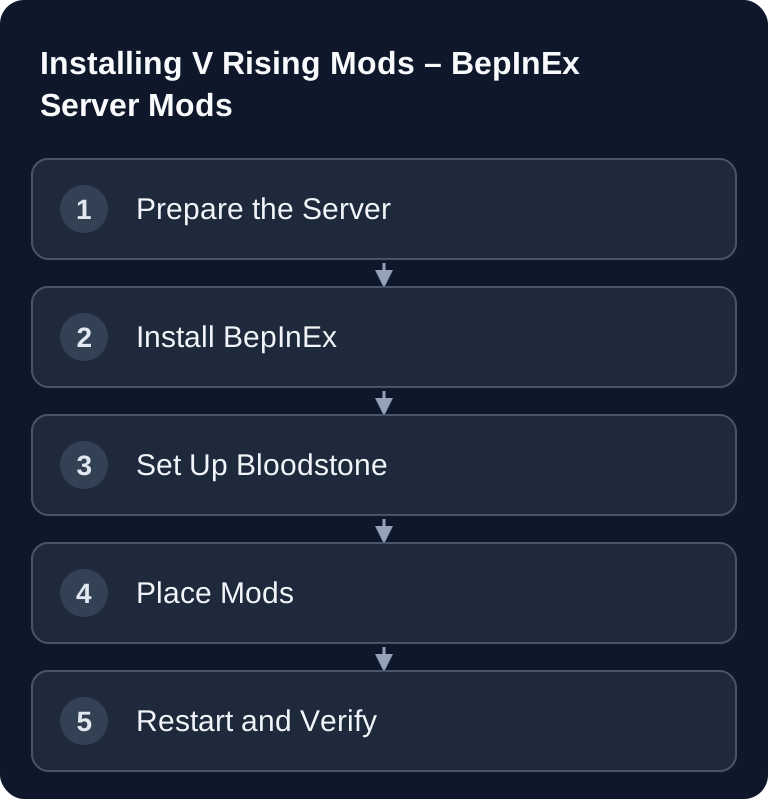
You usually install V Rising server mods via BepInEx and, for many server-side extensions, additionally via Bloodstone. The order matters: stop the server, create a backup, extract the framework into the server directory, place the mod DLLs in BepInEx/plugins/, restart, and check the logs.
Requirements and Limitations
Before you set up mods on a V Rising server, clarify three points first: which V Rising version is running on the server, which mod version is approved for it, and whether the mod really works server-side. Many V Rising server mods are server-only – players then don't need any mods on the client. However, this doesn't automatically apply to every extension. If a mod author requires client files, players have to install them as well.
For a production server, you should create a backup of the world, the settings, and the existing BepInEx folders before every change. At game-serverhosting, the sensible workflow is: plan the change, stop the server, upload files via the file manager or SFTP, start the server, and then check the logs. This way it stays traceable which file had which effect.
Use the instructions of the BepInEx pack for V Rising: It contains a pre-adapted BepInEx6 build. A general BepInEx5 installation guide does not automatically describe this package. Check the game version and the mod's requirements before installing.
Installing BepInEx
V Rising uses BepInEx as its mod framework:
- Download BepInEx for V Rising
- Extract the archive separately first; copy the contents of the
BepInExPack_V_Risingfolder into the directory of the actual server executable - Restart the server
- BepInEx automatically creates config folders
Copy the included structure next to the correct server executable. The outer package folder must not end up as an additional directory level between the executable and the loader; the client installation path in the package description is not automatically your dedicated server path. After the first start, folders such as BepInEx/plugins/ and BepInEx/config/ should exist. If these folders are not created, BepInEx is most likely in the wrong directory, the architecture doesn't match, or the start was aborted before the framework loaded.
Setting Up Bloodstone for Server Mods
Bloodstone is a framework for server mods:
BepInEx/plugins/Bloodstone.dll
Place Bloodstone.dll exactly there if the mod documentation lists Bloodstone as a dependency. Don't install Bloodstone multiple times and don't distribute the file into other folders as well. If a mod lists further dependencies, adopt their structure from the download package or from the respective mod author's documentation.
Popular Server Mods
| Mod | Description |
|---|---|
| KindredCommands | Extend admin commands |
| CrimsonChat | Improve the chat system |
| AutoCloseDoors | Close doors automatically |
| RPGMods | Add RPG elements |
| PvP Leaderboard | PvP statistics |
The table is meant as a guide, not as a blanket compatibility guarantee. Always check the respective mod's project page before installing: supported V Rising version, required dependencies, known conflicts, and notes for dedicated servers. Especially after game updates, mods can be temporarily incompatible.
Installation
- Download the mod DLL
- Place it in
BepInEx/plugins/ - Restart the server
- Adjust the config in
BepInEx/config/
With multiple mods, it's best to install step by step. After BepInEx and Bloodstone, start first without any additional mod and check that no framework errors appear. Then add one mod, restart, and check the logs again. This process takes a bit of time, but makes sources of errors much easier to trace.
Configuration files are often only created after a mod's first successful start. Edit these files only while the server is stopped and change only a few options at a time. If you combine several admin, chat, or PvP mods, watch out for overlapping commands, permissions, and event hooks.
Verifying the Result
After the restart, first check BepInEx/LogOutput.log. It should show that BepInEx was loaded and the plugin DLLs were detected. Then connect to the server and test the specific function of the installed mod: run an admin command, check the chat feature, test the door mechanics, or verify the statistics display.
If players can't connect, don't immediately remove all mods. Stop the server, move the most recently installed mod out of BepInEx/plugins/ into a temporary folder outside the plugin structure, and restart. This way you can find out faster whether a single plugin or a combination causes the problem.
Finding Mods
Preferably use mod pages that clearly state the version, update date, dependencies, and installation notes. Don't upload DLLs from unclear sources to a server you run with real save data.
Server-Only vs. Client Mods
Most V Rising server mods are server-only – players don't need any mods on the client!
In practice, this means: server-only mods are particularly well suited for public or semi-public servers because the entry barrier for players stays low. As soon as a mod requires client files, you have to communicate version parity and installation instructions clearly to all your players.
If you also mod other survival servers, the processes are similar, but never identical. For BepInEx-based setups, take a look at the guide Installing Valheim Mods with BepInEx – Step by Step. For a different server-and-client modding model, you'll find practical parallels in Installing Palworld Mods – Server and Client.
Troubleshooting
BepInEx Doesn't Create Folders
Check whether you extracted the BepInEx pack into the server's main directory and not into a subfolder. Start the server once completely and then check whether BepInEx/config/ and BepInEx/LogOutput.log were created.
The Mod Isn't Loaded
Check whether the DLL is really located under BepInEx/plugins/. Also check whether Bloodstone or other dependencies are missing. In BepInEx/LogOutput.log you will usually find hints about missing assemblies, wrong versions, or loading errors.
The Server No Longer Starts After a Mod
Stop the server and remove the most recently installed mod from the plugin folder. If the server starts again afterwards, check the mod version, dependencies, and open issues on the mod page. Then install only one change per restart.
Players Can't Connect
First check whether you installed a client mod that is also required on the player side. If the mod is server-only according to its documentation, check the server version, mod version, and log errors. On public servers, you should announce mod changes so that players can report connection problems properly.
FAQ
Do I need BepInEx for V Rising server mods?
For many V Rising server mods, yes. BepInEx provides the plugin structure through which DLL-based mods are loaded. Some mods may require additional frameworks such as Bloodstone.
Does Bloodstone always have to be installed?
No. You only need Bloodstone if the mod you want lists it as a dependency. Don't install it as a precaution for every mod, but follow the respective mod documentation.
Where do V Rising mod DLLs go?
The usual mod DLLs go into BepInEx/plugins/. Configuration files are often generated in BepInEx/config/ after the first start.
Can players join without their own mods?
With many server-only mods, yes. But don't rely on this assumption: if the mod page requires client files, players have to install the same matching client mod.
What do I do after a V Rising update?
Before the first start after a game update, check whether the loader and mods support the new version. Back up the existing save and then test on a copy. A successful framework start alone doesn't prove that plugins are compatible.