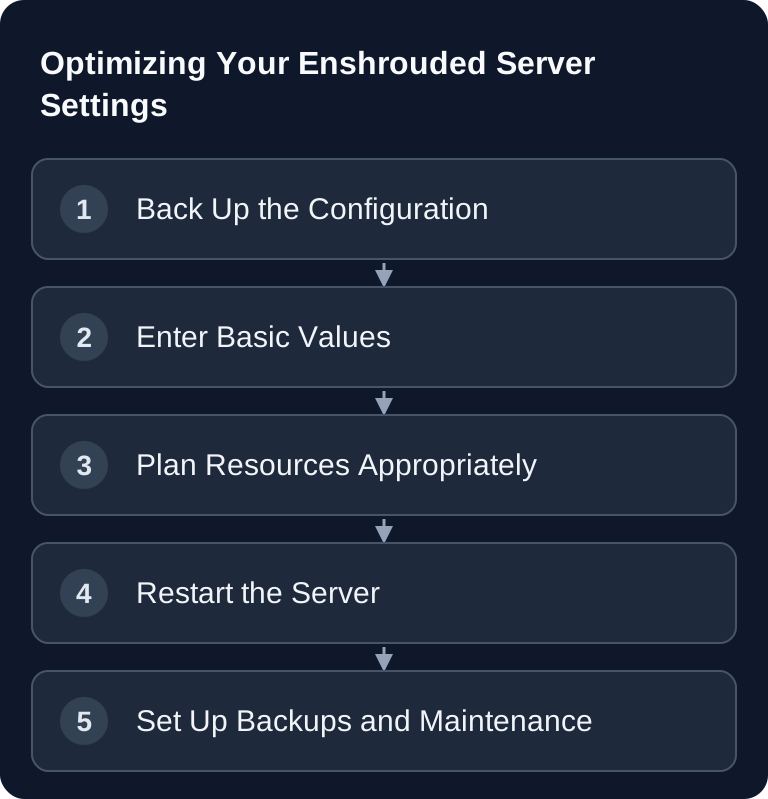
An Enshrouded server is controlled mainly through the enshrouded_server.json file. What matters is a clean server name, matching ports, a sensible slot count, reliable backups and a controlled restart after changes. For stable private or community sessions, you should document every change and then check it in the log and in the server browser.
Requirements
Before you change any settings, stop the server completely. Changes to the configuration file while the server is running can be overwritten on the next save or only take effect after a restart. You need access to the server directory, the enshrouded_server.json file, the log files and ideally SFTP or a hosting panel with a file manager. With GSH, the startup takes the name, the access variable, slotCount and queryPort from managed values. Use the panel fields that are offered; a locked value is not unlocked by manually editing the JSON file. Keep the current userGroups and check access after the restart.
The official Enshrouded documentation describes that the configuration file is generated after the first start of the dedicated server and is located in the server directory: Documentation at enshrouded.zendesk.com. For the basic installation, you can also find a practical overview in our internal guide Rent and Set Up an Enshrouded Server.
Basic Configuration in enshrouded_server.json
The server configuration is located in enshrouded_server.json:
Example of individual basic values; add them to the file fully generated by the server and make sure to preserve the user groups in particular:
{
  "name": "My Enshrouded Server",
  "saveDirectory": "./savegame",
  "logDirectory": "./logs",
  "ip": "0.0.0.0",
  "queryPort": 15637,
  "slotCount": 8
}
name is the visible server name. Choose a unique name so that players can find your server again in the list. saveDirectory and logDirectory should only be changed if you deliberately use a different folder structure. With rented hosting, it usually makes sense to keep the default paths, because backups, restore functions and support processes may depend on them.
ip stays at 0.0.0.0 in typical setups so that the service listens on the intended network interface. In the current manufacturer configuration, queryPort is the relevant one; do not copy an old gamePort field as a binding current default. If players cannot find the server, first check whether the server file, the panel and the firewall all use the same ports.
Planning Slots, RAM and Performance Realistically
Enshrouded depends heavily on world state, active players, building projects and server hardware. Therefore, avoid blanket performance promises. Plan slots so that your group can play stably instead of pushing to the maximum number.
| Setting | Recommendation |
|---|---|
| RAM | The manufacturer FAQ already mentions about 4.4 GB at idle; plan additional headroom for active players |
| Player count | Base it on your active group and the official server version |
| Autosave | Take automatic saving into account and add backups |
| Restart | Once a day, preferably outside peak playing hours |
A fixed 4 GB minimum recommendation does not fit the stated idle consumption. The official FAQ already lists several gigabytes of RAM for the server process at idle, plus additional demand per player. If you regularly work with many players, large bases or multiple worlds, plan for more headroom.
Gameplay and Role Settings
Enshrouded initially offered only limited server settings; the available options now depend on the version and the configuration schema. Therefore, after updates, check whether your enshrouded_server.json contains new fields. If you do not understand existing settings, do not change them blindly; back up the file and compare it with the official documentation.
For access rights, newer configurations with user groups are relevant. This lets you separate passwords and permissions for roles such as admins, friends or guests, provided your server version uses this schema. Do not treat the single password from old tutorials as the current role configuration. Back up the existing file, compare it with the generated schema and test the access as well as the permissions of each intended group separately.
Admin Functions and Operation
Typical administration tasks are server restarts via the dashboard, savegame management, password management and log checking. Kick and ban functions depend on the server version, console, role model and hosting interface. Use such functions carefully and document changes so that support and fellow players can understand what happened.
For multi-game hosting with technical control, it is above all important that you make operational steps repeatable: record the change, restart the server, check the log, test the connection, verify the backup status. Similar principles apply to other games as well, for example in Configuring Minecraft server.properties Properly or Rent a Rust Server: RAM, Settings & Plugins.
Backup Strategy
- Check the existing automatic backups and when they last completed successfully in the dashboard
- Make a manual backup before big expeditions
- Savegames can be downloaded via SFTP
Backups are especially important before updates, extensive building projects, role changes and configuration overhauls. Keep not only the world files but also the matching configuration. That way, after an error you can restore not only the game state but also ports, slots and access rights.
Verifying the Result
After every change, restart the server and check three things. First: the log file must not report any JSON errors or port conflicts. Second: the server appears with the expected name in the server browser or is reachable via the intended connection. Third: a test join with the password or the appropriate user group works.
Joining
- Launch Enshrouded
- Multiplayer → Search for servers
- Enter the IP and port
- Enter the password and connect
If the server does not appear in the list, additionally test the favorites or direct connection via the available Steam or in-game options. Also check whether filters in the server browser hide active dedicated servers.
Troubleshooting
If the server does not start after a change, the JSON syntax is often faulty. Pay attention to commas, quotation marks and correctly closed brackets. A single extra comma can make the file unreadable.
If players cannot connect, check the password, role, slot limit, ports and restart status. If the server starts but uses old values, first check the managed panel startup values: they can overwrite file changes at startup. Also verify the actual file path and whether you restarted after saving.
If performance problems occur, first reduce the number of active players, check RAM usage and schedule a restart. Large worlds and many structures can increase the load; back up the world before you run risky tests.
Updates
Enshrouded continues to receive updates. Therefore, treat every time-dependent statement as a snapshot for the server version installed at the time. Depending on the hosting setup, the server may update itself on restart; after updates, check the logs and compare new configuration fields before you keep using old files unchanged.
FAQ
Where do I find the Enshrouded server settings?
The central file is called enshrouded_server.json and is located in the server directory. It is generated after the first start of the dedicated server, provided it does not already exist.
Do I have to restart the server after every change?
Yes, plan for a restart. Many settings are only read at startup, and without a restart you may still be testing the old state.
Which ports are important?
The current manufacturer configuration lists queryPort 15637 by default. The port actually assigned in the panel is what counts. Do not carry over an old gamePort example without checking it.
How do I prevent data loss?
Enable automatic backups and create a manual backup before updates, configuration changes and big expeditions. Additionally download important savegames via SFTP if you need an external copy.
What do I do about JSON errors?
Restore the last working backup or fix the syntax with a JSON validator. Pay particular attention to missing quotation marks, wrong commas and accidentally deleted brackets.