The server.properties file controls the basic rules of a Minecraft Java server. In the game-serverhosting panel, you edit 36 selected values as validated fields and can use four presets as a starting point. This guide explains the safe workflow, the most important relationships and every value the current interface offers.
If you are still choosing the server type, start at Rent a Minecraft Server. You can then switch the loader and version with the guide Change the Minecraft Server Version.
Opening the Configuration Editor
Open your server and go to Game → Configuration. The editor reads the active server.properties, shows supported keys as a form and writes back only controlled values. The server port and secret values have additional protection rules.
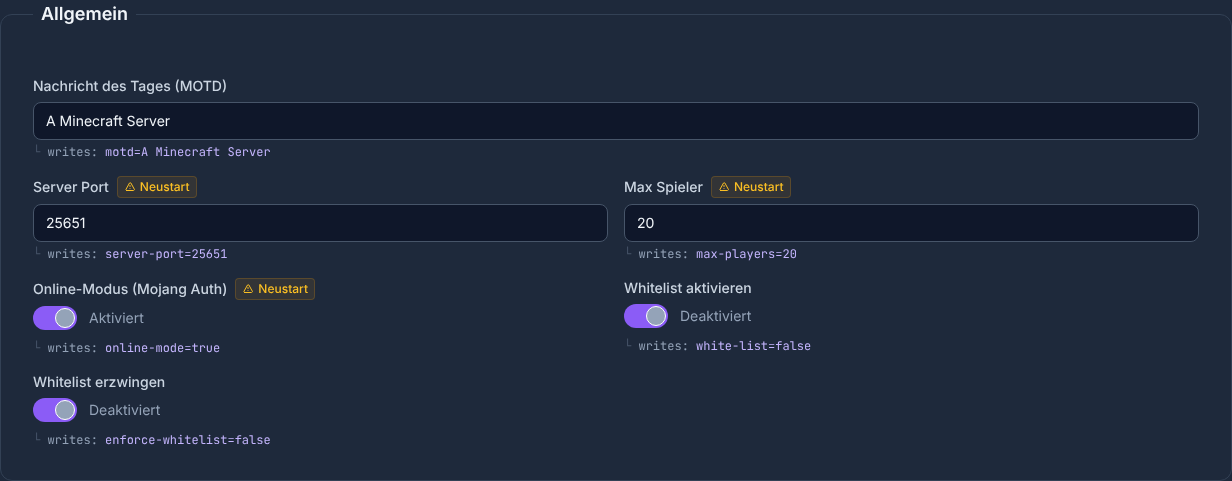
Create a backup before changing the world name, seed, hardcore mode or resource pack. Change related values in one go and test them afterwards, instead of reworking many independent rules at the same time.
Combining the Most Important Values Correctly
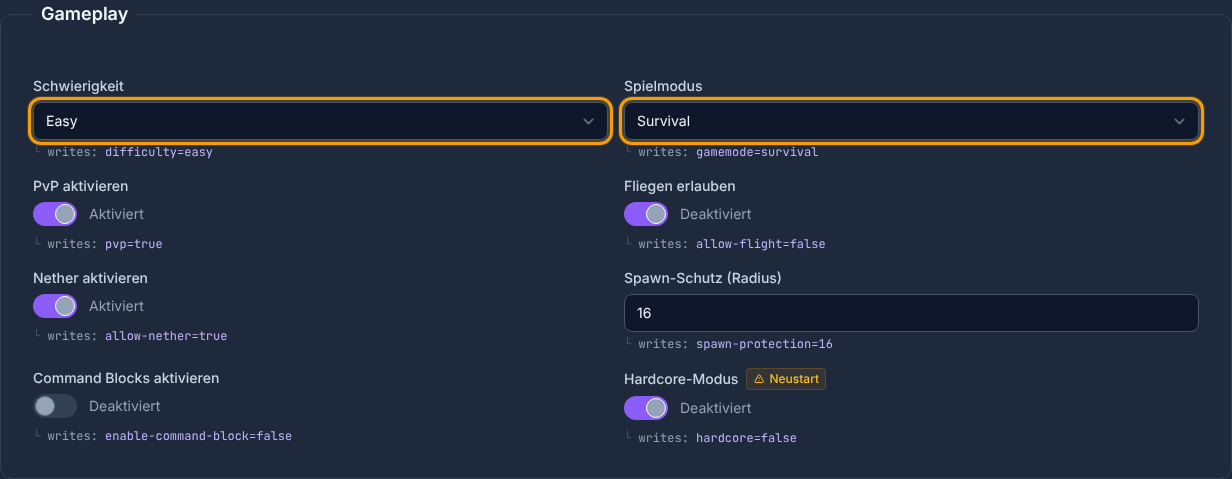
gamemode sets the default; force-gamemode=true enforces it on join. difficulty changes enemy and damage rules. hardcore=true affects death and the game mode afterwards, but it is not a repair step for existing player data. Test this combination on a backed-up copy before you switch an existing community world.
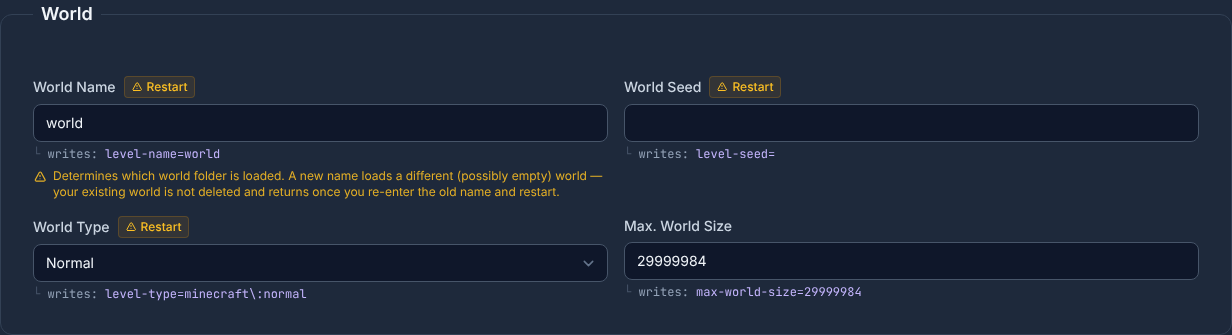
level-name points to the world folder. A different name does not delete the old world, but it can generate a new world on the next start. Therefore, enter the folder name exactly. level-seed, level-type and generate-structures are mainly relevant when a new world is generated.
For performance, view-distance and simulation-distance work differently: the view distance determines how far chunks are sent to clients. The simulation distance determines the area in which ticks, mobs and redstone stay active. High values increase the load; change them step by step and observe tick times and player experience.
Presets as a Controlled Starting Point
- Survival: normal, Survival, PvP and 16 blocks of spawn protection.
- Creative: peaceful, Creative, no PvP, no spawn protection and flying allowed.
- Hardcore: hard, Survival, Hardcore and no spawn protection.
- PvP Arena: hard, Survival, 32 players, PvP and no spawn protection.
A preset sets several values together. Check the preview before you save it, because a preset replaces the listed individual values.
Version Notes: Removed Properties and New Gamerule Names
Mojang has removed several earlier server properties or moved them into gamerules. Since 1.21.2, spawn-animals and spawn-npcs are no longer part of the effective set. Since 1.21.9, this affects, among others, pvp, allow-nether, enable-command-block and spawn-monsters; current versions control these rules through the gamerule editor. The panel marks the affected legacy values so that older servers remain easy to follow.
Starting with Java 1.21.11, gamerules were additionally moved into a registry with names such as minecraft:command_blocks_work. Earlier camelCase names in the reference refer to the 1.21.9 transition and are not universal current command syntax. Check the gamerule editor or the command autocompletion of your running version. Mojang describes the renaming in the 1.21.11 release notes. The gamerule guide explains the specific rules.
All Values in the Current Panel
The long reference is collapsed for readability. Open it when you are looking for the type, allowed range, panel default, effect or restart status of a specific key.
All 36 server.properties Values and Four Presets
- File:
server.properties
| Key | Panel display | Type and allowed values | Default | Effect / note | UI restart status |
|---|---|---|---|---|---|
motd |
Message of the Day (MOTD) | Text | A Minecraft Server |
Text shown for the server in the multiplayer list. | no restart notice |
server-port |
Server Port | Integer · 1024 to 65535 | 25565 |
The port is assigned automatically when the server starts and cannot be changed here. Display only; the panel does not write this value. | display only |
max-players |
Max Players | Integer · 1 to 200 | 20 |
Limits the number of simultaneously connected players; on its own it does not reserve a specific amount of RAM. | restart required |
online-mode |
Online Mode (Mojang Auth) | Toggle (true/false) | true |
Java Edition: online authentication protects player names and UUIDs. Disabling it allows identity spoofing and is not recommended. | restart required |
white-list |
Enable Whitelist | Toggle (true/false) | false |
When enabled, only players on the whitelist may join. | no restart notice |
enforce-whitelist |
Enforce Whitelist | Toggle (true/false) | false |
When the whitelist is reloaded, removes connected players who are no longer approved. | no restart notice |
enable-status |
Enable Server List Status | Toggle (true/false) | true |
Answers status queries from the multiplayer list. false hides status and player count from queries. | restart required |
hide-online-players |
Hide Online Players | Toggle (true/false) | false |
Hides the name list of currently connected players in the server list response. | restart required |
broadcast-console-to-ops |
Send Console Messages to Operators | Toggle (true/false) | true |
Sends the output of console commands to connected operators. | restart required |
broadcast-rcon-to-ops |
Send RCON Messages to Operators | Toggle (true/false) | true |
Sends the output of RCON commands to connected operators. | restart required |
difficulty |
Difficulty | Selection · peaceful, easy, normal, hard | easy |
Determines the global difficulty from peaceful to hard, including enemy and damage rules. | no restart notice |
gamemode |
Game Mode | Selection · survival, creative, adventure, spectator | survival |
Sets the default game mode for new players. | no restart notice |
force-gamemode |
Force Game Mode on Join | Toggle (true/false) | false |
Resets players to the configured default game mode on join. | restart required |
pvp |
Enable PvP | Toggle (true/false) | true |
Allows or prevents damage between players. Removed or without effect as of version 1.21.9. Successor: gamerule pvp. |
no restart notice |
allow-flight |
Allow Flight | Toggle (true/false) | false |
Prevents automatic kicks for flying; does not give players the ability to fly by itself. | no restart notice |
allow-nether |
Enable Nether | Toggle (true/false) | true |
Allows use of the Nether via portals. Removed or without effect as of version 1.21.9. Successor: gamerule allowEnteringNetherUsingPortals. |
no restart notice |
spawn-protection |
Spawn Protection (Radius) | Integer · 0 to 100 | 16 |
Radius of the protected area around the world spawn; 0 disables the protection. | no restart notice |
enable-command-block |
Enable Command Blocks | Toggle (true/false) | false |
Allows command blocks to be executed. Removed or without effect as of version 1.21.9. Successor: gamerule commandBlocksEnabled. |
no restart notice |
hardcore |
Hardcore Mode | Toggle (true/false) | false |
Enables hardcore rules; death can prevent normal rejoining. | restart required |
spawn-monsters |
Spawn Monsters | Toggle (true/false) | true |
Allows hostile creatures to spawn naturally. Removed or without effect as of version 1.21.9. Successor: gamerule spawnMonsters. |
restart required |
spawn-animals |
Spawn Animals | Toggle (true/false) | true |
Allows peaceful animals to spawn naturally. Removed or without effect as of version 1.21.2. | restart required |
spawn-npcs |
Spawn NPCs | Toggle (true/false) | true |
Allows villagers and other NPCs to spawn naturally. Removed or without effect as of version 1.21.2. | restart required |
level-name |
World Name | Text | world |
Determines which world folder is loaded. A new name loads a different (possibly empty) world — your previous world is not deleted and comes back as soon as you enter the old name again and restart. | restart required |
level-seed |
World Seed | Text | empty | Seed for generating a new world; does not retroactively change chunks that have already been generated. | restart required |
level-type |
World Type | Selection · normal, flat, largeBiomes, amplified | normal |
Selects the generator type for newly generated world areas, such as normal, flat or amplified. The list shows panel labels. When editing the file manually, compare the generator ID with the running version, for example minecraft:normal; do not blindly copy old alias names. |
restart required |
generate-structures |
Generate Structures | Toggle (true/false) | true |
Determines whether the world generator creates structures such as villages. | restart required |
max-world-size |
Max. World Size | Integer · 1 to 29999984 | 29999984 |
Limits the radius of world areas that can be newly generated; does not replace the separately set world border via /worldborder. |
no restart notice |
view-distance |
View Distance | Integer · 2 to 32 | 10 |
Java view distance in chunks. High values increase network, RAM and CPU load. | no restart notice |
simulation-distance |
Simulation Distance | Integer · 2 to 32 | 10 |
Java simulation distance for ticks, mobs and redstone. Do not equate it with the Bedrock tick distance; high values increase CPU load. | no restart notice |
player-idle-timeout |
AFK Timeout (Minutes) | Integer · 0 to 999 | 0 |
Kick time for idle players in minutes; 0 disables the AFK kick. | no restart notice |
entity-broadcast-range-percentage |
Entity View Distance (%) | Integer · 10 to 1000 | 100 |
Scales the distance up to which entities are sent to clients; 100 corresponds to the normal range. | restart required |
network-compression-threshold |
Compression Threshold (Bytes) | Integer · -1 to 65535 | 256 |
Packet size in bytes above which network data is compressed; -1 disables compression. | restart required |
require-resource-pack |
Require Resource Pack | Toggle (true/false) | false |
Denies joining if a player declines the configured resource pack. | restart required |
resource-pack |
Resource Pack URL | Text · max. 2048 characters | empty | Direct download URL of the resource pack offered to clients on join. | restart required |
resource-pack-sha1 |
Resource Pack SHA-1 | Text · max. 40 characters | empty | SHA-1 identifies the resource pack version for the client and its cache; the checksum does not replace a trustworthy download source. | restart required |
rcon.password |
RCON Password | Password | hidden; confidential value | Password for remote control via RCON; only use it together with a secured RCON configuration. Confidential value; hidden in the panel. | restart required |
Presets
| Preset | Purpose | Values set |
|---|---|---|
Survival (survival) |
Standard survival experience with normal difficulty and PvP | difficulty = normal; gamemode = survival; pvp = true; spawn-protection = 16; hardcore = false; allow-flight = false |
Creative (creative) |
Peaceful creative mode without PvP and without spawn protection | difficulty = peaceful; gamemode = creative; pvp = false; spawn-protection = 0; hardcore = false; allow-flight = true |
Hardcore (hardcore) |
Maximum challenge: hard, hardcore, PvP active, no spawn protection | difficulty = hard; gamemode = survival; pvp = true; spawn-protection = 0; hardcore = true; allow-flight = false |
PvP Arena (pvp) |
Optimized for PvP: hard, 32 players, no spawn protection | difficulty = hard; gamemode = survival; pvp = true; spawn-protection = 0; hardcore = false; max-players = 32; allow-flight = false |
Saving, Restarting and Checking
Save the change and check whether it already takes effect in the running game. No UI restart notice is not a guarantee that every manual file edit takes effect immediately: server.properties is generally read at startup; individual rules can be changed separately via commands. If the effect is unclear, restart in a controlled way and compare the active file, game version and actual rule. If a new empty world appears, stop the server and first restore the previous level-name.
Common Mistakes
- Change has no effect: The server was not restarted, or the Minecraft version in use no longer recognizes the legacy value.
- New empty world:
level-namedoes not exactly match the existing folder. - Resource pack does not load: URL, SHA-1 or
require-resource-packdo not fit together. - Players are turned away: Check
white-list,enforce-whitelist,online-modeand the player limit together. - More lag after the change: Reset the view or simulation distance to the previous value and measure again.
FAQ
Do I have to edit server.properties via FTP?
Not for the 36 listed values. The panel reads and validates them directly. Keys outside this catalog may still require targeted file editing.
Which preset suits a private survival server?
The Survival preset is the most sensible starting point. Then adjust only the player limit, whitelist, MOTD and, if needed, the view or simulation distance.
Why is pvp marked as deprecated in the editor?
Minecraft Java 1.21.9 moved this server property into a gamerule. The key remains relevant for older versions; for current versions you use the gamerule editor.
Are collapsed values saved and read by search engines?
Expanding does not change any server file. The table is part of the page and is only displayed closed for better readability.
Sources and Verification Status
Verification status: September 8, 2026. The field catalog is generated directly from the live panel schema. Version changes were checked against the official Minecraft releases: