On Paper, Purpur or Spigot, you install offered Minecraft plugins via the GSH plugin browser. Choose the file for the specific server platform and version, install its dependencies and restart completely. A downloaded JAR or a panel list alone does not confirm a working installation: check the startup log, plugin status and the required function with a normal player account.
In the customer panel step by step (with video): Install plugins in the panel and set them up with the wizard
Requirements for Minecraft Plugins
Plugins extend your server with features such as permission management, economy systems, protected regions, minigames, teleports or moderation commands. Classic Bukkit, Spigot and Paper plugins only work on suitable server software. If your server is currently running Vanilla, you must first switch to Paper, Purpur or Spigot. You can find a suitable guide in the internal guide Switching the Minecraft Server Version – Vanilla, Paper, Purpur, Forge & Fabric without Reinstalling.
In its official documentation, Paper recommends placing plugins in the plugins folder and then starting or restarting the server. See the official Paper documentation at Paper guide to installing plugins. This basic logic also applies when the panel takes care of the download and placement for you.
Check the server platform, Minecraft version, Java runtime and documented dependencies. A Paper-specific plugin does not have to run on Spigot, even though both support plugins. When there are several downloads, deliberately choose the paper or bukkit variant; a ZIP file may merely contain the actual JAR. For your own plugins outside the browser, use the documented file manager/SFTP route. Before updates, also back up configurations and, if applicable, external plugin databases.
Step 1: Open the Plugin Browser
Open your Minecraft server in the game-serverhosting panel and switch to the plugin browser. Use the search field to search Modrinth and compatible sources for plugins. The results list shows name, description and download counts so you can find suitable extensions faster.
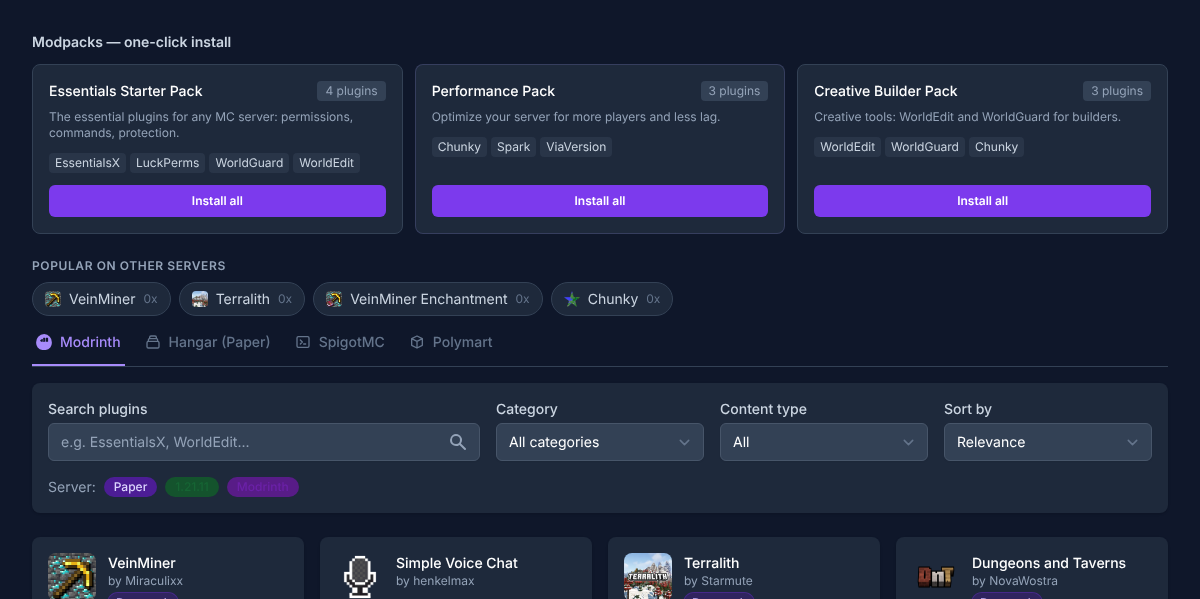
For example, search for EssentialsX, LuckPerms or WorldGuard. These are typical plugins for survival servers because they cover basic commands, permission management or area protection. Still, install only plugins whose purpose you really need. Every additional plugin can make configuration, updates and troubleshooting more complicated.
Step 2: Install a Plugin
Click Install on a plugin. If several versions are available, choose the one that fits your Minecraft version. The plugin is downloaded and placed in your server's plugins/ folder.
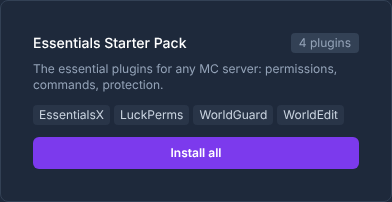
Then restart the server. A reload command may seem convenient, but depending on the plugin it can lead to incompletely loaded states. For clean changes, a full restart is the better routine, especially with new plugins, updates or removed dependencies.
Step 3: Manage Installed Plugins
In the list of installed plugins, you can enable, disable or remove each plugin. This way you keep an overview and can switch off individual extensions deliberately without deleting them completely.
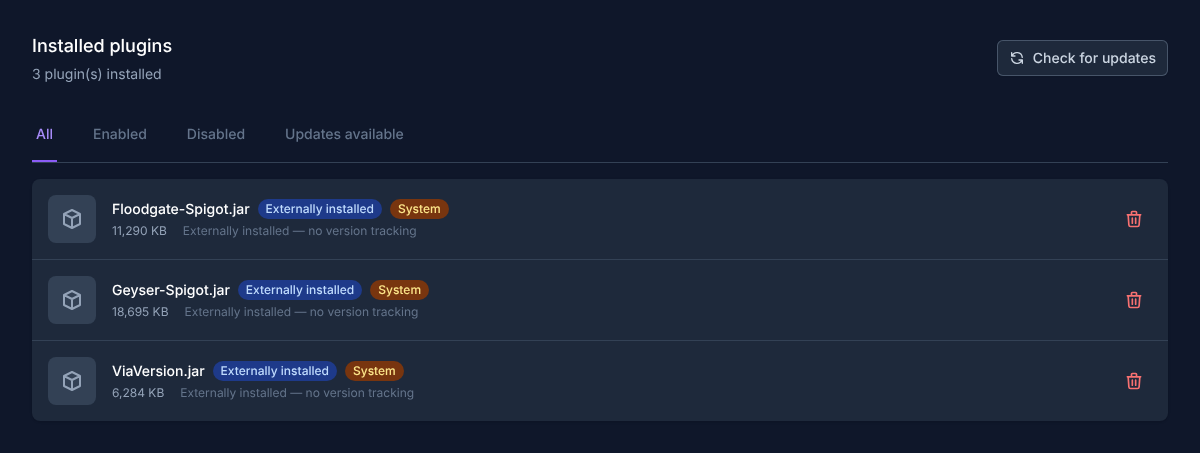
If you only disable a plugin for testing, its configuration files usually remain in the plugin folder. If you remove a plugin permanently, check afterwards whether old configuration folders, databases or world data are still needed. Don't delete such data too hastily if you may want to switch back later.
Mind the Dependencies
Some plugins need another plugin as a base. A common example is Vault for economy plugins. Install dependencies first, otherwise the main plugin may not start or individual features remain inactive. You can usually find hints in the plugin description, in the plugin's documentation or in the server logs after startup.
Check the Configuration After Installation
Many plugins automatically create configuration files on first start. After the first restart, open the plugin configuration in the file manager or via the appropriate panel function if you want to adjust values. Typical settings are language, prefixes, database connections, default permissions, world lists or enabled modules.
Only change configuration files while the server is stopped, or if the plugin explicitly supports a safe runtime change. After the change, restart the server and check whether the plugin loads without errors.
Verify the Result
After the restart, check the startup log from the plugin loading phase onward. On Paper, /plugins in the game or plugins in the console shows the runtime status; a red or unloaded extension needs error diagnosis even though its file is present. Then test the function and permission nodes with a normal account. Admin and OP special rights can hide missing player permissions or protection errors.
If you installed several plugins at once, test them individually. In case of conflicts, it is much easier to find the cause if you know which plugin was added last. This plugin route is not intended for mod-based setups with Forge or Fabric; the guide Setting Up Minecraft Mods & Modpacks – Forge & Fabric in the Panel fits those. You can also find a broader overview of both approaches at Installing Minecraft Mods and Plugins – Simple Guide.
Troubleshooting
The Plugin Doesn't Appear in the Game
First check whether your server is really running on Paper, Purpur or Spigot. Then check whether the plugin file is in the plugins/ folder and whether the server was restarted after installation. Next, look in the console: if the plugin fails to load because of a wrong version, a missing dependency or a corrupted file, the decisive hint is usually found there.
The Server No Longer Starts After Installation
Note the first concrete loading error, stop the server and first disable the most recently added plugin on a full copy. Don't remove a shared dependency as long as other plugins build on it. For an update with a database migration, restore the software and the matching data state together for the way back; an old JAR alone cannot reset the new database structure.
Commands Don't Work or Players Have No Permissions
For permission problems, you usually need a clean permission configuration. If you use LuckPerms or another permissions plugin, check groups, inheritance and specific permission nodes. Also check whether the affected plugin brings its own default permissions or requires operator rights.
Plugins Overlap in Functionality
Several plugins can provide the same commands, chat formats, teleport functions or protection mechanisms. Where possible, decide on one main plugin per area of responsibility and disable duplicate modules in the configurations. This reduces conflicts and makes later updates easier to follow.
FAQ
Can I Install Plugins on a Vanilla Server?
No, classic Bukkit, Spigot or Paper plugins need compatible server software such as Paper, Purpur or Spigot. On Vanilla, these plugins are not loaded as intended.
Do I Have to Restart After Every Plugin Installation?
Yes, after a new installation, a restart is the clean approach. This way the server loads the plugin and its configuration completely.
What Is the Difference Between Plugins and Mods?
Plugins mainly extend the server logic on Paper, Purpur or Spigot. Mods often change client or game content and typically run with Forge or Fabric. Which one fits depends on the server concept you want.
Can I Disable a Plugin Without Deleting It?
Yes, in the list of installed plugins you can disable plugins. This is useful if you want to narrow down errors or switch off a feature only temporarily.
What Do I Do If a Plugin Requires a Dependency?
Install the named dependency first, restart the server and then check the main plugin again. The plugin description or the console log often names the missing plugin directly.