Import an existing Minecraft Java world via Worlds in the panel, or transfer its complete files via SFTP while the server is stopped. Keep an unmodified copy before the first start and check that the Minecraft version, server software and mod base are the same. What matters afterwards is the activated world including dimensions and player data. A Bedrock .mcworld belongs to the Bedrock import.
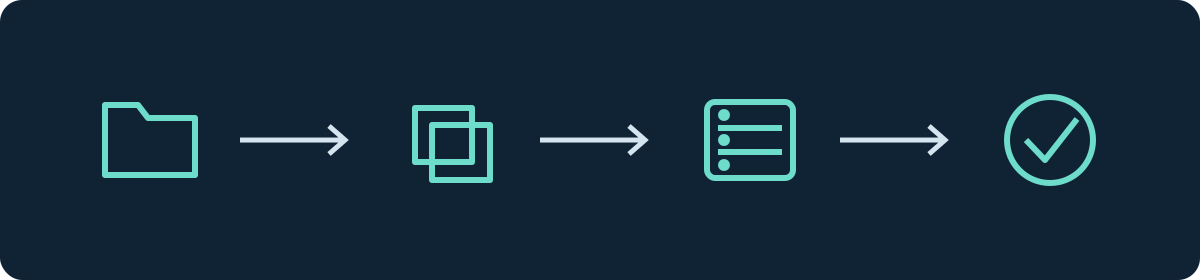
Preparation: Which World Goes on Which Server?
Note the last used Minecraft version, server software and required mods or datapacks. Keep the original download or a complete backup. In addition, create a backup of the target server before you change its active world. A copy in the same server directory helps with comparing, but does not replace a separate backup.
For a local Java installation, the world is located in the saves directory of the launcher profile that was actually started. Custom profiles may use a different game directory. Close the local world before copying. Look for the folder that directly contains level.dat; for Vacation/Vacation/level.dat, the inner level is the world root.
A file named level.dat alone proves neither Java nor completeness. Bedrock uses this name as well. Keep all world files and dimensions together. A ZIP is only packaging; renaming it to .mcworld does not convert the data.
Upload in the Panel
- Open your Minecraft server and the Worlds section.
- Select Upload World and a supported archive. Note the size and format requirements shown in the form.
- Under Name of the new world, enter a unique name, for example
community-import. Do not use a name that is already taken. - Start the upload and also wait for the subsequent processing. A completed browser upload is not yet a finished world import.
- Check whether the new entry appears in the world list. Use Switch if this world is not yet active. Read the version and backup notes before you confirm.
Uploading and selecting the active world are separate steps. A notice about an unknown or older world version is a reason to check, not a promise of compatibility. Treat a version change on a copy first. The guide on switching the server version explains the preparation.
Alternative: Full Transfer via SFTP
For manual file work, stop the server and confirm that the process has ended. Copy the complete Java world folder into the server directory. Do not overlay the active world with individual files from another backup. You can find information on access at SFTP Access.
In a simple Java setup, level-name points to the world folder:
level-name=community-import
This means community-import/level.dat must be reachable. Upper and lower case matter. Which main world the server selects is described in the Paper reference. Multiworld plugins can load additional worlds; level-name is not a universal multiworld management.
Do Not Move Dimensions According to an Old Folder Template
For Java worlds before 26.1, Nether and End in vanilla are located, for example, under DIM-1 and DIM1; older Paper installations usually use additional folders such as world_nether and world_the_end for this. An archive of only the main world may omit these dimensions. Back up and transfer all associated world folders. From 26.1 on, the layout has changed again; when switching between Paper and vanilla, use the Paper migration guide that matches the source version. First copy everything completely and keep the same software, instead of overlaying new folders with old dimension data.
Acceptance Before the Next Play Session
| Check | What you specifically compare |
|---|---|
| Correct world | Two known structures with noted dimension and coordinates |
| Player data | Inventory, ender chest, position and important progress |
| Other content | Nether, End, mod dimensions, datapacks and world border |
| Permissions | A normal player account may only perform the intended actions |
| Saving | A small test change remains after a clean stop and restart |
A different spawn does not prove a wrong world. Check known locations with dimension and coordinates. If an inventory is missing, check the player data and the previous login or proxy configuration; do not change the authentication mode as a repair attempt. Homes, warps and permissions may also be stored in the plugin folder or an external database and are not transferred automatically by a pure world import. Compare this data separately before you let the group play again.
Narrowing Down Errors and Going Back
If the entry is missing from the world list, check the import status, edition, archive size and folder root. An aborted upload must not be repaired by repeatedly switching to an incomplete world. If there is a new landscape, check the target name and active world before deleting any data. If only the Nether or End is new, compare their previous folders and the layout of the server software. If the start fails, save the first error log and compare the required versions and extensions.
Stop the faulty candidate. If only the active world was changed, select the unchanged old state again. If software or configuration was also changed, restore the matching backup state. The backup guide helps with this.
FAQ
Can I transfer a seed instead of the world?
No. A seed contains no structures, inventories or player history. You need the saved world.
Can I open a newer world on an older server?
Do not plan on downgrading the saved world. For an older environment, restore the backup state from before the upgrade.
Do I have to rename Bedrock files before the panel upload?
No. Use the dedicated Bedrock world import. The Java form is not a converter.
Related Guides
- Upload a Bedrock World as .mcworld to the Server
- Minecraft Loads a New World: Find Your Old Map Again
- Use Real-World Locations as a Minecraft Server Map
This Guide in Other Languages
English · Español · Français · Nederlands · Português · Русский