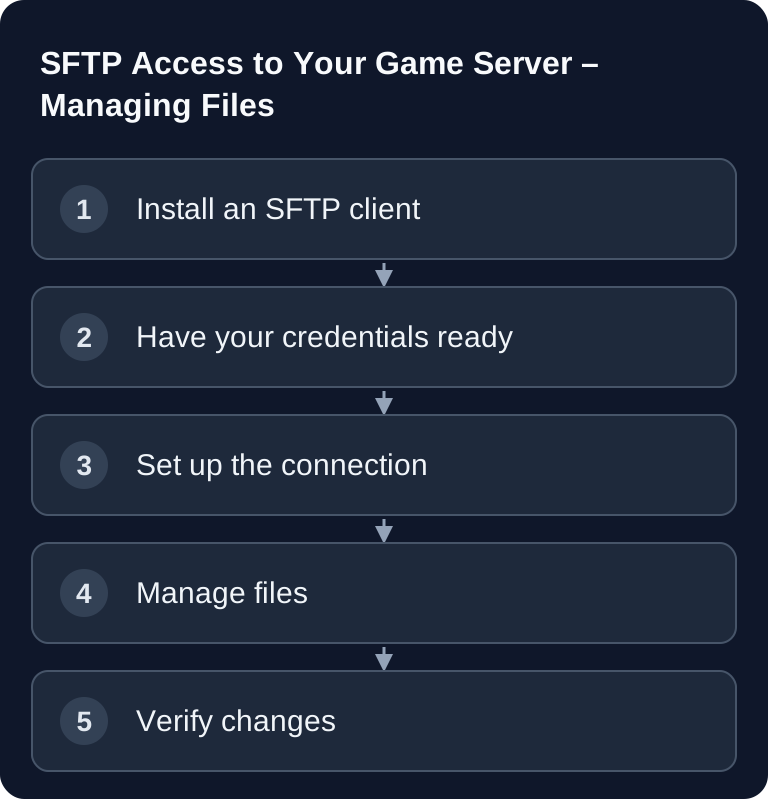
SFTP is the practical way to manage your game server's files outside the panel: edit configurations, upload plugins or mods, save logs and download worlds. All you need is a suitable client, the credentials from the dashboard and some care when overwriting important files.
What SFTP Does for Your Game Server
SFTP stands for SSH File Transfer Protocol and transfers files over an encrypted connection. For game servers, this is especially useful because you do not have to make every change through a browser file manager. Large folders, many plugin files or local backups are usually easier to manage with a desktop client.
The distinction is important: SFTP is not the same as classic FTP. If your client offers several protocols, explicitly select SFTP. FileZilla lists SFTP as a supported protocol in its official documentation; WinSCP officially describes itself as a client for file transfers, including via SFTP. Therefore, use the official downloads and avoid unofficial installers from third-party sites.
Requirements
You need an active game server, access to your game-serverhosting dashboard and an SFTP client on your computer. You should also create a backup before risky changes, or at least download the affected files locally. This applies especially to worlds, databases, server configurations and plugin folders.
If you are coming from another provider, the guide Moving a Game Server: From Any Host to game-serverhosting helps with the order of backup, upload and verification. For Minecraft-specific extensions, the guide Installing & Managing Minecraft Plugins – Spigot/Paper in the Panel adds plugin details to the SFTP steps.
Installing an SFTP Client
| Client | OS | Download |
|---|---|---|
| FileZilla | Windows/Mac/Linux | filezilla-project.org |
| WinSCP | Windows | winscp.net |
| Cyberduck | Mac/Windows | cyberduck.io |
On Windows, WinSCP is often pleasant to use because the interface, editor integration and synchronization are clearly separated. FileZilla is cross-platform and works well if you want to work in a similar way on Windows, macOS or Linux. Cyberduck is also an option if you prefer a simple interface.
Establishing the Connection
Open your SFTP client and create a new connection. You will find the values in your server's dashboard. Do not pass them on to third parties as screenshots, and save passwords only on devices you trust.
| Field | Value |
|---|---|
| Protocol | SFTP |
| Host | SFTP host from the dashboard; it may differ from the game host |
| Port | Displayed SFTP port; 2022 is only a common default |
| User | From the dashboard |
| Password | From the dashboard |
On the first connection, the client shows the fingerprint of the SSH host key. Compare it with the operator's details via a trustworthy, independent source; the correct IP alone does not prove the correct key. If a key has changed unexpectedly, abort and clarify a possible server change with support. The WinSCP guide on verifying the host key explains this comparison. After a successful connection, local and remote files are shown side by side.
Typical Folder Structure
The exact structure depends on the game and the server type used. However, many setups follow a container directory like this:
/home/container/
├── server.properties     # Server config
├── plugins/              # Plugins (Paper/Spigot)
├── mods/                 # Mods (Forge/Fabric)
├── world/                # Game world
├── logs/                 # Server logs
└── backups/              # Backups
Edit files as precisely as possible. Download a configuration file first, change it locally in a suitable editor and then upload it again. Make sure not to change any file extensions. For example, server.properties must not accidentally become server.properties.txt.
Common Tasks
- Edit config: Download file → edit → upload
- Install plugins: Upload the JAR to
/plugins/ - Create a backup: After a clean stop, back up the complete, coherent server data; a single
/world/folder is not enough for all dimensions, player data and plugin data. - Check logs: Download
latest.log
For plugins or mods, check the server version, loader and dependencies before uploading files. A Paper plugin usually belongs in /plugins/, a Forge or Fabric mod in /mods/. After the upload, a restart is usually needed so the server loads the new file.
For world backups, a clear process is recommended: stop the server, download the world folder, give the local copy a meaningful name and only then make bigger changes. If the server is actively writing during the copy, a backup can end up incomplete or inconsistent.
Check the Result
After a change, first check whether the upload completed fully. Many SFTP clients show failed transfers in a queue or an error tab. Then restart the game server if needed and check the logs. For Minecraft, latest.log is often the first place to look; other games have their own log files in the respective server directory.
Then test in the game or in the panel whether the change is actually active. An uploaded file alone does not mean the server has read it. What matters is whether startup completes without errors and the desired function is visible.
Tips for Clean Work
- Drag & Drop: Simply transfer files via drag and drop
- Double-click: Open files directly in the editor
- Synchronize: Some clients offer folder synchronization
- Key auth: Use only if your dashboard offers storing a public key; a local key alone does not enable this login.
Still, work in a controlled way: synchronization can quickly transfer local mistakes to the server. If you are replacing many files, check the target folder and the direction of synchronization beforehand. For configuration files, a local copy before every change makes sense.
Troubleshooting
If the connection fails, first check protocol, host, port, username and password. A common mistake is accidentally selecting FTP instead of SFTP or entering the port incorrectly. The default port used in many Pterodactyl setups is 2022; however, the values from your dashboard are always the ones that count.
If the upload is interrupted, the local connection may be unstable or the target folder may be missing. Repeat the transfer and watch whether your client uploaded a file only partially. When in doubt, delete the incomplete target file and upload it again.
If the server does not start after a change, restore the last working file or remove the most recently uploaded plugin or mod. Then check the logs. For basic terminal work around server files, the guide Linux Game Server Commands – The Most Important Terminal Commands is also helpful.
FAQ
Is SFTP more secure than FTP?
Yes, SFTP transfers files over an encrypted connection. It is still important that you protect your credentials, use only trustworthy clients and do not store saved passwords on shared devices.
Which SFTP client should I use?
Take the client you can work with reliably. FileZilla is cross-platform, WinSCP is very popular on Windows, and Cyberduck works on macOS and Windows. Download the client directly from the official website.
Do I have to stop the game server before every upload?
Not for every file. For logs or simple downloads, this is usually not necessary. For world folders, databases, mods, plugins or central configurations, a stop or restart makes sense depending on the change, so that no files are written at the same time.
Why don't I see my uploaded change in the game?
Possible reasons are a missing restart, a wrong target folder, an incompatible plugin or mod version, or an error in the configuration. First check the upload, then the server logs and then the exact path.
Can I download complete backups via SFTP?
You can download the files visible via SFTP. However, a panel backup does not have to exist as a directory in the game container; use the displayed download function for that. For a manual backup, stop all writing processes and capture the complete server data, including additional worlds and separately stored databases. The Minecraft backup guide explains the scope and restore verification.