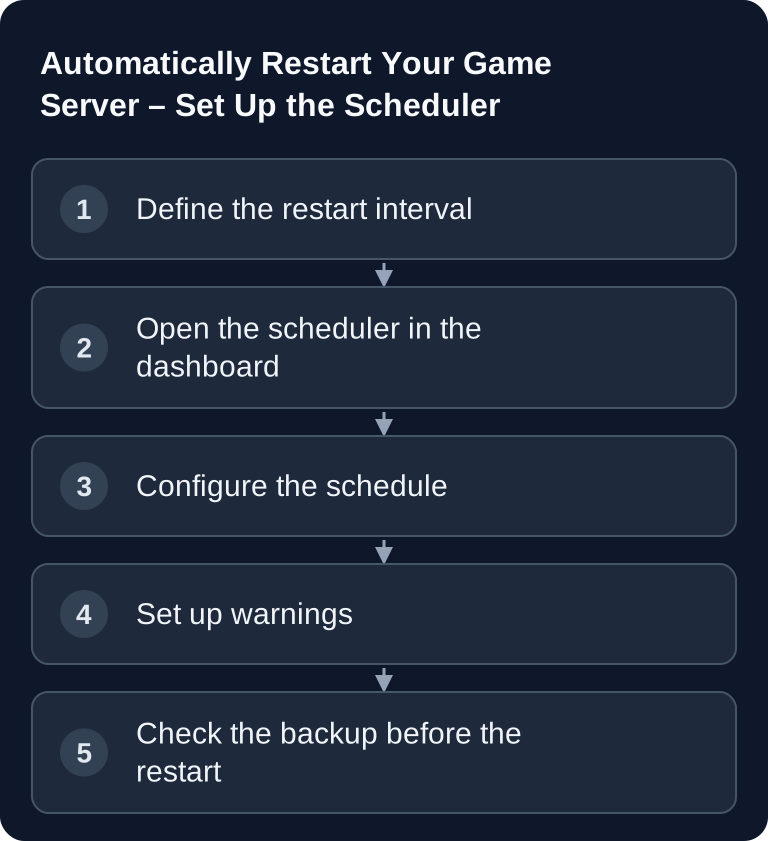
You set up an automatic game server restart as a scheduled task in the server dashboard. Define maintenance windows and the time zone, test the advance warning and, after the first run, check the startup log and saved progress. Plan the next run based on actually growing load or upcoming maintenance; a short default rhythm is not a general requirement for stable operation.
Automatically Restarting Your Game Server
Why Automatic Restarts Make Sense
A game server often runs for many hours or days without a break. Depending on the game, mod setup and player count, temporary data, script states or memory usage can build up in the process. A scheduled restart creates a controlled point in time at which the process is cleanly shut down and restarted, instead of you only reacting once lag or outages occur.
Typical reasons for regular restarts are:
- Memory leaks: Many games use more and more RAM over time
- Performance: Regular restarts can help keep performance stable
- Updates: Servers can update automatically on restart if your setup is configured that way
- Stability: Scheduled restarts reduce the risk of long-term operation silently accumulating problems
A restart does not permanently eliminate a memory leak or a faulty script. If RAM or the error count grow again each time, document the trend and look for the causing mod, resource or game version. Then use the scheduler for an announced maintenance window while you fix the cause in a targeted way.
Requirements
Before you enable an automatic restart, you should clarify these points:
- You have access to the game-serverhosting dashboard and the affected game server.
- You know the time zone in which your community mainly plays.
- You know whether your game saves automatically on shutdown or whether a separate save command makes sense.
- You have checked whether mods, plugins or large worlds cause longer startup times after a restart.
- You have a backup plan, especially for persistent worlds such as Minecraft, ARK, Valheim or Palworld.
If you also use your own address for your server, document the port and hostname properly. The guide Setting Up a Custom Domain for Game Servers – DNS Guide helps you keep DNS entries traceable.
Setting Up the Scheduler in the Dashboard
At game-serverhosting, you can set up restarts via the scheduler:
- Dashboard → Scheduler tab
- "Create new task"
- Action: "Restart server"
- Choose a schedule
Choose the time deliberately. For public servers, a window between 4 and 6 a.m. is often practical if your player base is mostly active in the same time zone. For international communities, a single perfect window is rarely possible; in that case, you should announce the restart transparently and keep it as consistent as possible.
If your dashboard supports recurring tasks, use a clear repetition such as daily, every 12 hours or weekly. Avoid multiple overlapping restart rules, because otherwise it becomes hard to tell later which task was actually triggered. For more general automation steps, you will find additional notes in the guide Automatically Restart Your Game Server — Setting Up Scheduled Tasks.
Recommended Restart Times
The following table is a practical starting point, not a guarantee of a specific performance level. Adjust the intervals to your world size, mods, player count and observations in logs or monitoring.
| Game | Check before choosing an interval |
|---|---|
| Minecraft | Compare tick times, heap and plugin errors over longer operation |
| Rust | Plan memory trends and the wipe/update date separately |
| ARK | Measure save duration, creature load and mod errors |
| Valheim | Compare world saves and memory trends at the same activity level |
| Palworld | Observe world size, base activity and version-dependent errors |
| FiveM | Check resource timing and SQL errors during longer play sessions |
For Valheim servers, it is also worth taking a look at Rent and Set Up a Valheim Server – Co-op Guide 2026 if you want to coordinate restarts with world management, password, ports and co-op operation.
Warning Players Before a Restart
A scheduled restart is only clean if players notice it in time. Set up several warnings so that nobody is caught off guard in the middle of a raid, boss fight or save process.
# 15 minutes before
say "Server restart in 15 minutes!"

# 5 minutes before
say "Server restart in 5 minutes! Please log out safely."

# 1 minute before
say "Server restart in 1 minute!"
Whether say works depends on the game and the respective console command. If your game uses other broadcast commands, replace the lines accordingly. For servers with a Discord integration, you can additionally send a message to the community channel, but you should not rely on that alone.
Backup Before an Automatic Restart
For persistent worlds, you separate saving, consistent backup and restart. A save command alone does not make a longer live file copy consistent. Use the documented panel backup, or for a manual copy, stop all writing processes. Only continue once the backup result is complete and usable. A fixed gap of minutes between two independent tasks does not guarantee this for a larger world. Test the complete process first in a supervised maintenance window.
Do not test restoration only in an emergency. A backup is only reliable if you know where it is, how old it is and how to restore it. Also document whether the automatic restart is allowed to install updates. Auto-updates are convenient, but can require additional verification for mod servers or version dependencies.
Check the Result
After the first scheduled run, you should not simply assume everything is fine. Check specifically:
- Was the scheduler task triggered at the expected time?
- Were the planned warnings sent before the restart?
- Is the server reachable afterwards?
- Was a backup created, if intended?
- Do the logs contain errors during stopping or starting?
- Are mods, plugins and the game version still compatible?
If you run system services outside a hosting panel, systemd documents in its official timer documentation how time-based units work in general: Documentation at freedesktop.org. For game-serverhosting, however, the dashboard is the right place if your server is managed there.
Troubleshooting
The Restart Was Not Triggered
First check the time, time zone and repetition rule. A common mistake is a correctly created task that was scheduled in a different time zone or only once. Then check whether the server had already been stopped at the scheduled time or whether another task was running in parallel.
Players Don't See a Warning
Then usually the console command does not fit the game, or the warning is not executed in the right context. Test the command manually in the console. Only once the manual message is visible should you transfer it to the scheduler.
The Server Doesn't Start Cleanly After the Restart
Open the startup logs and look for mod, plugin, port or version errors. If the error occurs directly after an update, check whether automatic updates were enabled and whether your extensions are compatible with the new version.
Backups Take Too Long
Large worlds can lengthen backups. Place the restart in a larger maintenance window and avoid scheduling backup, update and restart too close together. For very large servers, a less frequent but better controlled restart can make more sense.
Best Practices
- Low player activity: Schedule restarts for 4-6 a.m. if that fits your community
- Warning: Always inform players beforehand
- Backup before restart: Check the backup plan separately; a restart task does not automatically create a backup or wait for it to finish.
- Update on restart: Enable auto-update only if you deliberately plan for version changes
- Documentation: Record the interval, time and purpose of the restart internally
- Monitoring: After changes to the mod setup, monitor the next automatic restart
FAQ
How often should I automatically restart my game server?
That depends on the game, the player count and your mod setup. The table lists the measurements for the decision, not prescribed time intervals. If logs and player feedback remain stable, you do not have to shorten the interval artificially.
Should I create a backup before every restart?
For persistent worlds, this is recommended. What matters, however, is that the backup is completed before the actual restart and that you regularly check whether it could be restored.
Can an automatic restart delete player progress?
A properly planned restart should not do that. Risk arises mainly if nothing was saved, a game process is killed abruptly or a backup is missing. Use warnings and check game-specific save commands.
Are automatic updates on restart always a good idea?
Not always. For vanilla servers, they can be practical. For mod servers, you should be more cautious, because the game version, mod versions and plugin dependencies must match.
What do I do if my community plays internationally?
Choose a fixed, transparently communicated maintenance window and stay consistent. If there is no period of low activity, clear advance warnings are more important than a perfect time.