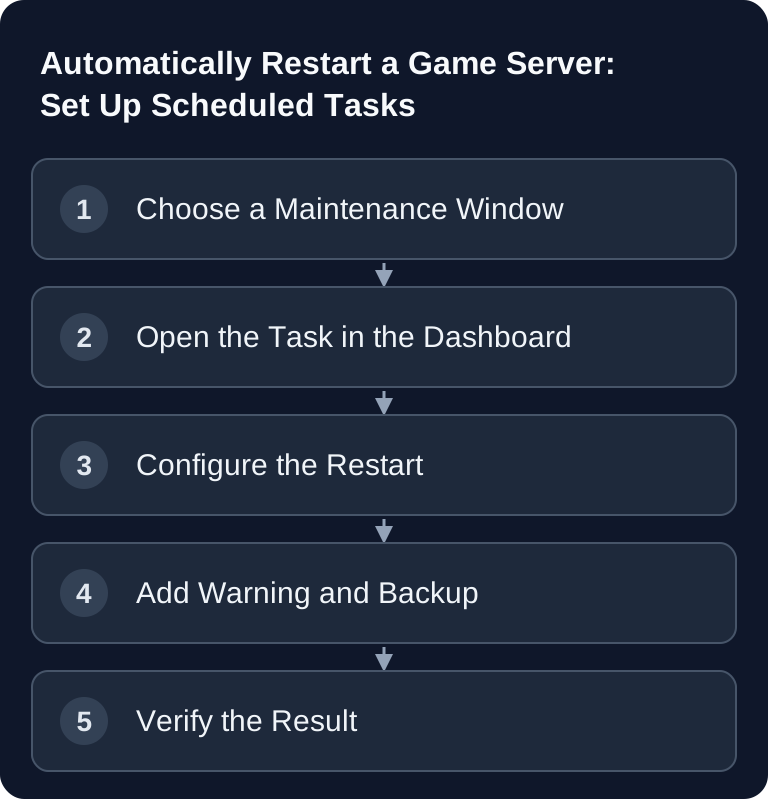
You create a scheduled restart in the GSH server dashboard under Tasks with the action Restart. Choose the time, repetition and the displayed time zone, and check the first run including advance warning, save and rejoining. This guide shows the setup; the scheduler operations guide helps with choosing intervals and longer-term observation.
When an Automatic Restart Makes Sense
A game server often runs for many hours or days in a row. Depending on the game, mod setup, world size and player activity, memory usage, log files or temporary states can build up. Automatically deriving a specific performance gain from this would be unreliable; a scheduled restart still makes sense because it restores a defined technical state and makes maintenance predictable.
At game-serverhosting, this fits our positioning as paid multi-game hosting with technical control, support and transparent operating procedures: you should know when your server restarts, how players are informed and how you verify the result.
Choose the repetition based on maintenance needs, player activity and measured long-term behavior. A stable server does not need a daily restart merely because of its type of game. If memory grows again or errors occur, investigate the cause instead of setting ever shorter intervals.
Requirements
Before you set up the scheduler, you should clarify these points:
- You have access to the server dashboard.
- You know the time zone in which scheduled tasks are executed.
- You know when your players are usually offline or less active.
- You have a current backup or an existing backup routine.
- You can check logs and server status after the restart.
For Valheim, it is also relevant that the official Valheim documentation describes how a dedicated server is started and stopped cleanly. In the official guide, Iron Gate points out that when stopping manually, the server should be shut down in a controlled way via the console window: documentation at valheim.com. For scheduled restarts, this practically means: where possible, use the restart function provided by your panel instead of killing processes forcefully.
How to Set Up an Auto-Restart
- Open your server dashboard and click the Tasks tab.
- Click New Task.
- Select Restart as the type.
- Choose a schedule, for example daily at 05:00 UTC, if few players are online at that time.
- Save the task and check the first run.
If your panel supports additional actions, you can combine the restart with a warning message. A typical sequence is: first a console message, the restart a few minutes later, then a short check of the server status. An example of a warning message is:
say Server restarting in 5 minutes!
Use such messages sparingly and clearly. Players don't need to know every technical detail, but they should have enough lead time to finish fights, building work or inventory actions.
Up to 10 Tasks per Server
You can manage up to 10 scheduled tasks per server. The tasks area offers restart, console command and, for supported games, a message. You set up backup plans in the separate backup area; a restart task does not also create a backup. For warnings, first manually check whether the chosen command is visible in the specific game.
- Restart – uses the intended server action
- Message – only with a supported in-game broadcast
- Command – executes the verified console command for the respective game
Don't schedule tasks too close together. If a backup is supposed to run right before a restart, give the backup enough time. With large worlds or many files, a backup can take longer. A restart during a running backup is a typical source of errors that you avoid with clean spacing.
If you want to combine a recurring restart routine with further maintenance tasks, the more detailed guide on automatically restarting a game server and setting up the scheduler helps. If players should reach your server via their own address, combine the maintenance with a stable DNS configuration from the guide set up a custom domain for your game server.
Recommended Restart Times
The following times are practical starting values from the perspective of European communities. They are no guarantee of better performance and do not replace checking your own player activity.
| Situation | Choose maintenance window |
|---|---|
| Private EU group | Agree on a time with the players and display the time zone |
| International community | Compare actual activity from the history |
| Rust wipe or game update | Check your own wipe/update procedure; a restart alone does not perform a wipe |
| Recurring memory increase | Log the cause; do not derive the interval from a blanket 12-hour assumption |
Treat this table as a template. If your community mainly plays from North America, an early-morning UTC time window in Europe may be unfavorable. If your server has events, wipes or fixed raid times, the restart should fall outside those periods.
Verifying the Result
After the first automatic restart, you should not only check whether the server is back online. Specifically check:
- Was the task executed at the expected time?
- Was the correct time zone used?
- Did the logs run through without conspicuous errors?
- Can players connect again?
- Was a previously scheduled backup completed in full?
- Were warning messages displayed in the game, if you set them up?
With Valheim, you can additionally check whether the world name, port and password are unchanged. When moving to rented hosting or switching from another provider, the migration guide ZAP-Hosting move: migrating game servers helps ensure that world data and configurations are transferred cleanly.
Troubleshooting
The server restarts at the wrong time
First check the scheduler's time zone. Many panels store tasks in UTC. If you expect 05:00 local time but entered 05:00 UTC, the restart shifts depending on daylight saving or standard time.
Players lose progress during the restart
Set a warning message before the restart and check whether your game saves regularly. For games with world files, a backup before major changes is sensible. Do not restart in the middle of critical events, boss fights or wipes.
The server doesn't come online after the restart
Open the logs and check startup parameters, mods, plugins and memory usage. The problem is often not the scheduler, but a faulty configuration, a mod update or a corrupted file.
Backup and restart overlap
Pause the automatic restart until the backup is complete and usable. Check the actual backup status; a gap of 15 to 30 minutes does not guarantee completion with a large world. Test the combination under supervision first and set up a separate backup plan.
FAQ
How often should I automatically restart my game server?
There is no interval that is right for all games. Plan upcoming maintenance and observe the server under normal load. Recurring problems need a root cause analysis; the type of game alone does not justify a daily restart.
Should I create a backup before every restart?
Not necessarily before every restart, but before major changes, updates or risky maintenance windows a current backup makes sense. What matters is that the backup and restart do not collide in time.
What time is best for automatic restarts?
Choose a time window with as few players as possible. For many German-speaking communities, early UTC times are practical, but your actual player activity is what counts.
Can an automatic restart completely fix lag?
No. A restart can clear temporary states, but it does not solve fundamental problems such as too few resources, faulty mods, poor configuration or overloaded worlds.
Do I have to warn players before the restart?
Yes, if active players are regularly online. A short console message a few minutes beforehand prevents frustration and makes operations more transparent.