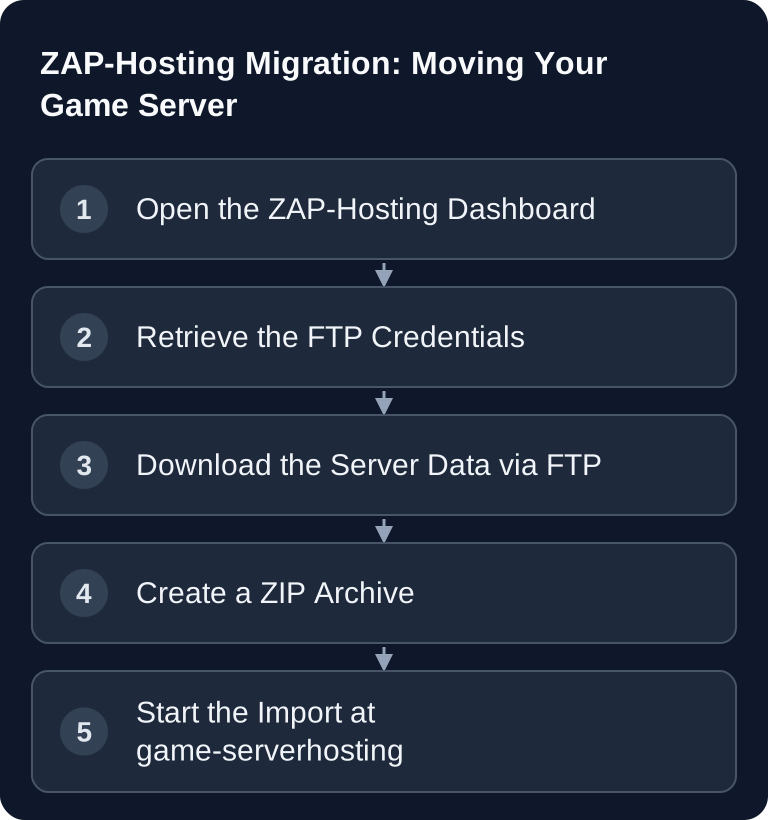
If you want to move your game server from ZAP-Hosting to game-serverhosting, you mainly need a complete backup of your server files. The usual route goes through the FTP access at ZAP-Hosting, a local ZIP archive, and then the import at game-serverhosting. Only cancel the old server once the new server has been checked.
Requirements
Before you start, make sure you have access to your ZAP-Hosting account and the affected game server. You also need an FTP client, for example FileZilla, as well as enough free storage space on your local computer for the entire server folder and the ZIP archive created from it.
Plan on about 20 to 30 minutes for small to medium servers. Large worlds, modpacks or lots of plugin data can take considerably longer, because download, compression and upload depend on your connection and the amount of data. What matters is not speed, but that you don't leave out any files.
As the official primary source for your current provider, you use the ZAP-Hosting dashboard at zap-hosting.com. That's where you'll find the current access details for your server. If labels in the panel differ, the information in the dashboard is authoritative.
Step 1: Find Your ZAP-Hosting FTP Credentials
Log in at zap-hosting.com and select your game server in the dashboard. Then open Settings → FTP Browser. The access details you need for the download are listed there.
Note down these values:
- Host: your server IP or the displayed FTP host
- Port:
21for standard FTP - Username: your ZAP ID or the displayed FTP user
- Password: your FTP password
In this guide, ZAP-Hosting uses FTP over port 21. If your server panel shows different credentials or a different port, use the values from your panel. For the move to game-serverhosting, the upload method is especially robust, because you first back up the data locally and then import it in a controlled way.
Step 2: Download Your Server Data Completely
Stop the old game server before the final download and check its FTP permissions. ZAP explicitly requires this in its file access guide; otherwise Permission Denied may occur. Back up any external databases you need separately and consistently. Then connect using the offered FTP protocol and the values of the selected server.
Host: ftp://your-server-ip
Port: 21
Benutzername: your FTP user
Passwort: your FTP password
Next, navigate to the game folder, for example a path like /gXXXXX/minecraft/. The exact path depends on your game and your server ID. Download the entire relevant folder, not just individual world files. For Minecraft, besides the world this often includes server.properties, plugin folders, mod files, whitelists, ban lists and other configurations.
Wait until the FTP client shows no pending transfers. You should retransfer any aborted or skipped files before you continue.
Step 3: Create a ZIP Archive
Open the local folder you downloaded the server files to. Then compress the game folder into a ZIP archive. On Windows, you can compress the folder via right-click. In the terminal, this works, for example:
zip -r backup.zip ordner/
Check the size and archive format limit currently shown in the GSH import dialog. Keep the unmodified original copy before you remove logs or duplicate backups that are demonstrably unnecessary for the import. The compressed size alone isn't enough: the target also needs room for the unpacked server contents.
Make sure the folder structure is preserved. The import should later find the files just as they were on the old server.
Step 4: Import at game-serverhosting
Open /migrate?hoster=zap and select your game. Then use Upload file as the import method and upload your ZIP archive via drag & drop or file selection. The import starts automatically after the upload.
Migrate a ZAP-Hosting Server →
If you're migrating several servers, work through them one at a time and name your backups clearly, for example with the game, date and server name. That way you avoid accidentally importing the wrong world or an older configuration.
For general migration planning, you'll also find the guide Migrating a Game Server: From Any Host to game-serverhosting. If you want to manage files directly in the future, SFTP Access to the Game Server – Managing Files is also helpful.
Step 5: Order and Start Your Server
After a successful import, the system detects the game and existing server data as part of the import process. Then you choose the right plan, pay via Stripe and start the server. game-serverhosting is a paid multi-game hosting service focused on technical control, support and transparent operations.
If you're unsure which plan makes sense, compare your game's requirements, the player count and the size of your mods or plugins before ordering. For an idea of ongoing costs, see our internal guide Game Server Costs at a Glance – What Does Gaming Hosting Cost?.
Check the Result
Start the new server and check it before you cancel at ZAP-Hosting. Connect to the server yourself and verify at least these points:
- Is the world fully loaded?
- Is the correct save state present?
- Are mods or plugins active?
- Are
server.properties, slots, seed and whitelist correct? - Have permissions, operators and ban lists been carried over?
- Does the console start without obvious errors?
Also load one or two typical gameplay situations, for example spawn, bases, dimension changes or mod items. Only when the new server runs as expected should you cancel the old subscription.
Troubleshooting
FTP Connection Fails
Check host, port 21, username and password exactly against the ZAP-Hosting dashboard. If the password doesn't work, set a new FTP password under Settings → FTP and wait 2 to 3 minutes before trying again.
Download Is Incomplete
In FileZilla, check the queue and failed transfers. Repeat only the failed files or download the affected folder again. An incomplete backup is the most common cause of missing worlds, plugin errors or broken modpacks.
ZIP Archive Is Too Large
Compare the archive size and the unpacked contents with the import and storage limits currently displayed. Remove only known unnecessary files from a working copy; the original backup stays complete. If the complete required state doesn't fit, work out a suitable import route before uploading instead of leaving out world files.
Server Doesn't Start After the Import
Open the console and check the first error message. Common causes are missing mod files, wrong game versions, corrupted configuration files, or plugins that expect a specific server software. Compare versions and file structure with your old server backup.
Cancel Your ZAP-Hosting Server — Only After Testing
Only cancel once the new server is proven to run. As long as your contract at ZAP-Hosting is active, you have a way back; after the contract ends, the files stored there are generally no longer retrievable.
Order of steps that keeps you safe:
- Test the new server completely — world, mods, plugins and player access, using the same client version you play with.
- Store a second copy of the backup — locally or on your own storage medium, independent of both providers.
- Find the cancellation option in your customer account — usually in the section for contract, subscription or renewal of the server.
- Check automatic renewal separately — with many providers this is a separate switch, independent of the cancellation.
- Keep the confirmation — until the paid billing period has ended.
Which notice period applies to your contract and where exactly the cancellation option is located can be found in your order confirmation and in ZAP-Hosting's terms and conditions. Check both there directly before you cancel — don't rely on third-party information, including this page.
Download what you want to keep before cancelling. World saves, configurations and logs are usually no longer accessible after the contract ends.
Keep the old complete state until the new instance has been verified, including saving and restarting. Don't let both servers keep writing in production during the final comparison. Check the necessary renewal and costs in your current customer account before the export option ends.
FAQ
ZAP has no SFTP, only FTP. Does this still work?
Yes. Download your files via FTP, create a ZIP archive from them and upload it to game-serverhosting in the migration wizard. For this process, you don't need direct SFTP access at the old provider.
My world is 8 GB. Will that work?
That depends on the compressed archive size, the current upload limit, the unpacked amount of data and the target plan. Check these values in the wizard. An 8 GB world folder alone predicts neither the final archive size nor the space needed with mods and configurations.
What if my FTP password doesn't work?
In the ZAP-Hosting panel, set a new password under Settings → FTP. Then wait 2 to 3 minutes and try the connection again with host, port 21, username and the new password.
When should I cancel the old ZAP-Hosting server?
Only after a successful check on the new server. Test the world, mods, plugins, configuration and console startup. As long as something is missing or unclear, keep the old server as a reference and fallback option.
How do I cancel my ZAP-Hosting server properly?
Only cancel after the new server has been tested. You'll find the cancellation option in your customer account, in the contract or subscription section of your server. Which notice period applies is stated in your order confirmation and in ZAP-Hosting's terms and conditions — check it there directly. Also disable automatic renewal if it's managed as a separate switch, and back up all files you want to keep beforehand.
Do I have to transfer each folder individually?
No. Download the complete game folder so that the world, configuration, mods, plugins and additional files stay together. Transferring individual files increases the risk that dependent data will be missing.
Can I use the migration for other providers too?
Yes, the basic process is similar: create a backup, download the data, prepare the archive and import it. For general cases, use the guide Migrating a Game Server: From Any Host to game-serverhosting.
Migrate a ZAP-Hosting Server →