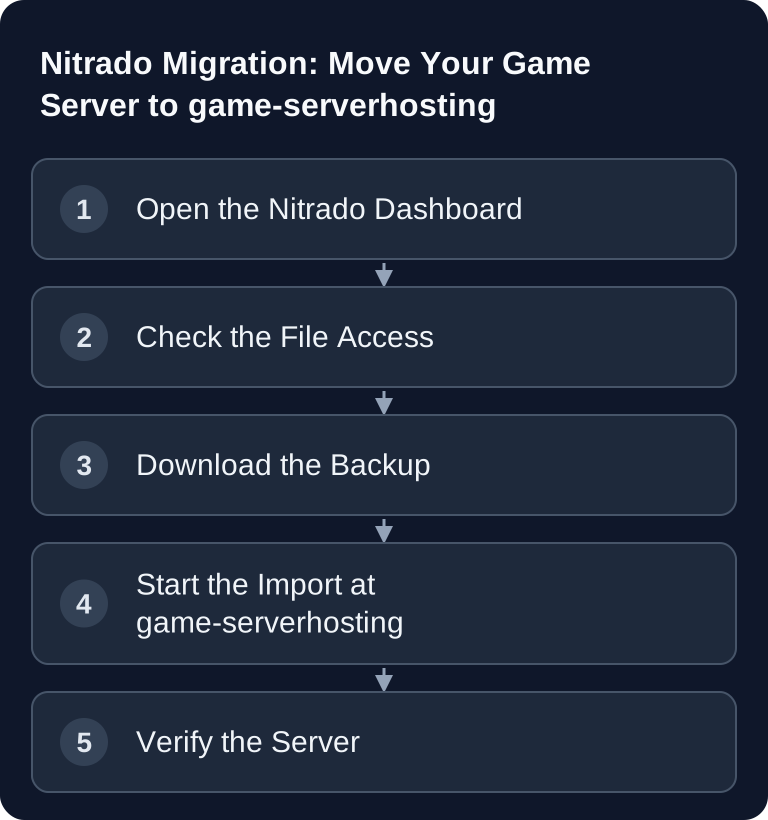
For the Nitrado move, you export the accessible game and configuration files with the server stopped, plus any databases that are required separately. Then import the copy at GSH using the same versions and check the world, inventories, and permissions. According to the manufacturer's overview, Nitrado's automatic full backups cannot be downloaded directly; for a local copy, use the file access that is actually offered.
Requirements
For the move, you need an active Nitrado account with access to the affected game server, the FTP or SFTP credentials, enough local storage space for a backup, and a target setup at game-serverhosting. Also plan time for the download, upload, and a test start. The setup itself is often done quickly, but the actual duration depends on world size, mod scope, and your connection.
As the official starting point for your existing server, you use the Nitrado server panel at server.nitrado.net. Only use credentials that are shown directly in your account or that you have set there.
If you want to refresh your knowledge of general file management before the move, the internal guide SFTP Access to the Game Server - Managing Files will help. For migrations from other providers, you will also find the overview Moving Game Servers: From Any Host to game-serverhosting.
Step 1: Find Your Nitrado SFTP Credentials
- Open Nitrado and log in through its customer account.
- Select the game server you want to transfer.
- In the left menu, open the Configuration section.
- Go to FTP Browser or Credentials.
- Note down the connection details shown.
Typically, you need the following information:
| Field | Meaning |
|---|---|
| Host | Server address, for example de5.gameservers.nitra.do |
| Port | Often 21 for FTP or 22 for SFTP |
| Username | Your displayed FTP/SFTP user |
| Password | The FTP/SFTP password set in the panel |
Use the protocol that is actually offered and the specified port. The Nitrado guide for local backups describes FTP credentials in the dashboard. Port21 is not an SFTP endpoint, and simply switching to Port22 does not create such an access. With FTP-only, you download locally and use the archive upload; only confirmed SFTP is suitable for direct import.
Step 2: Back Up Completely
Before you import anything, you create a complete copy of your current server state. There are three sensible ways to do this.
Option A: Direct SFTP Import
With direct SFTP import, you enter the Nitrado credentials in the game-serverhosting migration wizard. The import reads the data directly from the old server. This is convenient if access works reliably and you do not want to prepare a local archive first.
Option B: Download and Upload a Backup
If you want maximum control, you connect with an SFTP client such as FileZilla and download the game folder. For Minecraft, the path may look similar to this, for example:
/games/ni_12345/minecraft/
Back up not only the world folders, but also configuration files, plugin folders, mod folders, whitelists, ban lists, and startup parameter files, as far as they are in the server directory. Afterwards, you can compress the data into a ZIP file. If your import path uses a size limit, observe the limit shown in the wizard; in the original process, a ZIP upload of up to 10 GB at most was provided for.
Option C: Nitrado Backup Function
Nitrado distinguishes between complete automatic backups, map saves, and manual FTP copies. A complete dashboard restore is not a freely downloadable .tar.gz archive. The current Nitrado overview rules out the direct download of complete backups; exportable map saves, on the other hand, do not automatically contain configuration and external data. Use the file access or ask support which data can be exported for your specific game.
Step 3: Start the Migration Wizard
Open /migrate?hoster=nitrado and first select the game. Then you decide between SFTP import and upload. For SFTP, you enter host, port, username, and password. For the upload, you select your prepared archive.
game-serverhosting is paid multi-game hosting. In the order process, you choose a suitable plan, check the configuration, and complete the order. If the import shows hints about game variant, mods, plugins, slots, or memory requirements, treat this information as technical guidance and verify it against your previous server operation.
Step 4: Verify the Result
First start the new server in a controlled way and then check the most important points:
- Is the right world loaded?
- Are mods and plugins present?
- Are the whitelist, ops, ban lists, and permissions correct?
- Do the configuration files and server properties match?
- Are there error messages in the log?
- Can players connect?
For Minecraft, you should additionally make sure that the first start and the EULA acceptance were processed cleanly. The internal guide Minecraft EULA & First Server Start is relevant here. For log analysis and terminal work, Linux Game Server Commands - The Most Important Terminal Commands helps.
Only cancel the Nitrado server once you have tested the new server and no relevant data is missing.
Troubleshooting
SFTP Connection Fails
First check whether the file access provides FTP or SFTP, then host, port, and password. If your account shows only FTP, test that protocol in the client and then use archive upload. An unsuccessful SFTP attempt on Port22 then does not prove a wrong FTP user.
Import Aborts with Large Data
Download the data locally, remove cache files or old log archives that you do not need to migrate, and create a new archive. Still keep the unchanged original backup separately.
Mods or Plugins Do Not Start
Compare game version, mod loader, plugin versions, and Java version. Many errors are not caused by the move itself, but by version differences between the old and new setup.
World State Is Not Up to Date
Stop the old server before the final backup so that no new data is written. Then create another fresh backup and import it again.
Cancel Your Nitrado Server — Only After Testing
Cancel only once the new server is demonstrably running. As long as your contract with Nitrado is active, you have a way back; after the contract ends, the files stored there are generally no longer retrievable.
Order that keeps you safe:
- Test the new server completely — world, mods, plugins, and player access, with the same client version you play with.
- Store a second copy of the backup — locally or on your own storage device, independent of both providers.
- Find the cancellation path in your customer account — usually in the section for contract, subscription, or renewal of the server.
- Check automatic renewal separately — with many providers this is its own switch, independent of the cancellation.
- Keep the confirmation — until the paid billing period has ended.
Which notice period applies to your contract and where exactly the cancellation option is located can be found in your order confirmation and in the Nitrado terms and conditions. Check both there directly before you cancel — do not rely on outside information, including this page.
Download what you want to keep before cancelling. World saves, configurations, and logs are usually no longer accessible after the contract ends.
Keep the original state until the check is complete. If the target instance has already saved test progress, do not mix it with a renewed final export. Before the contract ends, decide whether the remaining time is enough for export, testing, and a way back; check any necessary renewal in your existing account.
FAQ
Can I Import My Nitrado Server Directly via SFTP?
Yes, if your Nitrado access allows SFTP and the credentials are correct. The wizard can then retrieve the files directly. Alternatively, you can use the upload of a local backup.
What Happens to My Plugins and Mods?
Files that are in the backed-up server folder are transferred along with a complete import. Whether they start without errors afterwards depends on game version, mod loader, dependencies, and configuration.
Should I Cancel Nitrado Before the Move?
No. Cancel only after successfully testing the new server. That way you keep access to the original data in case a backup was incomplete or you need a file again.
How Do I Cancel My Nitrado Server Properly?
Cancel only after the new server has been tested. You will find the cancellation option in your customer account in the contract or subscription section of your server. Which notice period applies is stated in your order confirmation and in the Nitrado terms and conditions — check that directly there. Also disable automatic renewal if it is managed as a separate switch, and back up all files you want to keep beforehand.
Is SFTP Better Than FTP?
For the move, SFTP is preferable if it is available, because it is designed for protected file transfer. Use FTP only if SFTP does not work in your specific setup.
Can I Import the Minecraft World and Plugins Separately?
The most reliable way is to import the complete server folder. Afterwards, you can remove files you do not need in the file manager or adjust them selectively.
What Do I Do If the New Server Does Not Start?
First read the server log. Common causes are missing mod dependencies, wrong game versions, corrupted configuration files, or an incompatible startup parameter.