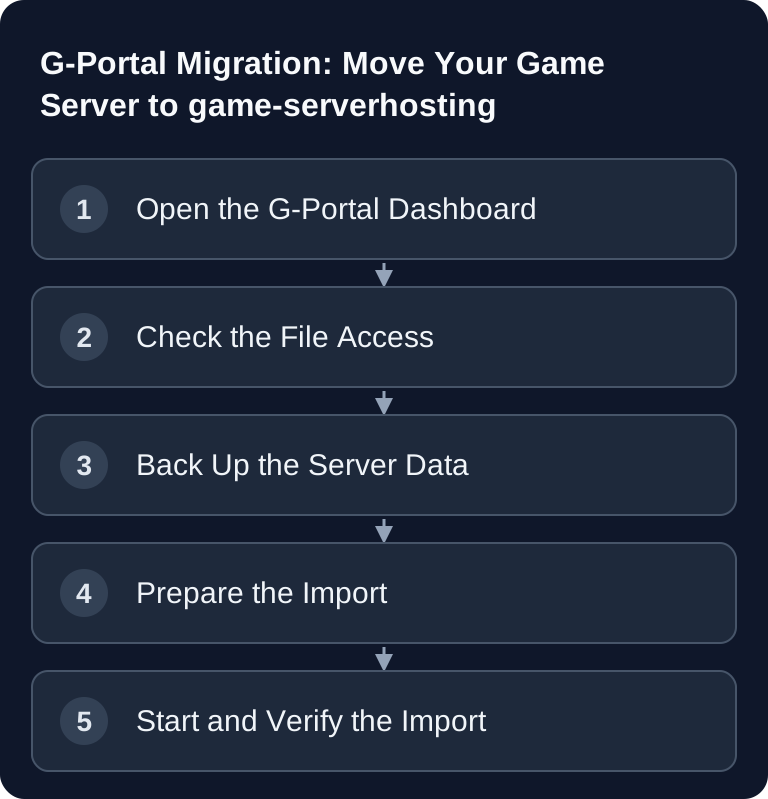
To move from GPORTAL to GSH, you back up the complete server state via the file access that is actually offered and import the copy in the migration wizard. GPORTAL documents FTP for Minecraft; changing the port does not turn an FTP access into SFTP. Use the direct import only with a confirmed SFTP endpoint; otherwise, download the files and then upload an archive.
Requirements for the Migration
Announce the maintenance window and stop the old game process before the final export. Back up external databases separately and consistently. Few active players or a quiet world are not enough, because background processes write data too. A first test import can take place in advance; the final state comes from the controlled stop.
You need:
- Access to your G-Portal account at gportal.com
- Access to the game server dashboard of the affected server
- Credentials for the FTP/SFTP protocol that is actually offered, or a complete backup archive
- A file transfer client such as FileZilla, in the FTP/SFTP mode that is actually offered, if you back up manually
- Information about game version, mods, plugins, and important startup parameters
- A new server at game-serverhosting or access to the migration wizard
The official G-Portal website is the primary source for login and account access. For the file transfer, the protocol actually displayed and the associated credentials of your specific server are what matter.
Step 1: Find Your G-Portal Login and File Access
Log in to G-Portal and open your game server dashboard. Select the server you want to move. Then look in the server settings for the FTP or SFTP access section.
Note down the protocol, host, port, user, and password from the file access section. For Minecraft, GPORTAL shows the FTP access under Status; see the official FTP guide. Don't use a generic example port 2024 and no old hostname. In the client, choose exactly the protocol that is offered.
- Protocol: exactly the FTP or SFTP access offered in the dashboard
- Host: the server IP or hostname displayed there
- Port: the port displayed for this file access
- Username: the associated file transfer user
- Password: the associated existing or newly set password
A successful FTP test does not confirm SFTP access. If the wizard requires an SFTP endpoint, use the local download and archive upload for an FTP-only server. Conversely, SFTP credentials can't simply be used with FTP.
Step 2: Back Up the Server Files Completely
Option A: Direct SFTP Import
The direct SFTP import is the most convenient way if the migration wizard can retrieve the data with your G-Portal credentials. You enter host, port, username, and password; the files are then transferred from the old server.
Starting point: Start G-Portal Migration Now
This variant saves the local intermediate step, but it is only as reliable as the stored SFTP data and the availability of the old server. Keep the old server stopped during this time if possible, so that no files are changed in parallel.
Option B: Manual Backup via the Offered File Access
If you want to check the data yourself or archive it locally, connect with a file transfer client, for example FileZilla. Choose the FTP or SFTP protocol that is actually offered.
Use the protocol, host, and port from the GPORTAL file access and test the connection before downloading. Wait for all transfers to finish and check the tab for failed files. An empty running queue alone doesn't prove that previously failed files were retried successfully.
- Protocol: according to the file access section of the G-Portal dashboard
- Host: the host actually displayed, without an invented protocol prefix
- Port: according to this file access section
- Username and password: the associated credentials
Download the entire server folder. Pay special attention to world folders, configuration files, plugin or mod directories, whitelists, ban lists, and server-side settings. If you create a ZIP archive for the upload, stick to the size limits shown in the import form; in the original process, an archive of up to 10 GB was provided for.
Option C: G-Portal Backup Function
The GPORTAL backup in the dashboard is initially just a restore point with the old provider. The backup guide describes creating and restoring, but does not document a universal .tar.gz download. Check whether your specific server actually offers an export. For the migration, you need your own readable file copy or an explicitly downloadable archive.
Step 3: Start the Import at game-serverhosting
Open the migration wizard, select your game, and choose the appropriate import method. For the SFTP import, you enter the host, port, username, and password from G-Portal. For the manual import, you upload your prepared archive.
If you're coming from another provider or want to consolidate further servers later, you'll find a general guide at Moving a Game Server from Any Host to game-serverhosting. For file transfers, the guide SFTP Access to the Game Server and Managing Files also helps.
After starting the import, you should watch the progress in the dashboard. Don't cancel the process while files are still being transferred or processed.
Step 4: Configure and Order the Server
After the import, you check the suggested settings. If the system detects the game, mods, or resource requirements, treat this information as a starting point and verify it against your previous configuration.
Pay special attention to:
- Game version and server type
- Mod loader or plugin system
- RAM, slots, and startup parameters
- Whitelist, admin rights, and permissions
- Ports, RCON, query, and other network options
- Database or additional services, if your setup uses them
Then complete the appropriate paid server plan. As a multi-game host, game-serverhosting is designed for technical control, support, and transparent operations; you should always check specific plan details in the checkout or dashboard, because prices and available options can change over time.
Step 5: Verify the Result
Start the new server and check not only whether it is online, but whether the save state works correctly.
Useful checkpoints:
- The correct world or map is loaded
- Player inventories, permissions, and whitelists are present
- Plugins or mods start without critical errors
- Configuration files were carried over
- Logs show no recurring errors on startup
- You can connect and perform typical actions in the game
For Minecraft, you should additionally make sure the EULA is handled correctly. The internal guide Minecraft EULA and First Server Start at game-serverhosting fits here. For log and file checks via the console, the guide Important Linux Game Server Commands is helpful.
Troubleshooting
File Transfer Connection Fails
First compare FTP or SFTP, then host, port, and credentials with the file access section. Don't use SFTP client mode for an FTP endpoint. If only FTP is offered, download locally and use the archive upload in the GSH wizard.
Import Is Incomplete
Compare the folder structure of the backup with the old server. Individual world, mod, or configuration folders are often missing if only a subfolder was transferred instead of the entire server directory. In this case, create a new backup with the server stopped.
Server Starts, but Mods or Plugins Are Missing
Check the game version, mod loader version, and plugin directory. An imported data state is not always enough if the new server starts with a different version or a different server type.
World Doesn't Load Correctly
Check the configured world name in the server configuration. Some games expect a specific folder name or a specific path. Also look in the logs to see whether paths, file permissions, or version conflicts are reported.
Cancel Your G-Portal Server — Only After Testing
Only cancel once the new server is demonstrably running. As long as your contract with G-Portal is active, you have a way back; after the contract ends, the files stored there are generally no longer retrievable.
Order that keeps you safe:
- Test the new server completely — world, mods, plugins, and player access, with the same client version you play with.
- Store a second copy of the backup — locally or on your own storage device, independent of both providers.
- Find the cancellation path in the customer account — usually in the section for the contract, subscription, or renewal of the server.
- Check automatic renewal separately — with many providers this is its own switch, independent of the cancellation.
- Keep the confirmation — until the paid billing period has ended.
Which notice period applies to your contract and where exactly the cancellation option is located is stated in your order confirmation and in G-Portal's terms and conditions. Check both directly there before you cancel — don't rely on outside information, including this page.
Download what you want to keep before cancelling. World saves, configurations, and logs are usually no longer accessible after the contract ends.
If the target check fails, don't release the new server for productive progress yet. Save its diagnostic output and use the unchanged old state. Plan the way back within the actual remaining term; you compare any necessary renewal and double costs in your existing customer account before making a decision.
FAQ
Does the migration itself cost anything?
The import process can be free; what you have to pay for is the chosen server plan at game-serverhosting. Always check current plan and checkout information directly before ordering.
How long does the import take?
That depends on the amount of data, the number of files, and the availability of the old server. Small setups can be transferred quickly, while large modpacks or worlds take considerably longer. Rely on the progress indicator in the dashboard.
Can I keep using my G-Portal server after the import?
Yes, as long as your contract there is active. Only cancel the old server once you've tested the new server and are sure that the world, configuration, mods, and permissions were carried over correctly.
How do I cancel my G-Portal server correctly?
Only cancel after the new server has been tested. You'll find the cancellation option in the customer account, in the contract or subscription section of your server. Which notice period applies is stated in your order confirmation and in G-Portal's terms and conditions — check it directly there. Also disable automatic renewal if it is managed as its own switch, and back up beforehand all files you want to keep.
Which games can I move?
The process is generally suitable for many game servers, as long as you have access to the relevant server files. Select your specific game in the migration wizard and then check the carried-over settings.
Do I have to use SFTP?
No. GPORTAL documents FTP for Minecraft. Use exactly the offered protocol for the local download and upload a complete archive in the GSH wizard. A direct SFTP import is only an option with a confirmed SFTP endpoint. Even with an existing backup archive, check whether all required files and databases are included.
What do I do if I'm unsure about a file?
Don't delete anything from the backup. It's better to back up the entire server folder and then check with support or via the logs which files are actually needed.