On a Minecraft Java server, eula=true in eula.txt technically confirms acceptance of the EULA. game-serverhosting prepares this entry automatically during supported provisioning. After that, wait for the installation to finish, start the server and check the console as well as a real join. The ready indicator alone does not confirm a running game server.
What Is the Minecraft EULA?
The EULA is the End User License Agreement from Mojang and Microsoft respectively. It sets out the terms for using Minecraft. On a Java server, eula=true in eula.txt is also the technical prerequisite for starting. Do not apply this file guide across the board to Bedrock server software: there, the startup procedure of the chosen software applies.
The official reference is Microsoft's Minecraft EULA at Documentation at minecraft.net. There you will find the legal terms directly from the publisher. This guide is not a substitute for legal advice, but it explains the technical startup process at game-serverhosting.
Technically, the process is simple: on the first start, the server generates an eula.txt. If it says eula=false, the process exits again. Only after confirming with eula=true does the server continue to start and load the world, configuration, plugins or mods.
Requirements Before the First Start
You need an active Minecraft server at game-serverhosting, access to the dashboard and a suitable Minecraft client. Make sure the client version matches the server version. If you use Java Edition, a Bedrock connection, Geyser, Floodgate, plugins or mods, these components must match the chosen server software.
If you are bringing an existing world from another provider, do not blindly start several times with the wrong version. Plan the move carefully and check the file structure, world name and server software beforehand. You can find suitable guides at Move a Game Server from Any Host to game-serverhosting and, if you are coming from G-Portal or Nitrado, at Migrate a G-Portal Server to game-serverhosting or Migrate a Nitrado Server to game-serverhosting.
Step 1: Order the Server and Wait for "Ready"
Right after ordering, your server is provisioned. In the dashboard you will see your server's tile, which changes from "being installed" to ready as soon as everything is set up.
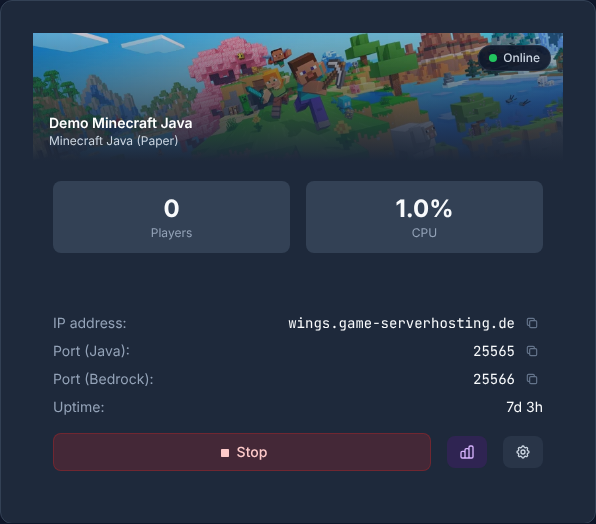
During this phase, the required server files are prepared. Do not interrupt provisioning with repeated restarts. Installation messages before completion are to be expected; ready means that provisioning is complete. If the process is stopped afterwards, start it once in the panel and check whether it continues running until it reaches an operational state. If an installation gets stuck, save the status and the last log message for support.
Step 2: The EULA Is Accepted Automatically
On the first start, the game-serverhosting setup process sets eula=true automatically. You do not have to open a file via FTP or perform a manual EULA step. In the server settings you can see that the automatic EULA confirmation is active.

This avoids a typical startup error: a Minecraft server that immediately stops again because the EULA was not accepted. Nevertheless, it remains your responsibility to read and comply with the official terms, especially if you run a public server, sell ranks or plan monetization.
Step 3: Check the Server Overview
In the server overview you can see status, address and resources at a glance. Once the server is running, you can connect using the displayed address.
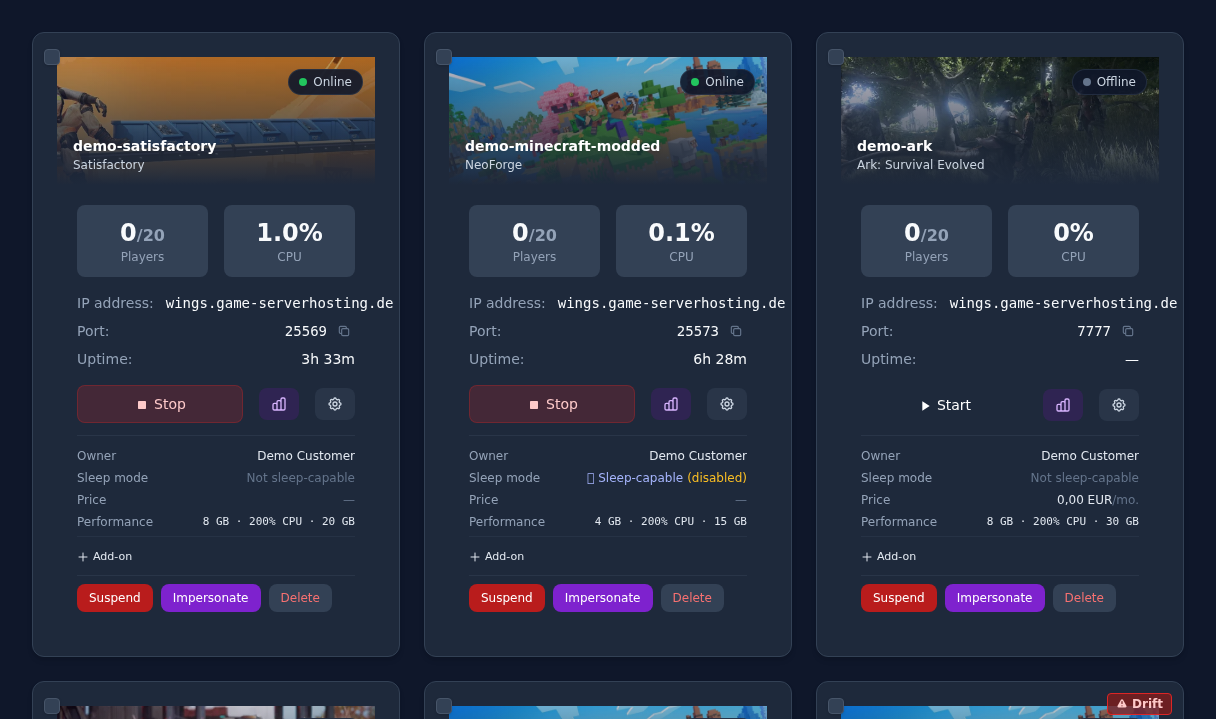
Check three things here: the status should show running, the address must be displayed in full, and resource usage should not sit permanently at the limit after startup. Brief load while generating the world is normal; permanently high load right after startup can point to mods, plugins, a large world or an unsuitable configuration.
Step 4: Connect to the Server
Open Minecraft, go to the multiplayer section and enter the displayed server address. Use exactly the version that is set on the server. If you use a Bedrock connection, also check the port, the Geyser or Floodgate configuration and whether your server software fits your goal. To decide between PocketMine and BDS, the comparison PocketMine or BDS for Minecraft Bedrock helps.
If you want to use your own world, connect only after uploading it and checking the world folder. You can find the matching guide at Upload and Switch a Minecraft World.
Check the Result
A successful first start is achieved when the server is running in the panel, the console shows no EULA stop message, the address is visible and you can join with the matching client. In addition, you can use the file manager to check that eula.txt exists and contains eula=true.
For further fine-tuning, the server.properties is the most relevant file afterwards. There you control, among other things, game mode, difficulty, whitelist, view distance and other basic options. The guide Configure Minecraft server.properties Correctly explains the most important settings.
Troubleshooting
Server Stops Right After Starting
First check the console. If a message about the EULA appears there, check eula.txt. At game-serverhosting, eula=true should be set automatically. If the file was overwritten after a manual upload, correct it and restart the server.
I Cannot Connect
Compare the client version and the server version. Also check whether you are using the full address including the port, if a port is displayed. If the whitelist is enabled, your player name must be listed.
The World Loads, but Settings Are Wrong
Check server.properties and the configured world folder. After changes to core settings, a restart is usually required. For imported worlds, also check whether the folder name matches the configuration.
Plugins or Mods Cause Errors
Check the first relevant error message in the startup log and compare the Minecraft version, Java runtime, mod loader or plugin platform, and dependencies. Run a trial with fewer extensions on a copy using the previous world state. Do not remove content mods from your only production world: saving afterwards can cause their blocks and items to be lost.
Sources and Basis for Verification
The linked subpages support the technical basis explained immediately before or after them. Product prices and account features are additionally checked against the currently visible order or dashboard path.
Limits and Way Back
For the EULA and permitted commercial use, the linked current publisher texts are authoritative. A technical startup confirmation does not describe permission for particular sales models. After a manual upload, check the eula.txt actually in use while the Java server is stopped; do not overwrite the world for troubleshooting. In case of version or mod errors, go back to the saved matching state of software, extensions and world.
FAQ
Do I have to accept the Minecraft EULA myself via FTP?
No. At game-serverhosting, eula=true is set automatically on the first start. You should still read the official EULA, because as the operator you are responsible for compliance.
Where can I see whether my server is ready?
In the dashboard, the server tile shows the provisioning status. Wait until it shows "ready" before checking further settings or connecting.
What does eula=true mean?
The entry technically confirms that the EULA has been accepted. Without this entry, Minecraft normally ends the server start again.
Can I upload my own world after the first start?
Yes. Stop the server, upload the world cleanly, adjust the world folder in the configuration if needed and then restart.
Why does the server not start properly despite the EULA?
Then the cause is probably not the EULA. Check the console, Minecraft version, mods, plugins, world files, whitelist and server.properties.