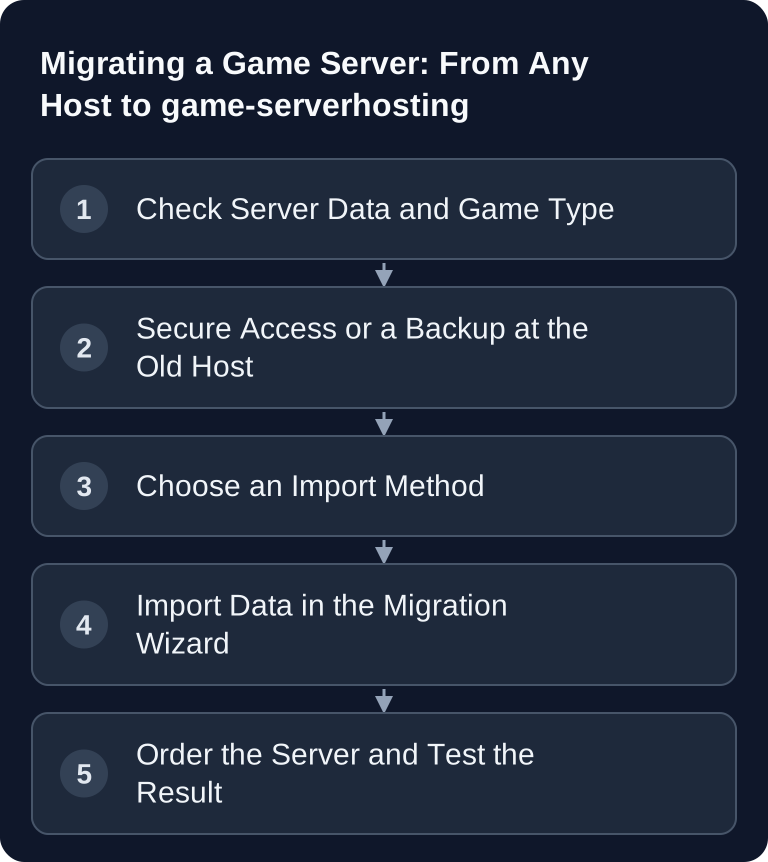
You can move your game server from many hosts to game-serverhosting by transferring the existing server files via direct SFTP import, file upload or backup URL. What matters is that before the import you identify the relevant worlds, mods, plugins, configurations and possible database dependencies, and then check the result properly afterwards.
Requirements Before the Migration
Before you start the import, you should briefly take inventory of your old server. Note the game, the server version, the mod loaders or plugin systems in use and important configuration files. For Minecraft, these can be, for example, server.properties, world folders, plugin folders and mod files. For ARK, Valheim, CS2 or Rust, the relevant files are located in different directories depending on the server structure.
Always create a backup at the old provider before you move any files. If your game keeps running while you copy, world or database files can become inconsistent. For the cleanest possible result, stop the old server shortly before the final export, or do a second, final import in a maintenance window after a test import.
As an FTP/SFTP client you can use FileZilla, for example; the official project page is documentation at filezilla-project.org. Use such tools only with credentials from the dashboard of your current host.
The Three Import Methods
Method 1: Direct SFTP Import
Direct SFTP import makes sense if your current host supports SFTP. game-serverhosting can then fetch the data directly from the old server, without you having to download it locally first.
You need for this:
- SFTP host, i.e. IP address or domain
- SFTP port, often 22 or host-specific
- Username
- Password
- the correct path to the server directory
Start the import via /migrate and then check on the target server whether the expected folders were transferred. This method is especially suitable if your server contains many files or larger worlds. However, it doesn't replace checking game versions and mod compatibility.
Method 2: File Upload
File upload also works if the old provider doesn't offer SFTP access. You download the server folder via FTP or SFTP, pack it locally as ZIP or TAR.GZ and then upload the archive in the migration wizard.
Step by step:
- Connect to your old server, for example with FileZilla.
- Download the complete game folder.
- Check whether world folders, plugins, mods and configurations are included.
- Compress the data as ZIP and check the upload limit currently shown in the import dialog.
- Upload the archive via
/migrate.
This method is robust because you can inspect the files locally. Take care not to back up temporary cache files instead of the actual world or save data.
Method 3: URL Import
URL import is suitable if your current host offers a direct download URL for backups, for example for a .tar.gz archive. You enter the URL in the migration wizard instead of downloading and re-uploading the file manually.
The URL must directly deliver a supported, complete archive, without interactive login or an intermediate download page. Don't use a publicly discoverable link for a backup containing credentials. For a time-limited download, check the expiry time and access for the import service; afterwards, remove any share that was created specifically for this.
Finding SFTP Credentials: Host Overview
| Host | Check file access | Direct import or archive |
|---|---|---|
| GPORTAL | Select the server; check the documented FTP area under Status | Back up via FTP locally; SFTP only if an endpoint is actually offered |
| Nitrado | FTP details in the dashboard of the selected instance | Local copy; no blanket full-backup download |
| ZAP-Hosting | FTP browser, documented port 21 | Download with the server stopped and upload an archive |
| Gameservers.com / PingPerfect / others | Protocol, host, port and path from the respective account | Use direct SFTP only if confirmed; otherwise choose a supported export |
For specific providers, you'll find separate guides on moving from G-Portal to game-serverhosting, switching from Nitrado to game-serverhosting and migrating from ZAP-Hosting to game-serverhosting.
What Is Typically Imported?
The files contained in your server directory or backup can be imported. This often includes world data, player profiles, inventories, plugins, mods and configuration files such as server.properties or game.ini. Database data is only carried over if it exists as files, such as with SQLite.
External MySQL databases, host-specific panel settings and access outside the server folder are not carried over automatically. For external databases, create a consistent export and deliberately set up the target connections anew. An SQLite file is also only consistent if its writing application is stopped or the documented database backup is used; an arbitrary live copy may contain too little.
If you need more control over individual files, the guide on SFTP access on the game server will help you. For Minecraft, the guide on the Minecraft EULA and first server start is also relevant.
Check the Result
Before the first start, check the active world, versions and external connections. The test instance must not write to the old server's production database, bot integration or economy plugin data. Start with restricted access, read the logs and check the world state, inventories and permissions. Then make a small test change and verify it after a clean stop and restart. The Nitrado export overview shows by example why a provider backup doesn't automatically mean an exportable complete state.
For modded servers, the server version should match the previous installation. If you migrate and update at the same time, you mix two sources of error. Better: import unchanged first, test, and only then perform updates.
Troubleshooting
The Import Aborts
Check host, port, username, password and path. For file uploads, check whether the archive is readable and below the stated limit. For URL imports, the link must be directly reachable.
Files Are Missing After the Import
Compare the old server folder with the new file system. Often only a subfolder was backed up, or the actual save path was located elsewhere.
The Server Doesn't Start
Read the current log file first. Typical causes are missing mods, incompatible plugins, wrong Java or game versions, or configuration values that don't fit the new start command.
Players See an Old World State
Then an older backup was probably imported, or the old server kept running during the export. Stop the old server, create a fresh backup and import again.
FAQ
Does the import cost anything?
Before you start, check in the import dialog whether the import is still offered at no additional cost. At game-serverhosting you pay for the new server plan; check the terms shown in the order process.
How long does the migration take?
The duration depends on the amount of data, number of files, connection and import method. Small archives transfer faster than large modded servers with many individual files.
Does my old server keep running during the import?
Technically it can keep running, but for consistent data you should stop it before the final export. Otherwise world or save files may change while being copied.
What do I do if my old host doesn't offer SFTP?
Use the file upload. Download the data via FTP or file manager, create a ZIP or TAR.GZ archive and import it via /migrate.
Are external databases carried over?
No, external MySQL databases and similar services are not imported automatically. Only file-based data contained in the backup can be transferred.