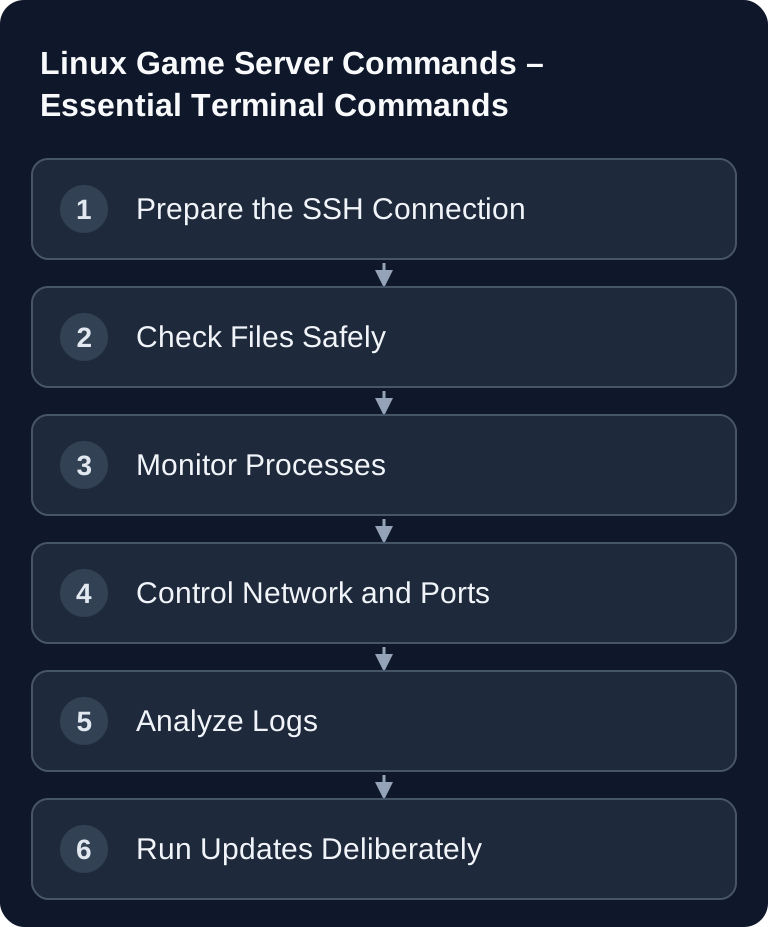
Linux terminal commands help you check processes, ports and files on a self-managed host with shell access. The game server console in the GSH panel, on the other hand, accepts game commands; SFTP alone doesn't allow shell commands, systemctl or firewall management. So first choose the right access and only work on the instance for which you have management rights.
Requirements
For the following commands, you need a Linux server or an enabled SSH/terminal access, appropriate user permissions and the path to your game server directory. Avoid working blindly as root. If you change configuration files, make a copy beforehand and document what you adjusted.
If you prefer to manage files via a graphical client, the guide on SFTP Access for Game Server Files is a good complement. In-game admin commands are a different topic: for Valheim, you'll find them in the guide on Valheim Server Commands and Admin Commands, for Rust in the guide on Rust Server Commands and Admin Commands.
File System
With these commands, you navigate the directory tree and modify files or folders. Before risky actions, always check the current path with pwd and the contents with ls -la.
ls -la                    # Show files
cd /home/server           # Change directory
pwd                       # Show current path
cp datei.txt backup.txt   # Copy file
mv alt.txt neu.txt        # Rename/move file
rm datei.txt              # Delete file
mkdir ordner              # Create folder
chmod +x start.sh         # Make executable
cp is suitable for quick backups of individual configuration files. mv can rename or move files. rm deletes without a recycle bin; so only use it once the filename and path are correct. With chmod +x start.sh, you make a start script executable in case the server doesn't start due to missing execute permissions.
Processes
Process commands show you whether a game server is running, how heavily CPU and RAM are loaded, and which process ID you need for a targeted restart.
ps aux | grep server      # Search processes
top                       # CPU/RAM overview
htop                      # Better overview
kill <PID>                # End process
kill -9 <PID>             # Force process
screen -S server          # Start screen session
screen -r server          # Resume session
kill <PID> sends SIGTERM by default. Whether the game server saves and shuts down cleanly in response depends on its signal handling; prefer the documented in-game stop or the responsible service manager. kill -9 <PID> forces termination and should remain the exception, because the server may no longer be able to perform clean save or shutdown steps. screen is useful if a server process should keep running after you've closed the SSH session.
Network
Network commands help you check port forwarding, reachability and firewall rules. This is especially important if a server runs locally but doesn't appear in the game browser.
netstat -tulpn            # Show open ports
ss -tulpn                 # More modern alternative
ping <Spielserver-IP>     # Test ICMP to the affected target
traceroute server.de      # Trace route
iptables -L               # Firewall rules
ufw status                # UFW status
ufw allow 25565/tcp       # Open port
ss -tulpn is the preferred choice on many current Linux systems for seeing listening TCP and UDP ports. ping checks basic reachability but doesn't tell you whether the game port is open. ufw allow 25565/tcp is an example of a port opening; replace the port and protocol with the values for your game.
Editing Files and Reading Logs
Logs are often the fastest route to the cause: missing mod files, wrong startup parameters, port conflicts or corrupted configurations usually show up there before visible symptoms.
nano datei.txt            # Open editor
vim datei.txt             # Vim editor
cat datei.txt             # Show file
tail -f server.log        # Follow log live
grep "error" server.log   # Search in file
nano is more accessible for quick changes, vim is more powerful but requires some routine. With tail -f server.log, you watch the startup live. grep "error" server.log filters for error messages; if needed, also search for terms like failed, exception, denied, port or the name of a mod.
Server Management
If your game server is set up as a systemd service, you control it via systemctl and read system logs with journalctl. The official systemd documentation describes systemctl as a tool for controlling the systemd system and service manager: Documentation at freedesktop.org
systemctl status server   # Service status
systemctl restart server  # Restart service
journalctl -u server      # Show logs
df -h                     # Check disk space
free -h                   # RAM usage
systemctl status server shows whether a service is active and which of the latest log lines might be relevant. journalctl -u server is more precise if you need more history. df -h checks free disk space; full drives can block updates, saves and log files. free -h shows whether memory is running low.
SteamCMD
Many dedicated game servers are installed or updated via SteamCMD. The existing command uses anonymous login, updates an app ID, validates files and then quits SteamCMD.
steamcmd +login anonymous +app_update <appid> validate +quit
| Game | App ID |
|---|---|
| CS2 | 730 |
| Rust | 258550 |
| ARK | 376030 |
| Valheim | 896660 |
| 7D2D | 294420 |
The ARK ID 376030 applies to Survival Evolved, not Survival Ascended. Replace <appid> with the documented server app of your game. For your own installation, set the target directory with +force_install_dir /pfad/zum/server before the login; run updates while the game process is stopped. The Valve SteamCMD guide documents installation, target directory and app updates. After an update, you should start the server, check the startup log and test whether the server is reachable. On modified servers, validate can overwrite local changes; therefore back up important configurations and mod files beforehand.
Verify the Result
After changes, check in three steps: Is the process running, is the port listening, and do the logs show no new errors? A practical order is: systemctl status server or ps aux | grep server, then ss -tulpn, then tail -f server.log or journalctl -u server. Only when this level is fine is it worth testing in the game client.
Troubleshooting
Server Doesn't Start
First check the startup log. Common causes are missing execute permissions on start.sh, a wrong working directory, missing files or a port that's already in use. Check pwd, ls -la, chmod +x start.sh and then the log output.
Port Is Not Reachable
Compare the game port, query port and TCP/UDP. ss -tulpn shows local listeners but doesn't confirm external forwarding by the router or provider. Only check your own host firewall if you manage it, and afterwards test from another network with the actual game client. A ping timeout alone does not prove a blocked game port.
Process Hangs or Doesn't Respond
Find the process ID with ps aux | grep server. First try a normal stop via the service or game server console. Only use kill -9 <PID> if the process can no longer be terminated cleanly.
Update Changed the Configuration
If settings are missing after SteamCMD validation, restore your backup or compare the affected files. Especially with mods and customized startup parameters, you should back up changes before updates.
FAQ
Do I always need these Linux commands at game-serverhosting?
With a managed GSH game instance, you use the panel, game console and SFTP. The commands in this guide additionally require your own Linux shell access and do not belong in the game console. A rented game server does not automatically include SSH or rights on the hosting node.
Is netstat or ss better?
ss is usually the better choice on modern Linux systems because it uses the newer tool family. If netstat is available on your system, it can still work for simple checks.
When should I use kill -9?
Only as a last resort when a process doesn't respond to normal stops. A forced termination can interrupt write operations, so you should check logs and save files afterwards.
Can I use SteamCMD anonymously for every game?
No. The command shown only works for server apps that allow anonymous access. If a game requires a login or additional rights, you must follow the official documentation of the respective game.
What is the most important command for troubleshooting?
There is no single command. In practice, the combination of tail -f server.log, ss -tulpn and systemctl status server is especially useful, because it makes log errors, ports and service status visible together.