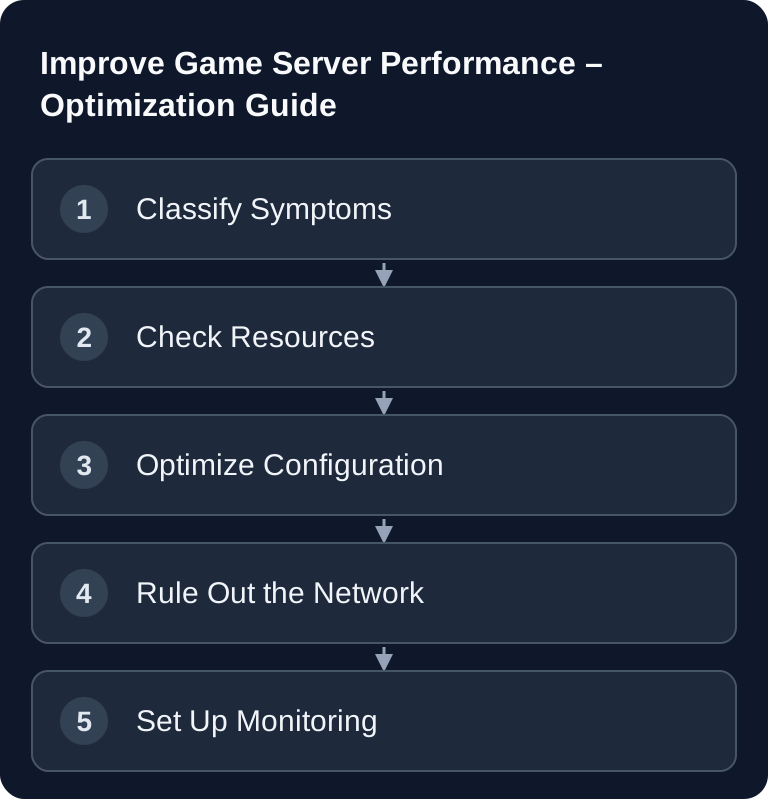
The most reliable way to improve game server performance is to measure first and then optimize in a targeted way. Distinguish between server lag, network problems, plugin errors and wrong settings. Only once the cause, timing and affected players are clear is it worth changing RAM, CPU load, mods, tick rate, view distance or network configuration.
Requirements
Before you optimize, you need access to the most important operating data of your server: console, log files, configuration files, resource display and ideally a game-specific monitoring tool. At game-serverhosting, the practical approach is: keep technical control, make changes in a traceable way, and involve support with concrete measurements when infrastructure questions are unclear.
Before every change, note down:
- Game and server version
- Plugin, mod or workshop list
- Player count at the time of the problem
- Time and duration of the issue
- CPU, RAM and network usage
- Relevant log excerpts
- Most recently changed configuration
This way you avoid flying blind. Many performance problems are not caused by a single limit, but by a combination of player count, world size, mods, entities, database access and network conditions.
Identifying Performance Problems
Typical symptoms are:
- Lag: Actions are executed with a delay
- Rubberbanding: Players are set back
- Crashes: The server crashes regularly
- Low TPS: Below 20 TPS in Minecraft
- High ping: Even though the location seems geographically close
It is important to separate server problems from network problems. If all players experience delays at the same time, that points more towards CPU, RAM, plugin or world load. If only individual players are affected, routing, Wi-Fi, local connection or packet loss are more likely. For network analysis, see our internal guide on improving game server latency and ping.
Causes and Solutions
1. Lack of RAM
Symptom: Lag spikes, OutOfMemory errors or frequent garbage collection pauses.
Solution:
- Check RAM usage
- Upgrade RAM if usage is permanently high
- Narrow down memory leaks caused by plugins or mods
- Use regular restarts only as an operational measure, not as a substitute for root cause analysis
A lack of RAM often shows up in waves: the server runs stably for a while, then becomes sluggish and recovers after a restart. This can point to leaks, large worlds, too many loaded chunks or memory-hungry mods. Remove only one change at a time for testing, otherwise you won't know later which measure actually helped.
2. CPU Load Too High
Symptom: Constant lag, low TPS, delayed commands or slow simulation.
Solution:
- Limit the player count realistically
- Reduce plugins/mods
- Lower the view distance
- Set entity limits
- Check compute-intensive automations, farms or scripts
CPU problems often come from simulation: entities, physics, AI, redstone, mods, large bases or many simultaneous player actions. More RAM does not solve CPU limitations. If the CPU is the bottleneck, what helps most is fewer active calculations per tick and properly configured limits.
3. Too Many Plugins
Symptom: Slow commands, lag spikes, long startup times or errors in the log.
Solution:
- Remove unused plugins
- Look for lighter alternatives
- Use a plugin profiler
- Match plugin versions with the server version
- Take errors in the log seriously, even if the server still starts
Plugins and mods should have a clear purpose. Everything that is not actively used adds complexity: additional events, database access, schedulers, permissions, cache files and possible conflicts. Especially on public servers, a small, well-maintained plugin list is often more stable than a large collection of individual convenience features.
4. Network Problems
Symptom: High ping, packet loss, choke or connection drops.
Solution:
- Check the server location
- Take player locations into account
- Adjust rate settings only in a game-specific and traceable way
- Measure packet loss
- Contact the provider or support with measurements
Use the diagnostic tool of the actual engine. CS2 is Source2 and uses its own telemetry settings instead of the old CS:GO net_graph; Valve describes the CS2 telemetry displays. A client FPS value is not a measurement of the server simulation. For Minecraft, Paper documents profiling with spark; record during the disruption, not just after a restart.
If you are generally new to running a server, slots, choosing a location and management, the internal introduction via game servers for beginners helps. For fixed addresses and clean reachability, the guide on a custom domain for game servers is also useful.
Monitoring
| Tool | Use | What you can read from it |
|---|---|---|
| spark | Supported Minecraft servers; integrated in current Paper versions | Tick times, call trees, memory and GC |
| CS2 telemetry | Counter-Strike2 client | Client FPS, ping and packet/network problems |
| net_graph | Supported Source1 games, such as TF2 | Version-dependent network and client values |
| Rust server log and resource display | Running Rust instance | Server-side simulation, memory and documented entity values |
| Prometheus with suitable exporters | Self-managed infrastructure | Only the CPU, RAM and network metrics that are actually exported |
Monitoring is only helpful if you make values comparable. Note the date, time, player count and change. Example: “View distance reduced from 10 to 8, 2026-07-22, 18 players online, TPS more stable afterwards.” Without such notes, impressions quickly blur.
Verifying the Result
Don't test only right after the restart. Many problems only appear after a longer runtime or under typical evening load. Therefore check:
- Server start without critical errors
- Stable TPS or game-typical simulation values
- No recurring error logs
- RAM usage without steady growth
- CPU usage without permanent saturation
- Ping and packet loss with several players
- Behavior at a normal player count
Checklist
- Tick times or simulation measured during the actual disruption
- Distinguished RAM limit, usable heap and off-heap memory
- Checked single-core load and the meaning of the panel CPU percentage display
- Compared ping and packet loss across several affected players
- Narrowed down recurring log errors
- Re-measured the change under similar player load
- Rollback path and a working backup available
A general RAM limit of 80 percent or CPU limit of 70 percent does not prove a bottleneck. A fully utilized single simulation thread can slow things down even with low overall CPU usage; Java also keeps memory in reserve for further use. Therefore assess tick duration, GC pauses, process limits and the actual gameplay behavior together.
Troubleshooting
The server is less stable after an optimization
Revert the last change and check the logs and configuration. Afterwards, change only one parameter per test run. Several simultaneous adjustments rarely save time, because you can no longer cleanly attribute the cause later.
Lag only occurs at certain times
Compare player count, automatic backups, scheduled restarts, database jobs and mod activity. If the problems always occur during high activity, the bottleneck is usually in simulation, CPU or memory. If they occur regardless of player count, check the network and external services.
Only individual players have high ping
In that case, the game server is not automatically the cause. Ask the affected players for their ping, packet loss values, connection type and approximate location. Wi-Fi, local downloads, routing or regional provider problems can play a role.
The server crashes without a clear error message
Secure logs and crash reports and check in the panel whether the process was terminated due to a memory limit. Test extension changes on a full copy; do not remove content mods from the production world and then save. If a crash is reproducible, describe the triggering action precisely before contacting support.
Sources and Basis for Verification
The sources document the respective diagnostic tools. What matters is a recording made during the problem, including player count, runtime and unchanged baseline configuration.
Limits and Rollback
More RAM does not automatically fix CPU, network or mod problems. Change only one variable at a time, document the test duration and baseline load, and keep a backup ready for rollback. Before making changes, back up the affected files or the world. Then verify the result with the same version and the same test procedure; if errors occur, you restore the backup.
FAQ
How do I find out whether RAM or CPU is the problem?
RAM problems often show up as rising memory usage, lag spikes and OutOfMemory errors. CPU problems tend to show up as permanently low TPS, delayed simulation and high usage with active players.
Should I just book more RAM?
Only if measurements point to it. More RAM helps with memory shortages, but does not solve CPU limits, plugin conflicts, faulty mods or network problems.
How many plugins are too many?
There is no fixed number. What matters is what the plugins do, how well they are maintained and whether they match the server version. Remove everything that has no clear benefit.
Are regular restarts a good solution?
Regular restarts can stabilize operation, but they do not replace root cause analysis. If a server only stays usable through frequent restarts, you should check memory behavior, plugins, mods and logs.
When should I contact support?
When you have documented measurements, times, logs and affected players and still can't find a clear cause. With concrete data, support can distinguish much more precisely between configuration, gameplay behavior and infrastructure.