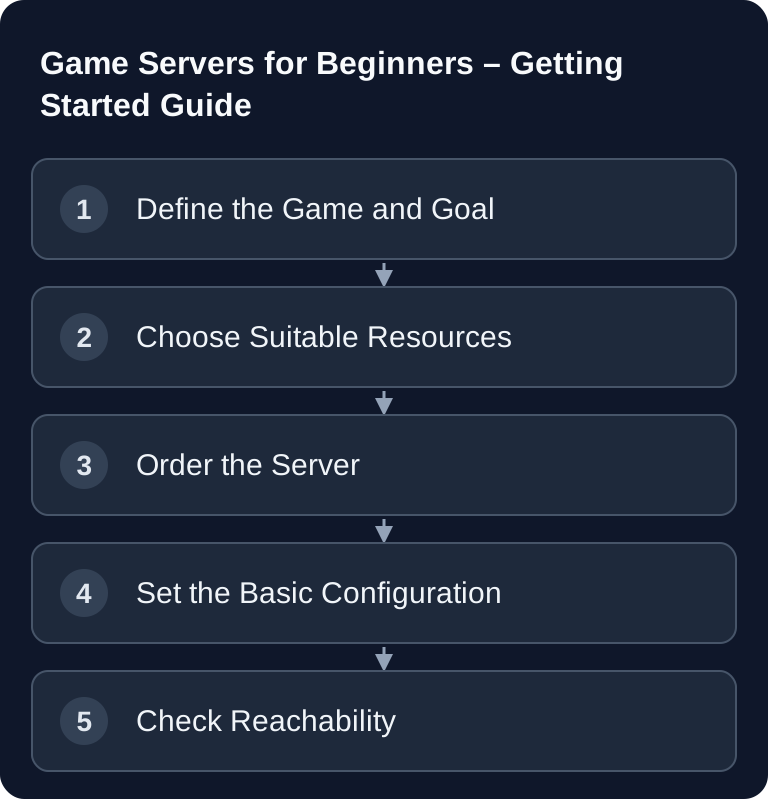
For your first rented game server, you define the game, edition, concurrent players and required mods. Then choose the resources offered in the order step and the matching region. After provisioning, use a second player to check the connection, saved progress and a controlled restart before you add extensions.
What Is a Game Server?
A game server is a computer or service that provides a multiplayer session permanently. Your game client connects to this server instead of just opening the world locally on your PC. The server decides which map runs, which rules apply, who may join and which data is saved.
For small private sessions, a locally hosted server can be enough. But as soon as the server should be reachable regularly, several players join at the same time, or mods need to run reliably, a rented dedicated server is usually more practical. This is exactly where game-serverhosting fits in as paid multi-game hosting: you get technical control, support and more transparent operations, without having to run hardware, power, firewall and updates entirely yourself.
In its official Steam Support documentation, Valve also distinguishes between listen servers and dedicated servers. A listen server is started from within the game and, according to Valve, is mainly suited for small LAN games; dedicated variants run as a separate server application. Source: Documentation at help.steampowered.com
Dedicated vs. Listen Server
| Type | Description | Advantages |
|---|---|---|
| Dedicated | Standalone server application | Independent of the host's game client; available resources and operating plan determine performance and uptime |
| Listen/P2P | One player hosts | Free, simple |
A listen or P2P server depends heavily on the host's PC and internet connection. If that person goes offline, the session often ends for everyone. In addition, upload speed, NAT, firewall or background programs can disrupt the connection.
A dedicated server runs independently of the game client. This makes sense if friends play at different times, a world should be saved permanently, or you want to manage admin rights, backups, restarts and configuration in a controlled way. For public servers, this separation is especially important, because stability, moderation and protection against abuse carry more weight.
What Hardware Do I Need?
The requirements depend on the actual game and the server version:
- CPU: Look at processor load and tick times; clock speeds of different CPU generations are not directly comparable.
- RAM: Consider manufacturer requirements, the active world, extensions and concurrent players.
- Storage: Plan space for installation, world growth, logs and separate backups.
- Network: Check reachable game ports, latency and packet loss from the players' networks.
There is no universal minimum configuration for all game servers. Many game simulations don't scale arbitrarily across additional cores; therefore compare CPU generation and actual load instead of just GHz or core count. RAM is mainly stressed by player count, world size, mods, plugins and loaded chunks or regions. SSD or NVMe reduces load times, world saves and startup times compared to slow drives.
If you want to optimize further, also read the guide Improve Game Server Performance – Optimization Guide. For network problems, packet loss and choosing a location, the Improve Game Server Latency and Ping – Network Guide is the better deep dive.
Rent a Game Server Instead of Using Your Own Hardware
Instead of buying your own hardware, you can rent a server:
| Advantage | Description |
|---|---|
| No electricity | Server runs in the data center |
| DDoS protection | Professional protection included |
| Backup | Check the available backup features and the actual schedule in the package or panel |
| Support | Help with problems |
| Ready instantly | Usable right after provisioning |
Renting is especially worthwhile if you want to start quickly and don't want to deal with router port forwarding, electricity costs, hardware failures or home connection limits. Still, before ordering you should check what you really need: game, slots, mods, location, backup requirements and access to configuration files.
At game-serverhosting, the focus is not on a free DIY solution but on paid hosting with clear management. For beginners, this is helpful because you can start, stop and configure via a dashboard and involve support when problems arise. Advanced users benefit from the fact that technical control and traceable processes are retained.
Which Game?
| Game | Difficulty | Min. RAM | Price/Month |
|---|---|---|---|
| Minecraft | Easy | 2 GB | from €2.80 |
| Terraria | Easy | 2 GB | from €3.84 |
| Valheim | Easy | 4 GB | from €6.32 |
| Rust | Medium | 12 GB | from €22.05 |
| ARK | Medium | 12 GB | from €14.56 |
Take the table as guidance based on the initial state of this guide, not as a universal promise for every configuration. A vanilla server with few players usually needs fewer reserves than a heavily modded server with many concurrent players. For ARK, Rust or FiveM, you should plan extra time for configuration, permissions, whitelists, mods and regular maintenance.
If you want to start directly with a specific game, specialized entry points can help: for survival with dinosaurs, there is the guide Rent and Set Up an ARK Server – Beginner Guide 2026. For a cooperative session with friends, the Rent and Set Up a Valheim Server – Co-op Guide 2026 is a good fit. And if sim racing appeals to you, Rent and Configure an Assetto Corsa Server walks you through the race server setup.
First Steps
- Choose a game – What do you want to play?
- RAM size – How many players?
- Order a server – At game-serverhosting
- Set up – Use the dashboard
- Play – Enter the IP and get started!
Clarify the Requirements
Before ordering, decide whether the server should be private or public. For private servers, you usually need a password or a whitelist. For public servers, you should additionally plan rules, admins, a backup routine and moderation. Also note whether mods or plugins are mandatory, because they can significantly change resource requirements and update effort.
Configure the Server
After provisioning, first set the server name, password, slots, world or map and the desired game rules. Then restart the server cleanly once and check the console or logs for errors. If the game uses configuration files, always change only a few values at a time. This way you can more quickly identify which change caused a problem.
Verify the Result
Connect yourself using the IP and port. Then at least one other person from a different network should test whether joining works. Also check whether progress is saved: build or change something in the world, restart the server and check whether the state is preserved. Meanwhile, monitor ping, RAM usage and log messages.
Troubleshooting
If nobody can connect, first check the IP, port, server status and password. For Steam-based games, ports depend on the game; for Source dedicated servers, for example, Valve lists TCP and UDP 27015 as the default for RCON and gameplay traffic respectively: Documentation at help.steampowered.com
If the server starts but lags, first check whether the simulation is delayed, the network path has packet loss, or only one client is getting low FPS. Then change a suitable value and compare under similar load. Remove content mods only on a full test copy: loading and saving without these mods can alter parts of the save state. If saves are missing, check free storage, file permissions and a clean shutdown.
For your own, easier-to-remember address, you can set up DNS later. The right next step is the guide Set Up a Custom Domain for Your Game Server – DNS Guide.
Sources and Basis for Review
The sources explain server and container fundamentals. Check the game version, available region, package and backup scope in the current offer before ordering.
Limits and Way Back
Menus, ports and resource requirements differ per game. Use the guide as an operating procedure and additionally verify game-specific values in the official documentation of the respective game. Back up the affected files or the world before making changes. Then check the result with the same version and the same test procedure; if errors occur, restore the backup.
FAQ
Do I need a dedicated server as a beginner?
Not always. For a spontaneous small session, a listen server can be enough. If the server should run independently of the host PC, be reachable regularly or manage mods reliably, a dedicated server is the better foundation.
How much RAM should I choose at the start?
Base it on the game, the player count and mods. The table in the guide gives simple starting values, but heavily modded servers need more reserves. If you're unsure, don't start at the absolute minimum.
What matters more: CPU or RAM?
Both count, but for many game servers a fast CPU with good single-core clock speed is especially important. RAM prevents bottlenecks with world size, mods and concurrent players. Storage and network must not be neglected either.
How do I check whether my server is running correctly?
Connect yourself, have a second person join from outside, check the logs and test a restart with a saved world. Only when connection, saving and baseline performance are right should you add mods or larger rule changes.
Can I change the game, slots or settings later?
Many settings can be adjusted afterwards. Still, plan carefully, because switching the game, world or mod setup may require additional steps, backups or a reinstallation depending on the title.