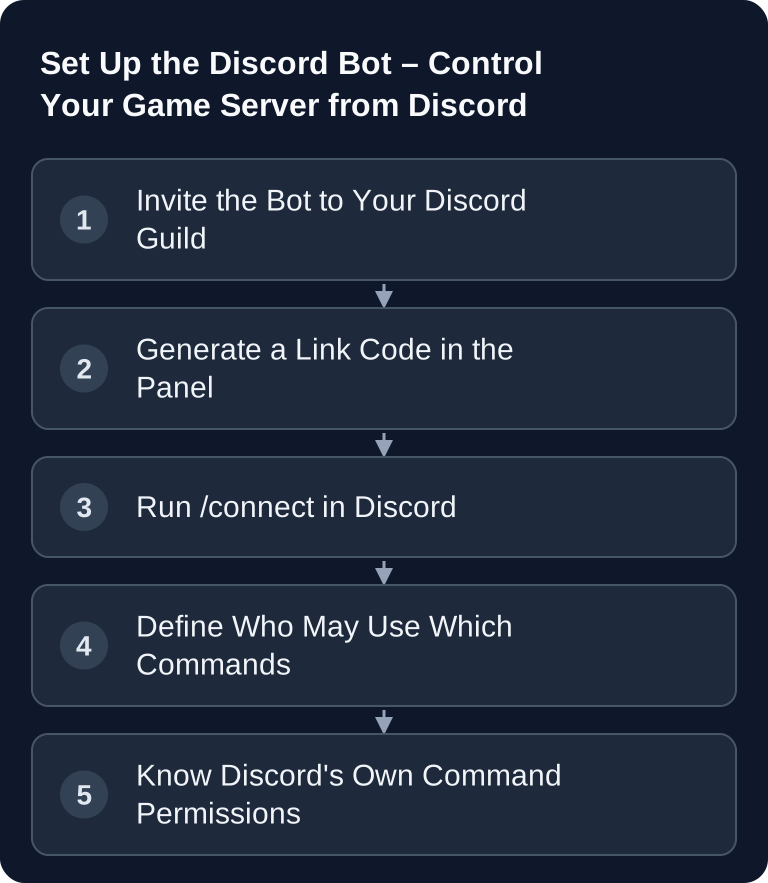
Bot or Webhook — What's the Difference?
With the Discord bot, you can query your GSH game server and control it with the permissions provided. Link the correct Discord server and check status commands before start, stop or restart actions. A webhook adds notifications but does not execute control commands itself.
A webhook is a one-way street: your server reports into a channel (crash, backup finished, resources running low). It cannot receive anything. For that, there is its own guide, "Set Up a Discord Webhook".
The bot works both ways. It answers commands from your guild: /status,
/players, /uptime, /link — and anyone with the right permissions can start, stop or
restart the server without opening the panel. You can use both at the same time;
they don't interfere with each other.
Linked in Three Steps
Everything you need is in the game-serverhosting server panel under "Discord & Notifications" in the "Link Discord Bot" card.
1. Invite the Bot
The "Invite Bot" button in step 1 opens Discord's own invite dialog. You need the "Manage Server" permission in the guild — on your own guild you have it automatically. Once the invite has arrived, the line "Bot is invited to …" appears below it. If it says "No invite reported from your Discord account yet." instead, first connect your Discord account in your profile — otherwise the panel cannot assign the invite to an account.
2. Generate a Code
"Generate Code" creates a link code. It is valid for a few minutes and can be redeemed exactly once. "Copy Code" deliberately copies only the code.
3. Run /connect in Discord
In a channel of your guild, type /connect, select the command in the
suggestion window and paste the code into the code field.
The most common mistake: pasting the whole line. To Discord, pasted text is a normal message, not a command — so nothing happens at all. The command must be typed and selected from the suggestion window.
If you have connected once via "Sign in with Discord" on the website, you can
also leave the code field empty: the bot then links your own server via the
connected customer account. If you have several servers of your own, it asks instead of guessing.
Which Commands Are Available
| Group in the panel | Commands | Default |
|---|---|---|
| Status & Community | /status, /players, /uptime, /link, /pool, /credit, /invoices |
on |
| Control Server | /start, /stop, /restart, /console, /send, /maintenance, /embed |
off |
| Manage Community | /announce |
off |
In addition, there are the moderation commands /kick, /ban, /unban and /whitelist; they
belong to the "Control Server" group and require the same server permission.
/credit and /invoices affect your entire account, not just this server —
so they respond exclusively to the account owner, regardless of how the group
is set up.
Who Can Do What — Two Barriers, Discord First
Under "Commands and Access", you decide for each group under "Access": "Everyone in the guild", "Specific roles", "Specific users" or "Co-managers only".
This is the second barrier. The first is Discord itself: under "Server Settings → Integrations → Command Permissions", every guild can block individual slash commands for roles or channels. A command blocked there never reaches the panel — it appears in no log because it never arrives. What Discord lets through is then checked a second time by the access setting in the panel.
And regardless of both: Control commands only work, despite access being granted, for a
connected customer account with the appropriate server permission. /send and /maintenance
remain reserved for the owner.
If the Bot Doesn't Respond
Almost all failed attempts have one of five causes. Work through them in this order — the checks get more involved from top to bottom:
- The command was pasted instead of typed. To Discord, pasted text is an ordinary message.
/connectmust be typed and selected in the suggestion window; only then does thecodefield appear. - The code has expired or been used. It is valid for a few minutes and can be redeemed exactly once. Simply generate a new one in the panel.
- Discord blocks the command. Under Server Settings → Integrations → Command Permissions, every guild can disable individual slash commands for roles or channels. A command blocked there does not reach the panel and therefore leaves no trace in any log.
- The bot isn't allowed to write in the channel. If it lacks the permission to send messages there, its reply doesn't appear even though the command arrived. Test the same command in a channel where the bot is known to be able to write.
- The customer account isn't connected. Control commands require a connected account with the appropriate server permission. Sign in once via "Sign in with Discord" on the website so the panel can assign the Discord user to an account.
If it stays silent after that, check in the panel under "Linked Discord Guilds" whether the guild is still linked at all — an entry that was previously unlinked fully explains the silence.
Feed and Announcements
Under "Feed & Announcements" you choose two channels. The feed channel receives
joins, leaves, online, offline and crashes; the announcement channel receives
/announce, maintenance windows and finished backups. Without a selection, the bot posts
nothing on its own.
Optionally, the channel name shows the current player count. Our integration keeps at least five minutes between two renames. The channel name can therefore show an older player count; additional API limits or missing Discord permissions can also delay the update.
Unlinking
Under "Linked Discord Guilds", each guild has an "Unlink" button. After that, the bot no longer responds for this server in that guild. The bot itself stays in the guild until you remove it there.
FAQ
Do I need both the bot and the webhook, or is one enough?
That depends on the direction. For plain messages from your server into a channel, the webhook is enough. As soon as your teammates should issue commands from Discord, you need the bot. Using both at the same time is common and trouble-free.
Why does nothing happen after /connect?
Because the command was pasted instead of typed — that is the most common mistake. To Discord, pasted text is a normal message. Type /connect, select the entry in the suggestion window and put the code into the code field.
Can my teammates stop the server if I grant access to the group?
No. The access setting in the panel is only one of two barriers. Control commands additionally only work for a connected customer account with the appropriate server permission; /send and /maintenance remain reserved for the owner. Anyone without a connected account gets nowhere with them.
Can everyone in the guild see my invoices?
No. /credit and /invoices affect the entire customer account and not just this server. They therefore respond exclusively to the account owner — regardless of how the "Status & Community" group is set up.
Why does the channel name show an outdated player count?
Our integration limits channel renames to at most one change every five minutes. This is an update limit of our integration, not a general fixed Discord API guarantee. The channel name can therefore lag behind. For a current value, query /players — the command reads the state directly from the server.
Sources
- Discord: Application Commands (Slash Commands and Their Permissions)
- Discord: OAuth2 and Bot Invitation
- Discord: Rate Limits and Handling API Limits
Testing Control Permissions with a Regular Role Member
First check /status and the server assignment. Then, during a free maintenance window, use a regular Discord role to test which actions are actually allowed; the guild owner is not suitable as the sole permission test. Avoid competing restarts from the panel and Discord. If a command is rejected, document the command, channel and affected role without publishing the link code or tokens. If the wrong server is linked, correct the assignment before taking further actions. Status queries and control permissions are separate checks: a visible reply to /status does not yet grant permission to stop.