Why a Discord Webhook?
A Discord webhook sends selected GSH server events to a specific channel. First decide on the channel and the scope of the notifications, store the URL in the panel, and test delivery. Treat the webhook URL as confidential: anyone who knows it can post messages to the channel.
A webhook is the simplest way to do this: no bot, no invitation, no permission management. You create an address in Discord for exactly one channel, store it with us — done. The whole process takes about two minutes.
What You Need
- A Discord server where you have the "Manage Webhooks" permission. On your own server you have it automatically; on someone else's server you need to ask an administrator.
- A channel where the notifications should appear. A dedicated channel (for example
#server-status) is clearer than dumping the notifications into the main chat. - Your game server at game-serverhosting — the setup happens in the server panel under "Notifications".
Part 1: Create the Webhook in Discord
Step 1: Open the Channel Settings
Hover over the desired channel in the channel list. A gear icon ("Edit Channel") appears to the right of the name — click it.

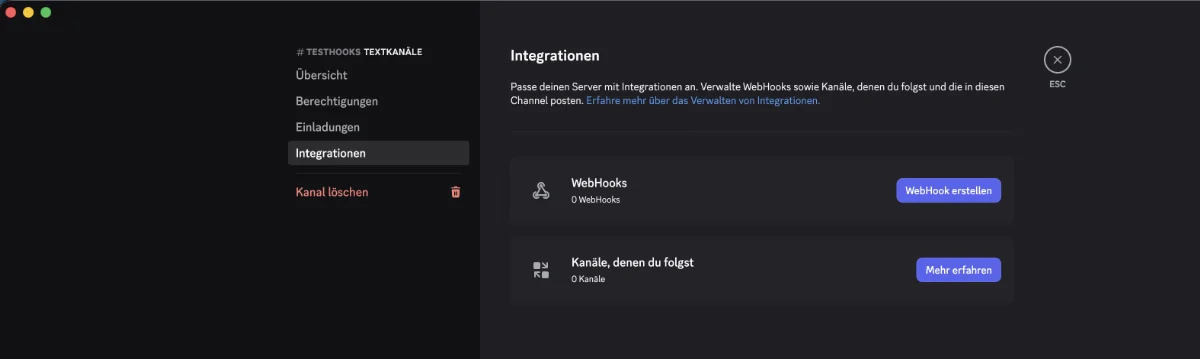
Step 2: Open Integrations and Create a Webhook
In the channel settings, switch to "Integrations" on the left. There you will find the "Webhooks" card and next to it the "Create Webhook" button. If the channel already has webhooks, the button at the top is called "New Webhook".
Step 3: Assign a Name and Copy the URL
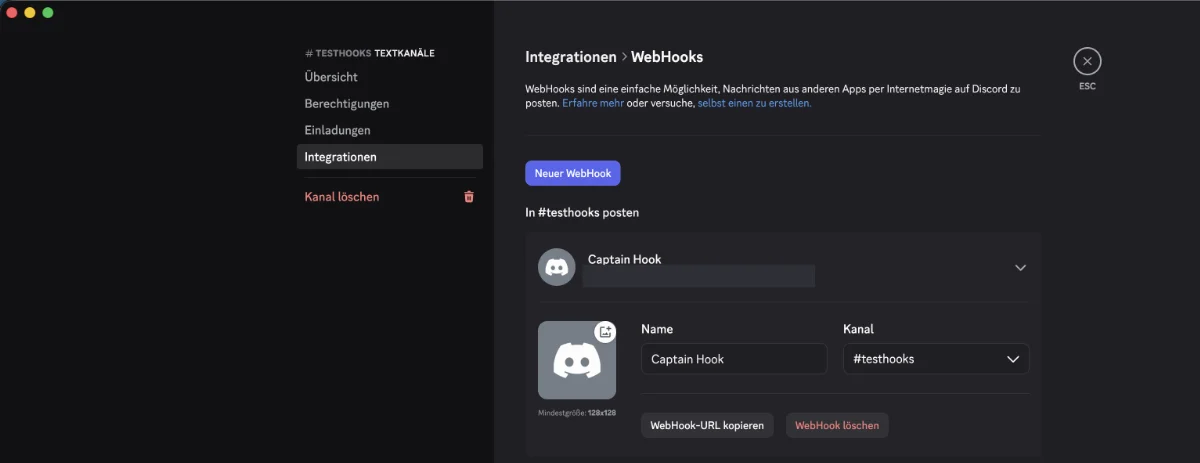
Discord creates a webhook right away — by default with a random name. You can rename it freely, for example to Server Status; this name later appears as the sender of the messages. In the "Channel" field, check that the desired channel is really selected.
Then click "Copy Webhook URL". The URL is now in your clipboard.
This URL is a password. Anyone who has it can write to your channel without logging in. Do not post it anywhere publicly — not in chat, not in a screenshot, not in a ticket. If it does get lost, delete the webhook in Discord ("Delete Webhook") and create a new one; the old URL is then worthless immediately.
Part 2: Connect the Webhook to Your Server
Step 4: Paste the URL in the Notifications Tab
Open your server in the dashboard and switch to the "Notifications" tab. At the very top is the "Connect Channels" section with the Discord card.
Paste the copied address into the "Discord Webhook URL" field and click "Connect Discord".
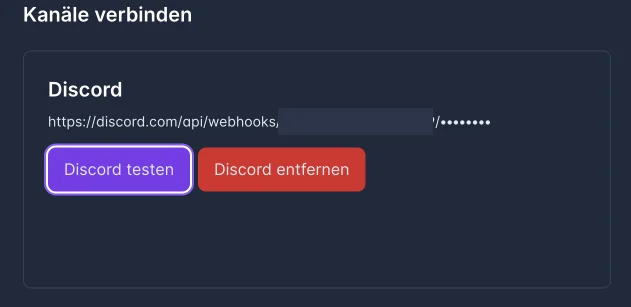
Afterwards the card shows the address shortened: the secret part at the end is replaced by dots so nobody can read it off your screen. For the same reason there is no "Edit URL" — to switch, use "Remove Discord" and connect again.
Step 5: Test Delivery
Click "Test Discord". The test message is scheduled and appears in your channel shortly afterwards — as the sender you will see the name you gave the webhook in Step 3.
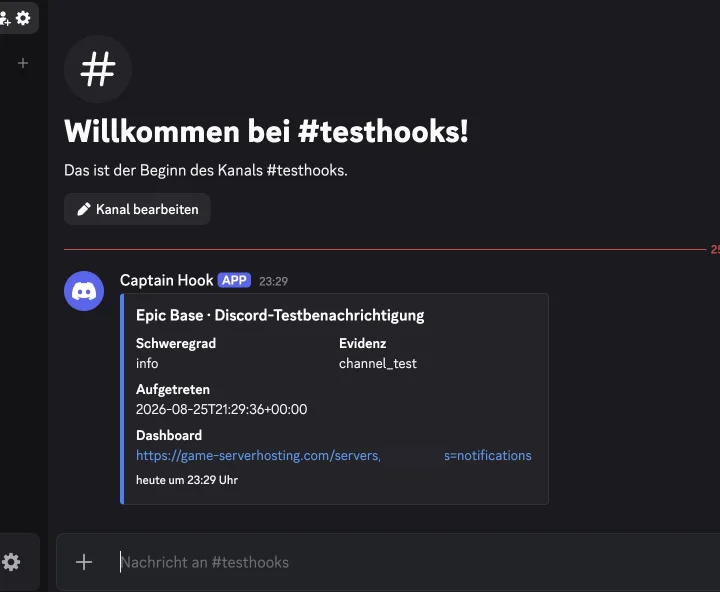
The message already shows you the format of all later notifications:
| Field | Meaning |
|---|---|
| Heading | Name of your server and type of notification |
| Severity | Classification of the notification, for example info |
| Evidence | Where the notification comes from — for the test channel_test |
| Occurred | Time in UTC |
| Dashboard | Direct link back to the Notifications tab of your server |
If nothing arrives, you can see further down under "Recent Deliveries" what went wrong — more on that shortly.
If you can't trigger the test again right away, that is not an error: a notice tells you the remaining wait time. This prevents a stuck click from flooding your channel.
Part 3 (Optional): Web Push as a Second Channel
In addition to Discord, the same server can also reach you directly in the browser — without Discord, without a detour. This is handy when you want to see a notification personally while the Discord channel belongs to the whole team.
Important to understand: Web Push is tied to the device, not the account. You enable it for this browser on this device. Phone and computer are two separate activations — and the test always sends the notification to exactly the device you are currently using.
Here's how:
- In the "Web Push" card, click "Enable Web Push".
- The browser asks whether the site may send you notifications — allow it. Without this permission, the channel stays off.
- Afterwards the card shows "Ready". With "Test Web Push" you immediately send yourself a test notification on this device.
- "Remove Web Push" cancels the connection for this device again.
If it doesn't work, the card tells you why — the three most common cases:
- "This browser does not support Web Push." Then Discord remains your way; this has nothing to do with your server.
- "Web Push is blocked in the browser." You (or someone before you) declined notifications for the site. Allow them in your browser's site settings and enable the channel again.
- "Web Push was rejected by the browser or operating system." The problem is one level higher: in the system settings, notifications are turned off for the entire browser. Enable them there.
A special case is the message "Web Push is currently not available on this server." This does not concern your device — use Discord in the meantime.
Set Events
A connected channel on its own does not send anything yet. In the "Set Events" section you decide which notifications go out — and via which channel. Each event has its own selection for Discord and Web Push; a channel that is not connected is locked and points you to "Connect this channel above first."
As long as no channel is connected, nothing can be selected here — this is intentional: "Without a channel, nothing can be selected here because no notification could arrive."
The following options are available:
| Event | When it fires |
|---|---|
| Start failed | The server could not be started |
| Server crashed | The server shut down unexpectedly |
| Backup failed | A backup could not be created |
| Resources running low | Memory, CPU, or storage space are filling up |
| TPS persistently low | The tick rate stays below the target value for an extended time |
| Update available | A newer version is available for your server software |
| Trial server expiring soon | The runtime of a trial server ends soon |
| New player record | More people were online at the same time than ever before |
| Unusual connections | Suspicious connection pattern on your server |
Confirm your selection with "Apply Event Rules".
A sensible split: what the team should see (crashes, backups) goes to Discord; what only concerns you (update available, trial server expiring) goes to Web Push.
Quiet Hours: Don't Get Woken at Night
Under "Quiet Hours and Defaults" you set a time window in which nothing should reach you — for example 22:00 to 07:00 in your time zone. The notifications are not lost: "Notifications are held back and summarized. Afterwards you only receive the current status."
A server that crashes at three in the morning and runs again by itself at four will not wake you — in the morning you find out what the current status is instead of working through six individual notifications.
Confirm with "Apply Quiet Hours".
If Nothing Arrives
The "Recent Deliveries" section lists every dispatch with its status. The four possible states:
- Delivered — Discord accepted the message. If it still doesn't appear, check whether you are looking at the right channel.
- In progress — the dispatch is still running. Wait a moment.
- Temporarily disrupted — Discord was unreachable or blocked the request. We will try again; the "Attempt" column keeps count.
- Disabled — the channel no longer accepts anything. Most common cause: the webhook was deleted in Discord or the channel no longer exists. Create a new webhook and connect it again.
Two more stumbling blocks:
- The URL was cut off when copying. It must start with
https://discord.com/api/webhooks/and then contain two more long sections. If the latter part is missing, the panel reports "Invalid Discord webhook URL." - No event is selected. Channel connected, but no rule — then it stays silent. The test still works in that case because it addresses the channel directly.
For Web Push, a third case is added: "Web Push is no longer registered for this device." This happens when the browser discarded the permission — for example after clearing the site data. Simply enable the channel on the device again.
Removing the Webhook Again
"Remove Discord" disconnects the channel from this server. Your settings are preserved: "No new server notifications will be delivered through this channel anymore. Your event rules and thresholds remain saved." If you connect a new webhook later, your old rules apply again immediately.
If you also want to get rid of the webhook on the Discord side — for example because the URL became public — delete it there as well via "Delete Webhook".
FAQ
Do I need a Discord bot?
No. A webhook is exactly the bot-free option: no invitation, no permission assignment, no permanent connection.
Can I send multiple servers to the same channel?
Yes. Connect the same webhook in each server. Every notification names the server in the heading, so you can tell them apart. It is usually clearer with a dedicated channel per server.
Can one server report to multiple channels?
One Discord channel is provided per server. For a second recipient, you enable Web Push — both run in parallel in the same tab.
Do I have to enable Web Push individually on each device?
Yes. The permission belongs to the browser on the respective device, not to your account. Phone and computer are two separate activations.
Does my community see the notifications?
Everyone who is allowed to read the channel sees them. If crash and resource notifications should stay internal, create the webhook in a channel that is only visible to your team — or send those events via Web Push.
Does the URL change if I rename the webhook?
No. You can change the name and icon at any time without the address becoming invalid. You only need to reconnect if you delete the webhook and create it anew.
Distinguishing Notifications for Multiple Game Servers
Choose a clearly named status channel and test each linked server separately. Check in the test message that the affected server remains identifiable, so a backup failure is not confused with another game server. Initially enable only events that your moderation team actually responds to, and then check quiet hours. If the webhook URL becomes visible in a screenshot or public log, replace the webhook in Discord and store the new URL. Renaming alone does not invalidate access. Afterwards, check delivery and the intended channel again.