Your own ARK: Survival Evolved server is worth it if you want to control the map, player count, taming rates, breeding, admin rights and optionally multiple maps yourself. Realistic resource planning is important: ARK is demanding, so you should settle on RAM, map size and cluster plans before ordering.
Requirements and Planning
ARK needs more headroom than many other survival games. Plan not only for the player count, but also for map size, mods, long uptimes and possible expansions. With paid multi-game hosting at game-serverhosting, the main focus is that you get technical control, support and transparent operating procedures instead of having to take care of installation, launch parameters and basic operation yourself. There is a separate guide for setting up mods: Installing ARK Mods.
| Planning scenario | Package choice | Notes |
|---|---|---|
| Small ASE group | Currently bookable ASE slot tier | Check included resources and save load |
| Larger ASE group | Suitable slot tier plus headroom | Factor in simultaneously active players, dinos and mods |
| 20-50 | 16 GB+ | Large PvP servers |
| Cluster | Suitable package per map | Each map needs its own compatible instance |
The installation mentioned in the initial setup runs via SteamCMD. As the official primary source for this tool, Valve points to the SteamCMD documentation at Documentation at developer.valvesoftware.com. In practice, this means: server files are downloaded automatically, but you should still plan updates and restarts deliberately so that active players are not disconnected in the middle of a session.
Ordering a Server
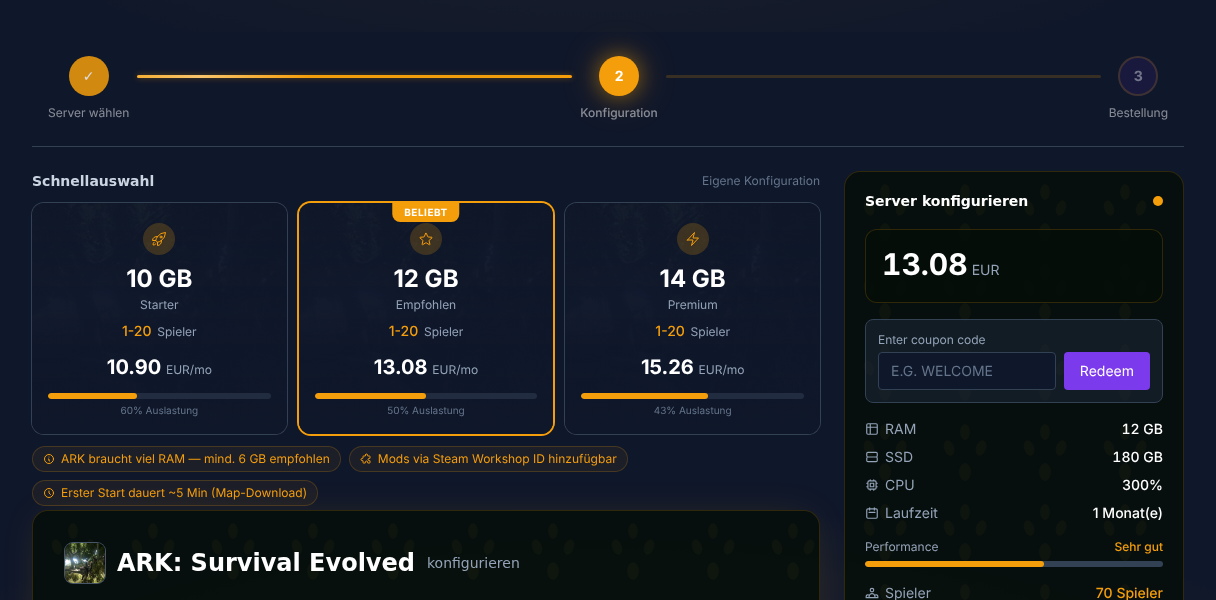
- Open the ARK server selection.
- First confirm ASE or ASA and the map your group plays.
- Plan resources for this edition, mods and the grown save.
- Wait for the installation to finish and check the console instead of relying on a fixed download/minute estimate.
If you run other survival servers besides ARK, the comparable setups for Renting and Setting Up a Valheim Server and Renting and Setting Up a Rust Server will help you, since similar decisions about resources, play style and administration come up there.
GameUserSettings.ini Explained
The most important configuration file for your ARK server is GameUserSettings.ini. You can find it in the panel under Configuration. Change values deliberately and document larger adjustments so you can later work out why taming, breeding or resources behave differently than expected.
[ServerSettings]
ServerPassword=OptionalAccessPassword
ServerAdminPassword=YourAdminPassword
DifficultyOffset=1.0
TamingSpeedMultiplier=5.0
HarvestAmountMultiplier=3.0
XPMultiplier=2.0
ResourceRespawnPeriodMultiplier=0.5
AllowFlyerCarryPvE=True
PreventTribeAlliances=False
AllowThirdPersonPlayer=True
With GSH, the launch takes the passwords from the released panel fields. The two password lines in the example only apply to self-managed launches without differing password launch values. For a GSH instance, therefore, change the join and admin passwords in the panel; a plain INI entry does not override these launch values.
Breeding values belong separately in Game.ini:
[/script/shootergame.shootergamemode]
BabyMatureSpeedMultiplier=10.0
EggHatchSpeedMultiplier=10.0
MatingIntervalMultiplier=0.1
Set the player limit via the dedicated launch/panel value of your instance; an arbitrary MaxPlayers entry under [ServerSettings] is not a reliable substitute.
All changes to the .ini require a server restart to take effect. Afterwards, check in-game whether the settings apply: gather a resource, tame a small creature as a test, or check the player limit via the server browser or the player list.
Taming Rates for PvE and PvP
The default taming rates are designed for official servers and can be very time-consuming for private groups. Higher multipliers make progress more predictable, but they also change balance, trading and PvP pressure. So don't raise everything across the board; decide based on your play style.
| Setting | Official | Recommended PvE | Recommended PvP |
|---|---|---|---|
| TamingSpeedMultiplier | 1x | 5-10x | 3-5x |
| XPMultiplier | 1x | 2-3x | 1.5-2x |
| HarvestAmountMultiplier | 1x | 3-5x | 2-3x |
| BabyMatureSpeedMultiplier | 1x | 10-20x | 5-10x |
| EggHatchSpeedMultiplier | 1x | 10-20x | 5-10x |
| MatingIntervalMultiplier | 1x | 0.1x | 0.25x |
PvE recommendation: High taming rates (5-10x) make the game more relaxed and shift the focus to exploration, building and breeding.
PvP recommendation: More moderate rates (3-5x) keep more weight on risk, loss and preparation.
Popular Maps Compared
| Map | Size | Notes | Recommendation |
|---|---|---|---|
| The Island | Medium | Classic, all prehistoric dinos | Beginners |
| Ragnarok | Large | Best free map, Wyvern Trench | All-rounder |
| Fjordur | Large | 3 realms (Jotunheim, Vanaheim, Asgard) | Advanced players |
| Aberration | Medium | Underground, unique dinos | Experienced players |
| Crystal Isles | Large | Crystal Wyvern, beautiful scenery | Collectors |
| Genesis Part 2 | Large | Sci-fi elements, missions | Endgame |
Tip: Ragnarok is a good choice for new servers: large map, many biomes, Wyverns included without DLC. If your group comes from other survival games, a look at the Palworld Server Guide can also help, since similar decisions about co-op progression and server control are made there.
Admin Setup and First Commands
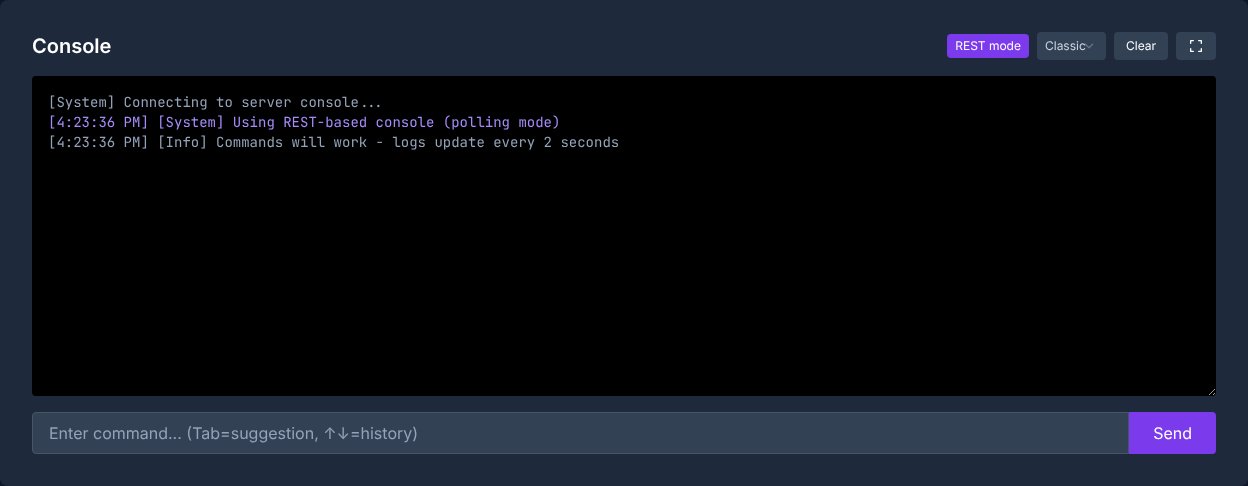
After setup, you should set the admin password and test it right away:
- With GSH, save the released admin password field in the server settings; the launch takes over this value. The INI line
ServerAdminPassword=YourPasswordapplies to self-managed launches without a differing launch value. - Restart the server
- In game: press
Tab-> enterenablecheats YourPassword - Test with
admincheat ListPlayerswhether authentication works, without modifying your character.
Important Admin Commands for Server Launch
admincheat SaveWorld
admincheat ListPlayers
admincheat Broadcast Welcome to our server!
admincheat KickPlayer <SteamID64>
These examples belong in the in-game console after enablecheats <AdminPassword>; in RCON, the prefix depends on the supported command path. Replace the SteamID64 before any moderation action. admincheat DestroyWildDinos is a deliberate reset of all wild dinos, not a necessary step after every rate change. Only run it after making a backup and consciously deciding to reset.
Use admin commands sparingly on production servers. destroywilddinos is helpful after larger dino or spawn changes, but it can briefly change the feel of the ongoing game because wild creatures are rebuilt.
Cluster Setup: Connecting Multiple Maps
A cluster requires one compatible server instance per map, as well as a shared, accessible data storage intended for transfers. An identical text ID in two configurations alone does not connect separate file systems. Before ordering, ask support whether and how your specific hosting setup supports a cluster.
Only then do you define the shared cluster identifier, transfer rules and the documented launch parameters for it. Do not copy an invented /mnt/cluster path into GameUserSettings.ini. Back up all maps involved and first test the transfer with a test character without valuable gear.
Checking the Result
After setup, you should test four things: the server can be found in the list, joining with a password works, admin access is active and the multipliers are effective. Ask a second player for a quick join test if the server is meant to be public or for a group. If you run a cluster, also test a transfer without valuable items.
Troubleshooting
If the server doesn't start, first check RAM usage, map selection and the most recently changed .ini lines. For problems after configuration changes, a misspelled key, a missing restart or an unsuitable value is more common than a broken installation. If players can't join, check the server password, game version, ongoing updates and whether the map loaded correctly.
FAQ
How much memory does ARK really need?
The requirement depends on ASE/ASA, map, mods and the grown save. The table describes planning scenarios; a general crash threshold at 6 GB is not documented. Before ordering, check the requirements of your specific setup.
Can I switch the map after launch?
Yes, via the server settings in the panel. The save game of the old map is kept, but you will be playing on a freshly generated new map. Back up important data before switching on a live server.
How do I set up a password-protected server?
With GSH, set the join password in the released field of the server settings and restart the server; the launch takes over this value. For self-managed launches without a differing password launch argument, set ServerPassword=YourAccessPassword under [ServerSettings] in GameUserSettings.ini. Afterwards, test joining with the correct and with a wrong password. The join password and the admin password serve different purposes.
Will my settings be reset after an update?
GameUserSettings.ini and Game.ini remain unchanged after normal updates. With a complete reinstallation, default files may be rewritten; therefore back up important configurations beforehand.
Why aren't my new rates taking effect?
Usually the server restart is missing or the value is in the wrong file or section. Check the spelling, restart, and then test the change directly in game.
When is a cluster worth it?
A cluster is worth it if your group wants to play multiple maps long-term and move characters, items or dinos between them. To get started, a single, stably configured server is usually simpler.