Last checked: September 27, 2026. This guide applies to ARK: Survival Evolved (ASE). ASE mods come from the Steam Workshop and are enabled via ActiveMods. ARK: Survival Ascended (ASA) uses its own CurseForge mod catalog; ASE Workshop IDs do not work there. Check your server's version before making any changes.
Requirements
For ASE you need access to the server configuration, the Workshop IDs of the ASE mods you want, and a current backup of your world. Check in the panel whether your server is actually running ARK: Survival Evolved. Especially with large mods or overhauls, a backup is not a formality but your safeguard against corrupted savegames, removed mod content or incompatible updates.
The central source for ARK mods is the official Steam Workshop for ARK: ARK: Survival Evolved Workshop. There you will find the mod pages, descriptions, change logs and each mod's ID in the URL. Use this source to check dependencies and notes from the mod author before you enable a mod on a live server.
Installing Mods via the Steam Workshop
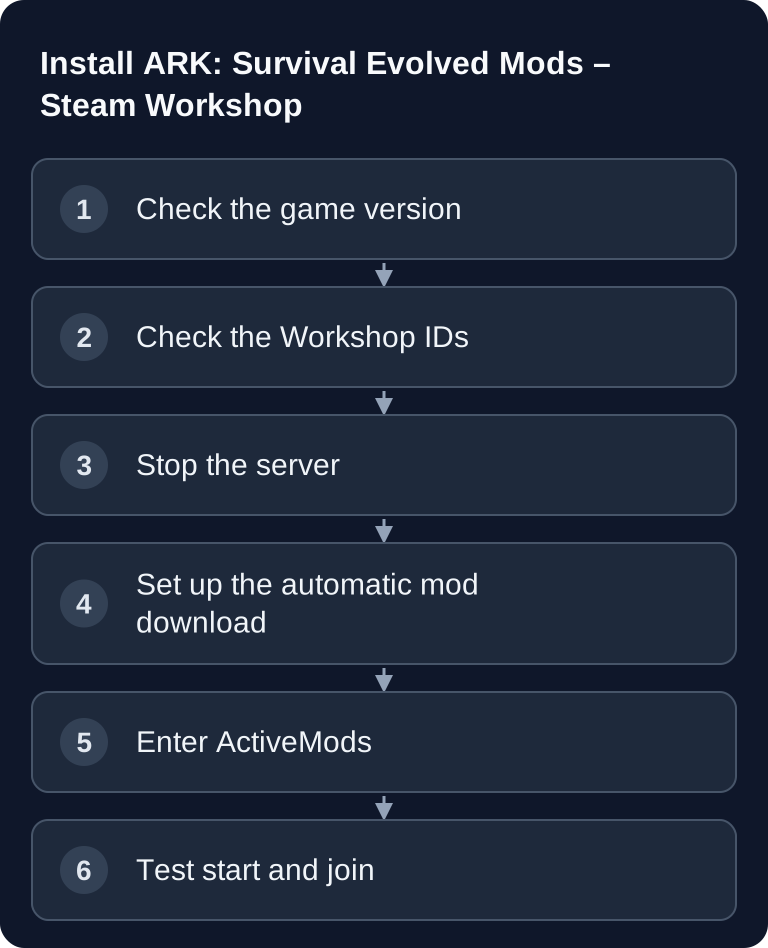
First open the mod in the Steam Workshop and copy the number sequence from the URL. For automatic server installation you need three separate entries: In the startup variables under Additional Arguments (ARGS) you add -automanagedmods and leave any other existing arguments in place. In Game.ini you list each Workshop ID individually under [ModInstaller]. In GameUserSettings.ini you enable the same IDs under [ServerSettings] with ActiveMods. The current game-serverhosting ASE egg does not set -automanagedmods by default. The ARK server configuration describes this download and activation method.
[ModInstaller]
ModIDS=731604991
ModIDS=1404697612
ModIDS=1609138312
The lines above belong in Game.ini. The following line belongs in GameUserSettings.ini:
[ServerSettings]
ActiveMods=731604991,1404697612,1609138312
Multiple active mods are separated by commas without spaces; in Game.ini, on the other hand, each ID goes on its own ModIDS line. Only save both files once the server is stopped. If it is running while you make the change, it may overwrite entries again when shutting down. Then restart the server and give it enough time on the first start with new mods. Check in the log that the download actually succeeded before you expect anyone to join.
Verified ASE Example IDs
These IDs belong to ARK: Survival Evolved. Before installing, check that the mod is up to date and check its dependencies and compatibility on the linked mod page. The list is not a recommendation to install all of these mods together.
| ASE Mod | Workshop ID | Source |
|---|---|---|
| Structures Plus (S+) | 731604991 | Steam Workshop |
| Awesome SpyGlass! | 1404697612 | Steam Workshop |
| Dino Storage v2 | 1609138312 | Steam Workshop |
The previously mentioned ID 889745138 belongs to Awesome Teleporters!, not to Awesome SpyGlass!. 764755314 refers to Castles, Keeps, and Forts (Legacy), not also to a stacking mod.
Planning the Mod Order Sensibly
The order in ActiveMods can matter. There is no universal sorting rule such as "overhaul first, cosmetics last". Follow the mod authors' load order and dependency notes. If they do not specify an order, add mods one at a time and test joining and the affected game features after each restart.
Document the ID, name and change date of your active mods. Do not remove mods that add items, structures or dinos without a verified backup: missing mod data can affect the save state.
Checking the Result
After the restart, the server should run without repeated crash loops. First check the console or log files for failed downloads, missing dependencies or loading errors. Then connect with a client that has subscribed to the same mods or downloads them automatically. A successful test consists of three points: the server appears reachable, the client gets in without a mod mismatch, and the most important mod features are visible in the game.
If you also mod other games, the principles from similar setups will help you. For Workshop-based workflows, the guide Installing Project Zomboid Mods – Workshop Guide is helpful. For BepInEx-based server mods, you will find parallels in the guide Installing Valheim Mods with BepInEx.
Updating Mods
Mods can change as soon as the server updates Workshop content on startup. Only use automatic mod updates if your specific server setup offers this option and you have checked the consequences for the save state. For live servers, a controlled process still makes sense: create a backup, check the changelog of the most important mods, restart the server, review the logs and only then inform players.
Avoid larger mod changes right before planned play sessions. Overhaul, stacking and structure mods in particular can affect existing items, buildings or dino data. If a mod is to be removed, first check whether placed objects or saved content could disappear as a result.
Troubleshooting
Mod does not load
First check the Workshop ID. A single transposed digit is enough for the server to load the wrong mod or none at all. Then check -automanagedmods in ARGS, one ModIDS line each under [ModInstaller] in Game.ini, and the comma-separated IDs for ActiveMods under [ServerSettings] in GameUserSettings.ini. Then restart the server completely and check the log for download errors.
Crash after a mod update
First back up the log, the active mod list and the world files. Test removing or rolling back a recently changed content mod only with a copy of the world: a successful start without the mod can remove its structures, items or dinos from the loaded save. Before testing, compare the Workshop notes on dependencies, load position and the updated build.
Players cannot join
Often there is a mod mismatch. Players must load the same mods in a compatible version. Ask them to close ARK, resubscribe to the affected mods in the Steam Workshop or refresh the local mod cache. Then connect again.
A mod does not work in-game
If the server starts but the mod has no visible effect, check the mod's additional configuration files. Some mods require further INI entries, enabled engrams or a specific load position. Read the description on the respective Workshop page for this.
What About ARK: Survival Ascended?
For ASA, you look for mods in the official ASA catalog on CurseForge. The CurseForge guide for ASA explains the client download when joining a modded server. Only use mod IDs designated for ASA and the activation path of your ASA server setup. Do not copy ASE Workshop IDs from this guide to ASA.
FAQ
Where do I find the Workshop ID of an ARK mod?
You find it in the URL of the mod page in the Steam Workshop. The ID is the number sequence in the address. With automatic server installation, it appears once as ModIDS in Game.ini and once in the ActiveMods list of GameUserSettings.ini.
Do I have to stop the server before making the change?
Yes. Stop the server before changing Game.ini, GameUserSettings.ini and the startup variables so that your entries are not overwritten by the running server.
Does the mod order really matter?
It can matter, especially for mods with dependencies. Follow the mod authors' instructions and test changes one at a time; there is no universal order.
Are mods updated automatically?
With -automanagedmods, the ASE server checks Workshop mods for downloads and updates on startup. Check the logs after the restart; a failed download is not a successful update.
What do I do if a mod damages a savegame?
Restore a backup and check which mod was changed, updated or removed last. Never carelessly remove mods that contain world or item content from an existing save.