Only switch the Minecraft version or server type after a complete backup and a test on a separate copy. Software selected in the panel does not guarantee that the world format, mods, datapacks and plugin data fit it. Therefore, compare the same game content before and after the switch and check how it is saved after a second start.
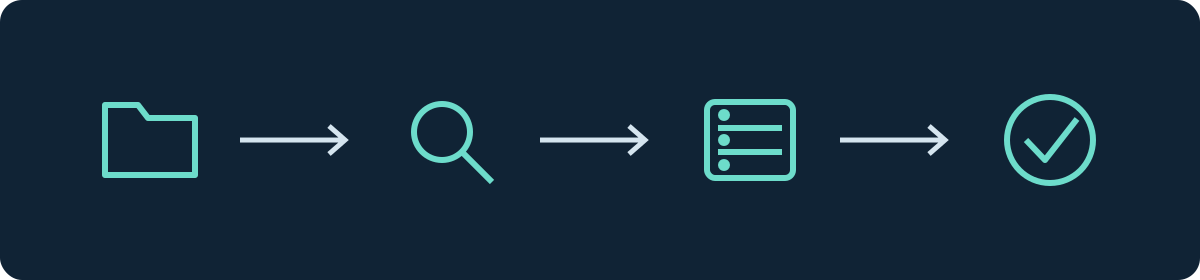
In the customer panel step by step (with video): Switch server software and version in the panel
Distinguish three different kinds of change
| Change | Most important question before starting |
|---|---|
| New build of the same server software | Have the changes and known issues of this build been reviewed? |
| New Minecraft version | Can the world format, datapacks and extensions move to this version? |
| Different loader or server type | Does the target support the existing content and its data format? |
A modpack update can contain all three changes at once. Therefore, note the pack version, Minecraft version, loader and Java runtime separately. If possible, choose only one switch at first so that errors can be traced to a specific step.
Back up the starting state
Stop the server to make a manual full copy. Back up worlds, configuration, mods or plugins and their data. External databases require a coordinated backup. Record the current versions and startup parameters. Test whether you can reopen this state in the previous environment. Details are in the backup guide.
For the test, you need a separate copy of the installation. It must not write to the same production plugin databases. Restrict access and make sure players still know which instance is the production one.
Choose the target software
Vanilla needs no mod platform. Paper and Purpur are intended for suitable plugins; Forge, NeoForge, Fabric and Quilt form different mod ecosystems. What always matters is the release of the specific project for the loader and game version. A mod's name and a matching file extension are not enough.
NeoForge and Forge are separate mod platforms; the project must explicitly support the target loader. Also note the required Java runtime for client and server. For current Paper, the Getting Started table lists Java 21 for 1.20 to 1.21.11 and Java 25 from 26.1. Modpacks may have different releases; therefore, don't just install the highest Java version across the board. The Java guide helps with the mapping.
World format: note the changes from Java 26.1
The world directories of current servers differ from old tutorials. The Paper migration documentation explicitly separates current procedures from guides for versions before 26.1. An old guide with separate world_nether and world_the_end folders therefore does not automatically fit the new server.
This is especially relevant if, after a software switch, the overworld looks correct but the Nether or End seem empty. First check the version, the original layout and the actual files. Do not regenerate a dimension to fix a suspected path error. For a world with mod content, removing the loader can additionally make blocks, items or dimensions unusable.
Perform the switch in the panel
- On the intended test instance, open the server version selection.
- Select the combination of Minecraft and server software that is actually offered.
- Read the confirmation dialog and check that you are really editing the test copy.
- Confirm the switch and wait for the installation to finish completely.
- On the first start, read the console from the start of the new runtime. Note the first error instead of only looking at the final abort message.

The Paper update guide is an additional reference for Paper servers. Available loaders and builds can differ; an entry in the panel is not yet a release of your personal mod combination.
Test the same things before and after
Before the switch, create a short list of known locations and features. Afterwards, check the same coordinates in the same dimension, player inventories, ender chests, permissions, portals and key mods or plugins. Also let a normal player account join. An admin with special permissions will not discover every permission error.
Change a non-critical spot in the test world. Stop the server cleanly, start it again and check whether the change and the old data are preserved. Only then do you plan the maintenance window for the production switch. If the original has been played on since the test, you need a fresh backup immediately beforehand.
If the switch fails
Note the first concrete loading error and compare the loader, mod file and documented dependency with the backed-up version directory. Fix this combination on the test copy, without repairing the world or changing further versions in parallel. If mod blocks or dimensions are missing, stop immediately. For the next attempt, use the unchanged starting copy including databases again, not the test state that has already been saved without content.
A way back is the restoration of software and data state. Don't simply start an already upgraded world with the old server version. Migrated plugin databases may also need their own restore.
FAQ
Do files remain intact during the switch?
Files being preserved says nothing about whether they are readable or whether all game content is retained. What matters is testing with the target software.
Can I keep using Forge mods with Paper?
Paper does not load Forge mods. Look for a suitable solution for the required feature and test the world migration separately; equivalent features do not mean equivalent data.
Does every client need the same version?
For the test, use a client version supported by the server and the required mods. Additional protocol compatibility is not proof of mod or world compatibility.
Related guides
This guide in other languages
English · Español · Français · Nederlands · Português · Русский
Switch server software (Paper → Fabric): view an example
Our own captures from a demonstration environment. The version and setup shown may differ from your server.
- Open Manage and Change Game Type. Choose the new server software, here Fabric.
- Enter the server name to confirm and click Change game type.
- A restore point is created automatically first. Wait until the switch is complete.
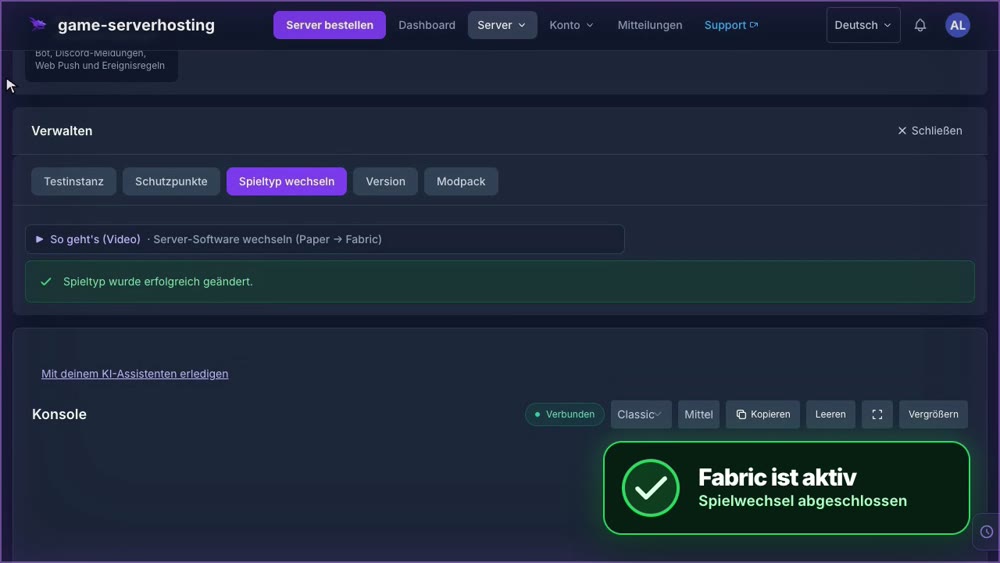
GSH-Testserver · 2026-09-28