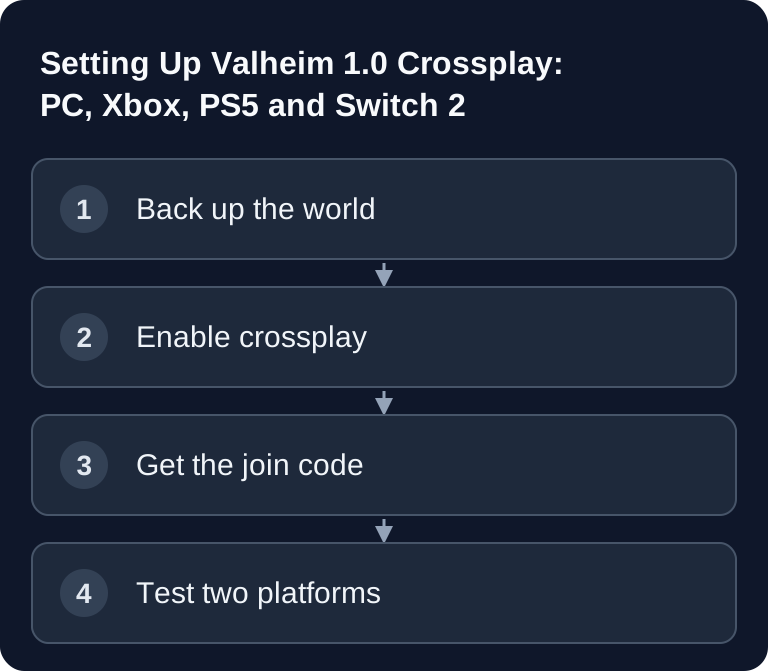
For Valheim crossplay between the supported platforms, the dedicated server must run with the crossplay backend. Check the setting after the restart and test the join code or the intended public join method. Crossplay does not generally sync personal saves between platform accounts. According to Iron Gate's 1.0 FAQ, Steam, Microsoft Store, Xbox, PS5 and Switch 2 support playing together; the regular limit remains 1 to 10 players.
Steam Backend or Crossplay Backend?
The two modes differ in how players join. Without -crossplay, the dedicated server uses the Steam backend according to Iron Gate's server guide; Steam players can connect to it. With -crossplay, it runs via PlayFab, so players on other supported platforms can join. A server name alone does not prove which backend is currently active. Check the crossplay setting in the panel and the console after the restart.
| Your group | Setting | Connection method |
|---|---|---|
| Steam only | Steam backend possible | Server list or public IP with port |
| PC and console mixed | Enable crossplay | Join code, server list or public IP with port |
| Consoles only | Enable crossplay | Join code or server list |
Crossplay connects players on the same server world. It does not automatically transfer personal saves between accounts or platforms. For Xbox and Microsoft Store, Iron Gate describes limited shared save usage, but beyond that no general cross-platform save sync. Agree in advance on which characters players join with and who manages the world.
Enabling Crossplay in the Panel
- Open the Valheim server in the dashboard and create a backup of the world.
- In the launch settings, look for the crossplay option. On the server, this becomes the launch parameter
-crossplay; it must not be set only on the client. - Enable the option and restart the server. Keep the world name, password and other settings unchanged.
- Check the server console for a successful start and the join code. The display may be delayed until the crossplay backend is connected.
- First let a PC player join, then a console player with the current game version. Both should see the same world and the same buildings.
With rented hosting, you usually don't need to set up port forwarding on your home router for the crossplay relay route. Iron Gate points out that joining via a local IP or loopback does not work with the crossplay backend. If you test via IP, use the public server address together with the port shown in the panel. The join code is often easier for mixed groups.
Inviting Friends via Join Code
After the start, look for the current join code in the server log, in the console or in the game. Share it only with your group; a strong server password additionally protects your world. In Valheim, friends open the Join Game section, add the server and enter the code. The older official crossplay FAQ describes exactly this route. Menu labels may differ slightly depending on the platform and client version.
A join code can change after a restart. If a previously saved code no longer works, read the current code from the running server. Avoid treating an old screenshot as a permanent invitation address. Alternatively, the server list can help if public visibility is turned on.
Limits for Mods and Platforms
Crossplay does not mean that mods run on consoles. In the 1.0 FAQ, Iron Gate explicitly states that Valheim has no official mod support and that consoles do not support mods at the 1.0 launch. For a mixed PC/console group, a vanilla server is the most reliable starting point. Mods that require client files can exclude console players. Even server-only mods should be used only after a join test with all target platforms.
The 1.0 game remains designed for a maximum of 10 players. More RAM does not lift this game limit. Server size depends on the world, buildings, player activity and any mods; start with a suitable plan and check the measured load. If you are switching an existing server to 1.0, first read the update guide for world and mods.
When the Connection Fails
Console players can't find the server: Check whether crossplay was really enabled and whether the server was restarted after the change. Test the current join code instead of just the server name. On Xbox, according to Iron Gate, the account's parental control and crossplay settings can play a role.
A Steam player gets in, the console doesn't: This may indicate a Steam backend instead of crossplay. Check the launch parameter and the console log. Then test vanilla without mods that require the client.
Joining via local IP fails: With the crossplay backend, use the public address or the join code. According to the server guide, local IP and 127.0.0.1 are not a valid crossplay join method.
Password or version is rejected: Check the current client version, the server password and the successful server start. Change only one factor at a time and repeat the join with the same two test platforms.
World or progress looks wrong: Check the configured world name. Crossplay neither syncs all personal saves nor replaces the world backup. Stop the server before making changes to .db and .fwl and back up both files together.
FAQ
Can PS5 and Nintendo Switch 2 join the same Valheim server as Steam?
Yes. Iron Gate confirms crossplay between all 1.0 platforms. The dedicated server must use the crossplay backend for this; test joining in practice with current clients.
Does Valheim crossplay work without port forwarding?
With the crossplay backend, Valheim uses a relay service and, according to the official server guide, does not require port forwarding on the home router. Different port requirements apply to Steam backend operation.
Can console players use my server mods?
At the 1.0 release, Valheim does not support mods on consoles. For a mixed group, go with vanilla first and test each server-side extension individually.
Does every player need their own copy of Valheim?
Yes, every player needs access to Valheim on their respective platform. Crossplay is a connection feature, not a shared game license.
Reconfirming the Join Method After a Restart
First check in the server log which backend is active, and only then share the current connection details. Use a freshly displayed join code instead of treating an old code as a permanent server address. For the crossplay backend, a local or loopback address is not a suitable external join method. Test at least one non-Steam platform that is actually in use. If Steam works but a console does not, check the backend and mod requirements separately from the world state. Note the platform, game version and exact error message; a world restore does not fix a wrong join code.