In the GSH panel, you switch server software and version via separate options under "Manage". Back up your world and extension data beforehand and read the specific switch overview. New software, a different game version, and a downgrade have different effects on files and compatibility.
Beforehand: create a backup
Both switches intervene deeply in the server files. The panel does automatically create a restore point before the switch, but your own backup is still the cleanest starting point, especially before switching to an older version. How to do that in a minute is shown in Create and restore a server backup.
Switching the game type: different server software
Open your server and select the Manage area. There you will find the tabs Restore points, Switch game type, and, for Minecraft, Version. The area deliberately opens with the Version tab, because switching the game type is the deeper intervention.
In the Switch game type tab, you see the current game type and choose the target under New game type. For Minecraft, this is for example the step from Paper to Fabric. Variants are only offered within your edition: a Java server gets Java variants, a Bedrock server gets Bedrock variants, otherwise your players could no longer connect after the switch.
Before you confirm, the panel explains what will happen:
- Your server is reinstalled for the new game type. Beforehand, the panel automatically creates a restore point that you can restore for seven days.
- The files of the old game stay in place unless you tick Remove old game files before switching. This makes sense if storage is tight; the panel warns you if the new game type does not fit in your storage.
- If you switch from a mod version such as Forge, NeoForge, Fabric, or a modpack to a version without mods, the panel removes the mods and sets the previous world aside. It is renamed, not deleted, and afterwards sits in the file manager with the extension
.bak-eggswitch. - If the new game type needs more RAM or storage space than your server has, you will see a notice with the minimum values.
- If the new game type costs more than the old one, the panel shows the surcharge and the new monthly price before anything happens.
To confirm, type the name of your server into the Enter server name field and click Change game type. During the reinstallation, the panel shows the progress; this can take a few minutes.
Switching the version for Minecraft
For Minecraft there is also the Version tab. Here the server software stays the same, and only the game version changes. Choose the target under Select new version. Nothing is switched until you have confirmed.
After your selection, the panel checks whether your server fits the target version. The compatibility check has three results: Compatible, Warning, or Blocked. Installed plugins that do not work with the target version are listed individually. If you go back to an older version, the panel warns you about the downgrade: worlds and plugins created with the newer version can be damaged or no longer load.
Here too, you confirm with the server name and click Switch version. The panel sets the appropriate Java version automatically, so you don't need to worry about the runtime environment. In the Version history, you can then see when you set which version.
If something goes wrong
If a version switch fails, the panel directly offers to return to the state before the switch. You can find the restore point of a game type switch under Manage → Restore points. If the server does not start after the switch, it is usually due to plugins or mods that don't match the new software or version. Then check the installed extensions; how to do that is explained in Install plugins with the wizard.
If your server runs on a subscription and the price would change due to the game switch, the switch cannot yet be triggered by yourself. The panel then points this out; our support will switch it for you.
After the switch, check three separate results
First confirm the chosen software and version in the startup log. Then test a normal client join and afterwards the plugins or mods you actually need. A Paper plugin does not automatically work on Fabric; an old mod file does not become compatible just because of a matching Java runtime. Also check the active world and the inventory of a known player. If there is an error, use the restore point belonging to the specific switch and document the first error message. Switching the software back alone does not repair a save that has already been stored in an incompatible new format. Therefore, keep the backup from before the switch separately.
Vanilla: ver ejemplo
Grabaciones propias realizadas en un entorno de demostración. La versión y la configuración mostradas pueden diferir de las de tu servidor.
- Vanilla: el juego Java original.
- Un paisaje de montañas nevadas al atardecer.
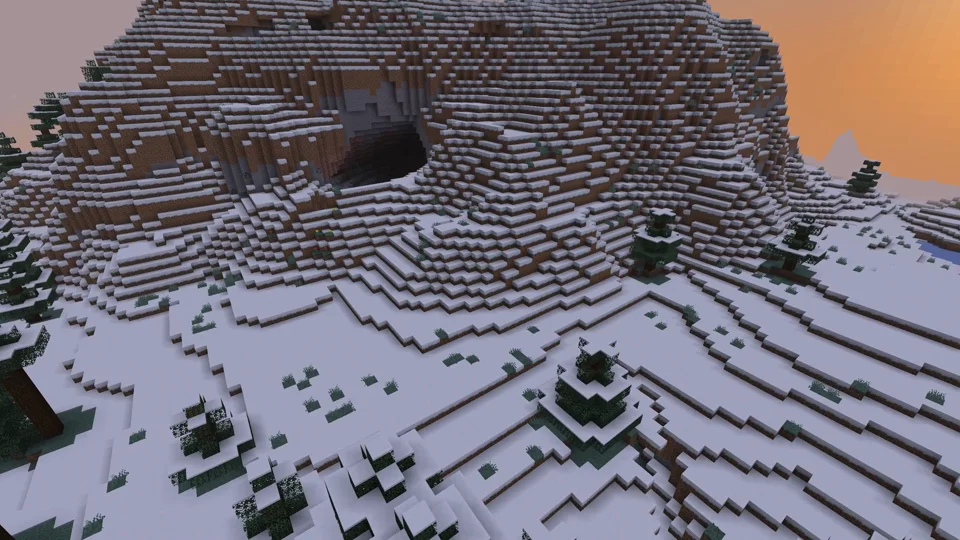
Java Edition
Paper: ver ejemplo
Grabaciones propias realizadas en un entorno de demostración. La versión y la configuración mostradas pueden diferir de las de tu servidor.
- Paper: Minecraft Java con plugins.
- WorldEdit: una pirámide de oro y una cúpula de cristal.
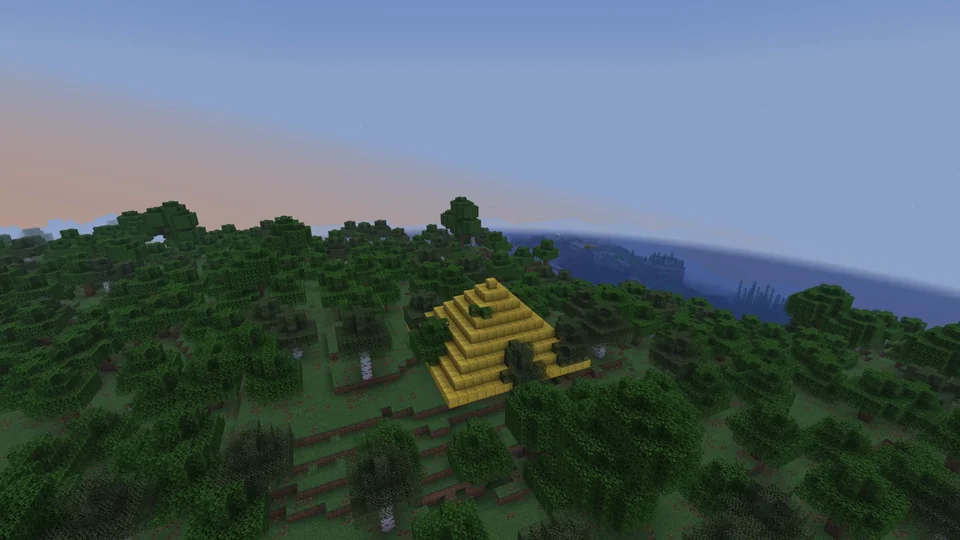
Paper / WorldEdit 7.3.16
Purpur: ver ejemplo
Grabaciones propias realizadas en un entorno de demostración. La versión y la configuración mostradas pueden diferir de las de tu servidor.
- Purpur: más ajustes del servidor.
- Vuelo en Phantom con la monta activada.
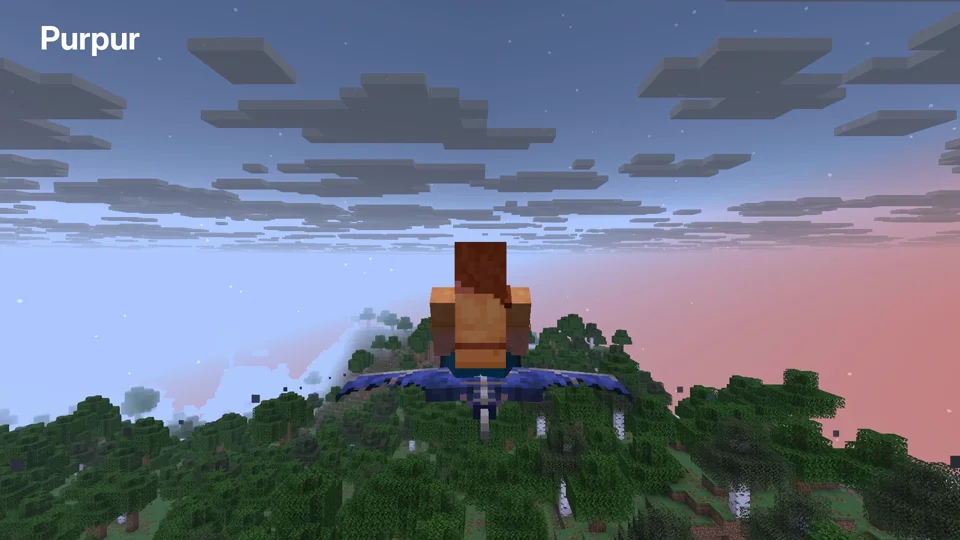
Purpur 1.21.6; phantom riding enabled
Fabric: ver ejemplo
Grabaciones propias realizadas en un entorno de demostración. La versión y la configuración mostradas pueden diferir de las de tu servidor.
- Fabric: mods como Cobblemon. Tu cliente necesita las versiones y los mods compatibles.
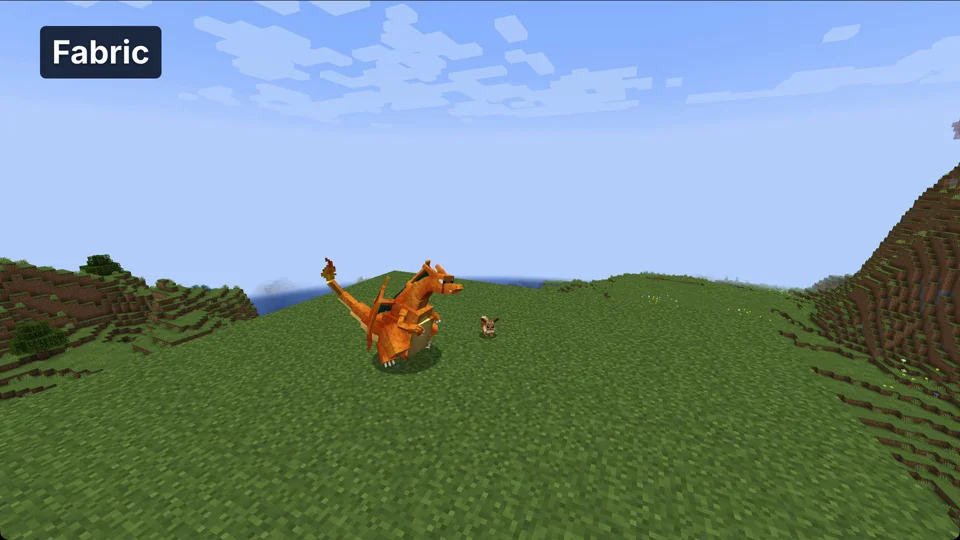
Minecraft 1.21.1 / Cobblemon 1.8.1 / Fabric API 0.116.17
NeoForge: ver ejemplo
Grabaciones propias realizadas en un entorno de demostración. La versión y la configuración mostradas pueden diferir de las de tu servidor.
- NeoForge: mods técnicos como Create. Tu cliente necesita los mods compatibles.
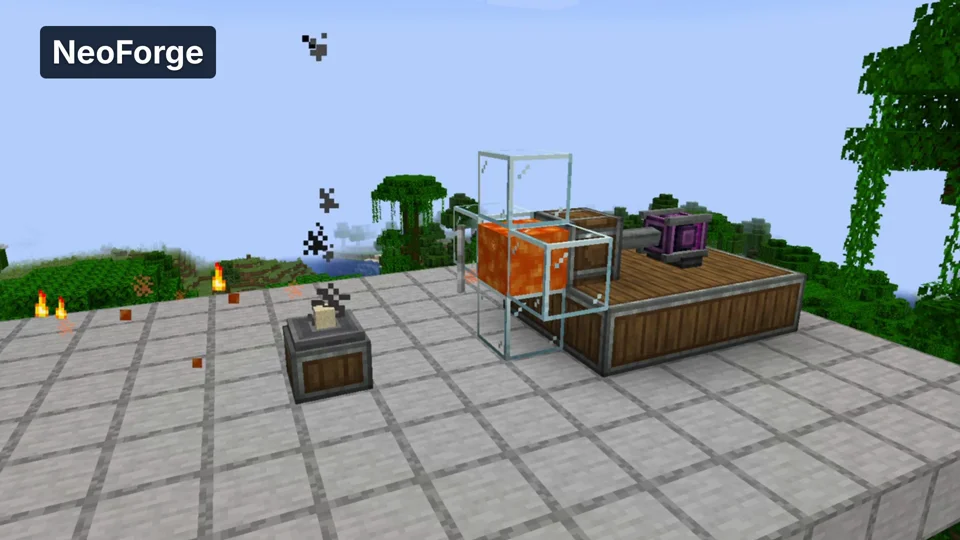
Minecraft 1.21.1 / Create 6.0.10
Velocity: ver ejemplo
Grabaciones propias realizadas en un entorno de demostración. La versión y la configuración mostradas pueden diferir de las de tu servidor.
- Velocity: un proxy conecta varios servidores Java. Aquí pasamos del lobby al segundo mundo.
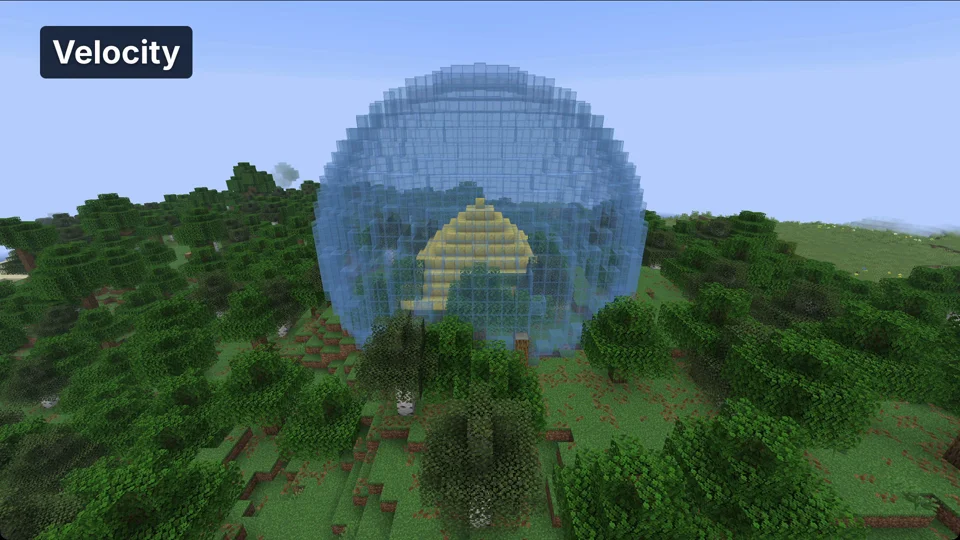
Java Minecraft 1.21.6; proxy world switch