Palworld multiplayer on a dedicated server works without an invite link, but the join path depends on the platform. Pocketpair documents IP address and port for a dedicated server. Xbox and PS5 players explicitly require a server deployed as a community server and join through the community server list. In the game-serverhosting panel, COMMUNITY_SERVER adds the -publiclobby launch option.
Requirements
You need a running Palworld server, access to the game-serverhosting dashboard, and at least one player account for testing. The server should show the status ready in the panel before you share connection details or change settings.
Pocketpair documents the supported platforms and join paths in About server: Xbox and PS5 require a community server. Configure for community server specifies -publiclobby. In the current configuration reference, CrossplayPlatforms defaults to (Steam,Xbox,PS5,Mac); AllowConnectPlatform is no longer available.
If you have not booked or prepared a server yet, you can find the basic setup in the guide Rent and Set Up a Palworld Server. For a broader configuration overview, Rent a Palworld Server: Configuration, Pals & Multiplayer also helps.
Step 1: Find the Server Address and Port
Once your server is marked as ready, you will see the connection details in the server tile of your dashboard.
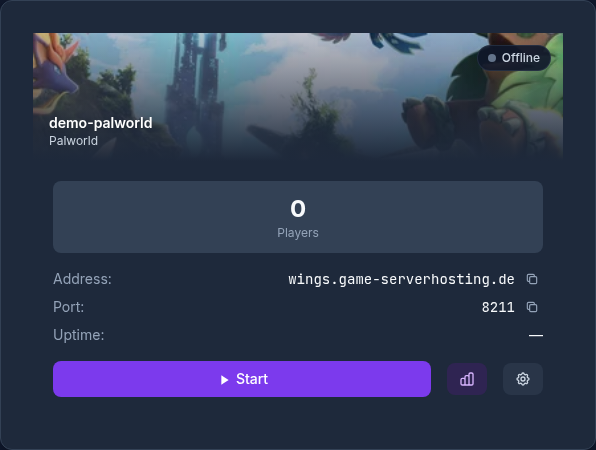
Write down:
- IP address or subdomain, if you have configured one
- Port; the default for Palworld is
8211
Share the IP address or subdomain and port only with players using the dedicated-server direct-connection path. Xbox and PS5 players instead search for the server name in the community server list; also give them the configured server password.
Step 2: Set the Maximum Number of Players
In the PalworldSettingsWizard, set ServerPlayerMaxNum to the number you want. Start by planning for 1 to 32 players; the sustainable number depends on the world, version, and resources. Do not choose a value larger than necessary: a small private co-op server does not need to be opened for 32 slots if only four people are playing.
Pocketpair specifies 16 GB RAM for operation. Its official documentation says 8 GB can boot but increases OOM/crash risk; larger setups are recommended to use more than 32 GB. There is no substantiated RAM-per-player mapping: bases, worker Pals, buildings, spawn rate, mods, settings and distributed active world areas also drive load.
Save after making the change. If your panel automatically restarts the server afterward, wait until the status is ready again before testing joining. Only then share the final details with your friends so nobody gets an error message during the restart.
Step 3: Optionally Set a Password
You have two sensible options:
- No password: Leave
ServerPasswordempty. Players can then join without a password through the path supported by their platform. - Set a password: Enter the desired password in ServerPassword. It applies to both direct connections and joins through the community server list.
A password is especially useful if you share the address in multiple groups or make the server visible in the community browser. Use a dedicated server password and not the same password as for your panel, your Steam account, or other services. After a password change, players must use the new password the next time they join.
Step 4: Enable the Community Browser or Stay Private
Enable COMMUNITY_SERVER whenever Xbox or PS5 players need to join. In the game-serverhosting panel, the switch adds -publiclobby and publishes the server in the community server list. It is also required when the server should be publicly discoverable on any platform.
Disable community visibility only when no Xbox or PS5 players will join and you deliberately want to operate solely through direct connections. Share the address and port selectively and set a password if needed.
Step 5: Join as a Player and Check the Result
Start Palworld and choose the right path depending on your configuration:
- Via Direct Connect with IP or subdomain and port on clients that support the dedicated-server path
- Via Multiplayer and Community Servers on Xbox and PS5; COMMUNITY_SERVER must be enabled
Use the path intended for the platform. For a direct connection, enter IP and port, for example 203.0.113.10:8211. On Xbox and PS5, search for the server name in the community server list. If a password is set, the prompt must appear on either path.
Then check three things: first, whether multiple players can connect at the same time. Second, whether the password is actually required. Third, whether the server is visible in the browser if you enabled COMMUNITY_SERVER. This quick check saves later troubleshooting when the group already wants to play.
Troubleshooting
Direct Connection Fails
First check whether the server really is ready in the dashboard. Then check the IP or subdomain, port, and spelling. Common mistakes are a missing port, a space at the end of the address, or an old port after a change.
Server Does Not Appear in the Community Browser
Check that COMMUNITY_SERVER is enabled, -publiclobby is set, and the server was restarted after saving. The list may update with a delay. Xbox and PS5 have no direct-IP fallback for this server type; test a direct connection only with a client that supports that join path.
Password Is Not Accepted
Set the password again in the wizard, save, and wait for the restart. Pay attention to uppercase and lowercase letters. If you copy the password into a chat, remove any accidentally appended spaces.
Not All Players Can Get Onto the Server
Use Pocketpair’s 16 GB operating requirement as the starting point and assess bases, worker Pals, buildings, mods and measured server performance instead of a RAM-per-player table.
Checks, Limits, and a Safe Way Back
The guide “Set Up Palworld Multiplayer – Invite Friends & Join a Server” applies to the server type described in the article and the version state visible at the time of checking. Menu names, available versions, mod or plugin compatibility, and required resources may differ after updates. Therefore, do not transfer values to another game, loader, or server version without checking them first.
Create a backup of the affected files before making changes to the world, savegame, configuration, or extensions. Then change only one related step at a time and check it with the same client and server version you want to play with later.
| Checkpoint | Expected result | Abort and rollback |
|---|---|---|
| Server start | The server reaches the operational state without a new error message. | If startup errors occur, revert the change and restore the last backup. |
| Connection test | A test account can connect using the address shown in the panel. | If version or connection errors occur, compare the version, port, and firewall allowances again. |
| Function test | The specifically changed function works without damaging existing world or game data. | If side effects occur, stop the server and restore the backed-up files. |
A successful single test is not a guarantee of performance or availability. World size, mods, plugins, player count, network path, and simultaneous load can change the result. Document the version, change, and test result so you can trace later deviations.
FAQ
Is there an invite link for dedicated servers in Palworld?
No. A dedicated server has no invite link. Clients with direct connection use the address and port; Xbox and PS5 players require a community server and join through the community server list.
Which port should I send my friends?
8211 is the documented Palworld default port; the panel assignment is authoritative. What matters, however, is the port your dashboard shows for your specific server. Always share the combination of address and port.
Do I have to set a password?
No. Without a password, players can connect through the join path supported by their platform. A separate server password is still sensible for private groups, especially when the server is published in the community list.
Can a password-protected server appear in the community browser?
Yes. You can make the server visible in the community browser and still set ServerPassword. Players will then find it publicly, but must enter the password when joining.
What should I always test after a change?
Test at least one direct connection with a suitable client and one join through the community server list when Xbox or PS5 is used. Also verify the password prompt and wait until the server is ready again after changes.