LuckPerms manages groups, inheritance and individual permission nodes on your Minecraft server. For moderation, grant only the actions that are needed and test them with a normal account without OP. Wildcard permissions like worldedit.* give far more capabilities than everyday moderation requires.
This guide takes you from installation to your first moderation group. The commands come from the official LuckPerms documentation; the screenshots are from a test server with Paper 1.21.4 and LuckPerms 5.5.71.
Installing via the Panel
In the server panel, you will find LuckPerms under Plugins → Browser. The search pulls its data from Modrinth; loader and server version are checked against the plugin metadata before the file lands in the plugins/ folder. The world protection assistant on the plugin page installs LuckPerms together with WorldGuard and WorldEdit in one step if you want the bundle. After the restart, the plugin announces itself on join with its version and author.
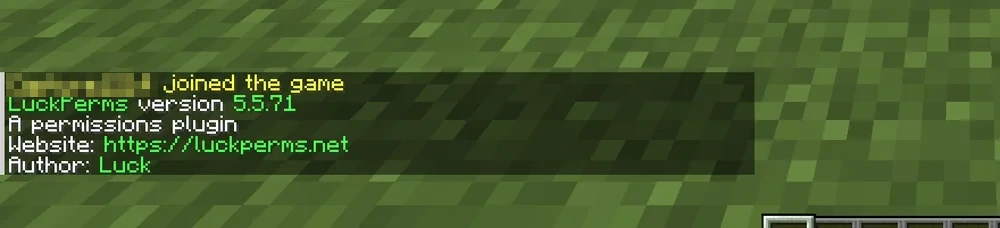
The output appears when you enter /luckperms or just /lp without arguments. It is the quickest test of whether the plugin is really running.
How Permissions Are Structured in LuckPerms
A permission node is a string like essentials.home or worldedit.region.set. Every plugin brings its own nodes and documents them. A node can be set to true or false. The wildcard worldedit.* covers extensive WorldEdit permissions. For a moderation role, grant the individual nodes it needs instead; even trusted roles don't automatically need all building tools.
LuckPerms knows three levels:
- Groups bundle nodes. Every player automatically gets the
defaultgroup. - Players inherit from their groups and can additionally carry their own nodes.
- Contexts restrict nodes, for example to a world or a game mode.
Keep the structure flat. Two to four groups are enough for most servers.
Creating the First Group
The following commands run in the server console or as an operator in the game:
/lp creategroup mod
/lp group mod permission set essentials.ban true
/lp group mod permission set essentials.kick true
/lp user PlayerName parent add mod
The first line creates the group. The two permission set lines allow the intended ban and kick commands from EssentialsX; WorldEdit is not unlocked by this. The last line adds a player to the group. You can check the result with /lp user PlayerName permission check essentials.kick.
For the default group, the opposite approach is worthwhile: take away commands that players don't need. Without the bukkit.command.plugins permission, Paper no longer shows the /plugins command at all; the player just sees an error message about an unknown command.

/lp group default permission set bukkit.command.plugins false
This is not a security measure in the strict sense, but it keeps the plugin list away from curious guests.
The Web Editor
For larger changes, the console is cumbersome. /lp editor generates a link to the web editor on luckperms.net. There you can see all groups and players in a table, set nodes with the mouse and, at the end, transfer the session back to the server with one click. Treat the editor URL and the subsequent apply code as confidential; review the session before applying it. Sessions contain player names and UUIDs, so don't share the link.
Common Mistakes
- A permission has no effect. Check OP status, plugin defaults, direct permissions and contexts. OP can trigger additional default permissions, but does not blanket-bypass LuckPerms in every check. Test the role without OP.
- Node misspelled. LuckPerms accepts any text, including typos. Check the node in the documentation of the respective plugin.
- Wildcard in
default. A*node in the default group gives every guest everything. Avoid blanket wildcards even for moderation and grant required nodes individually. - Changes gone after restart. By default, LuckPerms stores data in an H2 file in the plugin folder. If the folder is not writable at restart, changes are lost. A look at the console at startup shows the error.
Storage Location and Backup
With local storage, configuration and data are in the LuckPerms directory. With an external database, its data must be backed up separately; the plugin folder alone is not sufficient. For networks with multiple servers, LuckPerms offers a shared MySQL database; for a single server, H2 remains the simplest choice.
FAQ
Why does a revoked permission not take effect for me?
OP can grant additional default permissions; however, its influence depends on the plugin, its defaults and the permission resolution. Check the specific permission in use and its origin instead of assuming a complete LuckPerms bypass. Remove op from yourself and work with a moderation group too, otherwise you aren't testing your own rules under real conditions.
Do I need a MySQL database for LuckPerms?
Not for a single server. By default, LuckPerms stores data in an H2 file under plugins/LuckPerms/, which the panel backup includes. MySQL is only worthwhile when multiple servers in a network should share the same groups and permissions.
How many groups make sense?
Two to four are enough for the vast majority of servers: default for everyone, a builder group and a moderation group. Deep inheritance chains make it hard to trace where a permission comes from — keep the structure flat and, even in moderation groups, grant individual required nodes wherever possible.
How do I check whether a player has a certain permission?
With /lp user PlayerName permission check node — the answer states the result and the origin, i.e. whether it was inherited from a group or set directly. /lp user PlayerName info shows all of the player's groups at a glance.
Is the web editor link safe?
Treat the editor URL and apply code as confidential and only share them with authorized administrators. The session does, however, contain player names and UUIDs from your server — so don't share the link, and rather generate a new one if you are unsure.
Further Guides
How to install and update plugins in general is explained in Installing and Managing Plugins. World protection with regions is covered in WorldGuard: Protecting Regions, and the building tools in WorldEdit: Building and Undoing.
Sources
- LuckPerms wiki: https://luckperms.net/wiki/Home
- Command reference: https://luckperms.net/wiki/Command-Usage
- Web editor: https://luckperms.net/wiki/Web-Editor
Testing a Moderation Role with Allowed and Blocked Actions
Before assigning permissions, decide which commands the role really needs. Then test one allowed action and one deliberately blocked building or admin action with the same normal role. Use permission check and, for unclear results, LuckPerms' diagnosis of the actual check. OP status, plugin defaults, direct player permissions and contexts can change the result. A positive group permission therefore does not explain every decision on its own. Back up the actual storage including the external database; with MySQL, the plugin folder does not contain the complete permission data. Keep editor links and export files confidential.
LuckPerms: view an example
Our own captures from a demonstration environment. The version and setup shown may differ from your server.

LuckPerms 5.5.71 · 2026-09-12

LuckPerms 5.5.71 · 2026-09-12