Bantuan dan FAQ
Jawaban atas pertanyaan yang paling sering diajukan seputar game server kamu.
Video guides
Short clips from the server panel for the most common tasks. No sound; the steps appear as subtitles below the video.
Create a backup
Create a backup: view an example
Our own captures from a demonstration environment. The version and setup shown may differ from your server.
- Open Files & Data, then Backups.
- Click Create backup. The progress is shown.
- The finished backup appears in the list.
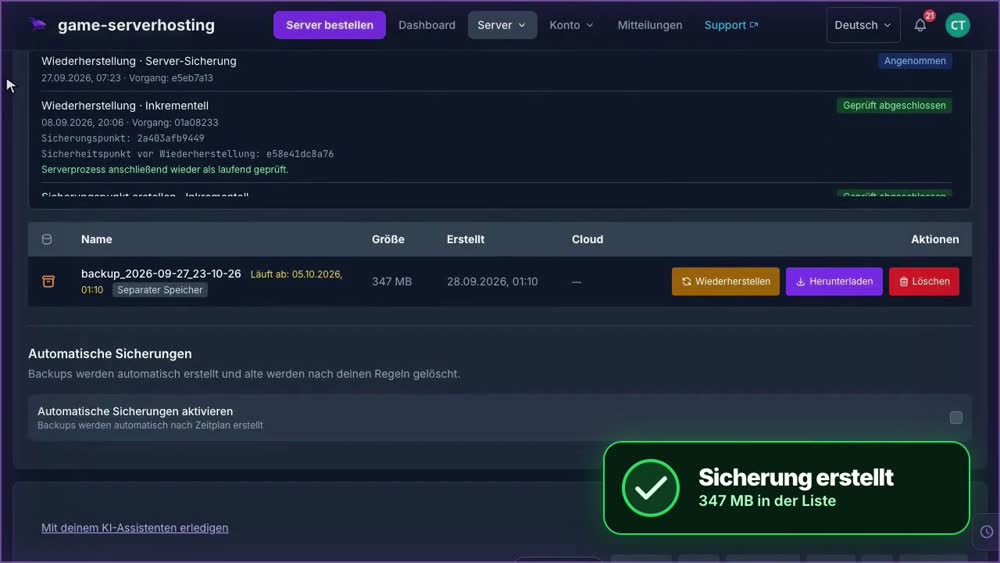
GSH-Testserver · 2026-09-28
Restore a backup
Restore a backup: view an example
Our own captures from a demonstration environment. The version and setup shown may differ from your server.
- Open Files & Data, then Backups. Select the backup you want.
- Restoring stops the server and writes the saved data back.
- Confirm Restore and wait for the operation to finish.
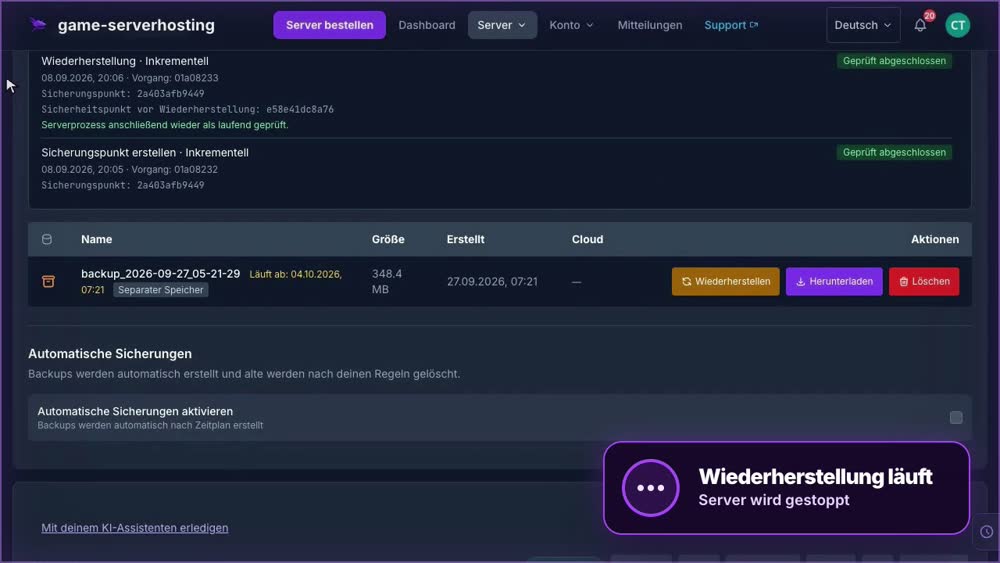
GSH-Testserver · 2026-09-28
Install a plugin
Install a plugin: view an example
Our own captures from a demonstration environment. The version and setup shown may differ from your server.
- Open Plugins and search for the plugin, here LuckPerms.
- Open the details, check the version and click Install.
- Wait for the success message.
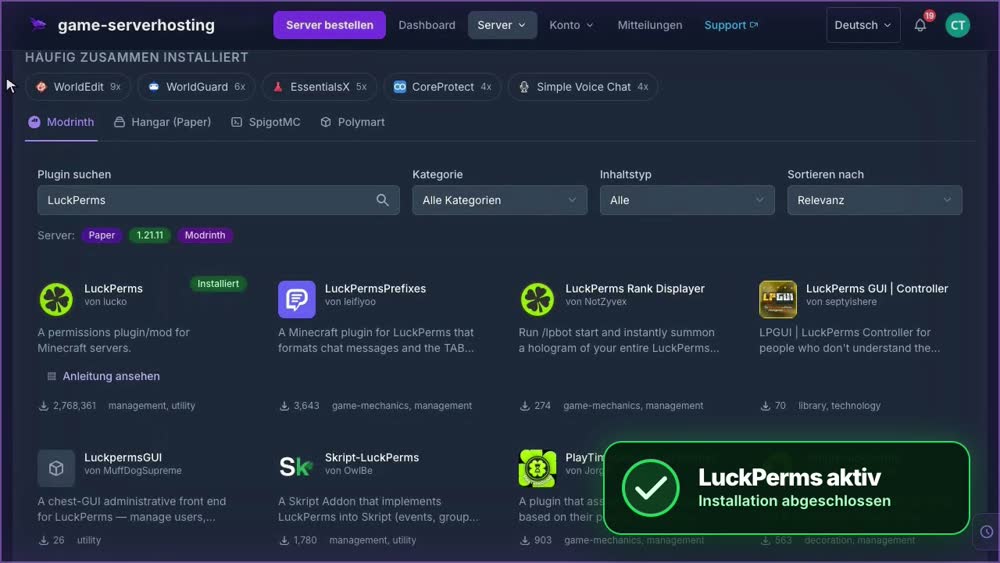
GSH-Testserver · 2026-09-28
Choose a subdomain
Choose a subdomain: view an example
Our own captures from a demonstration environment. The version and setup shown may differ from your server.
- Open your server and click the pencil next to its address.
- Enter your preferred subdomain and wait for the availability check.
- Click Save. Then use the new address.
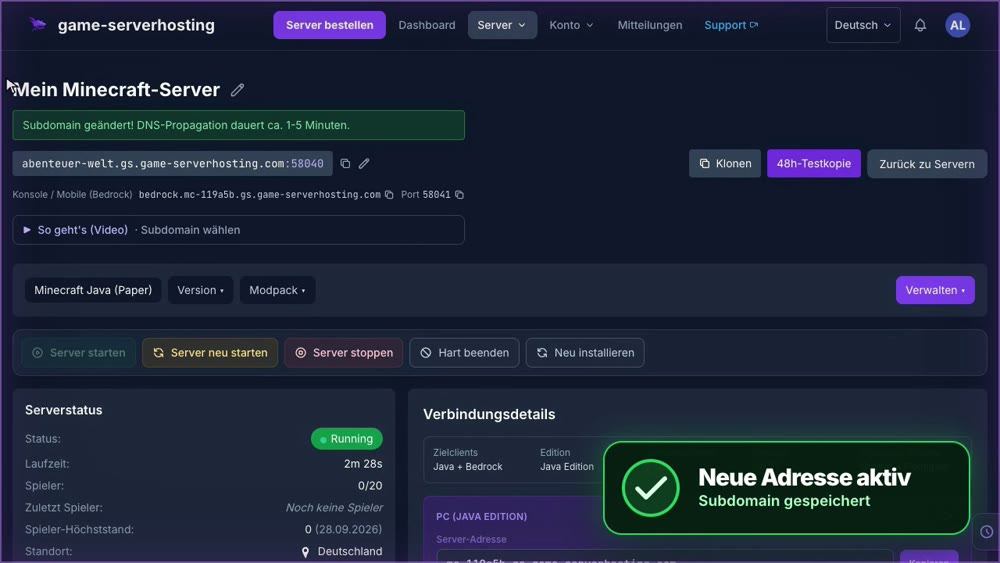
GSH-Testserver · 2026-09-28
Switch server software (Paper → Fabric)
Switch server software (Paper → Fabric): view an example
Our own captures from a demonstration environment. The version and setup shown may differ from your server.
- Open Manage and Change Game Type. Choose the new server software, here Fabric.
- Enter the server name to confirm and click Change game type.
- A restore point is created automatically first. Wait until the switch is complete.
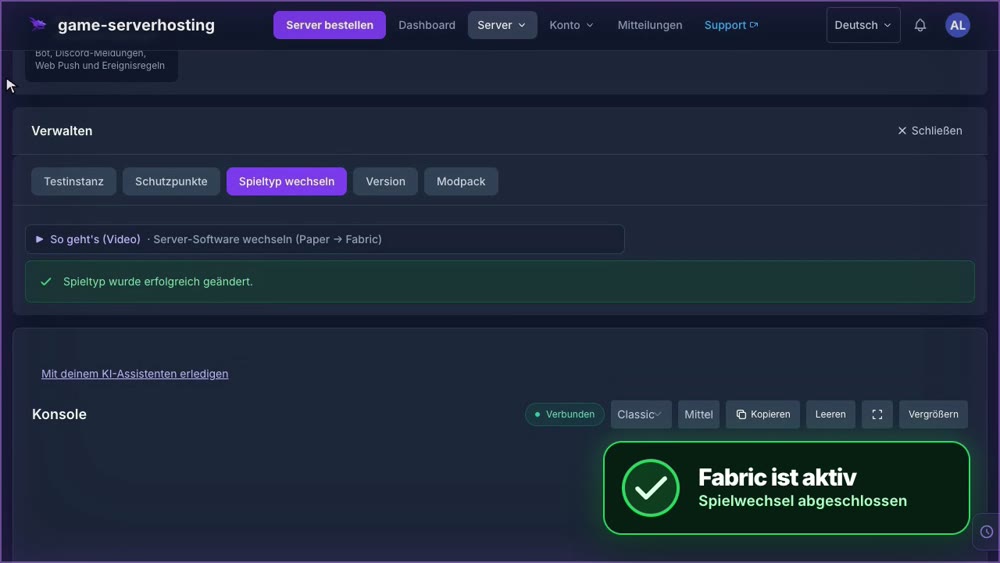
GSH-Testserver · 2026-09-28
Change the Minecraft version (Java set automatically)
Change the Minecraft version (Java set automatically): view an example
Our own captures from a demonstration environment. The version and setup shown may differ from your server.
- Open Manage, then Version.
- Choose the target version, here 26.2, and enter the server name to confirm.
- Click Switch version. We set the matching Java version automatically.
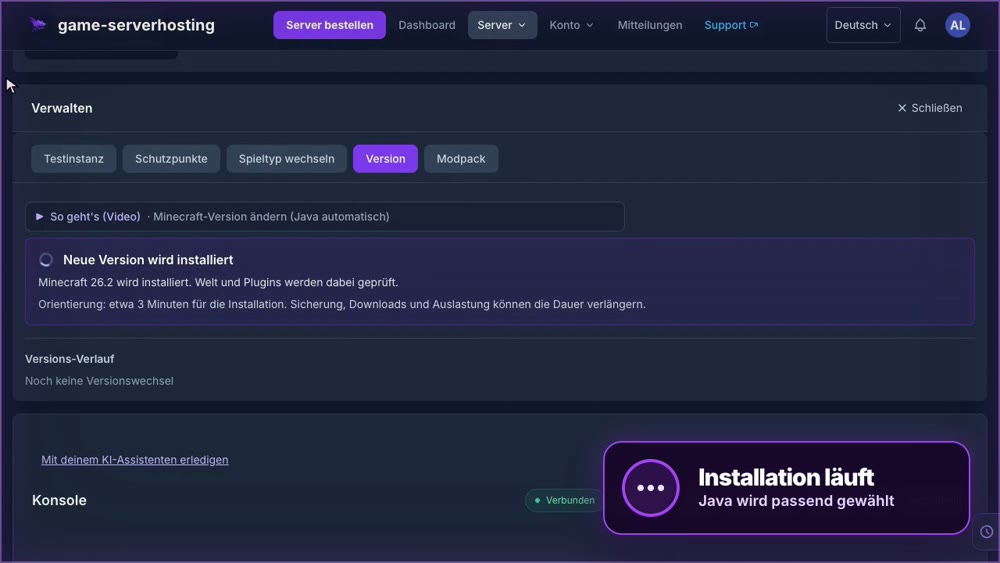
GSH-Testserver · 2026-09-28
Edit a file and use SFTP
Edit a file and use SFTP: view an example
Our own captures from a demonstration environment. The version and setup shown may differ from your server.
- Open Files & Data and find the file server.properties. Click its name to open it.
- Change the value you need, for example difficulty, and click Save. The change applies after the next restart.
- For large uploads use SFTP: address and username are listed under SFTP credentials, and you set the password yourself.
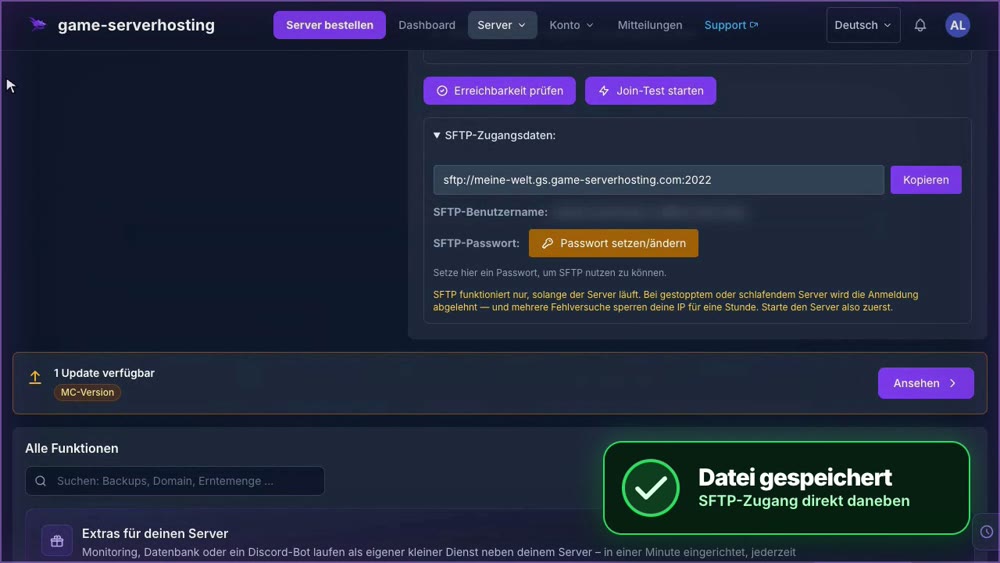
GSH-Testserver · 2026-09-29
Use the console
Use the console: view an example
Our own captures from a demonstration environment. The version and setup shown may differ from your server.
- You can now open the console from any view: click “Show console” at the bottom left.
- Type a command, for example “say Hallo zusammen!”, and press Enter. The answer appears right away.
- “Close console” or Esc hides it again. Ctrl+K (Mac: Cmd+K) opens and closes it in a flash.
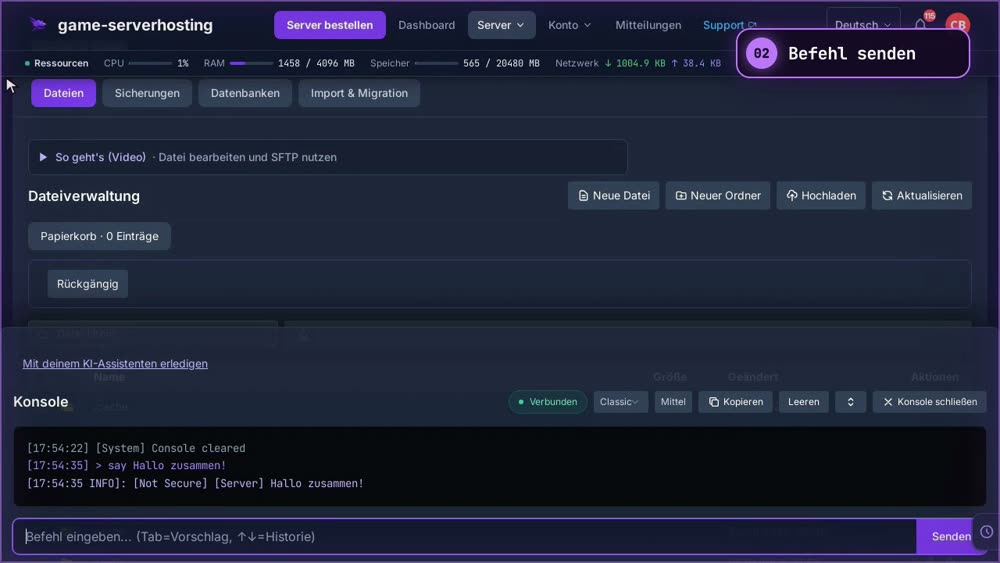
GSH-Testserver · 2026-10-05
Schedule a daily restart
Schedule a daily restart: view an example
Our own captures from a demonstration environment. The version and setup shown may differ from your server.
- Open Automation, then Automatic restarts. Click New task.
- Choose the time. If you like, the server warns players in the game beforehand. Then click Create.
- The daily restart is now in the list with its next run.
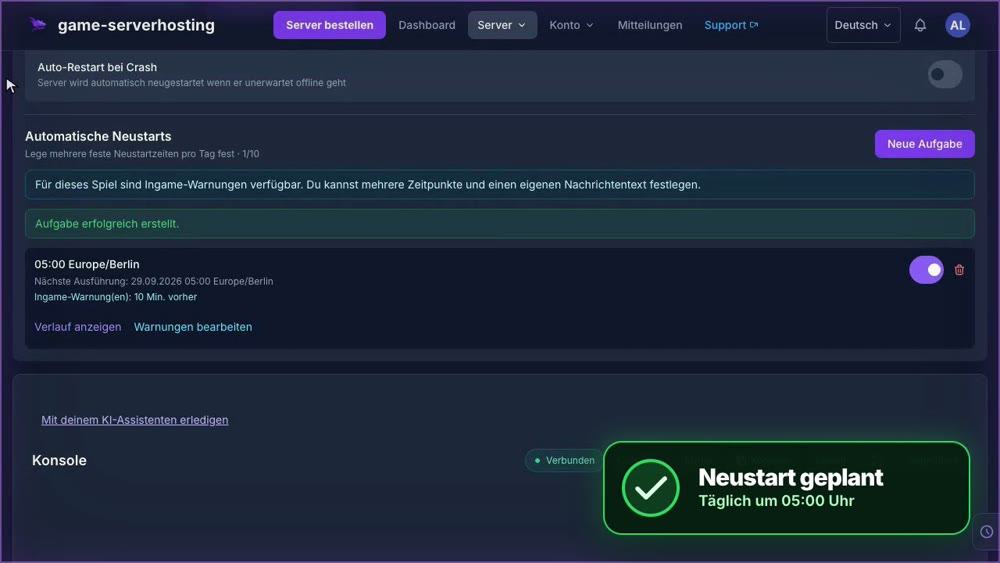
GSH-Testserver · 2026-09-29
Invite a collaborator
Invite a collaborator: view an example
Our own captures from a demonstration environment. The version and setup shown may differ from your server.
- Open Access, then Collaborators. Click Invite collaborator and enter the email address.
- Pick a permission template, for example Moderator, and click Invite.
- The invitation has been sent. As soon as the person accepts, they appear as a collaborator.
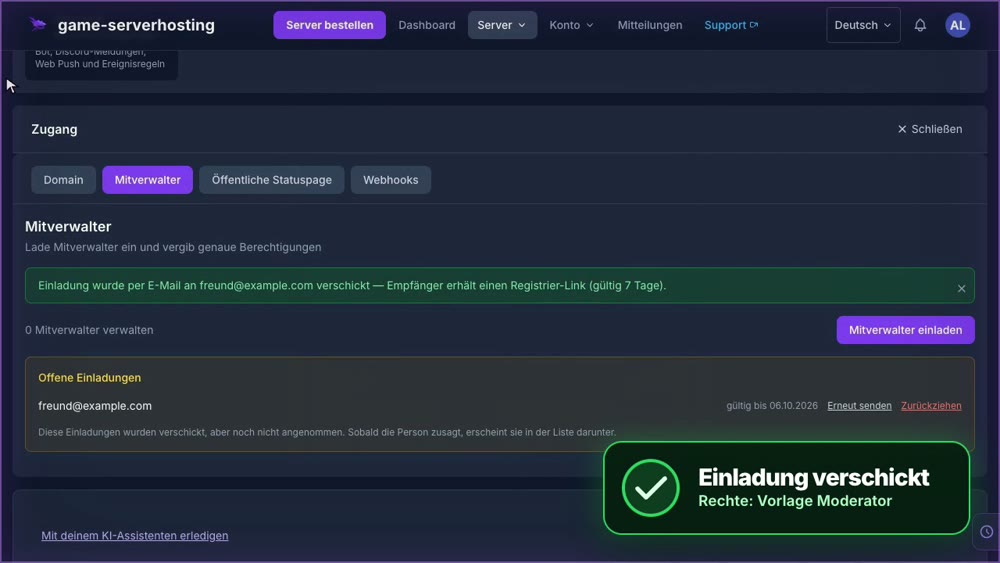
GSH-Testserver · 2026-09-29
DayZ: switch between Stable and Experimental
DayZ: switch between Stable and Experimental: view an example
Our own captures from a demonstration environment. The version and setup shown may differ from your server.
- Open Manage → Change game type. Click the DayZ tile and choose DayZ (Experimental).
- Back up your data first: switching branches completely clears the server. Confirm deletion and enter the server name.
- Click Change game type. Wait for completion; the overview then shows DayZ Experimental and the running server.
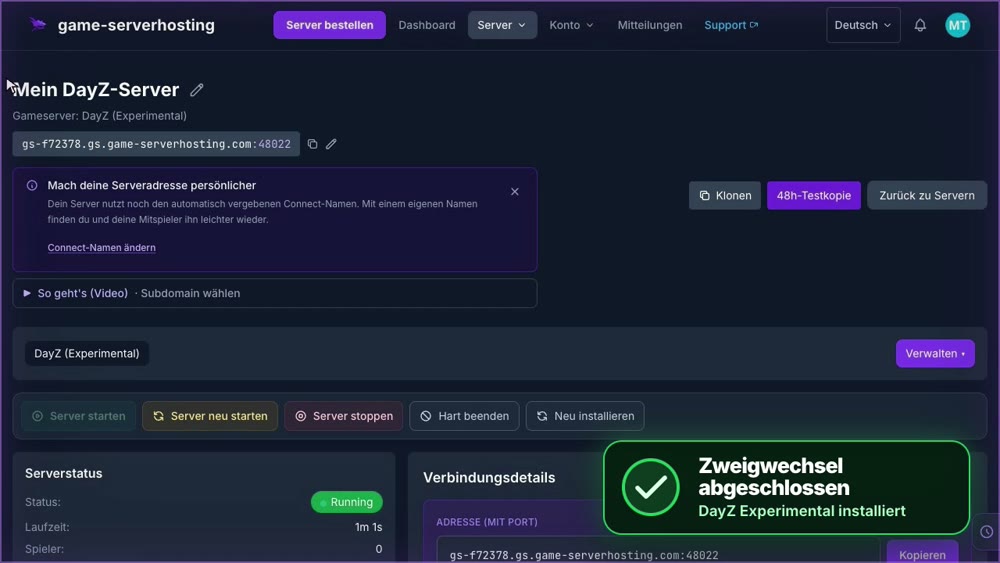
GSH-Testserver · 2026-09-30
Conan Exiles: clean up inactive players
Conan Exiles: clean up inactive players: view an example
Our own captures from a demonstration environment. The version and setup shown may differ from your server.
- Open Game Settings → Players. The list shows every character in your world; the traffic light turns red for anyone offline longer than your limit.
- For each character you see the quadrant, building pieces and followers, with the clans and all their members below. Only show players over the limit leaves just the overdue ones.
- Click Select all red, check the preview and schedule the deletion. It runs at the next planned restart, with a backup first and 7 days to undo; anyone who logs in before then is spared.
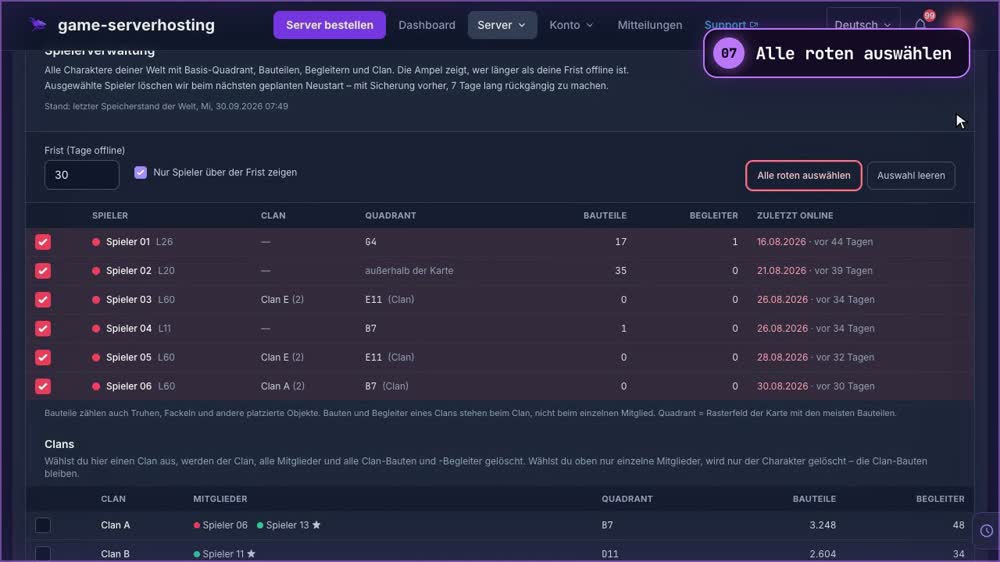
GSH-Testserver · 2026-09-30
Panduan langkah demi langkah
HargaMulai 2,69 EUR/bulan per GB
KontakHubungi support
Pertanyaanmu tidak ada di sini?
Kirimkan email atau tiket kepada kami. Waktu penanganan bergantung pada beban kerja dan tingkat urgensi.
Hubungi support