Client Mods Don't Automatically Belong on the Server
Sodium optimizes rendering in the Minecraft client. Install it in the appropriate client instance, not as a supposed TPS fix on a dedicated server. Whether another mod belongs on the client, the server, or both sides is determined by its project information and dependencies.
With a modpack, keep three pieces of information separate: the Minecraft version, the loader including its version, and the specific mod file. A new Fabric API download for an older Minecraft version isn't an upgrade for your current game version. Stick with the version set specified by the modpack until you've checked a matching update.
Sources: Sodium project, Fabric: Installing mods.
Mods and modpacks work reliably when the server, loader, Minecraft version, and client all use the same technical foundation. With game-serverhosting, you can choose a ready-made modpack directly during ordering or add individual Forge and Fabric mods later in the panel. What matters is that you carefully check versions, dependencies, and startup logs.
Mods vs. Plugins – The Difference
Mods change Minecraft profoundly: new blocks, enemies, machines, biomes, dimensions, recipes, or technical systems. Many mods intervene directly in game mechanics and therefore need a matching mod loader on the server. For modern Minecraft servers, Forge and Fabric are the most relevant.
Plugins work differently. They typically run server-side on platforms like Spigot or Paper and extend the server without players having to install the same files locally. This is practical for permissions, economy, protection systems, or admin tools. If you'd rather use Paper or Spigot extensions instead of mods, the guide Installing & Managing Minecraft Plugins – Spigot/Paper in the Panel is a better fit.
For mods, the rule is: in many cases, the server and client must use the same mod list. A Forge mod doesn't automatically run on Fabric, and a mod for Minecraft 1.20.1 isn't automatically compatible with 1.21. You can find the official Minecraft usage basis in the Minecraft Usage Guidelines; for specific mod compatibility, the documentation of the respective mod is always the deciding factor as well.
Prerequisites
Before you get started, clarify four points:
- Which Minecraft version should the server use?
- Should the server use Forge or Fabric?
- Are you starting with a ready-made modpack or with individual mods?
- Do all players have access to the same client version?
If your server is still running on Vanilla, Paper, or another variant, you first need to switch the server version or server type accordingly. You can use the guide Switching Minecraft Server Versions – Vanilla, Paper, Purpur, Forge & Fabric Without Reinstalling for this.
Option A: Choose a Modpack Directly When Ordering
The easiest way is through the ordering process. In game-serverhosting's order wizard, you choose a ready-made modpack for your Minecraft server – such as "All the Mods," "Better MC," or a performance pack. The server is then installed directly with the matching loader and all mods.
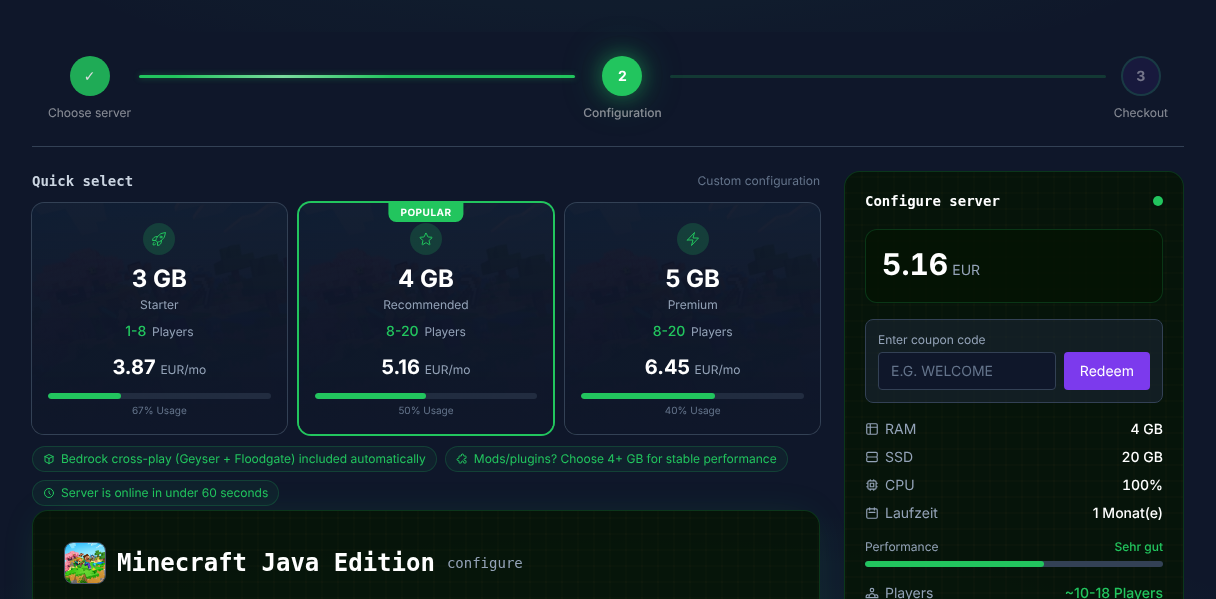
This route makes sense if you don't want to gather every single mod yourself. The modpack already comes with a coordinated combination of loader, Minecraft version, and mod list. Still, after installation you should check exactly which version was installed and whether your fellow players are using the same client.
Proceed as follows:
- Select the Minecraft server in the ordering process.
- Open the modpack selection in the order wizard.
- Decide on a pack that fits your gameplay goal.
- Complete the order and wait until the installation is finished.
- Start the server and check the console for errors.
Option B: Manage Mods Individually in the Panel
If your server is already running on Forge or Fabric, you can also add mods individually afterward. In the panel's mod section, you search Modrinth for compatible mods and see which ones are already installed.
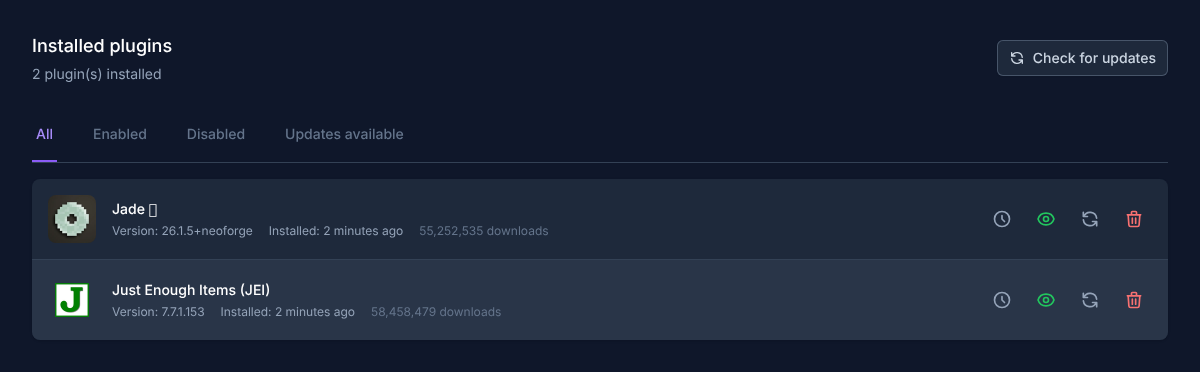
Pay strict attention to the loader variant (Forge ≠ Fabric) and the Minecraft version – a Fabric mod won't start on a Forge server. Also check whether the mod needs to be installed only on the client, only on the server, or on both sides. This information is usually found on the respective mod's project page.
A clean order of steps is important:
- Stop the server.
- Create a backup before you change mods.
- Search for the mod in the panel and install only a compatible version.
- Add dependencies.
- Start the server and check the log.
- Test the client with the same mod list.
Don't install ten new mods at once if you want to easily find the cause later. Especially with larger packs, it's more practical to make changes in small groups and run a startup test after each step.
Tip: Mods Often Need a Library
Many mods require a shared library (for example Fabric API or Architectury). Install this first, otherwise the server will crash on startup. You'll usually find hints about this in the mod description, in the dependencies section, or in the error log during server startup.
Typical libraries aren't optional extras but technical prerequisites. If terms like missing dependency, requires, or the name of a library appear in the log, that foundation is usually exactly what's missing.
Checking the Result
After installation, the server should start without crashing and appear as online in the panel. Then open the console and check whether Forge or Fabric was loaded, whether the mod list is recognized, and whether no critical errors occur right after startup.
Then test with a client that uses the same Minecraft version, the same loader, and the same mods. If you're using a ready-made modpack, every player should launch exactly this pack in the same version. If you're installing individual mods, document the mod list for your team. For general mod and plugin basics, you can also read Installing Minecraft Mods and Plugins – A Simple Guide.
How much memory your modpack needs is calculated by our RAM calculator. Treat the result as a planning aid: the actual requirement depends on the modpack, number of players, world size, and settings.
Troubleshooting
Server Doesn't Start After a Mod Installation
Stop the server, open the log, and look for the first error message, not just the last line. The cause is often the loader version, the Minecraft version, or missing libraries. As a test, remove the most recently installed mods one at a time, or add the reported dependency.
Players Can't Join
First check whether the client and server use the same Minecraft version and the same loader. Then compare the mod list. With many mods, a single mismatched file or version is enough to make the connection fail.
A Fabric Mod Doesn't Work on Forge
That's expected. Forge and Fabric are different mod loaders. You either need the Forge version of the same mod, a compatible alternative, or you need to deliberately switch the server to Fabric.
The Modpack Runs, But Performance Is Weak
Reduce view distance, simulation distance, and especially heavy mods before automatically planning for more resources. Also check whether the pack is designed for your number of players. More RAM can help, but it doesn't replace a suitable configuration.
Verification, Limitations, and a Safe Fallback
The guide "Setting Up Minecraft Mods & Modpacks – Forge & Fabric in the Panel" applies to the server type described in the article and the version status visible at the time of review. Menu names, available versions, mod or plugin compatibility, and required resources may differ after updates. Therefore, don't apply any values to a different game, loader, or server version without checking them first.
Before making changes to the world, save data, configuration, or extensions, create a backup of the affected files. Then change only one related step at a time and check it with the same client and server version you plan to play with later.
| Check Point | Expected Result | Abort and Fallback |
|---|---|---|
| Server start | The server reaches operational status without a new error message. | If startup errors occur, revert the change and restore the last backup. |
| Connection test | A test account can connect via the address shown in the panel. | If version or connection errors occur, recheck the version, port, and access permissions. |
| Functionality test | The specifically changed function works without damaging existing world or game data. | If side effects occur, stop the server and restore the backed-up files. |
A successful individual test is not a performance or availability guarantee. World size, mods, plugins, number of players, network path, and simultaneous load can change the result. Document the version, the change, and the test result so you can trace later deviations.
FAQ
Can I Use Mods and Plugins at the Same Time?
Only with special hybrid setups, which aren't suitable for every use case. For stable servers, you should clearly distinguish between a Forge/Fabric mod server and a Paper/Spigot plugin server.
Does Every Player Have to Install the Mods?
With many gameplay mods, yes. If a mod introduces new blocks, items, or mechanics, the client normally needs the same mod. Purely server-side mods are the exception and must be documented as such.
Can I Still Change a Modpack Later?
Yes, but every change can trigger compatibility issues. Create a backup beforehand, make only targeted changes, and then check the server start, logs, and client connection.
What's Better: Forge or Fabric?
That depends on the mods you want to use. Some projects are released only for Forge, others only for Fabric, and many for both. Don't decide based on the name, but on mod availability, Minecraft version, and maintenance status.
Why Are Mods Missing from the Game After Startup?
Usually, the mod was installed for the wrong loader, the wrong Minecraft version, or on only one side. Check the server files, client files, and log output together.