الانتقال إلى المحتوى

Black Week: 10% extra from 3 months paid upfront, no code. Until الاثنين, 23:59. 2 days left.

All deals

Set up with AI

Tell your server what to do. For free.

Connect Claude or ChatGPT to your server and handle everything in the chat: plugins, files, console, backups. No pass and no subscription, for every server at game-serverhosting.

Free · every feature included

Works with ChatGPTClaudeClaude CodeCodex

Example · Claude game-serverhosting connected

Install EssentialsX on my Minecraft server and restart it.

3 actions run: plugin found, installed, server restarted

Done. EssentialsX is installed and the server was back online after 41 seconds.

PluginVersionStatus
LuckPerms5.4active
EssentialsX new2.21active
You confirm reinstalls, software changes and account actions in your browser. You choose which servers the AI can see.

Connect in two steps

  1. Step 1

    Connect

    Opens Claude with the connector already filled in. Confirm it there and sign in with your game-serverhosting account.

    Add to Claude (opens claude.ai in a new tab) Using ChatGPT, Claude Code or Codex? See the guide
  2. Step 2

    Get started

    Opens a new chat with this message:

    Use the game-serverhosting connector to check the status of my server. Don’t change anything yet.
    Start chat in Claude (opens claude.ai in a new tab)

    The message is then in the input field. You send it yourself.

Included at game-serverhosting at no extra cost:

  • Files
  • Console
  • Backups
  • Plugins and mods
  • Start and stop
  • Troubleshooting

Your AI provider may charge for its own service.

Watch your assistant at work.

Animated demo with sample data. No server is changed here.

Your AI assistant Example
Your AI assistant

Hi! I can check your server, change settings, create a backup or import a world. What should I do?

You

Check my server and the latest console messages.

The assistant is replying …
Your AI assistant

Your server is running. In this example, the latest console messages show no startup errors. I have not changed anything.

Check complete. Nothing was changed.
Your AI assistant

Hi! I can check your server, change settings, create a backup or import a world. What should I do?

You

Set the difficulty in my server.properties to normal.

The assistant is replying …
Your AI assistant

I saved difficulty=normal in server.properties. Your connection needs the appropriate file permissions for this.

Setting saved in this example.

Your AI assistant

Hi! I can check your server, change settings, create a backup or import a world. What should I do?

You

Create a backup and check that it has finished.

The assistant is replying …
Your AI assistant

The backup is complete. I then checked that it exists.

Backup complete and checked in this example.

Your AI assistant

Hi! I can check your server, change settings, create a backup or import a world. What should I do?

You

Import the world I uploaded.

The assistant is replying …
Your AI assistant

I can import the world you uploaded. First, confirm the world import in your browser.

Confirm the world import in your browser

Confirmed in your browser.

World imported in this example after your confirmation.

Start with these tasks

Check my server status. Do not change anything yet.

Could not copy. Select the text and copy it manually.

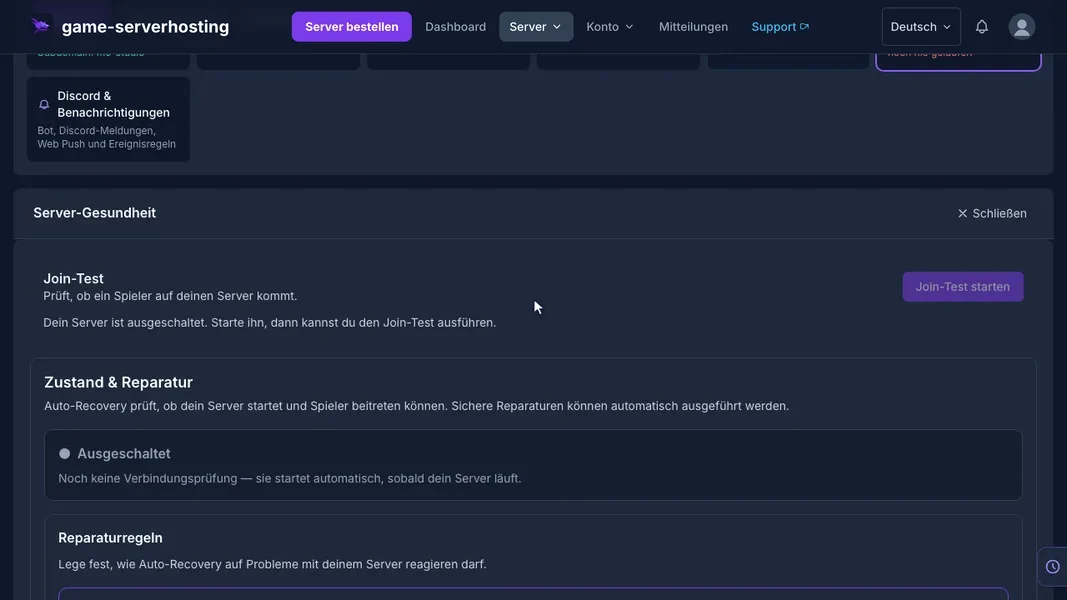
Health and join test · game-serverhosting

Health and join test

Ask it to check the status and recent console messages before making changes.

Example views from the game-serverhosting panel. You decide what your assistant can do there.

Add these three players to the whitelist.

Could not copy. Select the text and copy it manually.

Check whether this plugin supports my server version. Ask me before installing it.

Could not copy. Select the text and copy it manually.

Example tasks: available features depend on the game, plan and permissions granted.

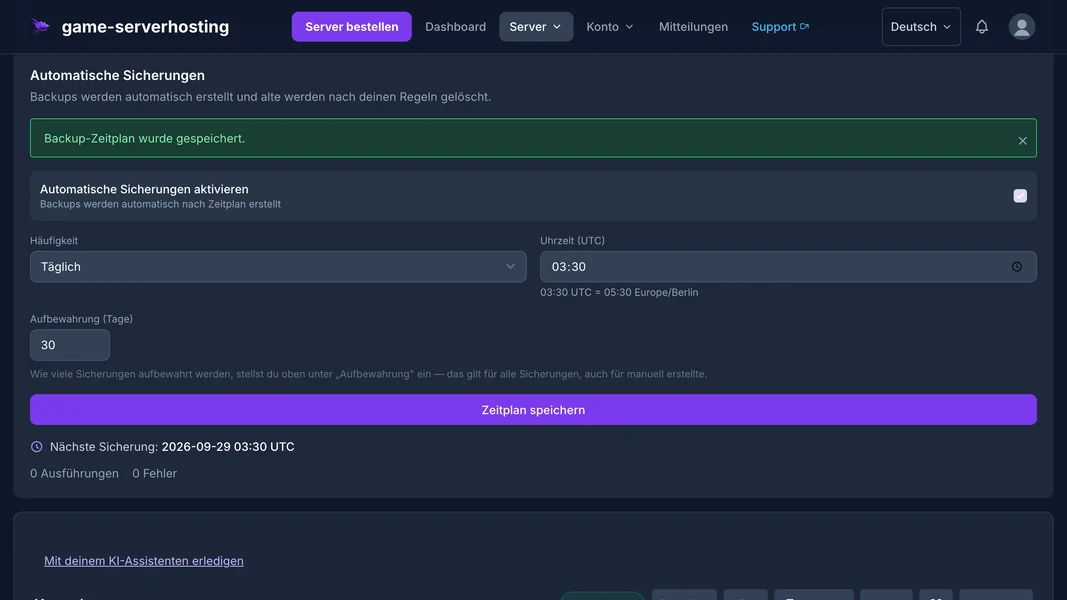
Enable and save scheduled backups

The pointer enables automatic backups. The settings appear, then a second click saves the schedule.

The panel confirms that the backup schedule was saved.

The panel confirms that the backup schedule was saved.

This shows a saved backup schedule, rather than a completed backup run. Original panel views with an added mouse guide. No server is changed here. The panel images are in German.

What an assistant can do

Example views from the game-serverhosting panel. You decide what your assistant can do there.

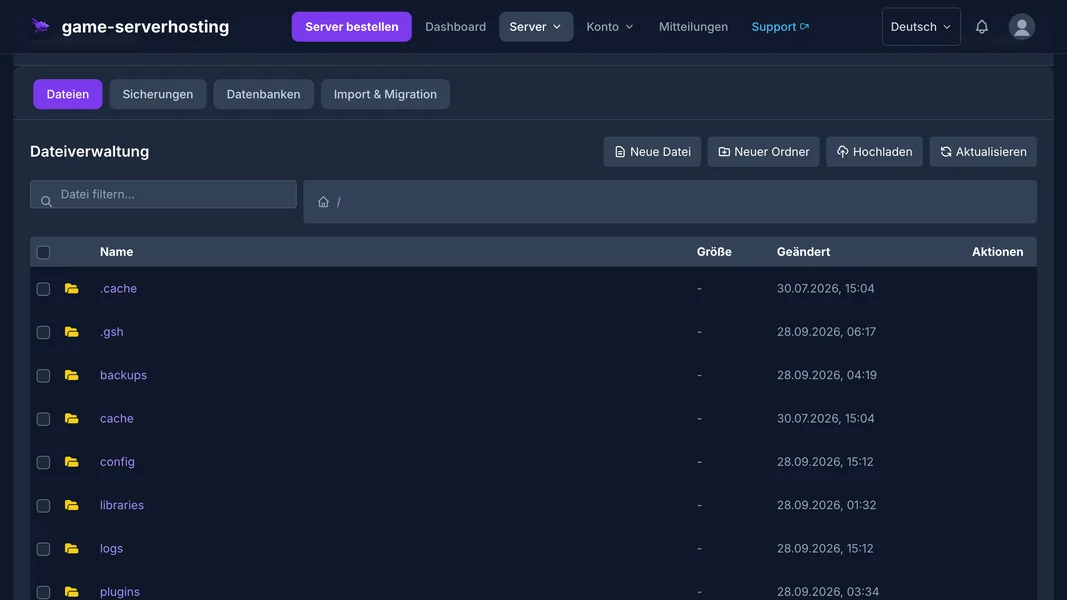
Files · game-serverhosting

Files

Have settings in server files adjusted. You choose whether to grant file access.

Show all technical capabilities

This is the complete action catalog. Every action sits behind a permission you grant individually when creating the token - whatever you do not grant does not exist for the assistant.

Server & power

  • servers_list
  • server_status
  • server_start
  • server_stop
  • server_restart
  • reinstall_status
  • server_tps

Players

  • players_list
  • whitelist_read
  • whitelist_add
  • whitelist_remove
  • bedrock_allowlist_read
  • bedrock_allowlist_add
  • bedrock_allowlist_remove
  • bedrock_allowlist_enforce
  • bedrock_pocketmine_whitelist_read
  • bedrock_pocketmine_whitelist_add
  • bedrock_pocketmine_whitelist_remove
  • players_live
  • players_broadcast
  • player_message
  • players_history
  • unban_requests_list
  • unban_request_accept
  • unban_request_reject
  • whitelist_requests_list
  • whitelist_request_accept
  • whitelist_request_reject

Console

  • console_read
  • console_command
  • operator_reserve
  • log_share

Files

  • files_list
  • file_read
  • file_write
  • file_patch
  • directory_create
  • files_delete
  • trash_list
  • trash_restore
  • trash_purge
  • file_copy
  • file_rename
  • files_compress
  • file_decompress
  • server_icon_status
  • server_icon_set
  • server_icon_remove

Backups

  • backups_list
  • backup_create
  • backup_restore
  • backup_delete
  • backup_rename
  • backup_protect
  • backup_destinations_list
  • backup_destination_connect
  • backup_destination_bind
  • backup_destination_test
  • backup_destination_disconnect
  • backups_recovery_list
  • backup_cloud_restore
  • backup_incremental_create
  • backup_incremental_restore
  • backup_mirror
  • backup_schedule_read
  • backup_schedule_update
  • backup_settings_update
  • backup_files_browse
  • backup_files_restore

Schedules

  • schedules_list
  • schedule_create
  • schedule_update
  • schedule_delete
  • task_create
  • task_update

Configuration

  • config_read
  • config_write
  • bedrock_gamerules_read
  • bedrock_gamerule_set
  • eula_status
  • eula_accept

Worlds

  • worlds_list
  • world_create
  • world_switch
  • world_delete
  • world_studio_job_status
  • world_studio_cancel
  • world_studio_import
  • world_studio_snapshot
  • world_studio_snapshot_status
  • geoworld_search
  • geoworld_status
  • geoworld_start
  • geoworld_cancel
  • world_library_list
  • world_library_install
  • schematics_list
  • schematic_place
  • bedrock_worlds_list
  • bedrock_world_create
  • bedrock_world_switch
  • bedrock_world_delete
  • world_import_status
  • world_import_install

Versions

  • versions_list
  • version_status
  • version_preview
  • version_change
  • java_runtime_read
  • java_runtime_select
  • loader_builds_list
  • loader_build_change

Server software

  • software_catalog
  • software_preview
  • software_change

Plugins & mods

  • addons_list
  • addons_search
  • addon_versions
  • addon_install
  • addon_update
  • addon_remove
  • live_map_status
  • live_map_enable
  • live_map_continue
  • plugin_analysis
  • plugin_outdated_mods_status
  • plugin_outdated_mods_choose
  • plugin_outdated_mod_reenable
  • plugin_config_files
  • plugin_config_read
  • plugin_config_write
  • mod_settings_list
  • mod_settings_read
  • mod_settings_save
  • mod_settings_run_action
  • spark_diagnostic_start
  • spark_report
  • hologram_list
  • hologram_toggle
  • skript_list
  • skript_toggle
  • skript_reload
  • skript_modules_list
  • skript_module_save
  • worldguard_regions
  • worldguard_status
  • worldguard_reload
  • worldguard_global_flag
  • worldedit_reload
  • worldedit_group_access
  • veinminer_status
  • veinminer_apply_preset
  • chunky_status
  • chunky_prewarm_start
  • voice_chat_status
  • voice_chat_setup
  • voice_chat_save_config
  • voice_chat_repair_crossplay
  • voice_chat_restart
  • mc_settings_read
  • mc_settings_save
  • mc_settings_world_property
  • mc_settings_core_status
  • mc_settings_core_lookup
  • minecraft_maker_runs
  • minecraft_maker_create

Modpacks

  • modpacks_catalog
  • modpack_preview
  • modpack_status
  • modpack_install
  • modpack_update
  • modpack_settings_read
  • modpack_settings_write
  • modpack_versions
  • modpack_client_pack_read
  • modpack_client_pack_refresh
  • modpack_client_pack_rotate_link
  • modpack_client_pack_mod_mode
  • modpack_profile_find
  • modpack_profile_apply
  • modpack_rollback

Bedrock packs

  • bedrock_packs_list
  • bedrock_catalog
  • bedrock_pack_install
  • bedrock_pack_enable
  • bedrock_pack_disable
  • bedrock_pack_remove
  • bedrock_experiments_enable
  • bedrock_migration_status
  • bedrock_migration_start
  • bedrock_migration_confirm_join
  • bedrock_migration_cancel
  • bedrock_migration_revert

Server settings

  • notifications_read
  • notification_rules_update
  • notification_alerts_update
  • notification_quiet_hours_update
  • settings_read
  • settings_update
  • auto_update_read
  • auto_update_set
  • update_center_read
  • update_center_runtime_update
  • auto_update_skip_next
  • profile_quiet_hours_read
  • profile_quiet_hours_update
  • discord_webhook_read
  • discord_webhook_set
  • discord_events_update
  • discord_webhook_test
  • webhooks_list
  • webhook_create
  • webhook_set_active
  • webhook_delete
  • webhook_test
  • startup_variables_read
  • startup_variables_update

Metrics and history

  • metrics_current
  • metrics_history

Activity log

  • activity_list

Health and join test

  • health_status
  • join_test_start
  • join_test_status
  • health_crash_diagnosis
  • health_repairs_list
  • health_boot_repair
  • health_plugin_repair_preview
  • health_plugin_repair_apply
  • health_policy_read
  • health_policy_update
  • health_repair_answer

Databases

  • databases_list
  • database_create
  • database_delete
  • database_password_rotate

World export and import

  • export_start
  • export_status

Server address

  • subdomain_check
  • subdomain_change

Game tools

  • cs2_build_update
  • rust_wipe_schedule_read
  • rust_wipe_schedule_create
  • rust_wipe_schedule_cancel
  • rust_startup_params_read
  • rust_startup_params_update
  • rust_map_preview
  • cs2_map_pool_read
  • cs2_map_pool_write
  • cs2_match_status
  • cs2_match_load
  • cs2_match_control
  • cs2_map_change
  • ark_ini_read
  • ark_ini_write
  • ark_mod_order_read
  • ark_mod_order_write
  • valheim_worlds_list
  • valheim_world_activate
  • valheim_backups_list
  • valheim_backup_create
  • valheim_plugins_list
  • valheim_plugin_toggle
  • minecraft_players_admin_read
  • minecraft_player_op
  • minecraft_player_deop
  • minecraft_player_kick
  • minecraft_player_ban
  • minecraft_player_unban
  • minecraft_crossplay_read
  • minecraft_crossplay_set
  • minecraft_gamerules_read
  • minecraft_gamerule_set
  • minecraft_cracked_mode_read
  • minecraft_cracked_mode_set
  • minecraft_presets_list
  • minecraft_preset_apply
  • minecraft_anti_xray_read
  • minecraft_anti_xray_set
  • minecraft_item_obfuscation_read
  • minecraft_item_obfuscation_set
  • minecraft_end_access_read
  • minecraft_end_access_set
  • minecraft_gameplay_options_read
  • minecraft_gameplay_option_set
  • minecraft_many_players_read
  • minecraft_many_players_set

Reinstall

  • server_reinstall

Virtual servers (VPS)

  • vservers_list
  • vserver_overview
  • vserver_power
  • vserver_metrics
  • vserver_backups_list
  • vserver_backup_create
  • vserver_firewall_read
  • vserver_firewall_update
  • vserver_ssh_keys_list
  • vserver_activity_list

Account

  • account_read
  • account_profile_update
  • account_billing_history
  • account_subscriptions
  • account_email_change
  • account_password_change
  • account_delete_request
  • subscription_cancel
  • subscription_reactivate
  • account_security_status
  • account_two_factor_manage
  • account_payment_methods_manage
  • account_order_prepare
  • vserver_sandbox_start
  • vserver_sandbox_takeover

Support tickets

  • support_ticket_create

All tools of the AI connector

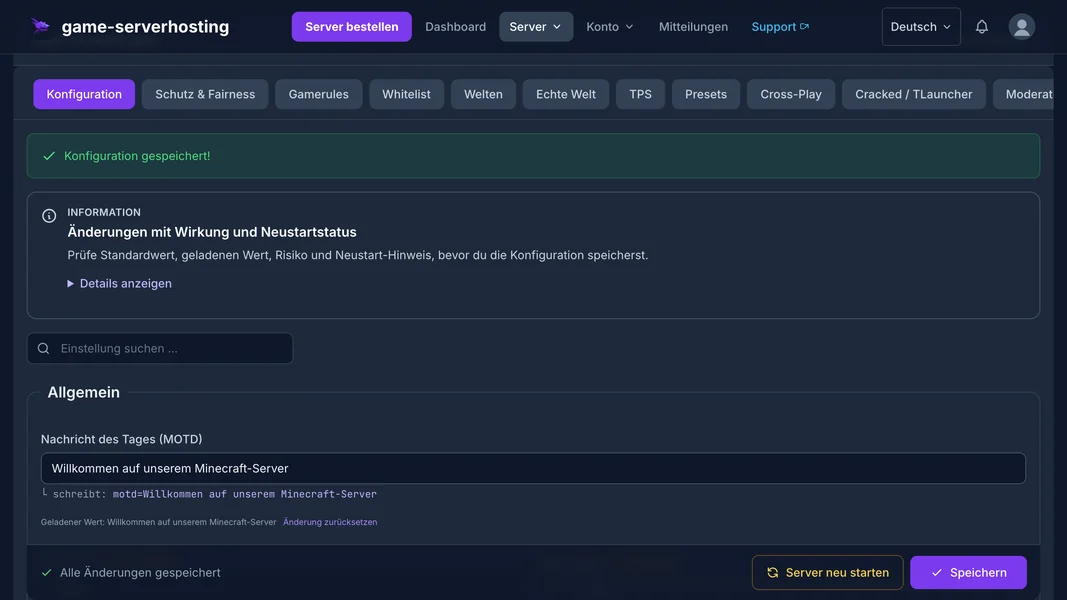
Change and save the welcome message

The pointer selects the message of the day. The new text appears, then it clicks Save.

The panel confirms that the configuration was saved and shows the new welcome message.

The panel confirms that the configuration was saved.

These views show the original text, the changed text and the existing save confirmation. Original panel views with an added mouse guide. No server is changed here. The panel images are in German.

Connect with Claude or ChatGPT

Add this address as a custom connector. Then sign in here and choose servers, permissions and duration. You don’t need a key for this.

Connector address

https://game-serverhosting.com/api/automation/v1/mcp

Could not copy. Select the text and copy it manually.

Menu names are shown as they appear in English; in your language they read similarly.

What you need

You need Claude or ChatGPT on a plan that allows custom connectors:

In Claude

Claude: Free (one custom connector), Pro, Max, Ultra, Team and Enterprise.

On Team and Enterprise, a team owner adds the connector.

  1. Open “Customize” → “Connectors” and choose “+ Add” → “Add custom connector”.
  2. Enter a name, for example game-serverhosting, and paste the address.
  3. Under “OAuth client”, choose “Register automatically”, then “Add”.
  4. Choose “Connect”, sign in here and allow access.

In ChatGPT (in the browser)

ChatGPT: Business, Enterprise and Edu, only in the browser at chatgpt.com.

On Business, an admin or owner adds the server. OpenAI currently lists no other ChatGPT plans for this.

  1. On chatgpt.com, open “Plugins” and choose “+” → “Add custom MCP server”.
  2. Enter a name, for example game-serverhosting, and paste the address under “Connection”.
  3. Choose OAuth for sign-in, confirm the notice and sign in here.

As of 2 نوفمبر 2026, according to the Anthropic and OpenAI help pages.

You have neither? Ask our support directly

For developers: Claude Code, Codex, REST

Connected in four steps

  1. You need a server at game-serverhosting and Claude Code or Codex on your computer. Sign in with the account that owns your server.
  2. Choose your assistant below. Copy both commands and run them in the terminal on your computer, not in the game console. Sign-in takes place in your browser.
  3. In your browser, choose the servers, permissions and duration for the connection, then approve access. Read permissions are enough for your first try; you do not need to copy a token.
  4. First ask your assistant: “Check the server status and recent console messages without changing anything.” Review the answer before requesting changes.

Connect Claude Code or Codex

Choose your assistant and copy both commands for the terminal on your computer.

You don't have to copy a token.

claude mcp add --scope user --transport http gsh https://game-serverhosting.com/api/automation/v1/mcp
claude mcp login gsh

Could not copy. Select the text and copy it manually.

Connect manually with a token

For REST and MCP applications without browser sign-in, you can still create a restricted token.

Important: this is not a command for your server's game console. Enter it in the terminal on your own computer (Windows: PowerShell, macOS and Linux: Terminal).

claude mcp add --scope user --transport http gsh https://game-serverhosting.com/api/automation/v1/mcp --header "Authorization: Bearer <TOKEN>"

Codex reads the token from an environment variable. The first line sets it for the current terminal. To keep it permanently, add it to your shell profile.

Important: this is not a command for your server's game console. Enter it in the terminal on your own computer (Windows: PowerShell, macOS and Linux: Terminal).

export GSH_ASSISTANT_TOKEN="<TOKEN>"
codex mcp add gsh --url https://game-serverhosting.com/api/automation/v1/mcp --bearer-token-env-var GSH_ASSISTANT_TOKEN

For manual setup, your MCP client must support Streamable HTTP and a configurable bearer token. Clients with OAuth support connect through the browser sign-in instead, without a token.

URL: https://game-serverhosting.com/api/automation/v1/mcp
Header: Authorization: Bearer <TOKEN>

No MCP support? The same actions are available as a plain REST interface with an OpenAPI description.

Important: this is not a command for your server's game console. Enter it in the terminal on your own computer (Windows: PowerShell, macOS and Linux: Terminal).

curl -H "Authorization: Bearer <TOKEN>" https://game-serverhosting.com/api/automation/v1/servers

The <TOKEN> placeholder stands for your access. Inside your account the page fills it in automatically.

Good to know
  • For installs, backups and version changes, "accepted" does not mean "finished" yet. The assistant should verify completion through status, inventory and console.
  • File permissions and console commands allow far-reaching changes. If you do not want that, choose the permissions individually in your profile.
  • Account permissions such as email, password and cancellation are never part of the quick path and always have to be confirmed in the browser.
  • You can revoke the access at any time in the tile or in your profile. It becomes invalid immediately.
  • The complete technical guide and the API contract are readable without signing in.

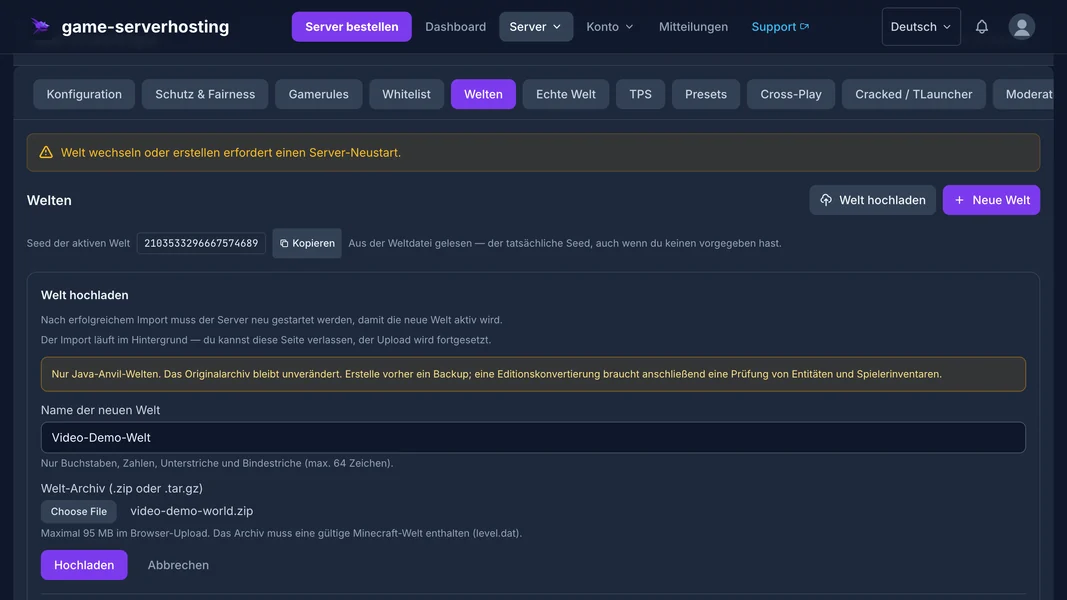
Select a world archive

The pointer selects a world archive. The ZIP file then appears in the upload field.

video-demo-world.zip is selected. The world import has not started.

video-demo-world.zip is selected and ready to upload.

The file picker is shortened. This walkthrough ends before the upload and does not start an import. Original panel views with an added mouse guide. No server is changed here. The panel images are in German.

What stays under your control

  • Permissions per token: reading, power control, files, console and account are selected separately.
  • Server binding: a token only covers the servers you assign to it, never new ones automatically.
  • Revoke at any time: one click in your profile and the token is invalid everywhere, immediately.
  • Expiry date: you can limit a token to a fixed lifetime from the start.
  • Traceability: every action appears in the server activity log with its timestamp and the token used.
  • Request limits: calls are capped per token, so a misbehaving assistant cannot overrun your server.
  • The token does not belong in a chat: only ever paste it into your assistant's protected credentials field.

Changes you confirm

Without the additional permission, you confirm these actions in your browser: changing server software, installing or updating a modpack, reinstalling the server, importing a world, changing a subdomain and creating a support ticket. Account actions such as email, password, cancellation and deletion always require confirmation.

Without browser confirmation

This permission allows the listed server actions without browser confirmation. Account actions remain excluded. The assistant carries out all other actions directly, within the permissions you have granted. Technical permission name: automation:unattended

Frequently asked questions

Does the interface cost extra?

No. The Automation API is part of every server and costs nothing on top. You still pay for your server only.

Which assistants work?

In Claude and ChatGPT, add our integration as a custom connector in your browser. You need a plan that supports custom connectors; the setup section above lists the requirements. Sign in to your hosting account and approve the servers and permissions you want to share. Developers can also use MCP clients with Streamable HTTP and a configurable bearer token, such as Codex CLI, or the REST API.

Can the assistant spend money on my behalf?

No. Orders, renewals and payments run exclusively through the checkout in your signed-in account. An assistant token cannot trigger a payment. Exception: if you have given the token the AI sandbox right (account:vservers:sandbox), it can start or take over a sandbox and charges your credit for it.

What does "without asking" mean?

Account actions — email address, password, cancellation, deletion — always require confirmation. The extra permission allows certain server actions without browser confirmation. Protection points depend on the action; there is no general backup or rollback guarantee. A file backup does not protect external SQL databases.

How do I revoke a token?

Withdraw it in your profile under "Automation API". It loses validity immediately; any request the assistant has in flight fails afterwards.

Panel view

Escape closes the large view. At original size, you can pan within the view.