Check Custom Maps After Valve's September 9 Patch
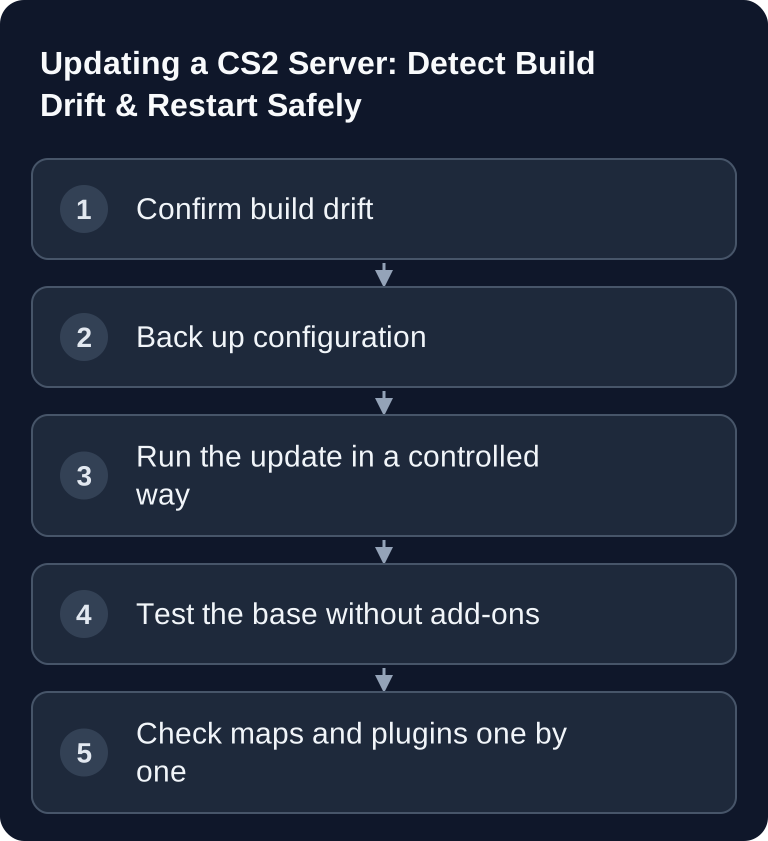
When updating CS2, first compare the server and client build and test an official map. Only then do you examine custom maps, scripts and plugins. This way, a targeted update test separates the base installation from the content; historical patch details alone do not prove current compatibility.
Start an official map first, test a join and then switch to your custom map. Check the first script error message, including line and column. If only the custom map fails, examine its script state before you reinstall the entire server.
Sources: Valve: Counter-Strike 2 Update of September 9, Valve: Counter-Strike 2 Update of August 24.
Here is how to keep your CS2 server up to date: you recognize an outdated CS2 server, run the intended update/restart procedure and then check build, join, maps and extensions. The current Valve status is in the CS2 Update Hub; the basic server.cfg values are explained in Configuring the CS2 server.cfg.
Historical comparison: Valve patches of August 24 and 19, 2026. August 24 introduced custom_hud_layout and cs_player_camera along with additional console output for script errors; August 19 updated Boulder and Poseidon and fixed overly fast movement along walls. On August 12, Fachwerk and Shelter were updated. These facts replace older unsupported claims about “128 tick” or blanket performance gains.
Detect Build Drift
The Steam client updates CS2, while a running dedicated server can stay on its previous build until the intended update process. Typical signs are:
- Players see “Server is outdated” or a version mismatch.
- The join fails right after a client update.
- Server and client report different build versions.
- Workshop maps or plugins have only been failing since a Valve patch.
Before making changes, first check the time, server build, client build and the first relevant log message. A plugin error after a patch does not prove that the base installation is damaged.
Prepare a Maintenance Window
End running matches and back up:
server.cfgand match configurations,- mapcycle and Workshop IDs,
- MetaMod/CounterStrikeSharp directories,
- GSLT only in protected secret storage, not in backup text or screenshots.
Note the last working state. Plan the restart so that no match and no configuration change is running in parallel.
Run the Update and Restart
In the game-serverhosting panel, use the intended restart/update procedure. During the controlled restart, the server is synchronized to the available CS2 version. Wait until installation and startup have fully completed; repeated restarts during the download make error analysis harder.
Then read the startup log in this order:
- Update/build status,
- GSLT login,
- loaded cfg files,
- start map,
- MetaMod, CounterStrikeSharp and plugin messages.
Baseline Test Before Extension Test
First connect to an official map without the plugins that were most recently problematic. Check hostname, password, join and map change. Only then do you test:
- the Workshop maps you use, via the Workshop guide,
- MetaMod/CounterStrikeSharp, via the plugin guide,
- MatchZy, via the Match Center guide,
- match rules and the current pool, via the Competitive Setup.
This order prevents you from mistaking an incompatible add-on for a broken server build.
Putting Season 5 and Map Changes in Context
On July 8, 2026, Valve added Cache to Active Duty and removed Overpass. In addition, the C4 explosion damage on official defusal maps was redesigned. The official pool does not automatically change your private rotation. If you mirror Premier rules, adjust and test the pool deliberately; otherwise your documented rotation remains authoritative.
Troubleshooting
“Server is outdated” persists after the restart
Check whether the update process finished completely, compare build versions and read the earliest download/startup error message. Do not restart in a loop. If the client has just received a newer patch, wait for the intended server build and keep the maintenance window open.
The server starts, but players cannot connect
Check build, GSLT, port, password and the official start map. Test with an unmodified client and without additional plugins.
A Workshop map does not load after the patch
Switch to an official map, check the Workshop ID and log, and see whether the map author has already released a compatible version. The server build has to be green first.
CounterStrikeSharp or MatchZy fails
Check the compatibility approval, start without the affected plugin and add extensions back one by one. Do not roll back the entire base configuration if only one extension is incompatible.
Rollback and Limits
Valve updates cannot sensibly be avoided by permanently staying on an outdated public server once clients have already moved on. The safe rollback protects configuration and extensions; after that, you need a compatible current server build. Document the patch, the change and the test result.
Primary Sources
FAQ
When do I need to update the CS2 server?
As soon as client and server are no longer compatible or a relevant Valve patch is available. Plan a clean restart instead of unchecked interventions during a match.
Do I have to reinstall plugins after every patch?
No. Check their compatibility and logs first. Only reinstall if the specific maintainer or the error findings require it.
Does Season 5 change my own map rotation?
No. Cache and Overpass affect the official Active Duty pool. You change your own rotation yourself.
Does a successful start prove that everything works?
No. A complete test covers GSLT, join, map change and every extension you actually use.
Record the First Error After an Update
Note the server build, client build, start map and the first concrete error along with the time. Test the same join first on an official map without additional plugins. If it works, switch only the map and check again. An error that only occurs on map change points to the map or a script; an immediate join error stays with build, login and connection. Do not reinstall the entire stack before this separation is clear. Keep your configuration and plugin set stored externally and only add back the extensions whose documented version matches the new server build.