At game-serverhosting, you can change the Minecraft server version and loader in the panel without setting up the server again. Still treat the process like a migration: create a backup, test the restore, perform the change on a server clone first, and then check world, dimensions, inventories, and plugin or mod data.
When a Version Change Makes Sense
Changing the server version or server software makes sense if you want to move from a pure Vanilla server to plugins, run a modpack, or update an existing installation. At game-serverhosting, the technical change is done through the version switcher in the panel. This saves you from manually replacing JAR files, but it does not replace the technical review of your data.
It is important to distinguish between server version and loader. The Minecraft version determines which game version runs. The loader determines which extension ecosystem you use: Vanilla without extensions, Paper or Purpur for plugins, Forge, NeoForge, Fabric, or Quilt for mods. Plugins and mods are not interchangeable. A Bukkit or Paper plugin does not automatically run on Forge, and a Forge modpack cannot simply be started as a Paper server.
Requirements Before the Change
Before every change, you need a complete backup of your server. This includes at least world folders, configurations, plugin or mod folders, whitelist, operator files, and server.properties. Even more important: test the restore. A backup that has never been restored is only an assumption.
Plan the change on a server clone first. This lets you check whether the new loader starts, whether the world is loaded correctly, and whether extensions are compatible. Especially with mods, registries, dimensions, blocks, items, and entity data can be affected. A successful server start therefore does not automatically mean that the migration succeeded from a gameplay perspective.
If you also want to adjust configuration values, the guide to properly configuring Minecraft server.properties can help. For modpacks, the guide Setting up Minecraft mods & modpacks is also relevant.
Step 1: Open the Version Switcher
In the panel, open your Minecraft server and go to the server version area. There you will find the version switcher or loader selection. The currently active loader is marked so you can see which server software is currently being used before making the change.

Depending on the setup you want, select Vanilla, Paper, Purpur, Forge, NeoForge, Fabric, or Quilt. Check beforehand whether your planned plugins or mods match the target version. Many extensions are tied to specific Minecraft versions. This is especially true for large version jumps, for example when the world format, Java requirements, or mod APIs have changed.
Which Loader for What?
| Loader | Suitable for |
|---|---|
| Vanilla | Pure Minecraft without extensions |
| Paper / Purpur | Plugins (Spigot/Bukkit API), better performance |
| Forge | Mods (large modpacks) |
| Fabric | Modular mod loader; suitability and performance depend on the specific mods and versions |
| NeoForge | Independent loader from the Forge ecosystem; use only explicitly compatible mods and versions |
| Quilt | Fabric-adjacent loader; verify compatibility for every mod and version instead of assuming it |
The official PaperMC Docs describe Paper as server software with plugin support and also document migration from Vanilla, CraftBukkit, or Spigot: Documentation at docs.papermc.io. For Fabric, the official Fabric Wiki documentation mentions the server launcher and the dependency on matching Minecraft and loader versions: Documentation at wiki.fabricmc.net.
Step 2: Confirm the Change
After selecting, a confirmation dialog appears. Read it carefully before starting the process. An existing world file can be adopted, but that does not prove a lossless migration. Content mods in particular can change world contents in such a way that a later switch back or to another loader is lossy or impossible.
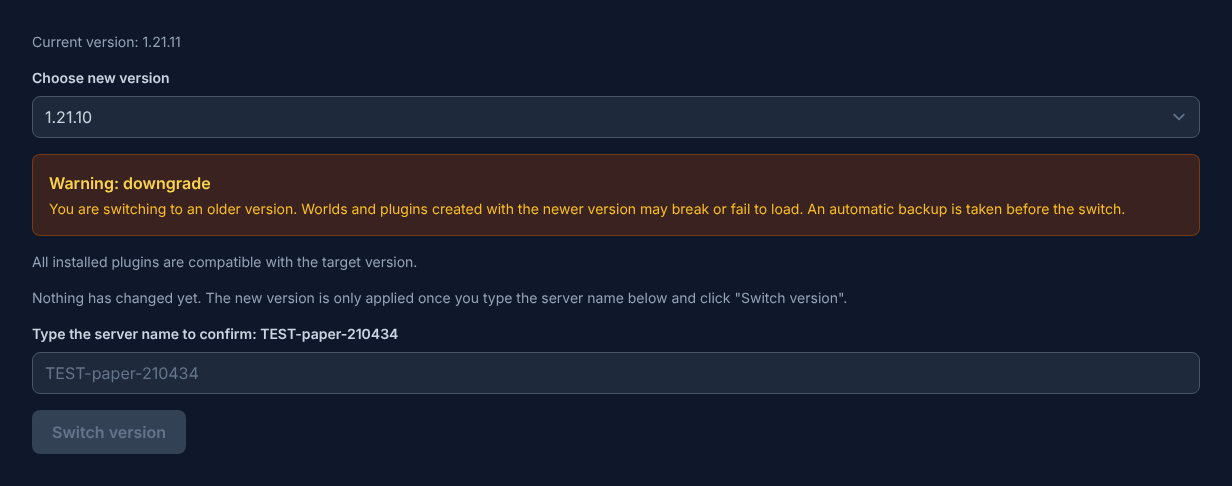
Only confirm the change once you have a way back. In practical terms, this means: backup exists, restore tested, server copy prepared, and change documented. Note the old Minecraft version, the old loader, and relevant plugin or mod versions. This lets you trace which state needs to be restored if something goes wrong.
Step 3: Wait for Progress and Check the Console
After confirmation, the technical change runs automatically. The new loader is downloaded and installed. During this phase, the panel shows you a status and progress notice. Wait until the process is complete and do not start the server multiple times in parallel.
Then open the console. Watch for error messages about Java version, missing libraries, incompatible plugins, mods, or damaged configuration files. Warnings are not always critical, but they should be read. If the server stops immediately, the console is the first place to look for the cause.
Step 4: Check the Result In-Game
After startup, connect to the server and check more than just the spawn. Visit important regions, dimensions, and player bases. Check inventories, permissions, commands, portals, farms, and data from plugins or mods. With Paper or Purpur, you should test whether your existing plugins load and their commands work. With Forge, NeoForge, Fabric, or Quilt, check whether client and server need exactly the same mod base and whether players can join with suitable clients.
If you want to move or replace your own world, use the additional guide Uploading & switching a Minecraft world. If you are still before the basic server setup, the overview Rent and set up a Minecraft server is suitable.
Troubleshooting
Server Does Not Start After the Change
First check the console. Common causes are incompatible plugins or mods, a mismatched Minecraft version, or a required Java version. Temporarily remove new extensions on the clone and start again. Work through it in a controlled way instead of making several changes at once.
World Loads, but Blocks or Items Are Missing
Stop the production change and continue working only with the clone. Missing blocks or items often indicate removed or incompatible mods. Do not keep experimenting on the affected world if you still need a clean rollback.
Players Cannot Connect
Compare client version, server version, and loader. With Vanilla, Paper, and Purpur, a matching Minecraft client is normally enough. With Forge, NeoForge, Fabric, and Quilt, it depends on the modpack whether players must install the same mods and versions.
Plugins Do Not Work After Switching to Paper or Purpur
Check whether the plugin is approved for your Minecraft version and server software. Read the plugin logs and update extensions one by one. If a plugin migrates data, back up the state separately beforehand.
Checks, Limits, and a Safe Way Back
The guide “Change Minecraft Server Version and Mod Loader Without Reinstalling” applies to the server type described in the article and the version status visible at the time of review. Menu names, available versions, mod or plugin compatibility, and required resources may differ after updates. Therefore, do not transfer values to another game, loader, or server version without checking them.
Before making changes to the world, savegame, configuration, or extensions, create a backup of the affected files. Then change only one related step and test it with the same client and server version you want to play with later.
| Checkpoint | Expected Result | Abort and Way Back |
|---|---|---|
| Server start | The server reaches the operational state without a new error message. | If startup errors occur, undo the change and restore the latest backup. |
| Connection test | A test account can connect using the address shown in the panel. | If version or connection errors occur, compare version, port, and allowances again. |
| Function test | The specifically changed function works without damaging existing world or game data. | If side effects occur, stop the server and restore the backed-up files. |
A successful single test is not a performance or availability guarantee. World size, mods, plugins, player count, network route, and simultaneous load can change the result. Document the version, change, and test result so you can trace later deviations.
Choosing NeoForge and Quilt Correctly
NeoForge grew out of the Forge ecosystem but is a separate mod loader. A mod file that names only Forge is therefore not automatically compatible with NeoForge. Select NeoForge only when the modpack and mods explicitly support the Minecraft and NeoForge version offered in the panel. The official NeoForge documentation also lists the Java version required by each Minecraft version.
Quilt is closely related to Fabric and can use many components from its ecosystem, but that is not a blanket compatibility guarantee. Select Quilt only when the combination is offered in the panel and your mods support Quilt for that exact Minecraft version; the official Quilt documentation explains its loader and API ecosystem.
Forge, NeoForge, Fabric, and Quilt run mods, not Bukkit or Paper plugins. Match the Minecraft, loader, and mod versions on client and server before joining, and test every loader change on a server clone first.
FAQ
Can I switch from Vanilla to Paper safely?
Yes, the technical change is possible, and Paper documents migration from Vanilla. Still, you should create a backup beforehand and test the change on a clone because plugins and configurations can later change additional data.
Can I switch from Forge to Fabric?
Only with great caution. Forge and Fabric mods are different ecosystems. A modded world can contain blocks, items, or dimensions that the other loader does not know. Test such a change exclusively on a clone.
Do I have to reinstall the server for the change?
No. At game-serverhosting, you change version and loader through the version switcher in the panel. Reinstallation is not the normal path for this, but backup, test restore, and checking remain necessary.
What is the safest process for production servers?
Create a complete backup, test the restore, create a server clone, perform the change on the clone, check console and game world, and only then plan a maintenance window for the production server.
When should I rather not switch?
If important mods or plugins are not yet available for the target version, if no tested backup exists, or if you do not know the way back. In these cases, waiting or using a test server is the better decision.