EssentialsX bundles homes, warps, teleportation and kits. For /spawn and /setspawn you additionally need EssentialsXSpawn. Check the module, the command and the permissions separately, and back up not only the world but also homes, warps and the Essentials configuration. The screenshots come from a test server running Paper 1.21.4 and EssentialsX 2.21.0.
Installation and First Join
In the panel you will find EssentialsX under Plugins → Browser. The main module EssentialsX is enough; add-on modules such as EssentialsX Chat or EssentialsX Spawn only need to be installed if you want their features. After the restart, EssentialsX greets every player with a welcome message, the number of players online and their playtime.
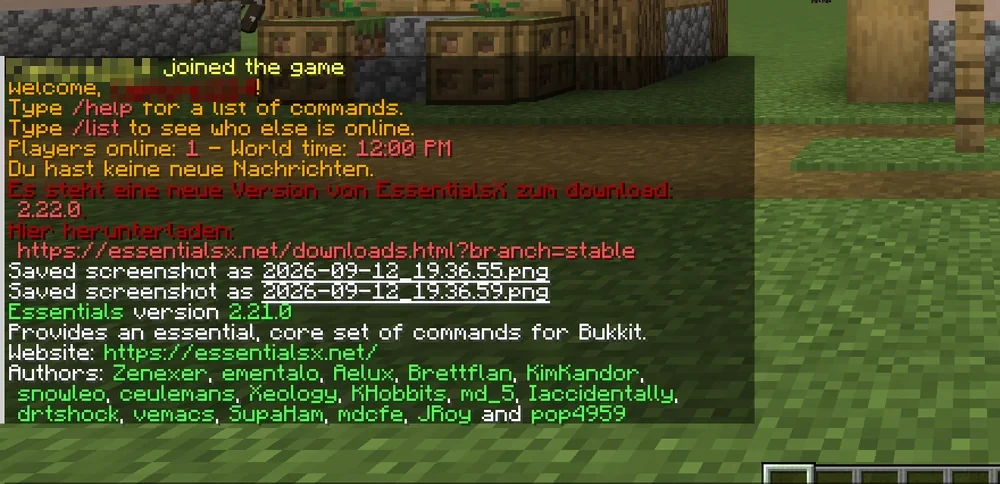
The red notice in the image is the built-in update check: it notifies operators when a newer version is available. Updates are done through the plugin browser in the panel, not through the link. If you don't want the message, set update-check: false in plugins/Essentials/config.yml.
Spawn, Homes and Warps
The three commands players use most often:
/setspawn
/sethome
/home
/setwarp market
/warp market
With EssentialsXSpawn installed, /setspawn defines the point where new players appear and where /spawn leads. /sethome saves the current position as the player's home; /home takes them back. Warps are shared points that an administrator creates with /setwarp. Players need essentials.warp; if per-warp permissions are enabled, the matching essentials.warps.<name> nodes are added.
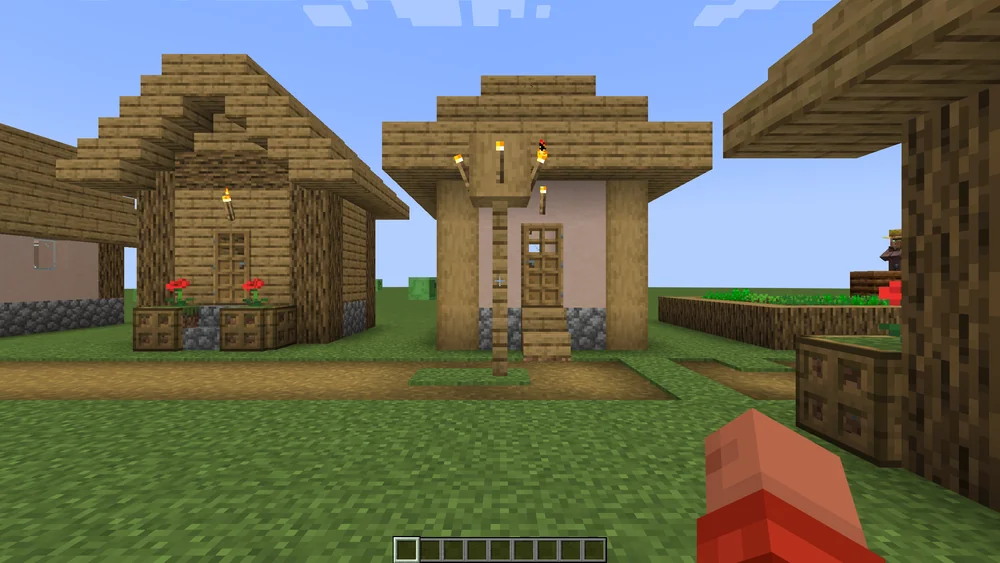
You control multiple homes per player through permissions: for several homes you need essentials.sethome.multiple and the matching tier node, for example essentials.sethome.multiple.vip. The number comes from config.yml under sethome-multiple for vip. Use a normal account without operator rights to make sure that both permissions and the defined tier take effect.
Permissions for the Default Group
Which commands normal players may use depends on the active permission management, plugin defaults and the Essentials configuration. The player-commands list is only used for the built-in permission assignment if no supported permissions plugin is active and use-bukkit-permissions: false is set. With LuckPerms, check the effective permissions of the default group; the following nodes are a deliberately chosen starting point:
/lp group default permission set essentials.spawn true
/lp group default permission set essentials.sethome true
/lp group default permission set essentials.home true
/lp group default permission set essentials.warp true
/lp group default permission set essentials.tpa true
/lp group default permission set essentials.tpaccept true
/lp group default permission set essentials.back true
/tpa sends a teleport request, /tpaccept accepts it; /back leads to the previously saved position; to return after death, the player additionally needs the corresponding permission, in particular essentials.back.ondeath. Commands such as /gamemode, /give, /kick and /ban stay reserved for the moderation group. How to create groups is explained in LuckPerms: Setting Up Permissions.
Kits and Welcome Message
A starter kit gives new players tools to get going. Kits are defined in plugins/Essentials/kits.yml; an entry lists the items and a cooldown in seconds. The command /kit starter requires essentials.kit and the kit permission essentials.kits.starter. First-join rules are located under newbies in config.yml; you edit the text of the message of the day in plugins/Essentials/motd.txt. /motd creates the text file if needed, and displaying it on join requires essentials.motd. You set colors with & codes. After changes to the configuration, /essentials reload reloads it without a restart.
Where Player Data Is Stored
EssentialsX does not store anything in the world folder, but in its own plugin directory. This is important to know when you replace a world or move to another server:
plugins/Essentials/userdata/— one file per player with homes, last position, playtime and nicknames, named after their UUID.plugins/Essentials/warps/— one separate file per warp.plugins/Essentials/config.yml— welcome message, teleport delay and other general settings.plugins/Essentials/kits.yml— kit definitions and cooldowns.
A new world therefore leaves homes and warps untouched — but their coordinates will then point into nothing and have to be set again. When moving to a new server, take the entire plugins/Essentials/ folder with you, and homes and warps will be preserved.
Common Mistakes
/homehas no effect. The player has not set a home or theessentials.homepermission is missing.- Teleport gets cancelled. The
teleport-delaysetting waits a few seconds and cancels on movement. Lower the value inconfig.ymlor grant theessentials.teleport.timer.bypasspermission. - Warps disappeared. Warps are stored as files in
plugins/Essentials/warps/. The panel backup includes them; a new world folder doesn't change that. - Duplicate commands. Other plugins provide their own
/spawnor/homecommands. Inconfig.ymlunderoverridden-commandsyou decide which plugin wins.
FAQ
Do I need all EssentialsX modules?
No. The main module EssentialsX includes homes, warps, teleportation and kits. Install add-on modules only for their specific function: EssentialsX Chat for chat prefixes, EssentialsX Spawn for /spawn, /setspawn and spawn rules on first join and death.
Why do commands stop working after installing LuckPerms?
Once EssentialsX detects a supported permissions plugin, it may use a different permission path. The built-in player-commands list then does not count as a blanket approval. In LuckPerms, check the nodes that are actually effective, including inheritance and defaults, for a player without OP, and assign the desired commands to default. A missing module or a command of the same name from another plugin remains a separate possible cause.
How does a player get multiple homes?
Through two related places: in config.yml you define under sethome-multiple how many homes a tier allows, and in LuckPerms you grant both essentials.sethome.multiple and the matching tier node, for example essentials.sethome.multiple.vip. Check the configured tier and both permissions with a normal account.
Do I have to restart after changing config.yml?
For most values, /essentials reload is enough, for example for kits, the welcome message or the teleport delay. A newly installed add-on module and changes that affect other plugins require a full server restart.
Are homes and warps included in the panel backup?
Yes, the backup covers the entire server directory and therefore also plugins/Essentials/. Replacing the world does not delete homes and warps — but their coordinates will no longer match the terrain afterwards and have to be set again.
Further Guides
WorldGuard: Protecting Regions protects areas that players must not change. If the server stutters despite few players, spark: Analyzing Lag helps.
Sources
- EssentialsX modules and EssentialsXSpawn
- EssentialsX text files and MOTD
- Official default configuration: player-commands and kits.yml
- EssentialsX wiki: https://essentialsx.net/wiki/introduction
- Command reference: https://essentialsx.net/commands
- Permissions: https://essentialsx.net/permissions
Testing a Teleport with a Normal Role
Test home and warp first with a player without OP. Then check the relevant permissions and, if you have multiple warps, the configuration for individual warp permissions. If /spawn does not work, check EssentialsXSpawn before making further permission changes. For returning after death, essentials.back and the corresponding death permission must be assessed separately. Back up userdata, warps and configuration before changing worlds; their saved world and location data is not automatically adjusted to a new map. After the change, check every important destination so that players are not teleported to an unsuitable position.
EssentialsX: view an example
Our own captures from a demonstration environment. The version and setup shown may differ from your server.

2.21.0