CoreProtect logs supported changes and can perform a specifically filtered rollback. First check the lookup, time window, player, radius and action. It does not replace a full world backup and knows nothing about events before it began recording. The screenshots come from a test server running Paper 1.21.1 and CoreProtect 24.0. For the demonstration, the house front was damaged by a second test player and restored with a real rollback.
Requirements
You install CoreProtect in the panel under Plugins → Browser. After the restart, check the successful activation in the server log; /co help shows the available commands, and if the installed version supports it, /co status provides status and version information. Logging runs automatically from this moment on; there is nothing to switch on. It is therefore important to install the plugin before the first damage: CoreProtect knows nothing about what happened earlier.
Assign the commands by task: for helpers who should only look things up, coreprotect.inspect and coreprotect.lookup are enough; for restoring, add coreprotect.rollback, coreprotect.restore or coreprotect.undo selectively. coreprotect.* also covers more far-reaching functions and does not belong with every moderation group as a blanket permission. Normal players do not need these management permissions. How groups work is explained in LuckPerms: Setting Up Permissions.
Check the database type that is actually active in plugins/CoreProtect/config.yml. In the documented 24.0 test, SQLite was used; the log is then stored in plugins/CoreProtect/database.db. New installations from 25.0 on normally use DuckDB; existing SQLite/MySQL installations do not switch automatically on update. Back up the actual database before making changes. /co purge t:30d deletes events older than 30 days and thereby removes them from later rollbacks.
Finding the Culprit: Inspector
The fastest way to a single block is the Inspector. /co inspect (short /co i) turns it on, and the same command turns it off again. While it is active, a left click on a block shows its history: who placed or broke it and when. A right click on a surface shows what once stood in the spot next to it, even if there is air there now. A right click on a chest lists who put which items in or took them out.
For a destroyed house this is often enough: you click on the gap in the wall and read the name.
Searching Precisely: Lookup
If several blocks are affected, you query the log directly. The lookup takes the same parameters as the rollback, so you use it first to check what a rollback would even touch:
/co lookup u:<player> t:1h r:15 a:-block
The parameters: u: is the player name, t: the time window (30m, 2h, 7d), r: the radius in blocks around your position, a: the action. a:-block stands for broken blocks, a:+block for placed ones, a:container for chest access, a:kill for killed animals and players. With the documented include filter i: you restrict it to certain blocks, for example i:chest. You page through long result lists with /co l 2.
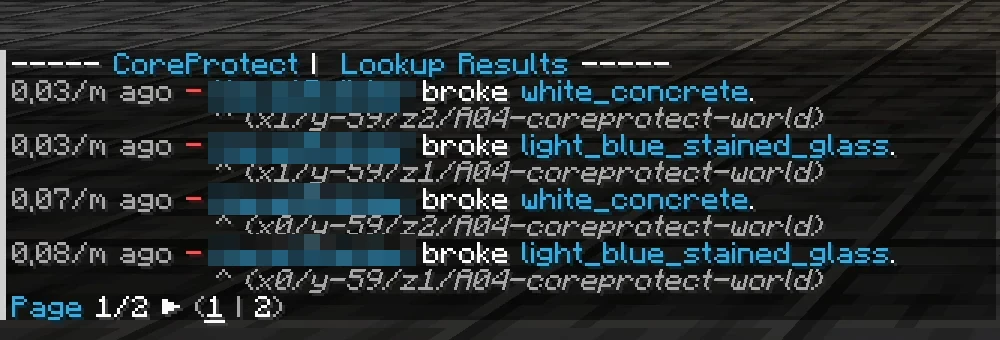
The screenshot shows recorded changes by the test player to white concrete and light blue glass, with coordinates for each entry. Choose the appropriate time window for your case; the examples use t:1h. This relative time span shifts with the time of day, and r:15 depends on your location and the world. Check the hits again immediately before the intervention and stay at the verified location. If you need a fixed time boundary, use the syntax documented for your installed version.
Restoring: Rollback
Back up the current server state and first check a preview with the same parameters, the same world and the same location:
/co rollback u:<player> t:1h r:15 a:-block #preview
Check the preview and that the time window is still appropriate. Only then run the actual rollback:
/co rollback u:<player> t:1h r:15 a:-block
CoreProtect reports in chat how many blocks and chunks it has changed and states the time window, radius and action once more. The front is then standing again without anyone having had to place a single block.
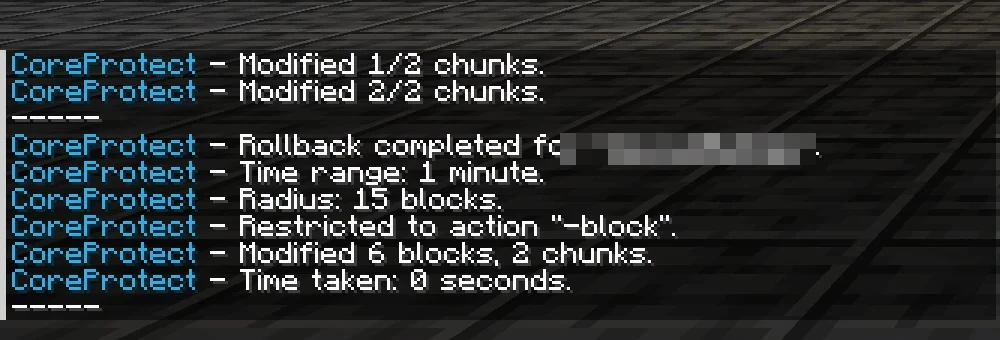
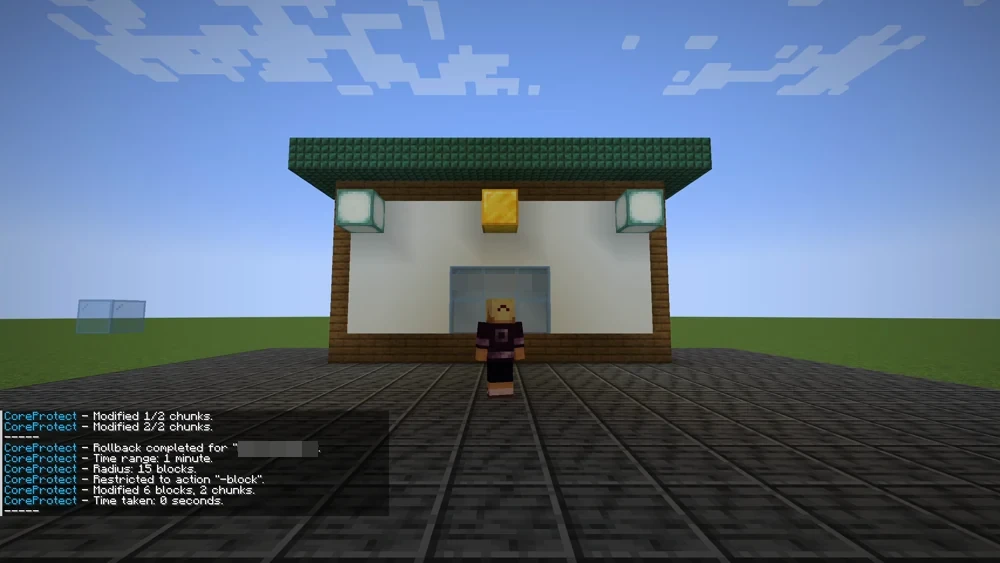
If something went wrong, /co restore with the same parameters reverses the rollback, and /co undo reverts the last rollback or restore. Here, too, check the world, location and time window. The same relative filter is not an unchanging set of hits; a separate backup remains the reliable way back.
Common Mistakes
- The rollback touches too much. Without explicit filters, the scope can be unexpectedly large; defaults depend on configuration and command. Always specify player, radius and action, and read the lookup beforehand.
- "No results found". The time window is too small, the radius too narrow, or the damage occurred before CoreProtect was installed.
- Chests stayed empty. Withdrawals belong to the
containeraction;a:-blockonly restores blocks. For both, use two commands or leave outa:. - The database grows. Before a planned
/co purge, back up the database and decide on the retention you want. Deleted entries are no longer available for later rollbacks. - A killed creature is missing after the rollback. Check the installed CoreProtect version, action filter and stored entity data. Current versions can revert supported entity kills; older versions or missing recording may limit this. Player progress cannot be reset this way as it can with a full backup.
FAQ
Can CoreProtect undo damage that occurred before installation?
No. The log begins the moment the plugin runs for the first time; it does not know about older events. That is why CoreProtect belongs on a public server before the first damage occurs — not only afterwards.
How do I prevent a rollback from touching too much?
First run the lookup with exactly the same parameters and read the result. Specify player (u:), radius (r:) and action (a:) — do not rely on implicit default values for the scope. If it went wrong, /co undo reverts the last rollback.
Does a rollback also restore chest contents?
Only if the container action is included. a:-block affects only broken blocks. For blocks and chests, either use two commands or leave out a: entirely. For entity kills, restoration depends on the version and stored entity data; check the documentation of your installed build. This does not imply a general restoration of player inventories or progress.
How large does the database get, and what can I do about it?
The size depends on recording, player activity and retention. Check the active database type: SQLite uses database.db, newer DuckDB installations database.duckdb; external databases must be backed up separately. /co purge t:30d deletes older events. Create a verified backup beforehand and run the purge in a quiet maintenance window; switching the database type alone does not transfer old data.
Does CoreProtect replace the backup?
No, they solve different problems. CoreProtect reverts individual changes by a player in a targeted way and leaves everything else in place. A backup helps with corrupted world files, accidentally deleted worlds and anything that happened before installation.
Further Guides
To prevent damage from happening in the first place, protect important areas with WorldGuard: Creating Regions. Which group gets which commands is managed with LuckPerms. For everything CoreProtect doesn't know about, the backup in the panel remains.
Sources
- CoreProtect documentation: https://docs.coreprotect.net/
- Commands and parameters: https://docs.coreprotect.net/commands/
- Permissions: https://docs.coreprotect.net/permissions/
- Project page: https://modrinth.com/plugin/coreprotect
Preparing a Rollback in Two Separate Checks
Narrow down the damage with a lookup to the same player, time period and area that you want to revert. Also check container actions if inventories are affected; a pure block filter does not capture these. For larger scopes, use the preview function if your version offers it. Before the intervention, back up the world and log database and note the parameters used. Then check the structure and containers from the same camera position or the same coordinates. A purge irrevocably deletes older evidence from the log and therefore does not belong in an acute repair attempt.
CoreProtect: view an example
Our own captures from a demonstration environment. The version and setup shown may differ from your server.
- The house front is intact.
- A second player breaks blocks out.
- /co lookup shows who broke what.
- /co rollback restores the front.
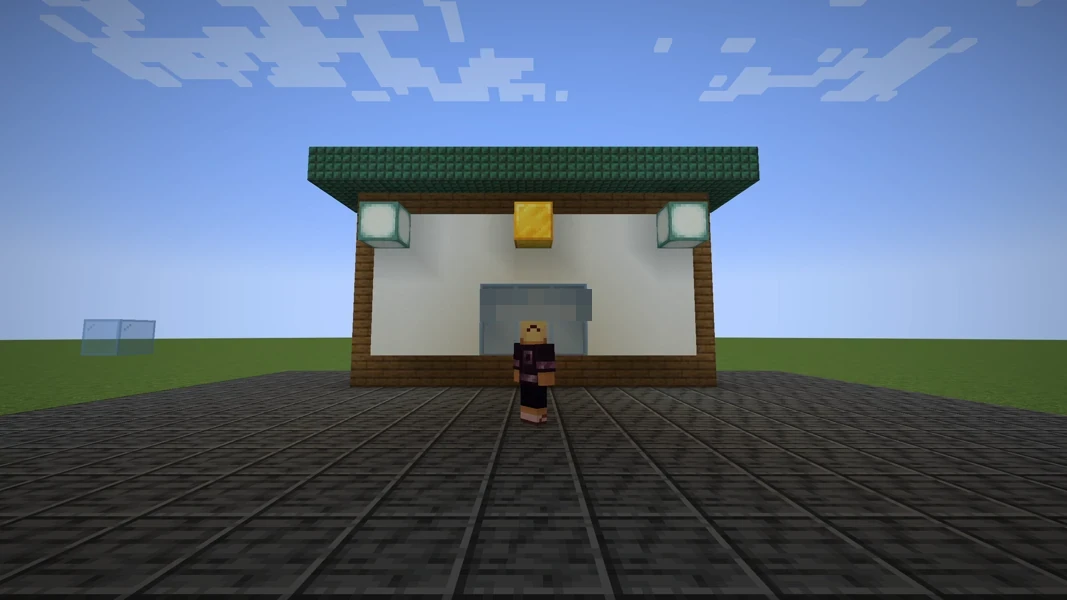
CoreProtect 24.0 · Paper 1.21.1 · 2026-09-14
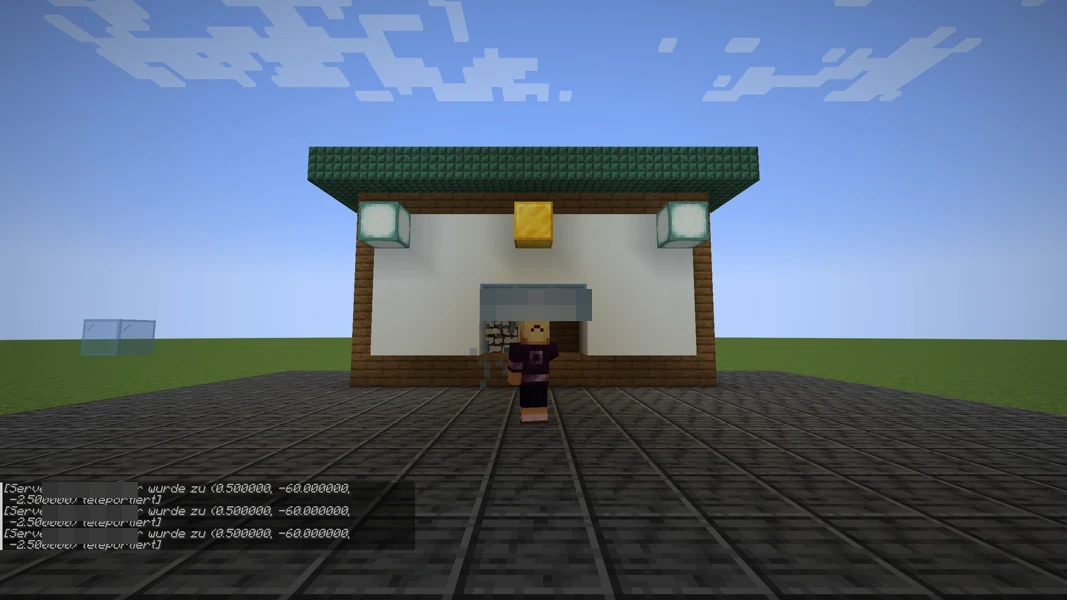
CoreProtect 24.0 · Paper 1.21.1 · 2026-09-14
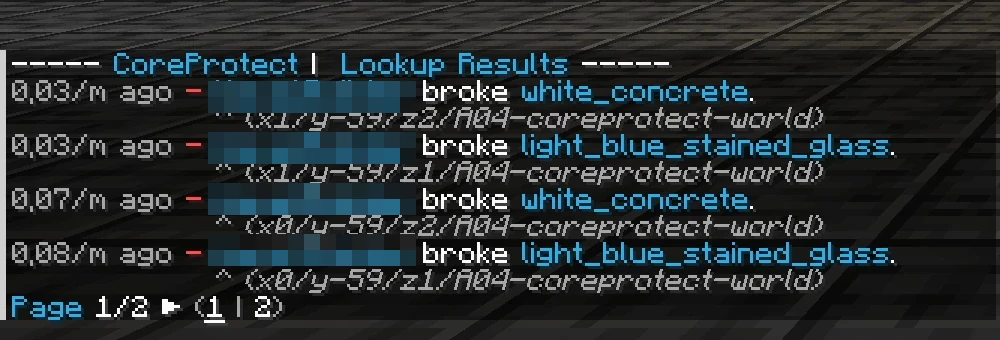
CoreProtect 24.0 · Paper 1.21.1 · 2026-09-14
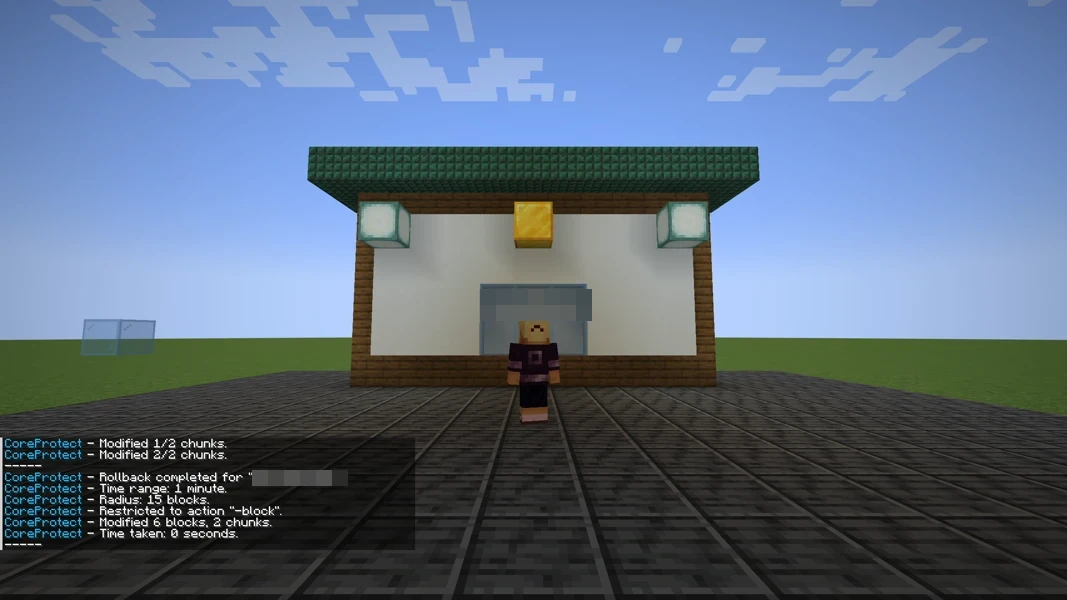
CoreProtect 24.0 · Paper 1.21.1 · 2026-09-14