
The short answer: You switch the mod loader of your Minecraft server in the panel under Manage → Change software / loader. In the Mods group, choose Forge, NeoForge, Fabric or Quilt, read the consequences right below it, tick the checkbox and click Start switch. The Minecraft version stays the same, and the panel automatically creates a protection point beforehand. Your mods do not switch with it: you need every mod in the version built for the new loader.
This guide was last updated on November 1, 2026. We ran through the switch from Forge to NeoForge and then from NeoForge to Paper in the panel on October 30, 2026, on our own test server with Minecraft 1.21.1. We took the screenshots on November 1, 2026, on another test server of our own. What we did not try is listed below under Verification.
Before You Switch
- Check your mods. Forge, NeoForge, Fabric and Quilt are separate loaders. A mod only runs on the loader it was built for. For each mod, check whether a version exists for the new loader and your Minecraft version.
- The version stays. The switch keeps your Minecraft version. In our test, Forge on 1.21.1 was running beforehand and NeoForge 21.1.265 on 1.21.1 afterwards. If you also want to change the version, do it separately in the Version tab so you can trace any error back to a single step.
- NeoForge only from 1.20.2. The panel describes NeoForge as “Forge successor for 1.20.2 and newer”. The NeoForge documentation still recommends Forge for 1.20.1.
- Fabric usually needs the Fabric API. Many Fabric mods require the Fabric API as a separate mod. Upload it as well if your mods ask for it.
- Your friends need the same mods. After the switch, the mods in their Minecraft no longer match the server. How they join a modded server is explained in Joining a Minecraft Modpack Server.
- Your own backup if you want to go back further. The automatic protection point is only kept for a limited time; the panel shows the date until which it is available. How to create your own backup as well is covered in Create and restore a server backup.
Step 1: Open the Tab
Open your server and select the Manage section. It starts with the Updates tab; click Change software / loader. At the top, Installed now shows what is running right now.
Below that is Server software, grouped by purpose:
- Plugins: Paper, Purpur, Spigot, Folia, Leaf and Leaves. They load plugins, not mods.
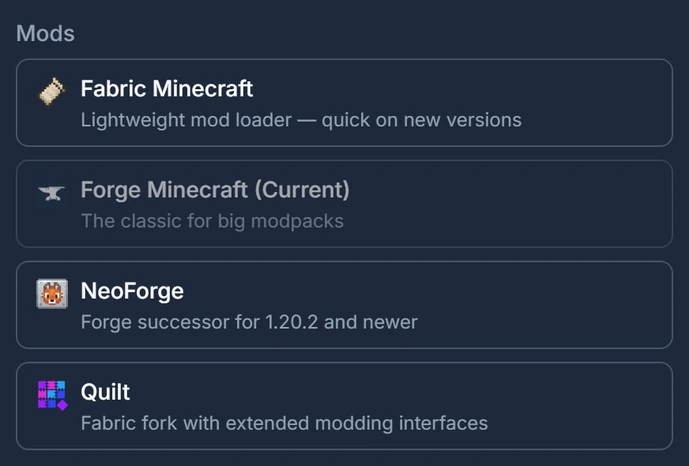
- Mods: Fabric, Forge, NeoForge and Quilt.
- Plugins and mods: Mohist, described as experimental in the panel.
- No plugins or mods: Vanilla.
Each variant has a line explaining what it is meant for. The one currently running is greyed out and marked (Current).
 (Enlarge image)
At the very bottom, Install a different game opens the list of other games; you do not need it for a loader switch.
Step 2: Choose the Loader and Read the Consequences
In the Mods group, click the new loader. Right below it, Your switch appears, for example “Forge Minecraft → NeoForge”, with a short description, the minimum RAM and the recommended RAM. Two lists follow:
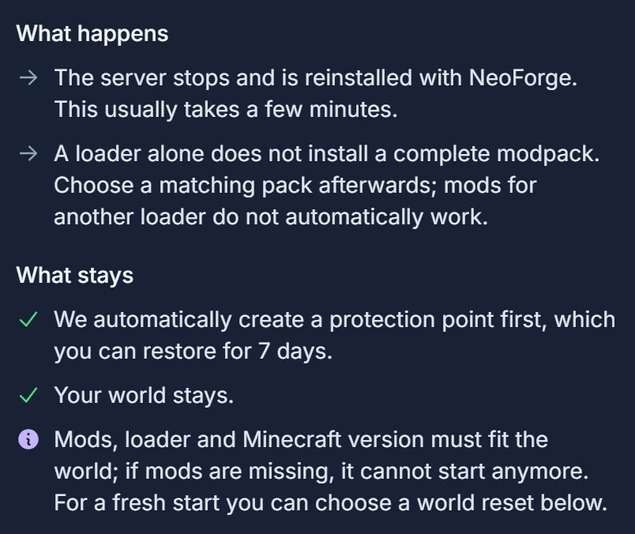
- What happens: The server stops and is reinstalled with the new loader. A loader alone does not install a ready-made modpack, and mods for a different loader do not work automatically.
- What stays: the automatic protection point, which you can restore for a limited time, and your world if a player has already been online on your server. Plus a note that mods, loader and Minecraft version must match the world.
 (Enlarge image)
If no player has ever been online on your server, What happens says instead that a new world is created and the previous one is only renamed.
Step 3: Keep or Reset the World
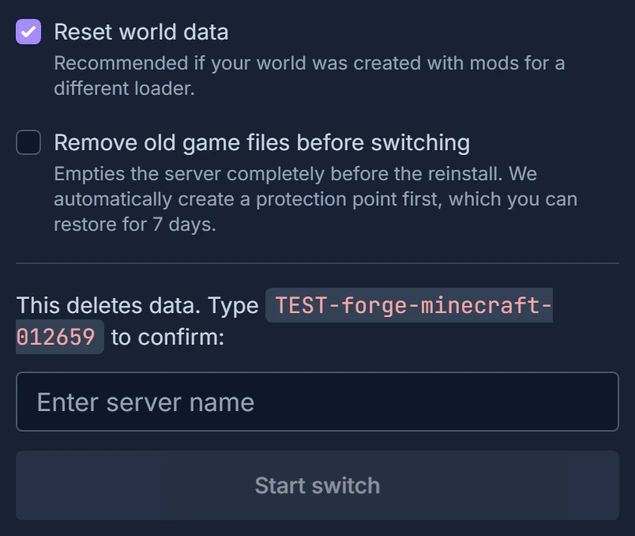
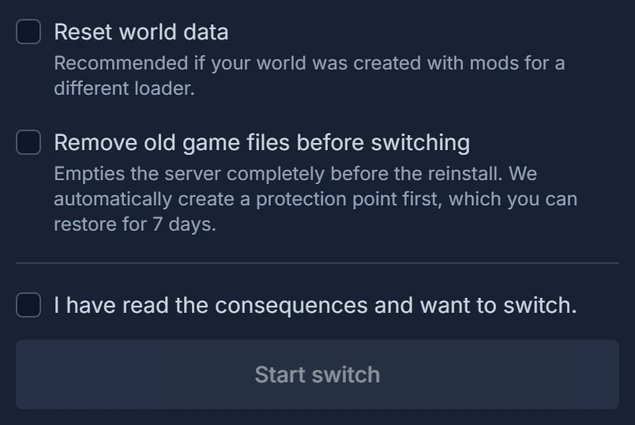
The Reset world data checkbox is not preselected. When switching between two loaders, the text below it reads: “Recommended if your world was created with mods for a different loader.”
- Without the checkbox, a world that has already been played on is kept. In one of our tests, a gold block placed beforehand was still in place after the switch, and the seed was the same. However, the world only starts if its mods are also available for the new loader. If mods whose blocks or dimensions are in the world are missing, it can no longer start. If no player has ever been online on the server, the panel sets the world aside: it stays in the file manager under a new name, and the server generates a new one.
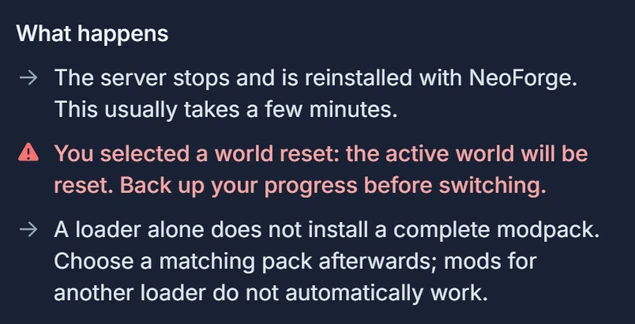
- With the checkbox, the active world is reset. This then appears as a red warning under What happens, and to confirm, you type in the name of your server. Only tick the checkbox if you want to start over anyway.
 (Enlarge image)
 (Enlarge image)
You normally do not need the Remove old game files before switching checkbox for a loader switch. It completely empties the server before reinstalling, and you confirm that with the server name as well.
Step 4: Confirm and Wait
Tick I have read the consequences and want to switch. and click Start switch. Without the tick, the button stays greyed out.
 (Enlarge image)
The panel then shows four steps: Create protection point, Prepare files, Install and First start. According to the display, this usually takes about two minutes, at most around nine. You can leave the page. Once everything is through, it says “Done, your server has been switched.”
Step 5: Add Mods for the New Loader
The panel only installs the loader during the switch. If you want a ready-made modpack, choose it afterwards in the Modpack tab. You add individual mods yourself.
The mods folder stays in place when switching between two loaders. In our test, a file we had put in mods beforehand was still there after the switch. However, the new loader only loads mods that were built for it.
- Remove the mod files of the old loader from
mods. - Upload the versions for the new loader and your Minecraft version, including the Fabric API for Fabric.
- Start the server and read the console from the start. Note the first error message, not just the last one.
What the most common messages mean is explained in Minecraft mod errors with Forge, NeoForge and Fabric. How to put together mods and modpacks that fit together is covered in Setting up Minecraft mods and modpacks properly.
Step 6: Go Back If Something Doesn't Fit
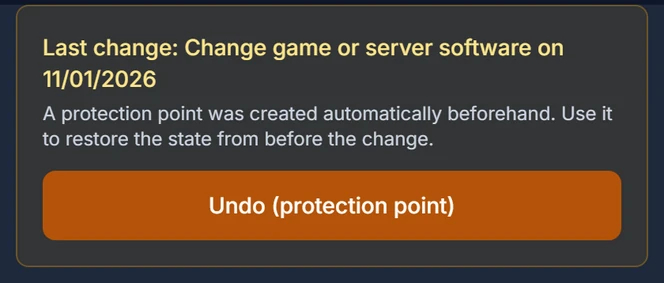
After the switch, the Manage section shows the last switch at the top with its date and the Undo (protection point) button.
 (Enlarge image)
The button takes you to the backups, directly to the protection point the panel created before the switch. There, click Restore protection point. A preview lists what will be reset: server files, version and startup configuration. Everything that has changed since the protection point is lost, including anything built after the switch. The restore only starts after you tick a checkbox. In our gold block test, Forge was running again in less than a minute afterwards, with the same world.
From a Loader Back to Paper or Vanilla
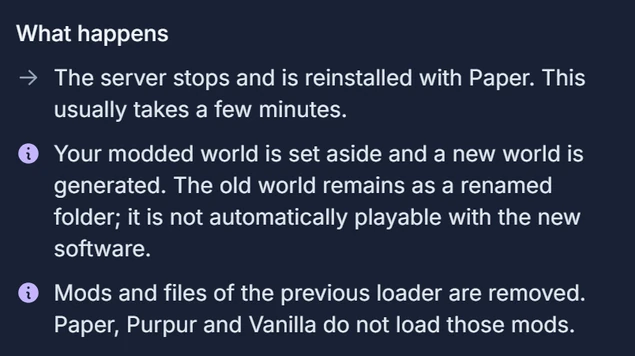
If you switch from a loader to Paper, Purpur or Vanilla, the What happens list says something different: your mod world is set aside and a new world is generated, and mods and files of the previous loader are removed. This also applies to a world that has been played on, because Paper and Vanilla often cannot start a world containing mod content.
 (Enlarge image)
After our switch from NeoForge to Paper, the mods folder was gone and the old world was in the file manager under a new name. You can download the renamed folder there or rename it back later.
Everything else about switching server software and version is in Switch server software and version in the panel. How to prepare a bigger move with a test copy is described in Switching Minecraft version and mod loader safely.
FAQ
Do Forge mods run on NeoForge? For the versions for which the panel offers NeoForge (from 1.20.2), no. With 1.20.2, NeoForge got its own mod ID and its own packages; mods have to be adapted for it. Use the NeoForge version of the mod if one exists.
Does my world stay when switching from Forge to Fabric? Without the Reset world data checkbox, a world that has been played on is kept. Whether it starts depends on the mods: if blocks or dimensions from a Forge mod are in the world and the mod does not exist for Fabric, it will no longer start. In that case the protection point helps, or a fresh start with a world reset.
Can I undo the switch? Yes, as long as the protection point is still available, via Undo (protection point) at the top of Manage. For a longer way back, create your own backup beforehand.
Does the panel install a modpack during the switch? No. The panel only installs the loader. You choose a ready-made modpack afterwards in the Modpack tab.
Does the switch cost anything? No, not when switching between Forge, NeoForge, Fabric and Quilt: the panel calculates no price difference for these loaders. It charges nothing for the switch, and your monthly price stays as it is. If you switch back to Paper, the panel calculates no difference from your current monthly price.
Sources and Verification
Verification: On our own test server, on October 30, 2026, we switched from Forge 52.1.20 to NeoForge and then from NeoForge to Paper, both with Minecraft 1.21.1. We measured the time until “Done”, the version carried over, the contents of mods and the world folder after each switch. The switch to NeoForge was done after 160 seconds, and NeoForge 21.1.265 had started after 12 seconds. The world nobody had played on was then in the file manager as world.bak-eggswitch-20261030-172058. The switch to Paper was done after 280 seconds, mods was gone, and the old world sat next to it as world.bak-eggswitch-20261030-204624. That a played world is kept when switching between two loaders and that the protection point brings back the old state, we measured on October 31, 2026 on a second test server with the same switch interface: the seed and a gold block placed beforehand were unchanged after the switch and after the restore. On November 1, 2026, we took the screenshots on another test server. For that, we marked the server in the panel as if a player had already been online and switched from Forge to NeoForge once more: the world was still there as world afterwards, no renamed world folder appeared, and NeoForge 21.1.265 was running on 1.21.1. On the same day, we recalculated the panel's pricing for all paid servers running Forge, NeoForge or Fabric: for a switch to another loader, the panel calculates no price, and for a switch to Paper, no difference from the current monthly price. The details about the loaders themselves come from their documentation, read on October 30, 2026:
- NeoForge: NeoForge User Guide: NeoForge recommended from Minecraft 1.20.2, Forge for 1.20.1.
- NeoForge 1.20.2: NeoForge 20.2 for Minecraft 1.20.2: new mod ID
neoforgeand renamed packages, mods have to be adapted. - Fabric: Installing Fabric: Many Fabric mods require the Fabric API.
- game-serverhosting.com: tab, consequence lists, checkboxes, confirmation, switch steps, undo bar and pricing from our panel.
- Not verified: the price display in the panel on a paid server (our test servers have no plan; we recalculated the pricing behind it), a switch to Fabric or Quilt with real mods.
