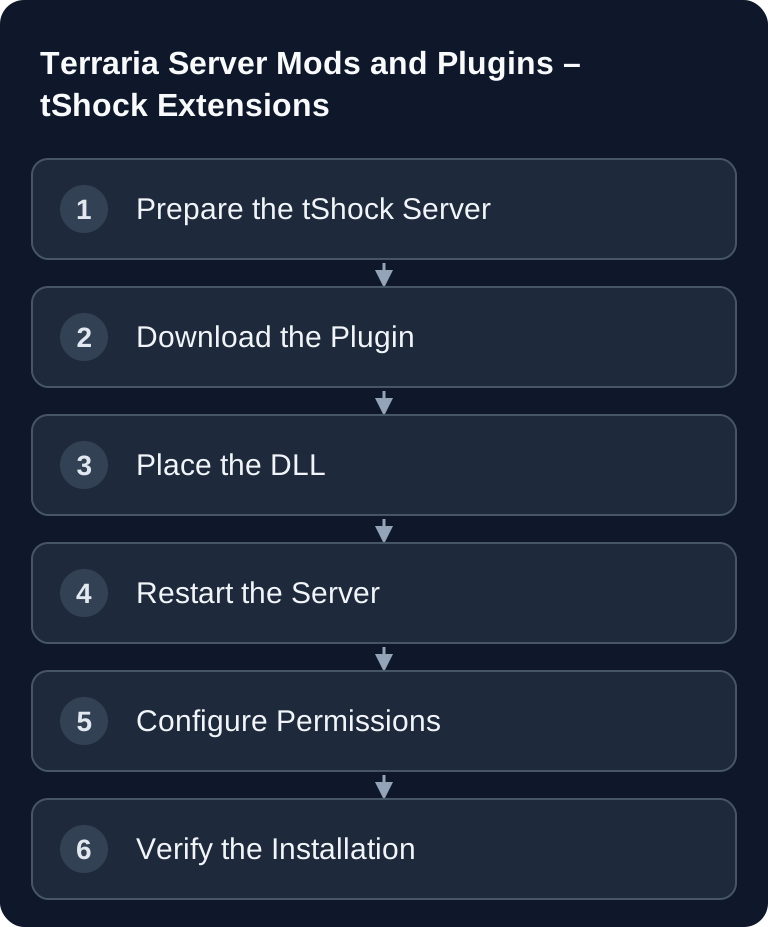
For Terraria extensions, you first choose the server type: TShock offers permissions, regions and server-side DLL plugins; tModLoader loads content mods like Calamity and requires matching tModLoader clients. Both paths use different files and startup processes. The following plugin, region and SSC steps apply to TShock; don't copy any .tmod files into ServerPlugins/.
Requirements for tShock Plugins
For Terraria plugins, you need a server that runs tShock. The normal vanilla server does not load tShock plugins from ServerPlugins/. If you're only just planning your server, you can find the setup basics in the guide Renting a Terraria Server and Setting Up Multiplayer. It covers the basics, while this guide covers extending via tShock.
Check three points before every installation: the Terraria version, the tShock version and the plugin version must match. You can find official information on tShock in the documentation at Documentation at github.com. For plugin downloads, the existing overview tShock Plugins is a sensible starting point, as long as you also pay attention to how up to date it is, repository notes and compatibility information.
Paid multi-game hosting such as game-serverhosting is mainly helpful when you need technical access, reproducible workflows, backups and support for server operation and configuration. Plugins nevertheless remain third-party server code: only install extensions whose origin and purpose you can verify.
tShock Plugin System
tShock is an alternative Terraria server with permission management, commands and a plugin interface. Plugins are usually provided as .dll files and loaded server-side. Players normally don't have to install these plugins locally, as long as the plugin doesn't require a separate client modification.
The central folder is:
ServerPlugins/
The plugin DLLs are located there. On startup, tShock loads the files and reports errors in the console or the log. If a plugin is not compatible, dependencies are missing or a configuration is invalid, the server may still start, but the plugin remains disabled or throws error messages.
Installation
- Get the plugin DLL from the TShock plugin overview and check the API/TShock version
- Stop the server and back up the existing world and TShock data
- Place the DLL with its documented dependencies in
ServerPlugins/ - Start the server and check for load errors as well as the specific plugin command
/reload re-reads configurations; it does not replace a process restart for newly added or replaced plugin DLLs.
Use /reload only for changes that tShock and the respective plugin can actually re-read. For new DLLs, version changes or unclear errors, a full restart is the cleaner check. It's best to plan changes outside of active play time so you can read logs and roll back directly if problems occur.
Recommended Plugins
The following table lists typical extensions that are often used for administration, protection or gameplay. It is no guarantee of current compatibility; always check the respective plugin page and the supported tShock version before use.
| Plugin | Description | Category |
|---|---|---|
| InfiniteChests | More chests | QoL |
| SEconomy | Economy system | Gameplay |
| TShock Regions | Area protection | Admin |
| Auto Broadcast | Automatic messages | Admin |
| Anti-Build | Build permissions | Protection |
| Character Reset | SSC character management | Admin |
| World Edit | Edit the world | Building |
| Essentials | Core features | QoL |
Install only one or two plugins first and test them. The more extensions are active at the same time, the harder troubleshooting becomes. Similar principles apply to larger mod setups in other survival games: with installing V Rising mods or installing Palworld mods on server and client, version control is likewise more important than a blind number of plugins.
Server-Side Characters (SSC)
SSC stores character data server-side. This can reduce cheating, because players can't simply bring along arbitrary local character states. At the same time, SSC noticeably changes the flow of the game: inventory, progress and starting equipment then depend on the server. Therefore enable this feature deliberately and inform your community beforehand.
Change the sscconfig.json generated by the server in the active TShock data directory. The options are located directly at the top level, not inside an invented ServerSideCharacterConfig object. The following excerpt shows only two existing keys; it does not replace the complete file:
{
  "Enabled": true,
  "ServerSideCharacterSave": 5
}
ServerSideCharacterSave is specified in minutes. Preserve existing starting inventories and other values. Structure and units are defined in the TShock source code for SSC.
Before making changes to SSC, create a backup of the world and relevant configuration files. Then use a test player to check whether login, inventory, saving and reconnecting work. If players suddenly miss items, first clarify whether local characters, SSC data or permissions are affected.
Setting Up Regions
Regions protect structures, spawn areas or project zones. A protected spawn is typical, while normal players can build freely outside of it.
/region set 1
/region set 2
/region define spawn
/region protect spawn true
/region allow <Accountname> spawn
/region list
After each set, you strike the corresponding corner block. Only then does define create the region. /region remove <Accountname> spawn revokes an account's access; /region delete spawn deletes the region. Use the registered TShock account name. The command implementation shows these different actions.
Assign understandable names like spawn, arena or lager_nord. Document important regions so that other admins don't have to guess later why an area is protected. After creating them, you should test with a normal player account whether building, mining and interaction are really blocked or allowed as planned.
Group System
The group system controls which commands players, moderators and admins may run. Work here by the principle: only grant the permissions needed for the role.
/group add <Groupname> [Permissions]
/group parent <Groupname> <Parentgroup>
/user group <Accountname> <Groupname>
A parent group is set separately. Check the syntax of your installed version with /group help; parent group and chat color are not additional mandatory parameters of group add.
First create simple roles, for example Player, Moderator and Admin. Then add individual permissions. Avoid blanket admin permissions for normal players, even if it seems convenient in the short term. Commands for World Edit, regions, economy or character data in particular can change the server state significantly.
Checking the Result
After every plugin change, you should perform at least this check: start the server, check the console for errors, connect with a test account, run a plugin command, test permissions with a normal player group and then do a second restart. Only when the plugin also loads stably after the restart is the installation truly complete.
If you have planned several changes, carry them out one after another. This way, if an error occurs, you know which file or configuration was changed last.
Troubleshooting
If a plugin isn't loaded, first check the file extension and the location. The DLL must be in the correct ServerPlugins/ folder, not in a subfolder or in the world directory. Then check whether the plugin version matches the tShock version.
If commands don't work, it's often not the plugin itself that is broken, but a missing permission. Check the player's group and the permission names the plugin expects. If regions don't protect, test with a player without admin permissions; depending on the configuration, admins bypass protection rules more often than normal users.
If the server becomes unstable after a plugin installation, remove the most recently added DLLs again and restart. Work with backups before you use SSC, economy systems or World Edit features in production.
FAQ
Do players need the tShock plugins on the client too?
Usually no. tShock plugins run server-side. Players connect to Terraria as usual, as long as the plugin doesn't require a separate client mod or a special setup.
Can I install plugins without a server restart?
Configuration changes can take effect via /reload. New or replaced DLLs require a restart of the TShock process. Afterwards, check the full loading process and the specific function before players save changes again.
Does SSC make sense for every Terraria server?
Not always. SSC is useful when you want to control progress and inventories server-side. For casual sessions with existing characters, it can be too restrictive.
Why do plugin commands work for me, but not for players?
Mostly it comes down to group permissions. Admins often have far-reaching permissions, normal players don't. Therefore always test new plugins with an account that uses the same group as your community.
How many plugins should I install?
As few as possible and as many as necessary. Start with protection, administration and the gameplay features you actually use. Every additional extension increases maintenance and troubleshooting effort.