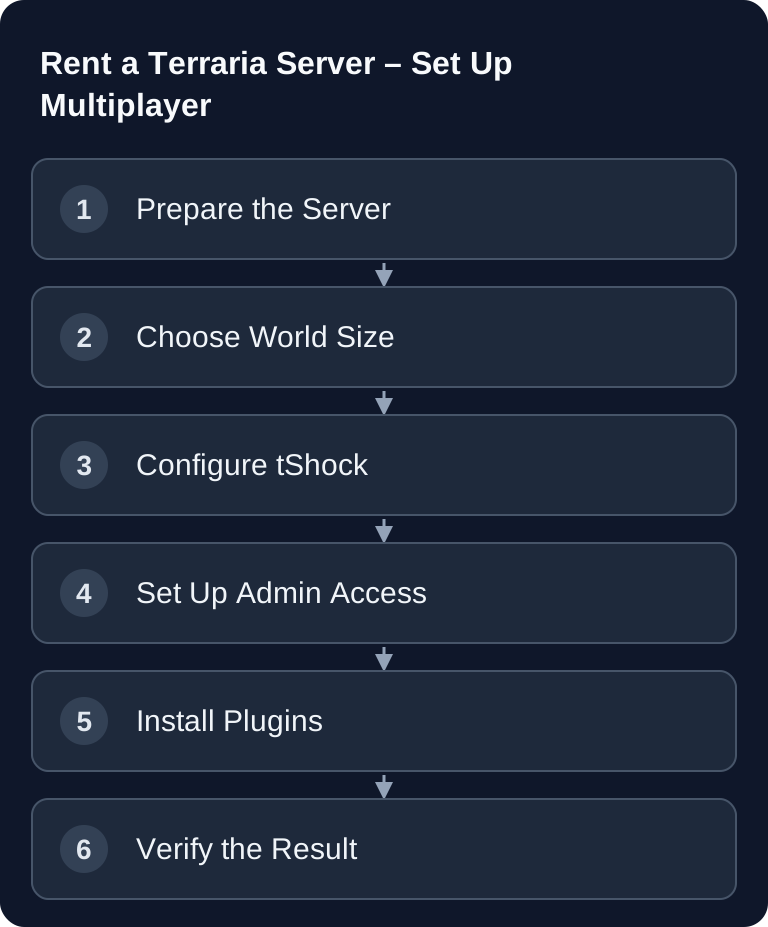
Your own Terraria server is worth it if your group wants to play independently of individual hosts, manage admin permissions cleanly and use mods or tShock plugins in a controlled way. For small to medium groups, Terraria is comparatively light on resources; more important than raw performance are a suitable world size, a stable configuration, backups and clear permission assignment. How to install mods and tShock plugins and keep them up to date is covered in Terraria Server: Mods and Plugins.
Requirements for Your Terraria Server
To get started, you need a Terraria version that matches your fellow players, access to the server panel and a decision on whether the server is meant to be public, private or only for a fixed group. The existing guideline stays: 2 GB RAM is enough for many Terraria setups, especially with small groups and moderate plugin use. If you plan for a lot of players, large worlds or several plugins, you should plan some headroom instead of running the server permanently at its limit.
With game-serverhosting, you are not renting a free community project, but paid multi-game hosting with technical control, support and transparent operations. For ordering, you can use the existing Terraria landing page: game-serverhosting Rent a Terraria Server.
If you are comparing similar co-op or survival setups, the Valheim Server Co-op Guide 2026 and the V Rising Server Vampire Guide also work as internal orientation for server roles, private groups and progression.
Order the Server and Define the Basics
- Go to game-serverhosting
- 2 GB RAM is a planning value for a typical small group. Check the requirement against your world, player count and the extensions you use; larger or more heavily loaded setups need more headroom.
- The server is set up automatically with tShock
Before the first start, define the server name, maximum slots and password. The slot count should not be chosen just by desired size, but by the group that actually plays at the same time. A private server with a password usually makes more sense for fixed groups than an open server, because it reduces griefing, outside progression and spontaneous permission questions.
tShock: Management, Permissions and Plugins
tShock is the server software for Terraria with:
- Permission system
- Plugin support
- Anti-cheat
- REST API
- Region protection
The official project source is Pryaxis's tShock repository on GitHub: Pryaxis/TShock. Treat tShock as a management and security tool, not as a replacement for clear server rules. The permission system is especially important: not every regular player needs owner permissions. Assign permissions by task, such as moderation, region protection or technical administration.
Settings in config.json
The existing example configuration remains a sensible starting point:
{
  "ServerName": "My Terraria Server",
  "MaxSlots": 8,
  "ServerPassword": "secret",
  "SpawnProtection": true,
  "SpawnProtectionRadius": 10,
  "AutoSave": true
}
ServerName should be unique so players can recognize the server. MaxSlots limits concurrent players. ServerPassword protects private worlds. SpawnProtection and SpawnProtectionRadius help against accidental or intentional changes at spawn. AutoSave should stay enabled so that progress is saved regularly. After changes, always check that the JSON syntax is valid: missing commas or wrong quotation marks are enough to prevent startup.
Choose a World Size That Fits the Group
| Size | Blocks | Recommended for |
|---|---|---|
| Small | 4200 x 1200 | 1-4 players |
| Medium | 6400 x 1800 | 4-6 players |
| Large | 8400 x 2400 | 6-8 players |
A small world speeds up travel, boss preparation and resource finding. A medium world is often the best compromise if four to six players are regularly active. Large worlds offer more space and exploration, but can become harder to navigate. For a fixed group, world size is also a design decision: short sessions benefit from more compact worlds, long progression from more room.
Use Admin Commands Safely
/user add <name> <password> owner    # Create admin
/group addperm <group> <permission> # Add permission
/region define <name>                # Create region
/region protect <name> true          # Protect region
/time noon                           # Set noon
/butcher                             # Kill all NPCs
Set up the first administrative access via the intended TShock first-start/setup route. Check that the account has the required group after logging in; a regular player cannot simply give themselves owner permissions via /user add. After that, assign task-based permissions and also test region protection with a regular account.
Install Plugins
- Choose a plugin from a traceable project source and check the supported TShock/Terraria version.
- Stop the server and back up the configuration and world.
- Place the plugin DLL with its documented dependencies in
ServerPlugins. - Fully restart the server and check the loader log as well as the plugin's function.
/reload reloads TShock configurations; it does not reliably replace loading new plugin DLLs.
Only install plugins whose purpose you understand and whose source you can verify. Every plugin widens the attack surface and can change behavior. After every installation, you should check the server log, startup behavior and in-game commands. If a plugin causes errors, first remove the most recently added DLL and restart the server.
Recommended Plugins
- InfiniteChests – More chests
- Regions – Area protection
- SEconomy – Economy system
- AutoBroadcast – Automatic messages
Do not use all plugins automatically. For private co-op servers, region protection and a few convenience features are often enough. Economy systems or automatic messages make more sense for larger community servers.
Verify the Result
After setup, restart the server and connect as a regular player. Check the server name, password, spawn, world size and whether AutoSave is working. Then log in with your admin account and test a harmless command such as /time noon. After that, you check an installed plugin, for example through its help command or a visible function.
Ask a second player to join at the same time. This way you find out early whether slots, password and connection details work correctly. Only then should you hand the access details to the whole group.
Troubleshooting
If the server does not start, first check the most recently changed config.json. JSON errors are a common cause. If players cannot join, check the password, version and slot limit. If admin commands do not work, the user is usually not created correctly or the group does not have the necessary permission.
If a plugin causes problems, remove it from /ServerPlugins as a test, restart the server and check the log. Install plugins one at a time, not as a bundle, so that you can attribute errors clearly. For performance problems, first reduce unnecessary plugins and check whether large worlds or many concurrent players are the cause.
FAQ
How much RAM do I need for a Terraria server?
The existing guideline is 2 GB RAM for typical small Terraria groups. With many players, large worlds or several plugins, you should plan more headroom.
Do I absolutely need tShock?
Not strictly for simple play, but it is very useful for permission management, plugins, region protection and admin control. If you want a permanently operated multiplayer server, tShock is usually the better foundation.
Which world size is best for friends?
For 1-4 players, a small world fits; for 4-6 players, a medium world; and for 6-8 players, a large world. What matters is whether you prefer short distances or more exploration.
How do I protect my spawn?
Enable SpawnProtection, set a sensible SpawnProtectionRadius and, with tShock, additionally use regions if certain areas should not be changed.
Why does my plugin not load?
Check whether the DLL is in the /ServerPlugins folder, whether the server was restarted and whether the plugin matches the tShock version in use. If there are errors, first remove the most recently installed plugin.