Security-Relevant Hotfix 14.1.1
According to Strange Loop Games, Eco 14.1.1 fixes the manipulation of bank data and a startup crash that depended on the plugin load order. Back up your world and configuration before the update; afterwards, check the version, player joining and bank permissions. The patch notice alone does not prove an attack on your community.
Back up the world, configuration and mod files, shut the server down cleanly and use the intended update procedure. Afterwards, check the started version, a normal player join and the bank and account permissions using regular test actions. Also check whether the plugins you used before load without new startup errors. The notice confirms that a vulnerability was fixed; it does not prove that your own server was exploited.
Source: Strange Loop Games: Hotfix 14.1.1.
An Eco server is ready as soon as world size, ports, access rights and backups have been checked before the first community join. This guide takes you from the booked server to a controlled connection test. The key is to set world-generating options before the start and to make later changes only with a current backup.
Eco: Building a Civilization with a Real Ecosystem Simulation
Eco (Strange Loop Games) differs from classic survival titles through its economy and ecosystem simulation: every tree your community fells and every mine it opens has a measurable effect on the world's ecosystem. The goal of most community rounds is to build a working civilization together before an announced meteor threatens the world — cooperation, job specialization and a functioning economy are not side issues here, but the core of the game.
Your own server gives your community full control over world size, starting conditions, difficulty and all rules around economy and government (the latter is covered in the second guide of this series).
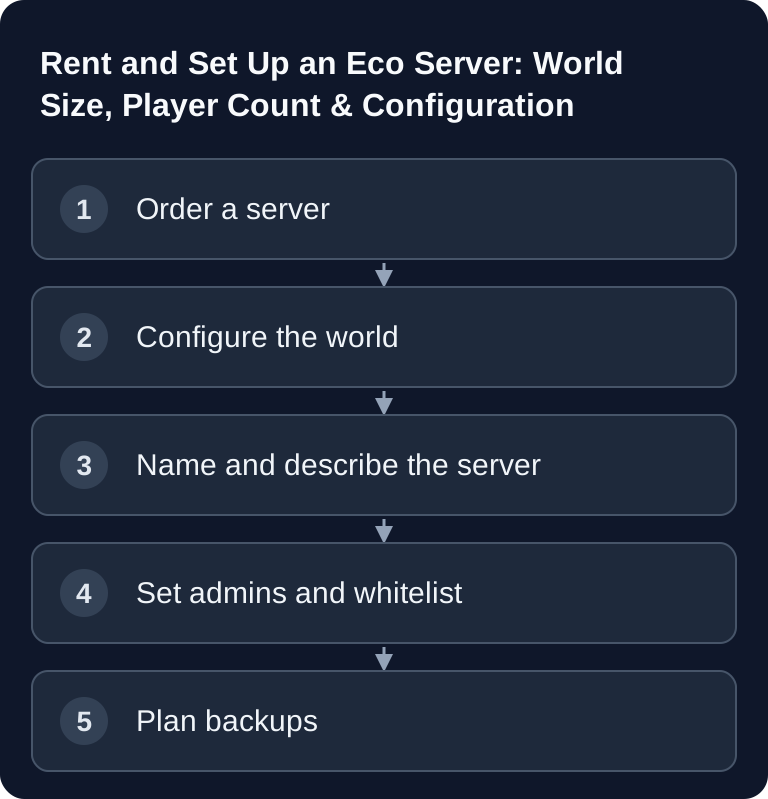
Ordering a Server
Select Eco in the order process and plan RAM based on world size, extensions and actual gameplay. The Eco system requirements base their minimum server specifications on the default world; this does not imply a fixed number of players per GB. Check startup spikes and ongoing load in the panel before you grow your community.
After ordering, your server is provisioned fully automatically. As soon as the status in the dashboard changes to "running", you can start configuring.
Ports: Game and Web Interface
The Eco documentation lists these default ports. For your rented server, use the ports actually assigned in the panel:
| Port | Purpose |
|---|---|
| 3000 | Game connection (clients connect through this) |
| 3001 | Server web interface (server status, chat, partly admin functions in the browser) |
Both ports are assigned automatically when you order and are shown in the panel under the connection details. To connect, your players only need the address together with the assigned game port; the web interface on the assigned web port is optional and is useful for checking the server status even without a running client.
World Size and Starting Conditions
When creating a new world, you define the following in the panel, among other things:
- World size: smaller worlds suit compact groups and short rounds, larger worlds suit long-term community projects with more resource distribution.
- Start of the meteor threat: the classic Eco premise with an impending impact can be enabled or disabled — when disabled, the round plays as pure building without time pressure.
- Starting resources and difficulty: how tough the start is (tool wear, hunger, resource density) is set through the difficulty presets.
Separate ongoing gameplay rules from world generation: changes to WorldGenerator.eco, especially the world size, require a newly generated world. The Eco configuration documentation describes a world restart for this; simply exploring new areas does not apply these generator values. Keep the previous save and its configuration before you prepare a separate new round.
Server Name and Description
The server name and a short description appear in the public server list inside the game itself — for open community servers, a meaningful description (rules, play style, whether role-playing elements such as a government are expected) is worth putting right here, rather than informing players only after they join.
Admins and Whitelist
In the panel, add trusted players as server admins before you publicly advertise the server — admin rights allow you, among other things, to step in during economy or government disputes, which tend to arise on a lively Eco server. For closed rounds (e.g. with a fixed group of friends), additionally enable a whitelist so that only registered player IDs can join.
Backups and Scheduled Restarts
Schedule automatic backups in the web panel and check that they complete and contain the current world state. Coordinate scheduled restarts with the community and then confirm saving, startup and joining. A restart schedule alone does not guarantee stable performance; persistent load or memory errors need their own diagnosis.
Connecting
Your players connect directly from Eco's main menu using the address shown in the panel together with the assigned game port. You can also use a custom subdomain to pass the address on to your community in an easy-to-remember form, instead of sharing a bare IP address.
Official Source and Verification
The official Eco wiki on server setup documents the default ports 3000/UDP and 3001/TCP, the location of the configuration, and the effect of world generator changes. For a rented server, however, the ports assigned in the panel remain authoritative. After every change, check the server startup and a join with a normal player account.
FAQ
Do I always have to enter ports 3000 and 3001 for Eco?
No. Those are the documented default ports. Hosting platforms may assign different ports. Therefore always use the connection details from your panel and share only the game port listed there with your players.
When do I need to generate a new world?
Changes to the world size and WorldGenerator.eco require a newly generated world. Back up the current round together with its configuration and start the new one separately; existing terrain is not retroactively adjusted by the generator change.
Why is my whitelist not working?
The official Eco documentation points out that whitelist entries require an SLG ID or Steam64 ID. A visible player name alone is not enough. Also check that your server password and the whitelist configuration are set correctly together.
What should I back up before an Eco update?
Back up at least the world state and configuration. After the update, first check the server startup and a test join before you open the server to the community again. If problems occur, you can then return to the previous state.
Conclusion
Before the community launch, check the assigned game port, a normal join and a readable world backup. How your community organizes economy and government is covered in the second part of this series.
Continue to: Eco Laws, Government and Economy
Check Ports and World Start Separately
First test the game connection with the details shown in the panel, and then the web interface via its own port. A working website does not yet prove a successful game join. Check world size and starting conditions before the first generation; a later configuration change does not automatically rebuild the existing world. Note the active save and server version before the update. If only plugins prevent startup, remove the most recently added extension from the load path and check again before generating a new world state. Keep the existing world backup separate from testing.