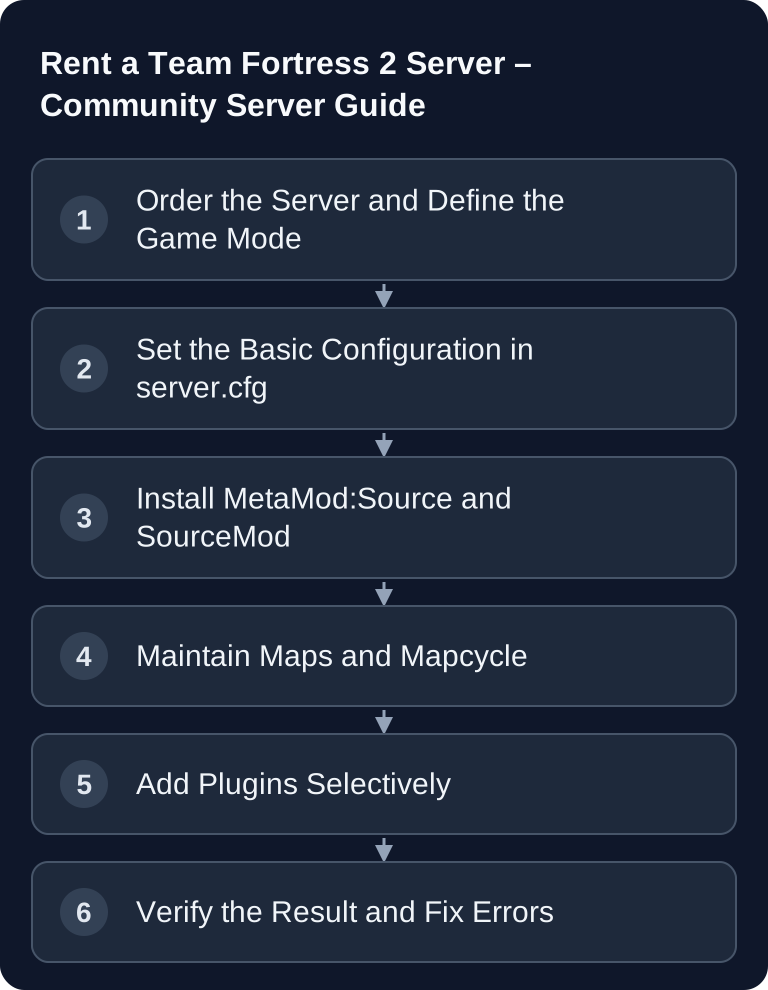
You configure a TF2 server via tf/cfg/server.cfg, a suitable start map and tf/cfg/mapcycle.txt. In the GSH setup, provisioning sets +maxplayers from the booked slots; a manual CFG change does not expand the package. First test a complete vanilla round including a map change; after that, add MetaMod:Source, SourceMod and suitable community plugins.
Requirements and Planning
Before you order the server, decide what it will be used for: classic public server, private training server, trade server, event server or a modified fun server. This decision affects player limit, mapcycle, plugins and moderation effort.
Open the TF2 server selection, choose a currently bookable slot tier and check the included resources. Automatic provisioning adopts the booked slot limit; you then check additional plugins and demanding maps under real load.
If you are also planning other cooperative or dedicated servers alongside TF2, the guides to Renting and Setting Up a Valheim Server and Renting and Setting Up a Rust Server will help, as they cover similar operational questions such as access, updates and community rules from a different game perspective.
Ordering the Server and Checking the Basic Data
After ordering, you should note down the most important management data: server address, port, admin access, file access and restart option. Also check whether the server is reachable after the automatic setup before you install plugins or custom maps. That way you can more easily tell later whether an error comes from the base installation or from a change.
Valve documents the operation of Source dedicated servers in the official Valve Developer Community Wiki at Documentation at developer.valvesoftware.com. Use this primary source as a reference for basic terms around Source servers; game-specific hosting interfaces may differ from it.
Configuring server.cfg
The server.cfg is the central place for recurring server settings. Use the following code block as an example and adjust the values deliberately to your server concept:
hostname "My TF2 Server"
sv_password ""
mp_timelimit 30
mp_maxrounds 5
tf_weapon_criticals 1
sv_pure 1
hostname is the visible name in the server list. An empty sv_password makes the server public; with a password it is suited for training, scrims or closed events. For a self-managed start, +maxplayers 24 illustrates the manufacturer syntax. In the GSH setup, the start value is set from the booked slots; a CFG loaded afterwards is not a package change. Choose the offered slot tier to match maps, game mode and moderation. mp_timelimit and mp_maxrounds control the game flow. tf_weapon_criticals 1 keeps random critical hits active. sv_pure 1 restricts client files and can help reduce unwanted modifications.
Restart the server after changes or reload the configuration if your management interface supports it. Then check in-game whether the name, password behavior, player limit and round rules work as expected.
Game Modes and Map Prefixes
You can usually recognize the most important TF2 game modes by the map prefix. Keep the existing overview and use it for your mapcycle planning:
| Mode | Maps | Description |
|---|---|---|
| Control Point | cp_ | Capture points |
| Capture the Flag | ctf_ | Steal the flag |
| Payload | pl_ | Push the cart |
| King of the Hill | koth_ | Hold the hill |
| Mann vs. Machine | mvm_ | Co-op vs. robots |
Only mix modes if your community explicitly wants that. A server with a clear identity stays easier to understand: for example only Payload, only King of the Hill or a fixed event night with rotating custom maps. For more tactical server concepts, it is also worth taking a look at the guide to Renting a Squad Server, because roles, communication and rules are even more central there.
Setting Up SourceMod and MetaMod
Many TF2 community servers use MetaMod:Source and SourceMod as the plugin base. Install them in this order:
- Install MetaMod:Source
- Install SourceMod
- Add plugins
After installation, you should restart the server and check via the console or logs whether both components were loaded. Afterwards, don't install ten plugins at once. Add one plugin first, restart, test connection, map change and admin commands, and only then move on to the next plugin. This approach saves time because you can attribute errors to a specific plugin.
Choosing Popular Plugins Sensibly
Typical plugin categories are:
- RTD (Roll The Dice) – Random effects
- Dodgeball – Rocket dodgeball mode
- VSH (Versus Saxton Hale) – Boss mode
- Freak Fortress – Custom boss fights
- Trade Server Essentials – For trade servers
Choose plugins that fit the server idea. RTD can make sense on a fun server, but can be disruptive on a serious training server. Dodgeball, VSH and Freak Fortress change the game significantly and require suitable maps, rules and expectations. Trade server plugins only make sense if the server is actually operated as a trading and meeting point.
Installing Custom Maps
TF2 has a large custom map scene. Also check the download permissions before you make a custom map available to players:
- Download maps from tf2maps.net
- Upload to
/tf/maps/ - Enter the map name without
.bspintf/cfg/mapcycle.txt - Test with a client that has no local copy of the map whether download and joining work; a successful server map start alone is not enough
Make sure to use only maps that fit your game mode. A pl_ map belongs to Payload, a koth_ map to King of the Hill. After uploading, the map should be tested in a server map change. If players get stuck while connecting or the server falls back to a default map, check the file name, path and mapcycle entry.
Verifying the Result
Don't test the server only right after startup, but also after a map change. Connect as a regular player and check ping, team selection, round start, chat, voice, admin rights and plugin functions. If the server is meant to be public, also check that it is reachable without a password and that the displayed name is understandable.
For ongoing operation, clear rules matter more than many extensions. Document which plugins are active, which maps are in the cycle and who has admin rights. This keeps the server maintainable even if several people work on it later.
Troubleshooting
If the server does not start, first check the most recently changed file. Common causes are typos in server.cfg, faulty plugin files or a wrong map name in the mapcycle. Remove the last change as a test and restart.
If plugins do not load, check the order: MetaMod:Source first, SourceMod second, plugin last. Also check whether the plugin matches the installed SourceMod version and TF2. Rely on the respective plugin's documentation and on server logs instead of guesses.
If custom maps don't work, check /tf/maps/, file extension, spelling and mapcycle. Upper/lower case and additional characters in the file name can matter depending on the environment. Then test the map manually before adding it permanently to the rotation.
FAQ
How many slots should my TF2 server have?
Plan for the number of players expected at the same time, the game mode and your moderation effort. At GSH, you choose an offered slot tier for this; it is adopted as the +maxplayers start value. A console or CFG change does not book additional slots.
Does my TF2 server have to have a password?
No. An empty sv_password "" makes the server publicly accessible. For training, tests or closed community nights, you should set a password.
Do I absolutely need SourceMod?
Not necessarily for a simple vanilla server. If you want to use admin functions, fun modes, trade features or special community plugins, SourceMod in combination with MetaMod:Source is the usual foundation.
Where do I upload custom maps?
Place custom maps in /tf/maps/ and then add them to the mapcycle. After that, you should test a map change so that you find wrong file names or unsuitable prefixes early.
Which plugins should I install first?
Start with the plugins that are necessary for the server's purpose. Install each plugin individually and then test startup, connection, map change and admin functions before adding further extensions.